
Infinix X609
Infinix X609 Smart 2 Dual SIM 3G Smartphone User Manual
1. Introduction
Welcome to the user manual for your Infinix X609 Smart 2 smartphone. This guide provides essential information to help you set up, operate, maintain, and troubleshoot your device. Please read this manual carefully to ensure proper use and to maximize the performance of your smartphone.
2. Important Safety Information
- Do not use the device in prohibited areas, such as aircraft or hospitals.
- Avoid exposing the device to extreme temperatures, direct sunlight, or high humidity.
- Use only original or certified accessories to prevent damage and ensure safety.
- Do not attempt to disassemble, repair, or modify the device yourself. Refer to qualified service personnel.
- Keep the device and its accessories out of reach of small children.
- Dispose of the device and battery responsibly according to local regulations.
3. Package Contents
Please check the contents of your product box. If any items are missing or damaged, contact your retailer.
- Infinix X609 Smart 2 Smartphone
- Power Adapter
- USB Cable
- Headphones (may vary by region)
- SIM Ejector Tool
- Quick Start Guide
- Warranty Card
4. Device Overview
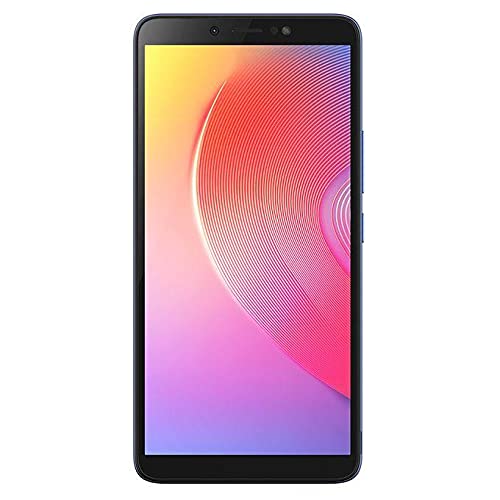
Familiarize yourself with the physical features of your Infinix X609 Smart 2 smartphone.
This image displays the rear panel of the Infinix X609 Smart 2 smartphone. Visible features include the main camera module in the upper left corner, a circular fingerprint sensor below it, the 'Infinix' logo centrally placed, and 'smart' branding near the bottom. The phone has a smooth, matte Aqua Blue finish.
Key Components:
- Front: 6.0-inch LCD Touchscreen, Front Camera, Earpiece, Light Sensor.
- Right Side: Power Button, Volume Up/Down Buttons.
- Top: 3.5mm Headphone Jack.
- Bottom: USB Charging Port, Microphone, Speaker.
- Rear: Main Camera, LED Flash, Fingerprint Sensor, Infinix Logo.
5. Setup
5.1 Inserting SIM Cards and Memory Card
- Locate the SIM card tray on the side of your phone.
- Insert the SIM ejector tool into the small hole next to the tray and push gently until the tray pops out.
- Place your Nano-SIM cards into the designated slots (this device supports dual SIM). Ensure the gold contacts face downwards.
- If using a microSD card for expanded storage, place it into its dedicated slot on the tray.
- Carefully push the tray back into the phone until it is flush with the side.
5.2 Charging the Battery
Before first use, fully charge the device battery.
- Connect the USB cable to the charging port on your phone.
- Connect the other end of the USB cable to the power adapter.
- Plug the power adapter into a wall outlet.
- The charging indicator will appear on the screen.
5.3 Powering On/Off
- To Power On: Press and hold the Power button until the Infinix logo appears.
- To Power Off: Press and hold the Power button until the power options menu appears, then tap 'Power off'.
- To Restart: Press and hold the Power button until the power options menu appears, then tap 'Restart'.
5.4 Initial Setup
Upon first power-on, follow the on-screen prompts to complete the initial setup:
- Select your language.
- Connect to a Wi-Fi network.
- Accept the terms and conditions.
- Sign in to your Google account or create a new one.
- Set up screen lock (PIN, pattern, password, or fingerprint).
6. Operating Your Smartphone
6.1 Basic Navigation
Your Infinix X609 Smart 2 features a touchscreen for interaction:
- Tap: To select an item or open an app.
- Touch and Hold: To access contextual menus or move items.
- Swipe: To scroll through lists or switch between screens.
- Pinch: To zoom in or out on images and web pages.
6.2 Making Calls
- Tap the 'Phone' icon on the home screen.
- Enter the phone number using the dial pad.
- Tap the 'Call' button to initiate the call.
6.3 Sending Messages
- Tap the 'Messages' icon.
- Tap the 'New Message' icon.
- Enter the recipient's number or select from contacts.
- Type your message in the text field.
- Tap 'Send'.
6.4 Internet Connectivity
- Wi-Fi: Go to Settings > Wi-Fi, turn Wi-Fi on, and select your network.
- Mobile Data (3G): Go to Settings > Network & internet > Mobile network, and ensure 'Mobile data' is enabled.
6.5 Using the Camera
Your device is equipped with an 8MP rear camera.
- Tap the 'Camera' icon.
- Frame your shot.
- Tap the 'Shutter' button to take a photo.
- Switch to video mode by swiping or tapping the mode selector.
6.6 Bluetooth Connectivity
To connect to Bluetooth devices:
- Go to Settings > Connected devices > Bluetooth.
- Turn Bluetooth on.
- Select the device you wish to pair with from the list of available devices.
6.7 GPS Navigation
The device supports GPS for location services and navigation applications. Ensure location services are enabled in Settings > Location.
7. Maintenance
7.1 Cleaning Your Device
- Use a soft, lint-free cloth to clean the screen and body of the phone.
- Avoid using harsh chemicals, abrasive cleaners, or aerosol sprays.
- The device is water-resistant; however, avoid submerging it in water. Wipe off any splashes immediately.
7.2 Battery Care
Your device uses a Lithium-ion battery with a capacity of 3000-4000 mAh.
- Avoid fully discharging the battery frequently.
- Do not leave the device charging for extended periods after it is fully charged.
- Store the device in a cool, dry place when not in use for long periods.
7.3 Software Updates
Regularly check for and install software updates to ensure optimal performance and security. Go to Settings > About phone > System update.
8. Troubleshooting
If you encounter issues with your device, try the following solutions:
| Problem | Solution |
|---|---|
| Device does not turn on | Ensure the battery is charged. Connect to a charger and wait a few minutes before attempting to power on again. |
| Cannot connect to network (3G) | Check if SIM cards are properly inserted. Ensure mobile data is enabled in settings. Try restarting the device. Contact your network provider if the issue persists. |
| Touchscreen is unresponsive | Restart the device. If the issue continues, perform a factory reset (backup data first). |
| Battery drains quickly | Close unused apps running in the background. Reduce screen brightness. Disable Wi-Fi, Bluetooth, or GPS when not in use. |
| Apps are crashing | Clear the cache of the problematic app (Settings > Apps > [App Name] > Storage > Clear cache). Update the app or reinstall it. |
9. Specifications
| Feature | Detail |
|---|---|
| Brand | Infinix |
| Model Name | X609 Smart 2 |
| Operating System | Android 6.0 |
| Processor | MediaTek Chipset |
| Display Size | 6.0 inches |
| Display Type | LCD Touchscreen |
| Cellular Technology | 3G, GSM, LTE |
| SIM Card Slots | Dual SIM |
| Battery Capacity | 3000-4000 mAh (Lithium-ion) |
| Rear Camera Resolution | 8 Megapixels |
| Connectivity | Bluetooth, GPS, 3.5mm Headphone Jack |
| Water Resistance | Water-resistant |
| Color | Aqua Blue |
| ASIN | B0979Z4JPM |
10. Warranty and Support
Your Infinix X609 Smart 2 smartphone comes with a limited warranty. Please refer to the warranty card included in your package for detailed terms and conditions, including the warranty period and coverage.
For technical support, service, or further inquiries, please visit the official Infinix website or contact their customer service through the information provided on your warranty card or the Infinix brand store page: Infinix Store.
Related documentsX609


Ask a question about this manual
Ask about setup, troubleshooting, compatibility, parts, safety, or missing instructions. Manuals+ will review the question and use this page’s manual context to help answer it.