
1. Introduction
This manual provides detailed instructions for the installation, operation, and maintenance of your SHO Outdoor Plug-in Smart Security WiFi Camera (Model SH003C-2). This camera system is designed to provide reliable outdoor surveillance with 1080P HD video, IP66 weatherproofing, motion detection, and night vision capabilities. It is compatible with Amazon Alexa and Google Home for integrated smart home control.

Image: Two SHO Smart Security WiFi Cameras, showcasing their design and dual antenna setup.
2. Package Contents
Please verify that all items listed below are included in your package. If any items are missing or damaged, contact customer support.
- SHO Outdoor Smart Security WiFi Camera (2 units)
- Power Adapter (2 units)
- Mounting Screws and Wall Plugs (2 sets)
- User Manual (1 unit)
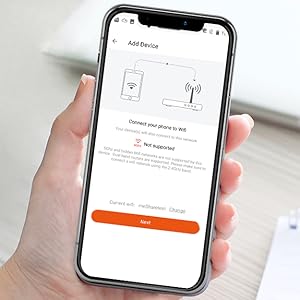
Image: The complete package contents, including two cameras, power adapters, mounting hardware, and the user manual.
3. Product Overview
The SHO SH003C-2 camera features a robust design suitable for outdoor environments. Key components include:
- 1080P HD Lens: Provides clear, high-definition video footage.
- Infrared LEDs: Enable automatic night vision for surveillance in low-light or dark conditions.
- Motion Sensor: Detects movement within its field of view to trigger recordings and alerts.
- WiFi Antenna: Ensures stable wireless connectivity to your home network.
- Mounting Bracket: Adjustable for optimal positioning and secure installation.
- Power Input: For connecting the included power adapter.

Image: A close-up of the SHO camera highlighting its night vision capabilities with visible infrared LEDs.
4. Setup
4.1 Powering the Camera
- Connect the provided power adapter to the camera's power input port.
- Plug the power adapter into a standard electrical outlet. The camera will power on and initiate its startup sequence.
4.2 App Installation and Account Creation
- Download the 'SHO App' from your smartphone's app store (iOS or Android).
- Open the app and follow the on-screen instructions to create a new account or log in if you already have one.
4.3 Connecting to Wi-Fi
The SHO camera connects via 2.4GHz Wi-Fi networks. 5GHz networks and hidden SSID networks are not supported.
- In the SHO App, tap 'Add Device' or the '+' icon.
- Select your camera model from the list.
- Follow the app's prompts to connect the camera to your 2.4GHz Wi-Fi network. This typically involves scanning a QR code generated by the app with the camera lens or entering Wi-Fi credentials.
- Ensure your smartphone is connected to the same 2.4GHz Wi-Fi network during the setup process.

Image: A smartphone screen displaying the SHO App's 'Add Device' interface, illustrating the Wi-Fi connection process and noting that 5GHz and hidden networks are not supported.
4.4 Mounting the Camera
The camera is designed for wall mounting. Choose a location that provides the desired field of view and is within range of a power outlet and your Wi-Fi network.
- Mark the desired drilling points on the wall using the camera's mounting bracket as a template.
- Drill pilot holes and insert the wall plugs if mounting into masonry or drywall.
- Secure the mounting bracket to the wall using the provided screws.
- Attach the camera to the mounting bracket and adjust its angle for optimal coverage. Ensure the camera is securely fastened.

Image: A SHO camera mounted on an exterior wall, demonstrating its IP66 weatherproof design under simulated rain conditions.
5. Operating the Camera
5.1 Live View and Recording
Access the SHO App on your smartphone to view live 1080P HD video from your camera. You can initiate manual recordings or capture screenshots directly from the live view interface.

Image: A SHO camera positioned to capture a wide outdoor scene in 1080P HD, illustrating its clear video capabilities.
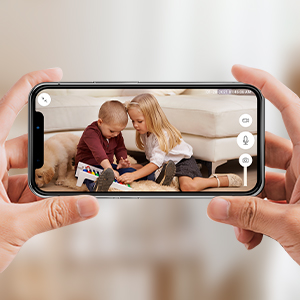
Image: A smartphone held horizontally, showing a live video feed from the SHO camera, demonstrating remote viewing functionality.
5.2 Motion Detection and Alerts
The camera is equipped with a motion sensor that detects activity. When motion is detected, the camera can automatically record footage and send push notifications to your smartphone.
- Customized Motion Detection Area: Within the app settings, you can define specific areas in the camera's view where motion detection should be active, reducing false alerts.
- Alert Type: The system is configured for motion-only alerts.

Image: A smartphone displaying a push notification for 'Pet Detected' from the SHO camera, indicating its motion detection feature.
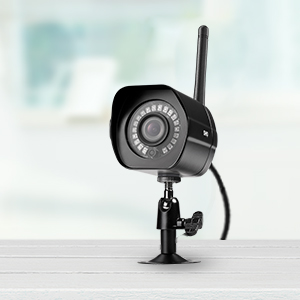
Image: A smartphone screen showing the SHO App interface for defining a customized motion detection area within the camera's view.
5.3 Night Vision
The camera automatically switches to night vision mode in low-light conditions, providing clear black-and-white footage up to a certain range.

Image: A split image showing the same house scene in daytime (color) and night vision (black and white), demonstrating the camera's automatic night vision capability.
5.4 Smart Home Integration
The SHO camera is compatible with Amazon Alexa and Google Home. You can use voice commands to control your camera or view its feed on compatible smart displays.
- Amazon Alexa: Enable the SHO skill in the Alexa app and link your SHO account. Use commands like "Alexa, show me the front door camera."
- Google Home: Link your SHO account through the Google Home app. Use commands like "Hey Google, show me the backyard camera."
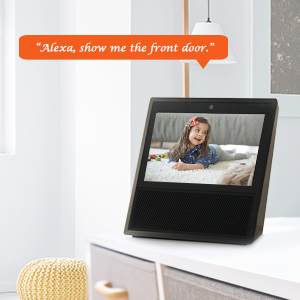
Image: A woman in a kitchen, with an Amazon Echo Show displaying a live feed from an outdoor camera, illustrating Alexa integration with the SHO camera.
6. Maintenance
To ensure optimal performance and longevity of your SHO camera, consider the following maintenance tips:
- Lens Cleaning: Periodically clean the camera lens with a soft, damp cloth to remove dust, dirt, or water spots that may obstruct the view. Avoid abrasive cleaners.
- Power Connection: Regularly check the power cable and adapter for any signs of damage or wear. Ensure the connection remains secure.
- Firmware Updates: Keep the camera's firmware updated through the SHO App to benefit from the latest features and security enhancements.
- Environmental Protection: While the camera is IP66 weatherproof, positioning it under an eave or overhang can offer additional protection from extreme weather conditions, potentially extending its lifespan.
7. Troubleshooting
If you encounter issues with your SHO camera, refer to the following common troubleshooting steps:
- Camera Not Connecting to Wi-Fi:
- Ensure your Wi-Fi network is 2.4GHz. The camera does not support 5GHz or hidden SSID networks.
- Verify the Wi-Fi password is entered correctly in the app.
- Move the camera closer to your Wi-Fi router to improve signal strength.
- Restart your Wi-Fi router and the camera.
- No Live View or Disconnections:
- Check the camera's power supply and ensure it is receiving power.
- Confirm your internet connection is stable.
- If the camera frequently disconnects, consider its distance from the router and potential interference.
- Poor Night Vision Quality:
- Ensure the camera lens is clean and free from obstructions.
- Check for reflective surfaces close to the camera that might cause IR glare.
- Motion Detection Not Working or Too Many False Alerts:
- Verify motion detection is enabled in the SHO App settings.
- Adjust the motion sensitivity settings in the app.
- Utilize the customized motion detection area feature to exclude irrelevant zones (e.g., busy streets, swaying trees).
- Camera Reset: If issues persist, a factory reset may be necessary. Refer to the SHO App or the manufacturer's support website for specific reset instructions for your model.
8. Specifications
| Model Number | SH003C-2 |
| Brand | SHO Smart Home & Office |
| Connectivity Technology | Wireless (Wi-Fi 2.4GHz) |
| Power Source | Corded Electric |
| Video Capture Resolution | 1080p |
| International Protection Rating | IP66 (Weatherproof) |
| Special Features | Motion Sensor, Night Vision |
| Indoor/Outdoor Usage | Outdoor |
| Compatible Devices | Smartphone |
| Controller Type | Amazon Alexa, Google Home |
| Mounting Type | Wall Mount |
| Item Weight | 1.91 pounds (0.87 Kilograms) |
| UPC | 889490021692 |
| Package Dimensions | 10.17 x 6.42 x 3.7 inches |
9. Warranty and Support
For warranty information and technical support, please refer to the documentation included with your product or visit the official SHO Smart Home & Office website. You can also contact customer service through the SHO App or the contact details provided on the product packaging.
Please retain your proof of purchase for any warranty claims.