
Introduction
This manual provides essential instructions for the proper use and maintenance of your Easytry123 replacement remote control. This remote is designed to be compatible with various Hisense Smart 4K UHD LED TV models. Please read this manual thoroughly before operating the remote control.
Product Overview
The Easytry123 replacement remote control is an ergonomic, button-controlled device utilizing infrared technology for seamless interaction with compatible Hisense televisions. It features dedicated buttons for power, volume, channel control, navigation, and quick access to popular streaming services.


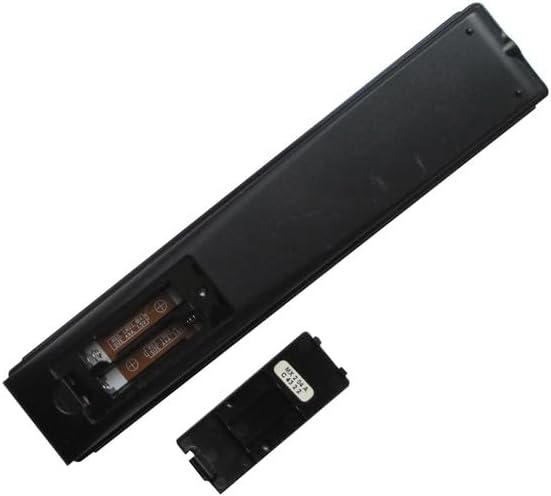

Setup
Battery Installation
- Locate the battery compartment on the back of the remote control.
- Slide the battery cover downwards or press the latch and lift to open. (Refer to Figure 3 and Figure 4)
- Insert two (2) AAA batteries, ensuring the positive (+) and negative (-) terminals align correctly with the markings inside the compartment.
- Replace the battery cover by sliding it back into position until it clicks securely. (Refer to Figure 5)
No additional setup or coding is required for this replacement remote control. It is designed to work directly with compatible Hisense TV models once batteries are installed.
Operating Instructions
This remote control operates using infrared (IR) signals. Ensure there is a clear line of sight between the remote's IR emitter (located at the top front) and your television's IR receiver.
- Power Button: Press the Power button (usually red, top right) to turn the TV on or off.
- Volume Control: Use the VOL + and VOL - buttons to adjust the audio volume.
- Channel Control: Use the CH ^ and CH v buttons to change TV channels.
- Navigation Pad: The central circular pad with directional arrows (Up, Down, Left, Right) and a central OK/Enter button is used to navigate menus and select options.
- Back Button: Press the Back button (left arrow) to return to the previous screen or menu.
- Home Button: Press the Home button (house icon or circle) to access the TV's main smart interface.
- App Shortcut Buttons: Dedicated buttons for services like Sling, Google Play, Fandango Now, and Tikilive provide quick access to these applications.
- Google Assistant Button: The button with the Google Assistant logo (colored dots) activates voice commands if your TV supports this feature.
- Input/123 Button: This button (often labeled '123' or with an input icon) allows you to switch between different input sources (HDMI, AV, etc.).
- Mute Button: The button with a crossed-out speaker icon mutes or unmutes the TV audio.
- Playback Controls: Buttons like Play/Pause, Rewind, and Fast Forward are used for media playback.
- CC (Closed Captioning): Toggles closed captions on or off.
- NRT (No Remote Timer): Functionality may vary by TV model.
- MTS (Multi-channel Television Sound): Allows selection of audio tracks (e.g., stereo, SAP).
Maintenance
- Cleaning: Wipe the remote control with a soft, dry cloth. Do not use liquid cleaners or abrasive materials.
- Battery Care: Replace batteries when the remote's response becomes sluggish or stops working. Remove batteries if the remote will not be used for an extended period to prevent leakage.
- Storage: Store the remote in a cool, dry place away from direct sunlight and extreme temperatures.
Troubleshooting
- Remote not responding:
- Ensure new AAA batteries are correctly installed with proper polarity.
- Check for any obstructions between the remote and the TV's IR receiver.
- Point the remote directly at the TV.
- Try replacing the batteries with a fresh set.
- Certain functions not working:
- This is a replacement remote and may not support all advanced functions of your original TV remote.
- Verify that your TV model is listed as compatible with this remote.
- Interference: Strong light sources or other infrared devices can sometimes interfere with the remote's signal.
Specifications
| Brand | Easytry123 |
| Compatible Devices | Television (Various Hisense Smart 4K UHD LED TV Models) |
| Connectivity Technology | Infrared |
| Controller Type | Button Control |
| Special Feature | Ergonomic |
| Batteries Required | 2 AAA batteries |
Important Notes
- This is a replacement remote control and is not a universal remote control.
- The replacement item may not work with all functions as the original remote. Some advanced or specific features of your original remote might not be supported.
- It is easy to use and does not require a manual or batteries to be included in the package.
- There is no need for setup or code programming; it works directly with compatible models.
- Always ensure our remote matches the model number of your unit for optimal compatibility.
Warranty and Support
Specific warranty information for this product is not provided in this manual. For any issues or support inquiries, please refer to the seller or retailer from whom the product was purchased. Ensure you retain your proof of purchase for any potential warranty claims.