
1. Introduction
Welcome to the user manual for your Motorola Moto G30 XT2129-2 smartphone. This guide provides essential information to help you set up, operate, and maintain your device. Please read this manual thoroughly to ensure optimal performance and longevity of your smartphone.
2. Product Overview
The Motorola Moto G30 XT2129-2 is a feature-rich smartphone designed for a smooth user experience. It boasts a 64 MP quad-camera system for high-resolution photography, a 90Hz display for fluid visuals, and a long-lasting 5000 mAh battery. Powered by a Qualcomm Snapdragon 662 octa-core processor, it delivers efficient performance for daily tasks and entertainment.
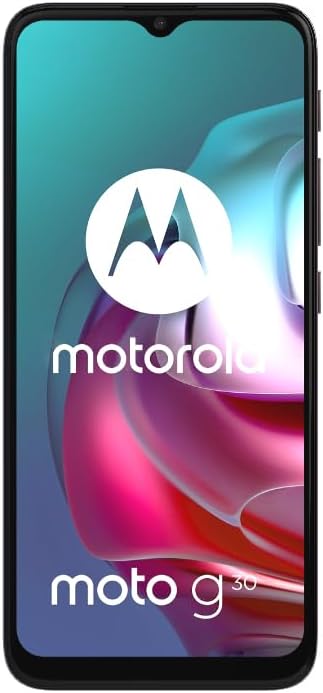
Figure 2.1: Front view of the Motorola Moto G30 XT2129-2, showcasing its display and front camera.

Figure 2.2: Left side view of the Motorola Moto G30 XT2129-2, highlighting the SIM tray location.

Figure 2.3: Rear view of the Motorola Moto G30 XT2129-2, showing the quad-camera module and Motorola logo.

Figure 2.4: Right side view of the Motorola Moto G30 XT2129-2, displaying the power and volume buttons.
3. Setup
3.1 Inserting the SIM Card
- Locate the SIM tray on the side of your device.
- Use the SIM ejector tool (if provided) to open the tray.
- Place your Nano-SIM card(s) and/or microSD card into the tray with the gold contacts facing down.
- Carefully reinsert the tray into the phone.
3.2 Initial Power On and Setup
- Press and hold the Power button until the Motorola logo appears.
- Follow the on-screen prompts to select your language, connect to Wi-Fi, and set up your Google account.
- You may be prompted to transfer data from an old device or restore from a backup.
3.3 Charging the Battery
Before first use, it is recommended to fully charge your device. Connect the provided adapter to the phone's charging port and plug it into a power outlet. The Moto G30 supports TurboPower 20 charging, providing up to 12 hours of power in just 20 minutes of charging.
4. Operating Instructions
4.1 Basic Navigation
- Touchscreen Gestures: Tap to select, swipe to scroll, pinch to zoom.
- Home Screen: Access apps, widgets, and notifications.
- Quick Settings: Swipe down from the top of the screen to access common settings like Wi-Fi, Bluetooth, and brightness.
4.2 Camera Usage
The Moto G30 features a versatile 64 MP quad-camera system. Open the Camera app to access various modes including Photo, Video, Portrait, and Night Vision. Tap the shutter button to capture images or start/stop video recording. Use the on-screen controls to switch between lenses, adjust zoom, and apply filters.
4.3 Display Features
Enjoy a smoother viewing experience with the 6.5-inch HD+ display featuring a 90Hz refresh rate. This higher refresh rate provides fluid scrolling and improved responsiveness, especially during gaming and video playback. You can adjust display settings such as brightness, color mode, and refresh rate in the Settings menu.
4.4 Battery Management
The 5000 mAh battery is designed to last over two days on a single charge. To optimize battery life, manage background app usage, reduce screen brightness, and enable battery saver mode when needed. Avoid extreme temperatures to prolong battery health.
5. Maintenance
5.1 Cleaning Your Device
Use a soft, lint-free cloth to gently wipe the screen and body of your phone. Avoid using harsh chemicals or abrasive materials, as these can damage the device's finish and screen coating.
5.2 Software Updates
Regularly check for and install software updates to ensure your device has the latest features, security patches, and performance improvements. You can find update options in the Settings menu under 'System' > 'System updates'.
5.3 Battery Care
To maintain optimal battery health, avoid fully discharging the battery frequently. Charge your phone using only approved chargers and cables. Do not expose the device to extreme heat or cold.
6. Troubleshooting
6.1 Device Not Turning On
- Ensure the battery is charged. Connect the charger and wait a few minutes before attempting to power on.
- Press and hold the Power button for at least 10-15 seconds to perform a forced restart.
6.2 Poor Battery Life
- Check battery usage in Settings to identify apps consuming excessive power.
- Reduce screen brightness and disable unnecessary features like GPS, Bluetooth, or Wi-Fi when not in use.
- Enable Battery Saver mode.
6.3 App Crashing or Freezing
- Close and reopen the app.
- Clear the app's cache and data in Settings > Apps.
- Ensure the app is updated to its latest version.
- Restart your phone.
7. Specifications
| Feature | Detail |
|---|---|
| Model Name | Moto G30 (XT2129-2) |
| Operating System | Android |
| Display Size | 6.5 Inches |
| Display Resolution | 1600 x 720 (HD+) |
| CPU Model | Qualcomm Snapdragon 662 |
| CPU Speed | 2 GHz |
| RAM | 6 GB |
| Memory Storage Capacity | 128 GB |
| Rear Camera | 64 MP Quad Camera System |
| Battery Capacity | 5000 Milliamp Hours |
| Product Dimensions | 0.36 x 2.98 x 6.5 inches |
| Item Weight | 6.9 ounces (197 Grams) |
| Connectivity | Bluetooth, Cellular (4G LTE) |
| Whats in the box | Adapter |
8. Warranty and Support
Please note that this is an International Version of the Motorola Moto G30 XT2129-2 and does not include a US Warranty. For warranty information specific to your region, please refer to the documentation provided with your purchase or visit the official Motorola support website for your country.
For further assistance, technical support, or to find service centers, please visit the official Motorola support website or contact their customer service department in your region.


