
funxwe FS31
funxwe Smart WiFi PTZ Security IP Camera (Model FS31) User Manual
Your guide to setup, operation, and maintenance.
1. Introduction
This manual provides detailed instructions for the installation, configuration, and operation of your funxwe Smart WiFi PTZ Security IP Camera, Model FS31. Please read this manual thoroughly before using the product to ensure proper functionality and safety.
2. Package Contents
Verify that all items are present in your package:
- funxwe Smart WiFi PTZ Security IP Camera (Model FS31)
- 9ft Power Cord
- Power Adapter
- Mounting Screws
- Mounting Bracket
- User Manual (this document)
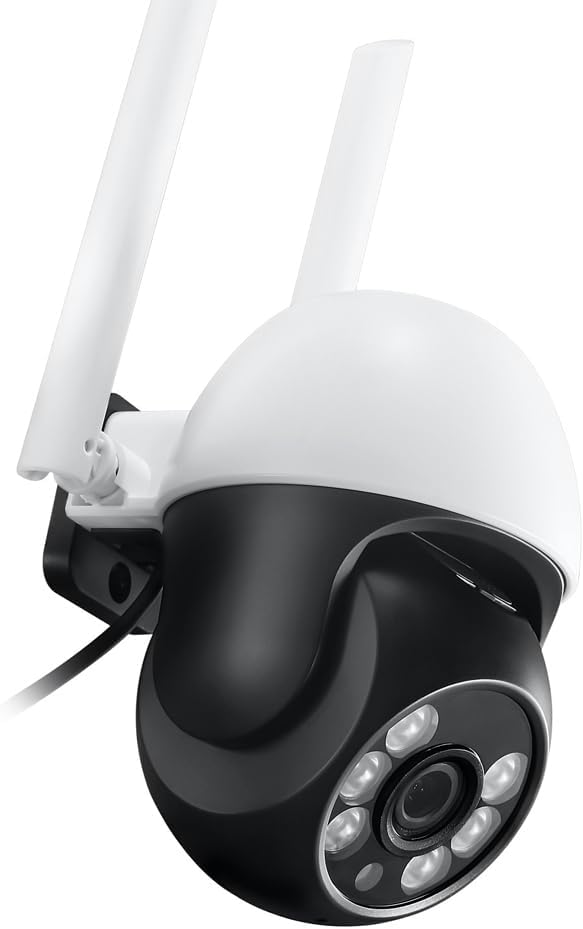
Image 2.1: funxwe Smart WiFi PTZ Security IP Camera, Model FS31.
3. Product Overview
Familiarize yourself with the components of your camera:

Image 3.1: Labeled diagram of the camera showing the SD card slot, reset button, WiFi antenna, quick mounting bracket, USB power cord, 2MP HD lens, infrared lights, photosensitive sensor, and microphone.
- SD Card Slot: Insert a Micro SD card (up to 256GB, not included) for local storage.
- Reset Button: Used to restore factory settings.
- WiFi Antenna: For wireless network connection.
- Quick Mounting Bracket: For secure installation.
- USB 9ft Power Cord: Connects to the power adapter.
- 2MP HD Lens: Captures 1080P video.
- Infrared Light: Provides illumination for night vision.
- Photosensitive Sensor: Detects ambient light for automatic day/night mode switching.
- Microphone: For two-way audio communication.
4. Setup Instructions
Follow these steps to set up your funxwe Smart WiFi PTZ Security IP Camera:
4.1. Download the App
Download the free 'Camhipro' or 'Camhi' app from the iOS App Store (for iPhone) or Google Play Store (for Android smartphones and tablets). For PC, use the 'HiP2P' client software.
4.2. Power On the Camera
- Connect the provided power cord to the camera and then to the power adapter.
- Plug the power adapter into a wall outlet. The camera will power on and initiate its self-test.
4.3. Connect to Wi-Fi
The camera supports 2.4GHz and 5GHz dual-band Wi-Fi, as well as Bluetooth connection. Ensure your Wi-Fi network name (SSID) and password do not contain special characters.
- Open the 'Camhipro' or 'Camhi' app on your smartphone.
- Follow the in-app instructions to add a new camera. This typically involves scanning a QR code on the camera or searching for it on the local network.
- Select your Wi-Fi network and enter the password when prompted.
- Wait for the camera to connect to your Wi-Fi network. A voice prompt or indicator light will confirm successful connection.
AP Mode: For direct connection without a router, the camera supports P2P (peer-to-peer) connection via its Wi-Fi hotspot. The wireless distance in AP mode is up to 65ft (20m).

Image 4.1: Step-by-step guide for connecting the camera using the Camhipro app, including opening the app, adding a camera, scanning a QR code, and inputting the password.
5. Operating Instructions
5.1. Pan and Tilt Control
The camera features PTZ (Pan-Tilt-Zoom) functionality, allowing remote adjustment of its viewing angle:
- Horizontal Pan: 0-320 degrees.
- Vertical Tilt: 0-90 degrees.
- Control rotation remotely through the mobile app or PC software.
- Support for preset points and cruise functions can be configured in the app.

Image 5.1: Illustration of the camera's 320-degree horizontal rotation and 90-degree vertical rotation capabilities.
5.2. Two-Way Audio
The camera includes a built-in microphone and speaker, enabling real-time two-way audio communication. Use this feature to speak with individuals near the camera directly from your smartphone app.

Image 5.2: A user interacting with a child via the camera's two-way audio function, showing the app interface for speaking and listening.
5.3. Motion Detection and Auto Tracking
The camera can detect motion and automatically track moving objects. When motion is detected, the camera will:
- Push real-time alert notifications to your app.
- Send pictures to your configured email address.
- Save pictures or record video to the SD card or FTP server.
- Trigger a siren alert (if enabled).
The auto-tracking feature allows the camera to follow detected human movement. You can set up to 4 independent detection regions and adjust sensitivity from 1 to 100.
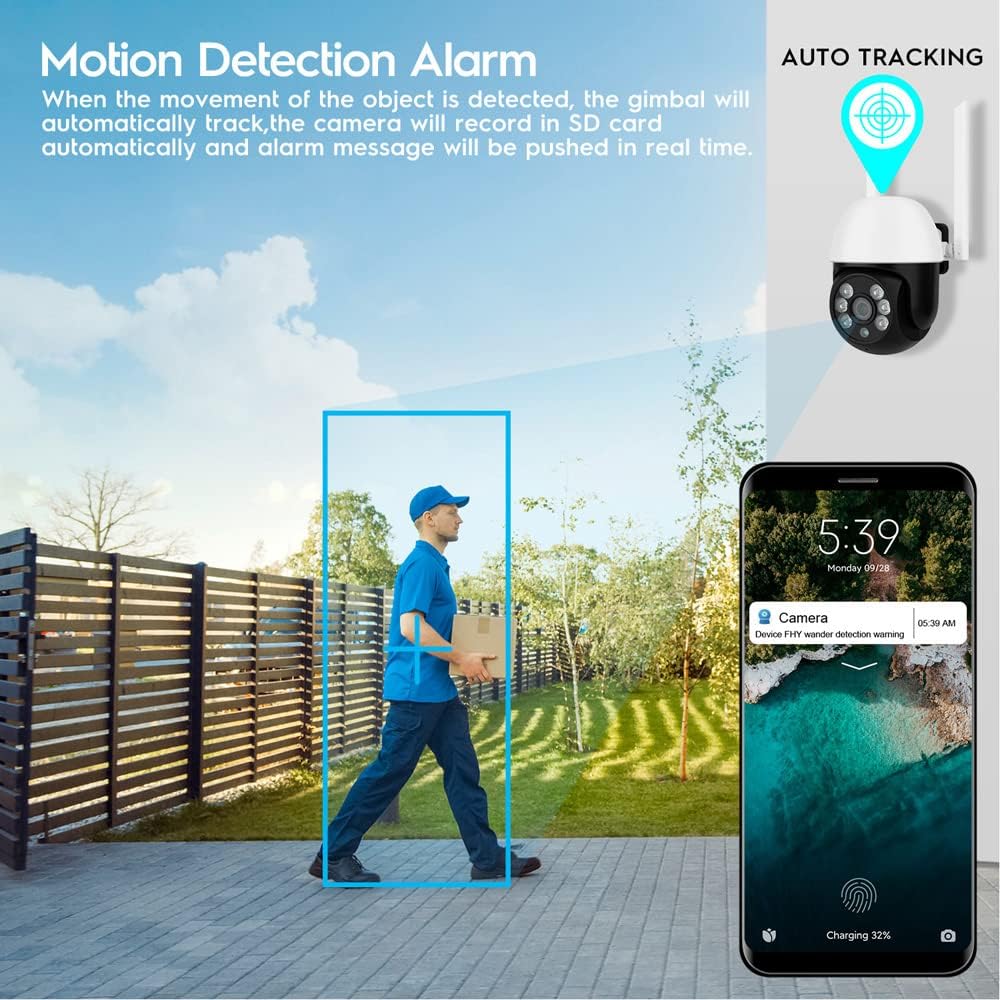
Image 5.3: A person walking past the camera, triggering motion detection and auto-tracking, with an alert notification displayed on a smartphone.
5.4. Night Vision
The camera is equipped with 8 infrared and white light LEDs, supporting various night vision modes:
- Infrared Night Vision: Automatically switches to black and white mode in low light, with an infrared distance of up to 65ft (20m).
- Color Night Vision: Utilizes white LEDs to provide full-color video in low light conditions.
- Intelligent Night Vision: The camera remains in infrared mode until human motion is detected, at which point it switches to color night vision and activates spotlights.

Image 5.4: Visual comparison of different night vision modes: standard infrared, full-color, and intelligent night vision with human detection.
5.5. Recording and Storage
The camera offers flexible recording options:
- Micro SD Card: Supports up to 256GB (not included) for alarm recording, timing recording, and 24/7 loop recording. Older files are automatically overwritten when the card is full.
- Cloud Storage: Supports cloud storage services for secure off-site backup of your recordings.

Image 5.5: Diagram illustrating cloud storage and SD card storage options, with a smartphone app showing intelligent playback from a timeline.
6. Maintenance
To ensure optimal performance and longevity of your camera:
- Cleaning: Gently wipe the camera lens and body with a soft, dry cloth. Avoid using harsh chemicals or abrasive cleaners.
- Environmental Conditions: The camera has an IP65 waterproof rating and operates in temperatures from -20℃ to +60℃ (-4℉ to +140℉) with humidity 10%–90% (non-condensing). Ensure it is installed within these parameters.
- Firmware Updates: Periodically check the app for available firmware updates to ensure your camera has the latest features and security enhancements.

Image 6.1: The camera shown in a rainy environment, demonstrating its IP65 waterproof capability.
7. Troubleshooting
If you encounter issues with your camera, refer to the following common problems and solutions:
| Problem | Possible Cause | Solution |
|---|---|---|
| Camera fails to connect to Wi-Fi. | Incorrect Wi-Fi password, network interference, special characters in SSID/password, camera too far from router. | Verify Wi-Fi password. Ensure SSID/password contain no special characters. Move camera closer to router. Try AP mode for direct connection. Reset camera and try again. |
| No video feed or camera freezes. | Poor network connection, power interruption, camera malfunction. | Check network stability. Restart the camera by unplugging and replugging the power. Ensure power supply is stable. If problem persists, contact support. |
| SD card not recording or recognized. | SD card not inserted correctly, card is full, card is corrupted, incompatible card. | Ensure SD card is inserted correctly. Format the SD card via the app. Try a different compatible SD card (up to 256GB). |
| Motion detection alerts not received. | App notifications disabled, detection sensitivity too low, detection region not set. | Enable notifications for the app on your phone. Adjust motion detection sensitivity in the app. Configure detection regions. |
| Two-way audio not working. | Microphone/speaker muted in app, volume too low, network latency. | Check audio settings in the app. Increase volume. Ensure stable network connection. |
8. Specifications
| Feature | Detail |
|---|---|
| Model Number | FS31 |
| Video Resolution | 1080P (1920x1080) |
| Sensor | 2.0 Megapixels 1/3" low lux CMOS |
| Digital Zoom | 3X |
| Lens | 3.6mm fixed lens |
| Viewing Angle | 82 degrees (horizontal) |
| Pan/Tilt Range | Horizontal: 0-320 degrees, Vertical: 0-90 degrees |
| Night Vision Distance | 65ft (20m) |
| Audio | Built-in microphone and speaker (Two-way audio) |
| Storage Options | Micro SD card (up to 256GB, not included), Cloud Storage |
| Wireless Connectivity | 2.4GHz/5GHz Dual-band Wi-Fi, Bluetooth |
| Connectivity Protocols | RTSP, DDNS, Onvif (compatible with NVR, Blue Iris, VLC) |
| Power Supply | DC5V 1A (USB power interface) |
| Operating Temperature | -20℃~+60℃ (-4℉~+140℉) |
| Operating Humidity | 10%–90% (non-condensing) |
| Waterproof Rating | IP65 |
| Material | Durable ABS plastic shell |
| Dimensions (L x W x H) | 4.7 x 3.5 x 3.1 inches |
| Item Weight | 11.3 ounces (0.32 kg) |
9. Warranty and Support
funxwe provides lifetime technical support and a free spare parts replacement warranty for this product. For assistance, please refer to the contact information provided with your purchase or visit the official funxwe support website.
Ask a question about this manual
Ask about setup, troubleshooting, compatibility, parts, safety, or missing instructions. Manuals+ will review the question and use this page’s manual context to help answer it.