
Lenovo 4Y51C21217
Lenovo GO Wireless Multi-Device Mouse User Manual
Model: 4Y51C21217
Introduction
Thank you for choosing the Lenovo GO Wireless Multi-Device Mouse. This high-performance mouse is designed for seamless productivity across multiple devices, offering versatile connectivity, adjustable sensitivity, and convenient charging options. This manual provides detailed instructions on setting up, operating, maintaining, and troubleshooting your new mouse.
Safety Information
- Do not expose the mouse to extreme temperatures or humidity.
- Keep the device dry. Do not immerse it in water or other liquids.
- Avoid dropping or subjecting the mouse to strong impacts.
- Do not attempt to disassemble or repair the mouse yourself. Refer to qualified service personnel.
- Dispose of the mouse and its battery according to local regulations.
Package Contents
Verify that all items are present in your package:
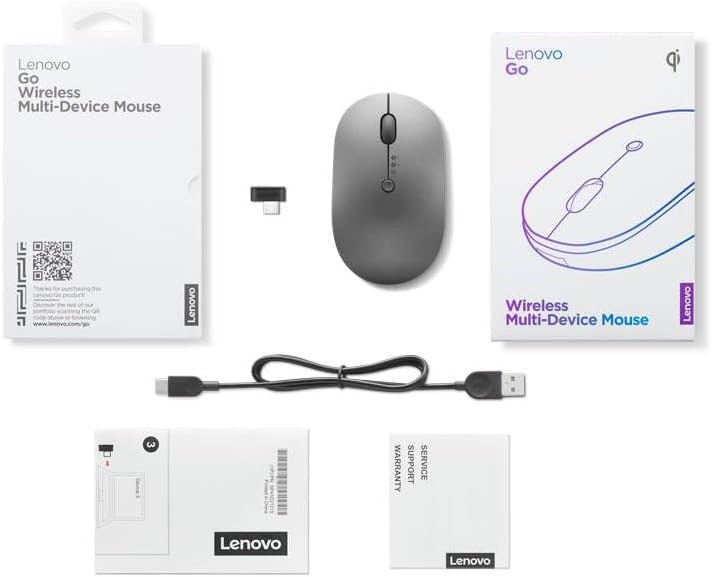
Image: The Lenovo GO Wireless Multi-Device Mouse, USB-C dongle, USB-C charging cable, and documentation laid out with their packaging.
- Lenovo GO Wireless Multi-Device Mouse
- USB Type-C Wireless Dongle
- USB Type-C to USB Type-A Charging Cable
- Documentation (Quick Start Guide, Warranty Information)
Product Overview
Familiarize yourself with the various components and buttons of your Lenovo GO mouse.

Image: Top view of the mouse showing the left and right click buttons, scroll wheel, and device switch button.

Image: Side view of the mouse highlighting the programmable side button.

Image: Bottom view of the mouse, displaying the Blue LED optical sensor, power switch, and the Qi wireless charging symbol.
- Left/Right Click Buttons: Standard mouse buttons for primary and secondary actions.
- Scroll Wheel: For vertical scrolling and can also function as a middle click button.
- DPI Switch Button: Located on the top, allows cycling through 800, 1600, and 2400 DPI settings.
- Device Switch Button: Located on the top, allows switching between up to three connected devices.
- Side Button: Programmable button, optimized for 'Call Mode' functions during online meetings.
- Blue LED Optical Sensor: Provides precise tracking on various surfaces.
- Power Switch: Located on the bottom, to turn the mouse On/Off.
- USB-C Charging Port: Located at the front for wired charging.
- Qi Wireless Charging Area: Located on the bottom for wireless charging compatibility.
Setup
Charging the Mouse
Your Lenovo GO mouse can be charged via USB-C cable or wirelessly using a Qi-compatible charging pad.
- USB-C Charging: Connect the provided USB-C cable to the mouse's charging port and the other end to a power source (e.g., computer USB port, wall adapter). A 15-minute charge provides approximately 1 week of use, while a 2-hour charge can last for 2-3 months.
- Qi Wireless Charging: Place the mouse on a Qi-compatible wireless charging pad. Ensure the Qi symbol on the mouse's bottom aligns with the charging area of the pad.
Connecting to Devices
The mouse supports connection to up to three devices: two via Bluetooth 5.0 and one via the dedicated USB Type-C dongle.

Image: The Lenovo GO Wireless Multi-Device Mouse shown alongside its compact USB-C wireless dongle.
- For USB Type-C Dongle Connection:
- Insert the USB Type-C wireless dongle into an available USB-C port on your computer or device.
- Turn on the mouse using the power switch on the bottom.
- Press the device switch button on the top of the mouse until the indicator light for the dongle connection (usually marked with a computer icon) illuminates. The mouse should automatically connect.
- For Bluetooth Connection (Device 1 & 2):
- Turn on the mouse.
- Press and hold the device switch button on the top of the mouse for 3 seconds until the indicator light for Bluetooth 1 or Bluetooth 2 starts blinking rapidly. This indicates pairing mode.
- On your device (computer, tablet, smartphone), go to Bluetooth settings and search for new devices.
- Select "Lenovo GO Mouse" from the list of available devices to complete the pairing process.
- Repeat for a second Bluetooth device if desired, selecting the other Bluetooth channel (Bluetooth 2).
Operating Instructions
Switching Between Devices
To switch between your connected devices, simply press the device switch button on the top of the mouse. The corresponding indicator light (1, 2, or dongle icon) will illuminate to show which device is currently active.
Adjusting DPI Sensitivity
The mouse offers three adjustable DPI (Dots Per Inch) settings to control cursor speed and precision: 800, 1600, and 2400 DPI. Press the DPI switch button (located near the scroll wheel) to cycle through these settings. The change will be immediate.
Call Mode Functionality
The Lenovo GO mouse features a dedicated 'Call Mode' accessible via the side button, designed to enhance your online meeting experience. In Call Mode, the side button can be configured to perform various functions such as muting/unmuting your microphone, answering/ending calls, or other customizable actions depending on your meeting software. Refer to the Lenovo Go software for detailed customization options.
Maintenance and Care
- Cleaning: Use a soft, dry, lint-free cloth to clean the mouse. For stubborn dirt, slightly dampen the cloth with water. Do not use harsh chemicals, solvents, or abrasive cleaners.
- Storage: When not in use for extended periods, turn off the mouse to conserve battery life. Store it in a cool, dry place away from direct sunlight.
- Battery: The mouse contains a built-in rechargeable battery. Do not attempt to replace it yourself.
Troubleshooting
If you encounter issues with your mouse, refer to the table below for common problems and their solutions.
| Problem | Possible Cause | Solution |
|---|---|---|
| Mouse not responding | Battery is low or depleted. Mouse is off. Incorrect device selected. | Charge the mouse. Turn on the mouse. Press the device switch button to select the correct device. |
| Cannot connect via Bluetooth | Mouse not in pairing mode. Bluetooth on device is off. Interference. | Press and hold device switch button for 3 seconds. Ensure Bluetooth is enabled on your device. Move closer to the device or away from other wireless devices. |
| Cursor erratic or not moving smoothly | Dirty optical sensor. Unsuitable surface. Low battery. | Clean the optical sensor with a soft cloth. Use the mouse on a clean, non-reflective surface or mouse pad. Charge the mouse. |
| Side button or DPI switch not working | Software issue or incorrect settings. | Ensure you have the latest Lenovo Go software installed and check button assignments. Restart your device. |
Specifications
| Feature | Description |
|---|---|
| Model Number | 4Y51C21217 |
| Color | Gray |
| Connectivity | Bluetooth 5.0 (x2), Proprietary USB Type-C Dongle (x1) |
| DPI Settings | 800, 1600, 2400 DPI (Adjustable) |
| Sensor Technology | Blue LED Optical Sensor |
| Buttons | 5 (Left, Right, Wheel Click, Top, Function) - Silent Design |
| Charging | USB Type-C, Qi Wireless Charging |
| Battery Life | Approx. 1 week (15 min charge), Approx. 2-3 months (2 hr charge) |
| Compatible OS | Windows 10, Windows 11, macOS Sierra (10.12+) and later, iPad OS, Chrome OS, Android |
| Dimensions (L x W x H) | 10.1 x 5.9 x 3.4 cm (3.98 x 2.32 x 1.34 inches) |
| Weight | 77.11 g (0.17 lbs) |
Warranty and Support
For warranty information and technical support, please refer to the documentation included with your product or visit the official Lenovo support website. Keep your proof of purchase for warranty claims.
Lenovo Support Website: support.lenovo.com
Ask a question about this manual
Ask about setup, troubleshooting, compatibility, parts, safety, or missing instructions. Manuals+ will review the question and use this page’s manual context to help answer it.