1. Introduction
This document provides comprehensive instructions for the Waveshare PoE HAT, designed for use with Raspberry Pi 3B+ and Raspberry Pi 4B models. This Power Over Ethernet (PoE) accessory enables both network connectivity and power supply through a single Ethernet cable, adhering to the IEEE 802.3af standard. It is compatible with the official Raspberry Pi case and supports the connection of a cooling fan.
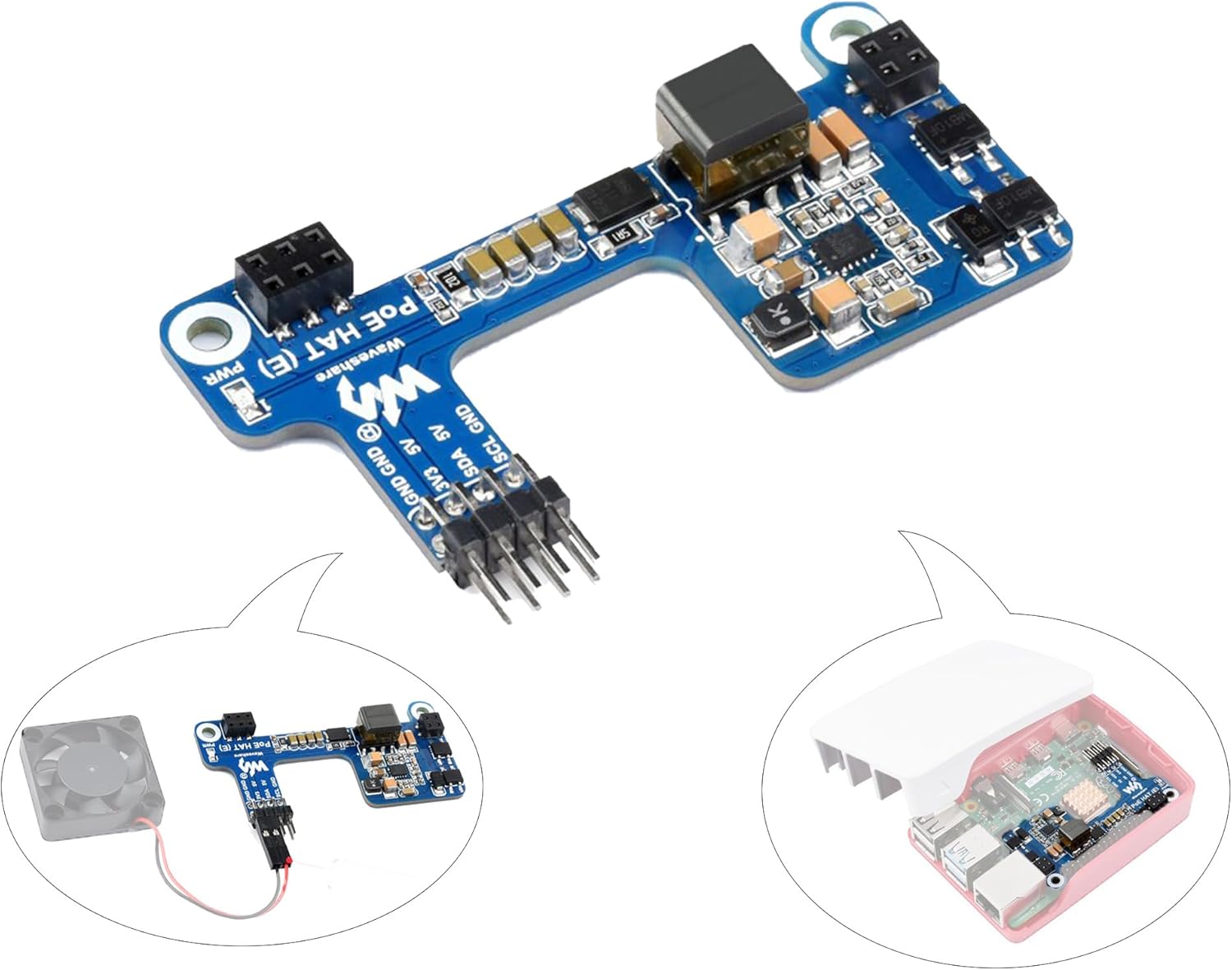
Image 1.1: Waveshare PoE HAT (E) module. This image shows the compact design of the PoE HAT, highlighting its various components and connectors.
2. Key Features
- Power Over Ethernet (PoE) Capability: Compliant with IEEE 802.3af standard, allowing power and data transmission over a single Ethernet cable.
- Compatibility: Designed for Raspberry Pi 3B+ and Raspberry Pi 4B, and compatible with the official Raspberry Pi case.
- Cooling Fan Support: Includes a dedicated interface for connecting a cooling fan to manage thermal performance.
- Isolated Power Supply: Features a fully isolated switched-mode power supply (SMPS) for stable and reliable operation.
- Compact Design: Smaller and more flexible with a compact component layout, optimizing space.
- Stable Output: Onboard MP8017GL-Z chip and large-capacity energy storage filter capacitors ensure stable power output.
- Efficient Power Management: High-current Schottky diode improves efficiency and reduces power consumption.
- Isolation Transformer: Includes an onboard isolation transformer for enhanced safety and performance.
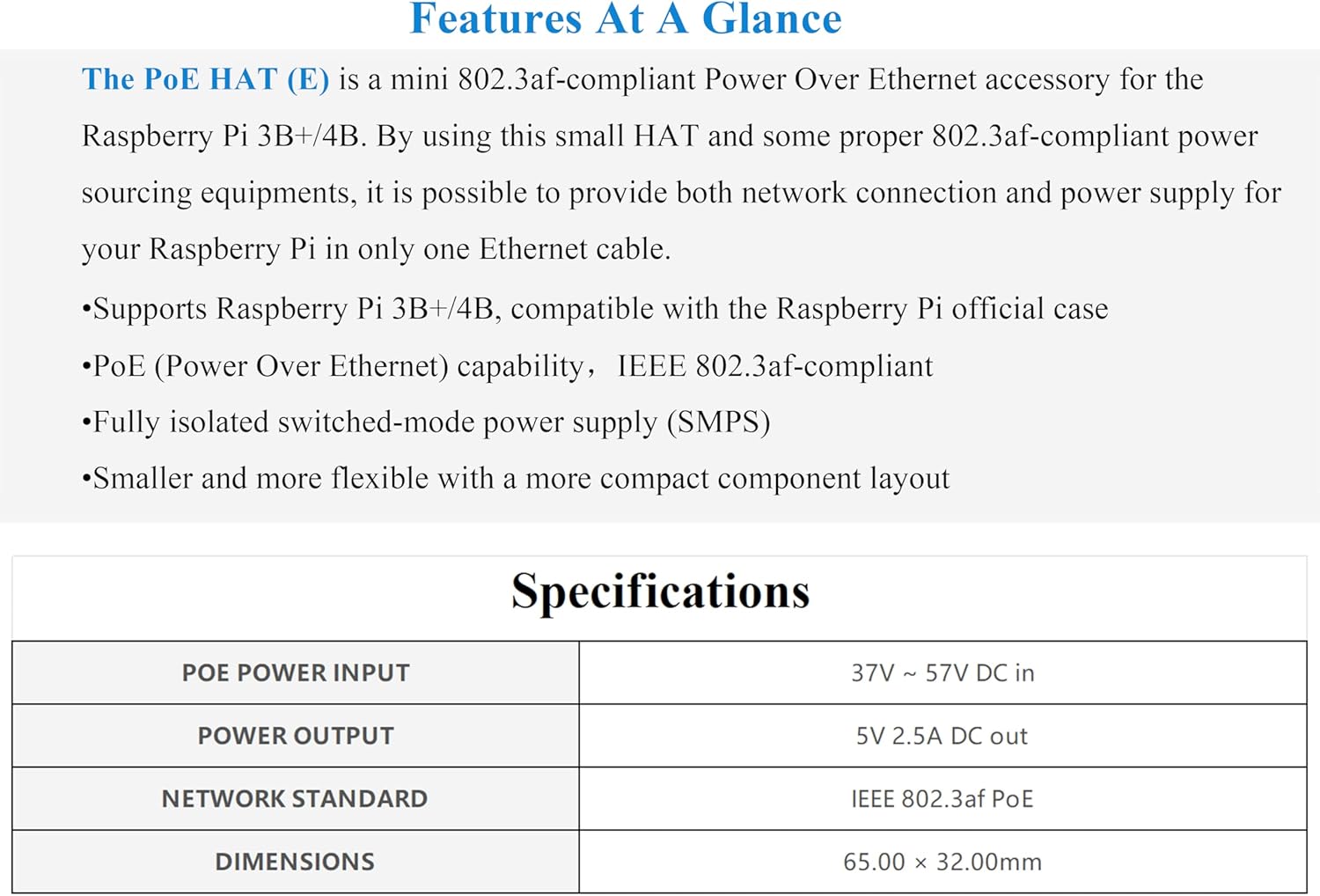
Image 2.1: Overview of key features and specifications. This image visually summarizes the main characteristics and technical data of the PoE HAT.
3. Technical Specifications
| Parameter | Value |
|---|---|
| PoE Power Input | 37V ~ 57V DC |
| PoE Power Output | 5V / 2.5A DC |
| Network Standard | IEEE 802.3af PoE-compliant |
| Dimensions | 65.00 × 32.00mm (2.56 x 1.26 inches) |
| Item Weight | 0.317 ounces |

Image 3.1: Detailed view of onboard components and outline dimensions. This image provides a labeled diagram of the HAT's internal structure and precise measurements.
4. Package Contents
The Waveshare PoE HAT package includes:
- 1x Waveshare PoE HAT (E) for Raspberry Pi 3B+/4B
Note: Raspberry Pi board, official case, cooling fan, and PoE network equipment are not included and must be purchased separately.
5. Setup Instructions
- Prepare Your Raspberry Pi: Ensure your Raspberry Pi 3B+ or 4B is powered off and disconnected from any power source.

Image 5.1: Raspberry Pi board showing the 40-pin GPIO header. This image illustrates the target device for the PoE HAT installation.
- Attach the PoE HAT: Carefully align the 40-pin header of the PoE HAT with the GPIO pins on your Raspberry Pi. Gently press the HAT down until it is securely seated. Ensure all pins are correctly aligned to prevent damage.
Video 5.1: Installation of the PoE HAT onto a Raspberry Pi. This video demonstrates the physical connection process of the HAT to the Raspberry Pi's GPIO pins.
Caution: Be very careful when installing the HAT onto the Pi pins. Ensure proper alignment and apply even pressure to avoid bending pins or dislodging components on the HAT.
- Connect Cooling Fan (Optional): If using a cooling fan, connect its 2-pin connector to the dedicated fan header on the PoE HAT.

Image 5.2: PoE HAT connected to a cooling fan. This image shows where to attach a cooling fan to the HAT for thermal management.
- Install into Official Case (Optional): The PoE HAT is designed to fit within the official Raspberry Pi case. Carefully place the assembled Raspberry Pi and PoE HAT into the case.
Image 5.3: Raspberry Pi with PoE HAT installed inside the official case. This image demonstrates the compatibility of the HAT with the standard Raspberry Pi enclosure.
- Connect to PoE Network: Connect an Ethernet cable from your PoE-enabled router or switch (IEEE 802.3af compliant) to the Ethernet port on your Raspberry Pi. The PoE HAT will draw power through this connection.

Image 5.4: Diagram showing the connection of the Raspberry Pi with PoE HAT to a PoE-enabled network switch. This illustrates how power and data are supplied via a single Ethernet cable.
6. Operating Instructions
Once the Waveshare PoE HAT is correctly installed and connected to an IEEE 802.3af compliant PoE network switch, your Raspberry Pi will receive power and network connectivity through the single Ethernet cable. No additional power adapter is required for the Raspberry Pi itself.
- Power On: Ensure the PoE switch is powered on. The Raspberry Pi will automatically power up once the Ethernet cable is connected to a live PoE port.
- Network Access: The Raspberry Pi will obtain network access via the Ethernet connection.
- Fan Operation: If a cooling fan is connected, it will operate automatically based on the Raspberry Pi's temperature, as controlled by the PoE HAT.
7. Maintenance
To ensure optimal performance and longevity of your Waveshare PoE HAT and Raspberry Pi, consider the following maintenance guidelines:
- Keep Clean: Periodically clean the PoE HAT and Raspberry Pi to prevent dust accumulation, which can hinder cooling and performance. Use a soft, dry brush or compressed air.
- Environmental Conditions: Operate the device in a well-ventilated area, away from excessive heat, moisture, and direct sunlight.
- Firmware Updates: Regularly update your Raspberry Pi OS to ensure compatibility and benefit from performance improvements and bug fixes.
- Fan Check: If a cooling fan is installed, periodically check for any obstructions or unusual noises. Clean the fan blades if necessary.
- Cable Integrity: Ensure all network cables are in good condition and securely connected.
8. Troubleshooting
If you encounter issues with your Waveshare PoE HAT, refer to the following common problems and solutions:
- Raspberry Pi does not power on:
- Ensure the PoE HAT is correctly seated on the Raspberry Pi's GPIO pins. Re-seat it if necessary, applying even pressure.
- Verify that the Ethernet cable is securely connected to both the Raspberry Pi and a PoE-enabled port on your switch.
- Confirm that your network switch is IEEE 802.3af compliant and that the PoE function is active on the connected port.
- Test with a different Ethernet cable or PoE port if available.
- Cooling fan is noisy or not spinning:
- Check the fan's connection to the PoE HAT's fan header.
- Inspect the fan for any physical obstructions or dust buildup. Clean if necessary.
- Some users report fan noise; adjusting fan speed settings in the Raspberry Pi's configuration (e.g.,
/boot/config.txt) might be possible, though this is an advanced step and may require research specific to your Raspberry Pi OS version.
- Intermittent power or network connection:
- Ensure the PoE HAT is firmly attached to the Raspberry Pi. Loose connections can cause instability.
- Verify the quality of your Ethernet cable. A damaged cable can lead to intermittent issues.
- Check the PoE switch for any error indicators or port issues.
9. Warranty and Support
Information regarding product warranty and specific support contacts is not provided in the available product data. For warranty claims or technical assistance, please refer to the official Waveshare website or contact your retailer directly.


