1. Introduction
This manual provides instructions for the SIKAI Silicone Protective Case, designed specifically for the Apple TV 4K Siri Remote (2nd and 3rd Generation, 2021/2022 models). This case offers enhanced protection, improved grip, and additional features for your remote control.
1.1 Product Overview
The SIKAI Silicone Case is engineered to safeguard your Apple TV Siri Remote from drops, scratches, and daily wear. Its ergonomic design ensures a comfortable and secure grip, while integrated features enhance usability and prevent loss.

Image: The SIKAI Silicone Case shown from various angles, highlighting its form and texture.
1.2 Compatibility
This case is compatible with the Apple TV 4K Siri Remote 2nd Generation (2021) and 3rd Generation (2022) models. It is not compatible with the Apple TV Siri Remote 1st Generation or older Apple TV remotes.

Image: A visual guide illustrating the compatibility of the SIKAI case with 2nd and 3rd generation Apple TV Siri Remotes, and its incompatibility with the 1st generation remote.
2. Setup and Installation
Follow these steps to properly install your Apple TV Siri Remote and an AirTag (if desired) into the SIKAI Silicone Case.
2.1 Installing the Remote
- Gently stretch the silicone case from the top opening.
- Slide your Apple TV Siri Remote into the case, ensuring all buttons and ports align correctly with the case cutouts.
- Adjust the case to ensure a snug and secure fit around the remote.

Image: A visual representation of inserting the Apple TV Siri Remote into the silicone protective case.
2.2 Inserting an AirTag (Optional)
The case features an internal hidden compartment for an Apple AirTag, allowing you to track your remote if it gets misplaced. AirTag is not included with the case.
- Locate the internal storage compartment within the case, typically at the bottom section.
- Carefully insert your AirTag into this designated slot. Ensure it sits securely.
- Once the AirTag is in place, proceed with installing the remote as described in Section 2.1.

Image: A close-up of the AirTag compartment within the case, alongside an image of a person searching for a remote, illustrating the anti-lost feature.
2.3 Attaching the Lanyard
The included anti-lost lanyard can be attached to the case for added security, preventing accidental drops.
- Thread the thin loop end of the lanyard through the designated hole on the bottom side of the silicone case.
- Pass the larger end of the lanyard through the loop you just created and pull gently to secure it.
- Once attached, you can loop the lanyard around your wrist during use.

Image: The SIKAI Silicone Case with its wrist strap attached, demonstrating how it can be used to prevent drops.
3. Operating Features
The SIKAI Silicone Case enhances your remote's functionality with several key features.
3.1 Standing Design
The unique triangular bracket design at the bottom of the case allows your Apple TV 4K remote control to stand upright on flat surfaces. This reduces clutter and makes the remote easily accessible.
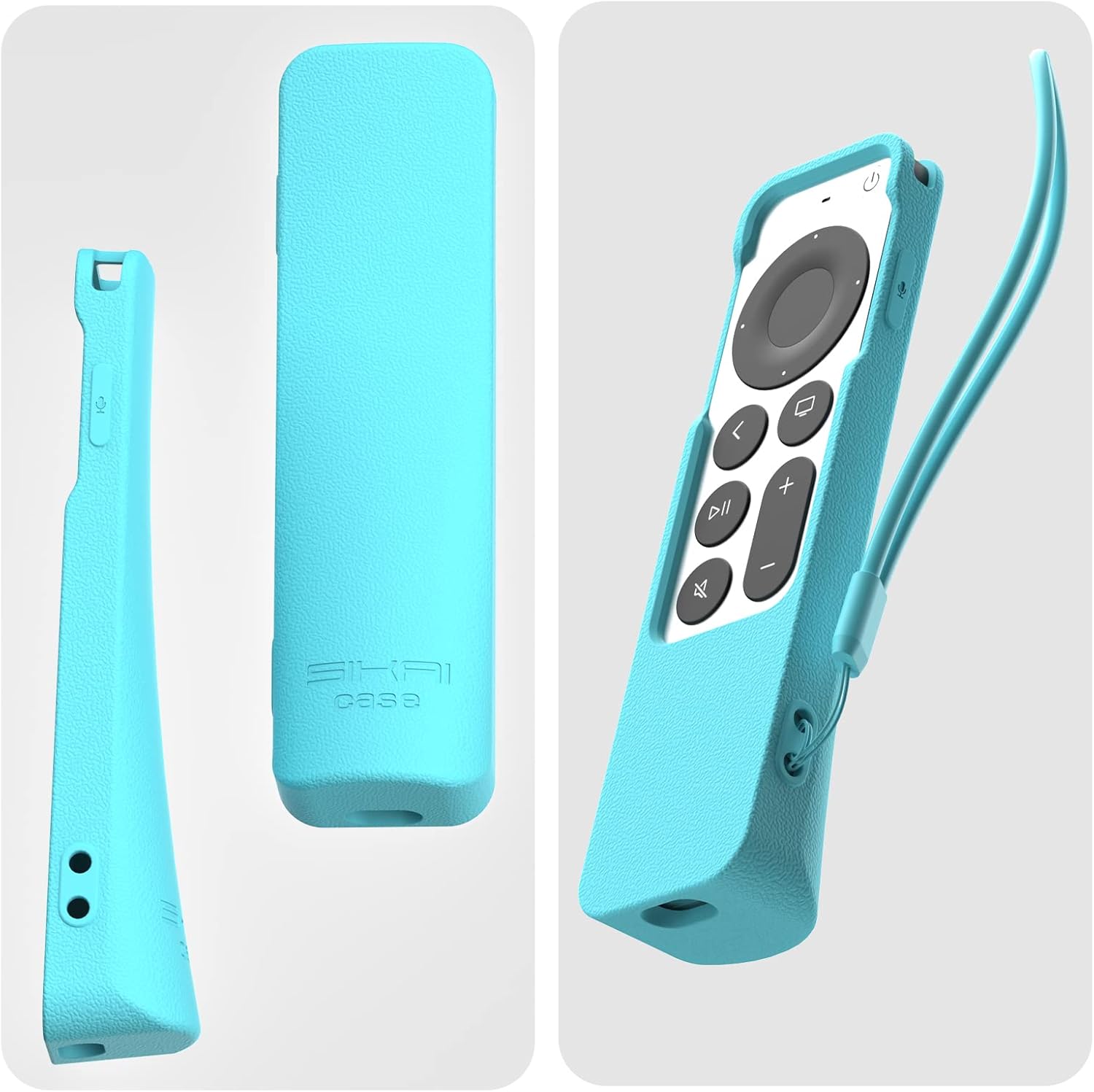
Image: The SIKAI Silicone Case with the remote inserted, demonstrating its ability to stand upright on a flat surface.
3.2 Enhanced Grip and Protection
The textured silicone material provides a comfortable and secure grip, reducing the likelihood of accidental drops. The case also offers shockproof protection against impacts and prevents scratches, keeping your remote in new condition.

Image: A close-up view of the case's textured surface for improved grip, and a visual comparison showing how the case protects the remote from scratches.
3.3 Glow-in-the-Dark Feature (Select Colors)
Certain color variants of the SIKAI Silicone Case (excluding black) feature a glow-in-the-dark effect. This makes your remote easier to locate in low-light conditions or at night.
Note: For optimal glow performance, expose the case to light for several hours to allow it to absorb sufficient energy.
4. Maintenance
To ensure the longevity and cleanliness of your SIKAI Silicone Case, follow these simple maintenance guidelines.
4.1 Cleaning Instructions
The silicone material is easy to clean. Use a soft, damp cloth to wipe away dust, dirt, or smudges. For more stubborn stains, a mild soap solution can be used, followed by wiping with a clean, damp cloth and air drying.
Video: Demonstrates the installation of the remote and AirTag into the SIKAI case, the anti-lost feature, and cleaning the case. This video also shows the glow-in-the-dark feature.
5. Troubleshooting
- Glow-in-the-Dark Feature Not Working: Ensure the case has been exposed to sufficient light for several hours to absorb energy. The glow effect is temporary and will fade over time in darkness.
- AirTag Sound Muffled: The silicone case may slightly muffle the AirTag's sound. This is normal due to the protective material. The Find My app's proximity features will still function effectively.
- Remote Buttons Not Responding: Check that the remote is correctly seated within the case and that the case's button cutouts align perfectly with the remote's buttons. Remove and re-insert the remote if necessary.
6. Specifications
| Feature | Detail |
|---|---|
| Product Dimensions | 1.97 x 3.94 x 0.79 inches |
| Item Weight | 1.44 ounces |
| Material | Silicone (Shell Type: Hard) |
| Special Features | Heavy Duty Protection, Lanyard, AirTag Compartment, Standing Design, Glow-in-the-Dark (select colors) |
| Compatible Devices | Apple TV 4K Siri Remote (2nd/3rd Generation, 2021/2022) |
| Color | Glow Blue (other colors available) |
| Manufacturer | HangKai |
| What's in the Box | 1x Remote Cover, 1x Lanyard |
7. Warranty and Support
For warranty information or technical support regarding your SIKAI Silicone Protective Case, please refer to the product packaging or contact SIKAI CASE customer service directly. Contact details can typically be found on the manufacturer's official website or through your point of purchase.


