
1. Introduction
Thank you for choosing the IMICE X6 Wired USB Gaming Mouse. This manual provides essential information for setting up, operating, and maintaining your new gaming mouse. Please read it carefully to ensure optimal performance and longevity of your device.
2. Safety Information
- Keep the device away from liquids and excessive moisture.
- Avoid extreme temperatures.
- Do not attempt to disassemble or modify the mouse. This may void your warranty and cause damage.
- Use a soft, dry cloth for cleaning.
3. Package Contents
The package should contain the following items:
- IMICE X6 Wired USB Gaming Mouse
- User Manual (this document)
4. Product Overview
The IMICE X6 gaming mouse features an ergonomic design with multiple programmable buttons and adjustable DPI settings for a customized gaming experience.
4.1 Button Functions and Working Modes
The mouse supports two working modes: Normal mode and Multimedia mode. You can switch between these modes by long-pressing the DPI button for more than 5 seconds.
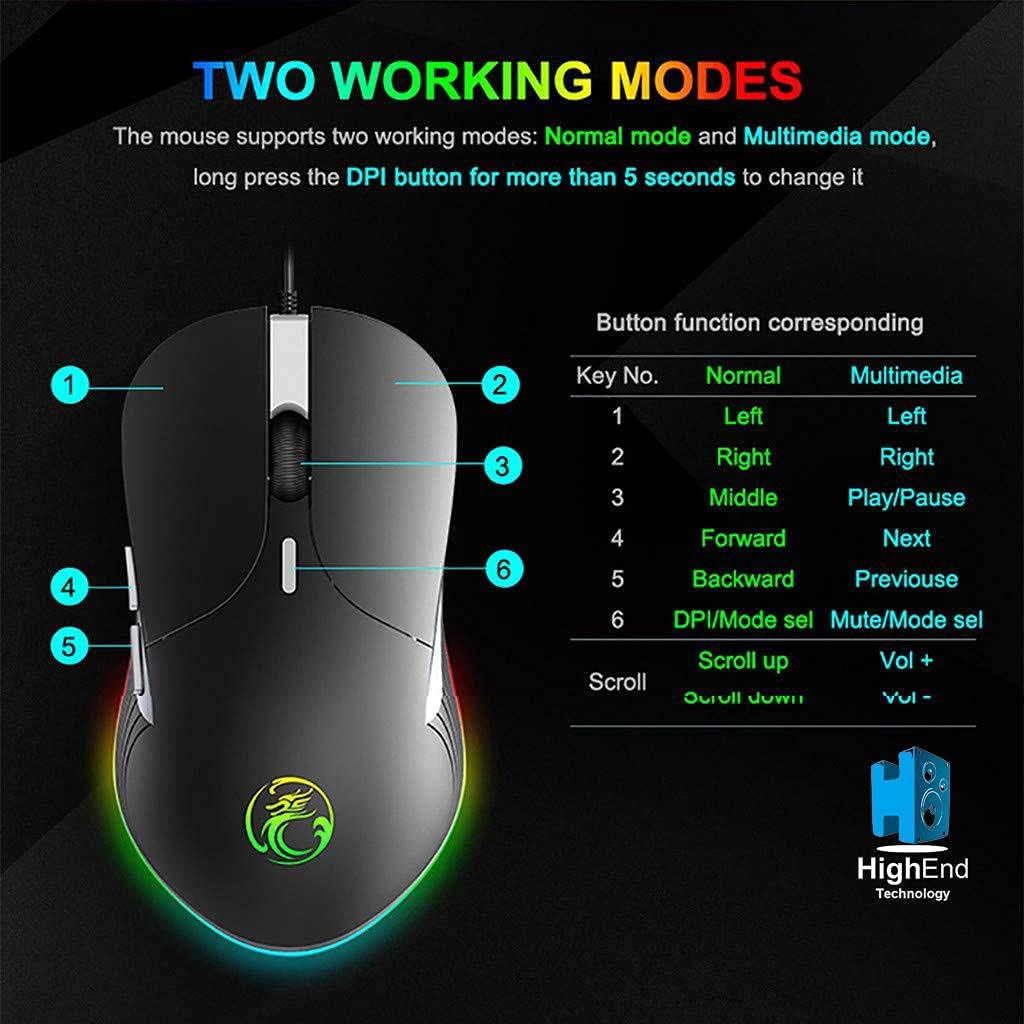
Image 4.1: Button layout and function table for IMICE X6 mouse. The image displays the mouse from a top-down perspective, highlighting six numbered buttons. A table next to it lists the default functions for each button in 'Normal' mode (Left, Right, Middle, Forward, Backward, DPI/Mode select) and 'Multimedia' mode (Left, Right, Play/Pause, Next, Previous, Mute/Mode select). The scroll wheel also has functions for 'Scroll up' (Vol +) and 'Scroll down' (Vol -).
4.2 Mouse Components
Familiarize yourself with the main components of your IMICE X6 mouse.

Image 4.2: Labeled components of the IMICE X6 mouse. This image shows a side-angle view of the mouse, pointing out the 'Right click' button, 'Scroll' wheel, 'DPI switch', 'Left click' button, 'Forward' button, and 'Backward' button. The text also mentions that software can be used to implement functions like lighting and button functions, utilizing a built-in memory chip.
5. Setup
Setting up your IMICE X6 mouse is a simple plug-and-play process.
- Connect the USB Cable: Plug the USB connector of the mouse into an available USB port on your computer or laptop.
- Driver Installation: Your operating system (Windows, macOS, Linux) should automatically detect and install the necessary drivers. No additional software installation is typically required for basic functionality.
- Test Functionality: Once connected, move the mouse and click the buttons to ensure it is working correctly.
6. Operating Instructions
6.1 Basic Operation
- Left Click: Primary button for selecting items, activating functions.
- Right Click: Secondary button for context menus and special functions.
- Scroll Wheel: Scroll up or down through documents and web pages. Can also be pressed for middle-click functionality.
- Forward/Backward Buttons: Navigate web pages or folders (default function).
6.2 Adjusting DPI Sensitivity
The IMICE X6 mouse features 6 adjustable DPI levels, allowing you to change cursor speed and precision on the fly. The DPI button is typically located behind the scroll wheel.
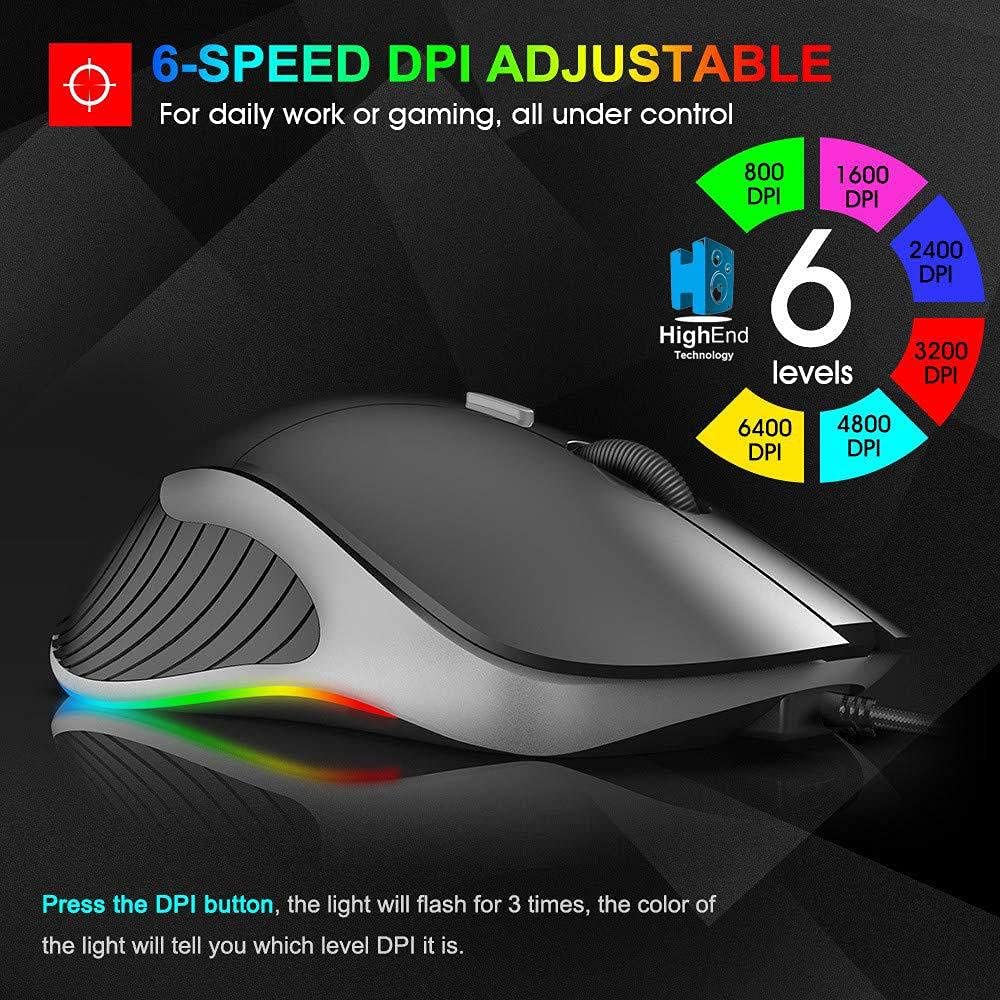
Image 6.1: 6-Speed DPI Adjustment. This image shows the mouse from a side-top view, with six colored circles indicating DPI levels: 800, 1600, 2400, 3200, 4800, and 6400 DPI. The text explains that pressing the DPI button will make the light flash 3 times, and the color of the light indicates the current DPI level.
To change DPI:
- Press the DPI button (Button 6 in Image 4.1).
- The mouse's LED lighting will flash 3 times, and the color will indicate the current DPI level.
- Continue pressing the DPI button to cycle through the available DPI settings: 800, 1600, 2400, 3200, 4800, and 6400 DPI.
6.3 Switching Working Modes
As mentioned in Section 4.1, the mouse has two working modes:
- Normal Mode: Standard mouse functions for general use and gaming.
- Multimedia Mode: Buttons are remapped for media control (e.g., Play/Pause, Next, Previous, Volume).
To switch modes, long-press the DPI button for more than 5 seconds. The mouse will indicate the mode change, typically through a change in LED behavior.
7. Maintenance
Proper maintenance ensures the longevity and performance of your mouse.
- Cleaning: Use a soft, lint-free cloth to wipe the surface of the mouse. For stubborn dirt, slightly dampen the cloth with water. Avoid harsh chemicals or abrasive materials.
- Sensor Maintenance: Keep the optical sensor on the underside of the mouse clean and free from dust or debris to ensure accurate tracking.
- Cable Care: Avoid sharp bends or excessive pulling on the USB cable to prevent damage.
8. Troubleshooting
If you encounter issues with your IMICE X6 mouse, try the following solutions:
| Problem | Solution |
|---|---|
| Mouse not responding |
|
| Cursor movement is erratic or jumpy |
|
| DPI setting not changing |
|
9. Specifications
Key technical specifications for the IMICE X6 Gaming Mouse:
- Brand: IMICE
- Model: X6
- Color: Black
- Connectivity Technology: USB (Wired)
- Movement Detection: Optical
- Maximum Mouse Sensitivity (DPI): 6400 DPI
- Adjustable DPI Levels: 800, 1600, 2400, 3200, 4800, 6400 DPI
- Number of Buttons: 5
- Hand Orientation: Ambidextrous
- Recommended Use: Gaming
- Compatible Devices: PC, Laptop
- Power Source: Plug-in Electric (USB powered)
- Batteries Required: No
10. Warranty and Support
Your IMICE X6 Gaming Mouse comes with a standard manufacturer's warranty. Please refer to the warranty card included with your purchase or contact your retailer for specific warranty terms and conditions.
For technical support or further assistance, please contact the vendor or visit the official IMICE support website (if available).
