
NEC E558
NEC 55" 4K UHD Display User Manual
Model: E558
1. Product Overview
The NEC E558 is a 55-inch 4K UHD display designed for high-end visual acuity and versatile digital signage applications. It features an integrated ATSC/NTSC tuner for broadcast capabilities and a multimedia USB player for simplified content display.
- 4K UHD Resolution: Delivers a breathtaking ultra HD viewing experience with dynamic, clear, and expansive pictures.
- Integrated Multimedia USB Player: Simplifies digital signage by allowing direct playback of content.
- Direct LED Backlighting: Reduces power consumption and provides a greater dynamic contrast ratio through localized dimming.
- Slim Bezel Design: Enhances the display's aesthetics.
- 24-Hour On/Off Timer: Allows for scheduled power management.
- Video Signal Wake-up Function: Enables plug-and-play functionality.
- Built-in ATSC/NTSC Tuner: Provides high-definition broadcast reception.
- Integrated 10W Speakers: Enhances the experience with superior sound.
- USB Type-C Port: For external power supply (5V/3A).
- Video and Audio Muting: Supports individual muting of video and audio.
- Joystick Key: For screen-guided operation.
- Tilt Installation: Supports -10° to 10° tilt for flexible positioning.
- Temperature and Ambient Light Sensors: For optimized performance.
2. What's in the Box
Please ensure all the following items are included in your package:
- NEC 55-inch 4K UHD Display with Integrated ATSC/NTSC Tuner
- Power cord (3m)
- HDMI cable
- Wireless remote control
- Batteries (for remote control)
3. Setup Guide
3.1 Unpacking and Placement
Carefully remove the display from its packaging. Due to its size and weight, it is recommended that two or more people handle the display. Place the display on a stable, flat surface or mount it securely using a compatible VESA mount (not included). Ensure adequate ventilation around the display.
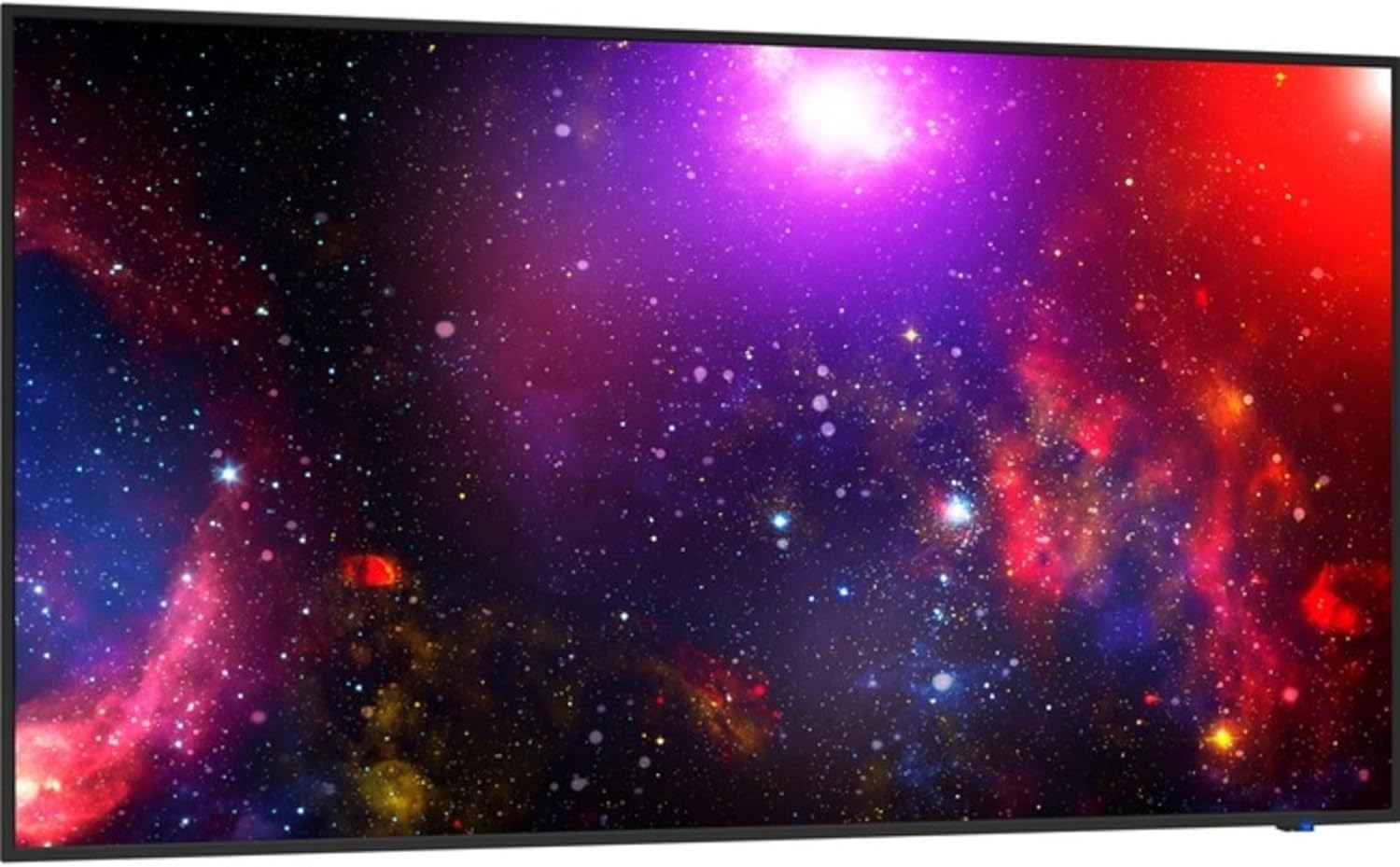
Figure 3.1: Front view of the NEC 55-inch 4K UHD Display. The screen displays a colorful image of a nebula and stars, highlighting its 4K UHD resolution capabilities.

Figure 3.2: Dimensional diagram of the NEC 55-inch 4K UHD Display. The diagram indicates a width of 48.8 inches, a height of 28 inches, and a depth of 2.8 inches, providing a clear understanding of its physical size.
3.2 Connecting Power
Connect the provided power cord to the AC input on the back of the display and then plug the other end into a grounded electrical outlet. Ensure the power connection is secure.
3.3 Connecting Input Sources
The display supports various input sources. Use the provided HDMI cable to connect your source device (e.g., computer, media player, set-top box) to an HDMI input port on the display. Other input options may include DisplayPort or VGA, depending on the specific model configuration.
- HDMI: For high-definition video and audio.
- USB: For multimedia playback from USB storage devices or for 5V/3A external power supply.
- Antenna/Cable: For connecting an antenna or cable TV signal to utilize the integrated ATSC/NTSC tuner.
3.4 Initial Power On
After connecting all necessary cables, press the power button on the display or the remote control to turn on the unit. Follow the on-screen prompts for initial setup, which may include language selection, time zone, and input source configuration.
4. Operating Instructions
4.1 Remote Control and On-Screen Display (OSD)
The display can be controlled using the included wireless remote control or the joystick key located on the display itself. The joystick key allows for screen-guided operation, providing access to basic menu functions.
- Power Button: Turns the display on or off.
- Input/Source Button: Cycles through available input sources (HDMI, USB, Tuner).
- Menu Button: Opens the On-Screen Display (OSD) menu.
- Navigation Buttons (Arrows): Used to navigate through OSD menu options.
- Enter/OK Button: Confirms selections in the OSD menu.
- Volume Up/Down: Adjusts the audio volume.
- Mute Button: Mutes or unmutes audio. The display also supports individual video muting.
4.2 Input Source Selection
To switch between connected devices, press the "Input" or "Source" button on the remote control. A list of available inputs will appear on the screen. Use the navigation buttons to select your desired input and press "Enter" or "OK".
4.3 Using the Integrated Tuner
If an antenna or cable signal is connected, select the "Tuner" input. The display's built-in ATSC/NTSC tuner allows you to scan for and watch over-the-air digital (ATSC) and analog (NTSC) broadcast channels. Refer to the OSD menu for channel scanning options.
4.4 USB Multimedia Player
Insert a USB storage device containing compatible media files (images, videos, audio) into the USB port. Select the "USB" input source. The display's integrated multimedia player will allow you to browse and play content directly from the USB device.
4.5 Timer Functions
The 24-hour On/Off timer can be configured via the OSD menu. This feature allows you to set specific times for the display to automatically turn on or off, which is useful for digital signage schedules or power saving.
5. Maintenance
5.1 Cleaning the Display
To clean the screen, gently wipe it with a soft, lint-free cloth. For stubborn marks, slightly dampen the cloth with water or a non-abrasive, screen-safe cleaning solution. Do not spray liquid directly onto the screen. For the display casing, use a dry, soft cloth.
5.2 Handling and Care
The display is a sensitive electronic device. Avoid applying excessive pressure to the screen or frame, as this can cause damage. When moving the display, always lift it from the bottom and sides, avoiding pressure on the screen. Protect the display from extreme temperatures, humidity, and direct sunlight.
6. Troubleshooting
Common Issues and Solutions
| Problem | Possible Cause | Solution |
|---|---|---|
| No Power | Power cord not connected; Power outlet not active. | Ensure power cord is securely plugged into the display and a working outlet. Check the power indicator light. |
| No Signal / Blank Screen | Incorrect input source selected; Input cable loose or faulty; Source device not powered on. | Press the "Input" button on the remote to select the correct source. Check all cable connections. Ensure the source device is powered on and outputting a signal. |
| Flickering Screen | Loose cable connection; Resolution mismatch; Environmental interference. | Check HDMI/DisplayPort cable connections. Ensure the source device's resolution matches the display's native resolution (3840x2160). Try a different cable or input port. |
| No Audio | Volume muted or too low; Incorrect audio output settings on source device. | Increase volume using the remote. Press the "Mute" button to unmute. Check audio settings on your source device to ensure audio is sent via HDMI/DisplayPort. |
| Remote Control Not Working | Batteries depleted or incorrectly inserted; Obstruction between remote and display. | Replace batteries with new ones, ensuring correct polarity. Remove any obstructions. Point the remote directly at the display's IR receiver. |
If the problem persists after attempting these solutions, please contact customer support for further assistance.
7. Specifications
| Feature | Detail |
|---|---|
| Brand | NEC |
| Model Number | E558 |
| Screen Size | 55 Inches |
| Screen Resolution | 3840 x 2160 Pixels (4K UHD) |
| Aspect Ratio | 16:9 |
| Screen Surface Description | Glossy |
| Item Weight | 37 pounds |
| Product Dimensions (LxWxH) | 2.8 x 48.8 x 28 inches |
| Voltage | 120 Volts |
| Manufacturer | Sharp Electronics (as listed in specifications) |
| First Available Date | May 14, 2021 |
8. Safety Information
- Do not expose the display to rain or moisture to prevent fire or shock hazards.
- Do not block ventilation openings. Ensure proper airflow around the display.
- Do not place the display near heat sources such as radiators, heat registers, stoves, or other apparatus (including amplifiers) that produce heat.
- Only use attachments/accessories specified by the manufacturer.
- Unplug this apparatus during lightning storms or when unused for long periods of time.
- Refer all servicing to qualified service personnel. Servicing is required when the apparatus has been damaged in any way, such as power-supply cord or plug is damaged, liquid has been spilled or objects have fallen into the apparatus, the apparatus has been exposed to rain or moisture, does not operate normally, or has been dropped.
Related documentsE558


Ask a question about this manual
Ask about setup, troubleshooting, compatibility, parts, safety, or missing instructions. Manuals+ will review the question and use this page’s manual context to help answer it.