
1. Introduction
Thank you for choosing the KIDOMO F02 Mini Drone. This compact and foldable drone is designed for beginners and children aged 8-12, offering an exciting and easy-to-fly experience with advanced features like a 1080P HD camera, gesture control, and multiple flight modes. Please read this manual thoroughly before operating the drone to ensure safe and optimal performance.
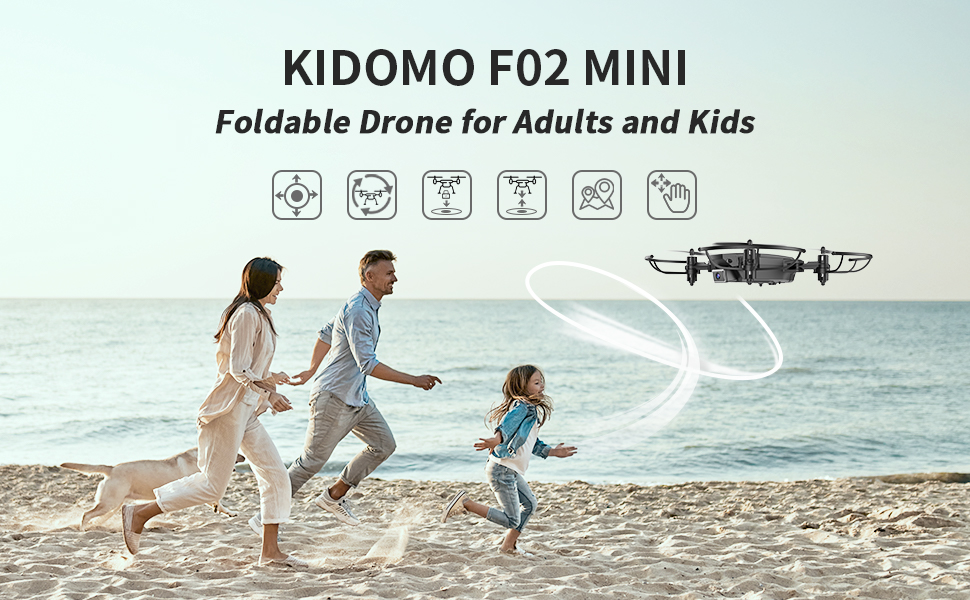
The KIDOMO F02 Mini Drone, a foldable and portable drone suitable for various outdoor environments.
2. What's in the Box
Carefully unpack your drone and ensure all items listed below are present and in good condition.
- KIDOMO F02 Mini Drone
- Remote Control
- Rechargeable Drone Batteries (x2)
- USB Charging Cable
- Spare Propellers
- Propeller Guards
- Screwdriver
- User Manual (this document)
- Carrying Case

All components included in the KIDOMO F02 Mini Drone package.
3. Setup Guide
Follow these steps to prepare your drone for its first flight.
3.1 Charging the Batteries
- Insert the drone battery into the charging cable.
- Connect the USB charging cable to a 5V/1A USB adapter (not included) or a computer USB port.
- The indicator light on the charging cable will turn off when charging is complete.
- Charging time is approximately 60-80 minutes per battery.
3.2 Installing Propeller Guards
For added safety, especially for beginners, attach the propeller guards to the drone's arms.
3.3 Powering On and Pairing
- Turn on the Drone: Press and hold the power button on the drone until the indicator lights flash.
- Turn on the Remote Control: Press the power button on the remote control. The indicator light on the remote will flash.
- Pairing: Push the left joystick on the remote control all the way up, then pull it all the way down. The drone's lights will stop flashing and become solid, indicating successful pairing.
3.4 Calibrating the Drone
After pairing, calibrate the drone for stable flight. Place the drone on a flat, level surface. Push both joysticks on the remote control down and to the right simultaneously. The drone's lights will flash rapidly and then become solid, indicating successful calibration.
This video demonstrates the initial setup, including powering on, pairing, and calibrating the KIDOMO F02 Mini Drone.

The compact and foldable design of the KIDOMO F02 Mini Drone, making it easy to carry.
4. Operating Instructions
Familiarize yourself with the remote control and drone functions for an enjoyable flight experience.
4.1 Basic Flight Controls
- Left Joystick (Throttle/Yaw): Push up to ascend, pull down to descend. Push left/right to rotate the drone left/right.
- Right Joystick (Forward/Backward/Left/Right): Push up to fly forward, pull down to fly backward. Push left to fly left, push right to fly right.
4.2 One Key Take Off/Landing
After calibration, press the One Key Take Off/Landing button on the remote control. The drone will automatically take off and hover at a certain altitude. Press the button again to initiate an automatic landing.
4.3 Headless Mode
In Headless Mode, the drone's orientation is relative to the pilot, regardless of the drone's actual front. This simplifies control for beginners. Press the Headless Mode button to activate/deactivate.
4.4 Altitude Hold
The Altitude Hold function allows the drone to maintain a stable altitude automatically, making it easier to control direction and capture steady photos/videos.

Key features for easy and safe flight: One Key Start/Landing, Headless Mode, and Altitude Hold.
4.5 Trajectory Flight
Using the companion app on your smartphone, you can draw a desired flight path on the screen. The drone will then follow this trajectory automatically, allowing for pre-planned routes.

Draw custom flight routes on your smartphone for automated trajectory flight.
4.6 360° Flips
To perform a 360-degree flip, press the flip button on the remote control, then push the right joystick in the desired direction (forward, backward, left, or right). The drone will execute an impressive aerial stunt.

Perform exciting 360-degree flips for added fun during flight.
4.7 Gesture Control
The drone supports gesture control for taking photos or recording videos. Specific hand gestures (refer to the app instructions) can trigger the camera functions, allowing for hands-free operation.

Utilize gesture control for convenient photo and video capture.
4.8 Speed Modes
The drone offers three adjustable speed modes (low, medium, high) to suit different skill levels and flying environments. Beginners can start with low speed, while experienced pilots can enjoy higher speeds for more dynamic flights.
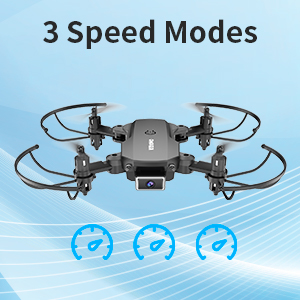
Choose from three speed modes to match your flying skill and environment.
4.9 1080P HD Camera & FPV
The integrated 1080P HD camera allows you to capture high-quality photos and videos from the drone's perspective. With FPV (First Person View) real-time transmission, you can see what the drone sees directly on your connected smartphone via the app.

Experience clear visuals with the 1080P HD FPV camera.
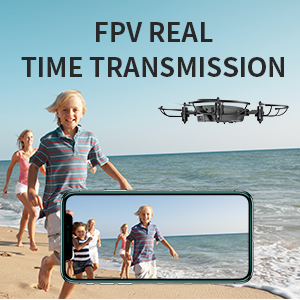
Enjoy FPV real-time transmission directly to your smartphone.
5. Maintenance
Proper maintenance ensures the longevity and performance of your drone.
5.1 Battery Care
- Always use the original charging cable provided.
- Do not overcharge or over-discharge the batteries.
- Store batteries in a cool, dry place away from direct sunlight.
- If not used for an extended period, charge the batteries every 3 months to maintain their health.
- Each battery provides approximately 8-12 minutes of flight time. With two batteries, you can achieve 16-24 minutes of total flight time.

Two rechargeable batteries provide extended flight time.
5.2 Propeller Replacement
If propellers are damaged or bent, replace them immediately using the spare propellers and screwdriver provided. Ensure the correct propeller (marked A or B) is installed on the corresponding motor arm.
5.3 Cleaning
Wipe the drone with a clean, dry cloth after use. Avoid using water or harsh chemicals.
6. Troubleshooting
If you encounter issues, refer to the following common problems and solutions.
| Problem | Possible Cause | Solution |
|---|---|---|
| Drone does not respond to remote. | Not paired or low battery. | Re-pair the drone and remote. Ensure both have sufficient battery charge. |
| Drone drifts during flight. | Not calibrated or uneven surface during takeoff. | Recalibrate the drone on a flat surface. Adjust trim settings on the remote if necessary. |
| Propellers not spinning. | Damaged propellers or motor issue. | Check for obstructions. Replace damaged propellers. |
| Poor camera quality/FPV lag. | Weak Wi-Fi signal or environmental interference. | Ensure strong Wi-Fi connection between phone and drone. Fly in open areas away from interference. |
7. Specifications
| Feature | Detail |
|---|---|
| Brand | KIDOMO |
| Model | F02 Mini |
| Camera Resolution | 1080p HD |
| Control Type | Remote Control, Gesture Control |
| Battery Capacity | 650 Milliamp Hours (per battery) |
| Flight Time | 8-12 minutes per battery |
| Max Range | 150 Meters |
| Dimensions (Folded) | 3.15"L x 2.56"W x 1.18"H |
| Item Weight | 9.4 ounces |
| Skill Level | Beginner |
| Special Features | 1080p HD Camera, Gesture Control, One Key Taking Off/Landing, Headless Mode, Altitude Hold, Trajectory Flight, 360° Flips, 3 Speed Modes |
8. Safety Guidelines
Adhering to these safety guidelines is crucial for preventing accidents and ensuring a safe flying experience.
- Supervision: Children should always be supervised by an adult when operating the drone.
- Environment: Fly in open, unobstructed areas, away from people, animals, buildings, and power lines. Avoid flying near airports or restricted airspace.
- Weather Conditions: Do not fly in strong winds, rain, or other adverse weather conditions.
- Pre-Flight Check: Always check the drone, propellers, and batteries for any damage before each flight.
- Battery Safety: Never leave charging batteries unattended. Disconnect batteries immediately after charging.
- Respect Privacy: Be mindful of privacy when using the camera. Do not record individuals or private property without consent.
- Emergency Landing: In case of emergency, press the One Key Landing button or cut power to the drone if it poses an immediate danger.
- Propeller Safety: Keep fingers, hair, and loose clothing away from spinning propellers.
9. Warranty and Support
KIDOMO provides a standard warranty for this product. For detailed warranty information, technical support, or replacement parts, please refer to the contact information provided on the product packaging or the official KIDOMO website. Please retain your proof of purchase for warranty claims.
