
Introduction
This manual provides detailed instructions for the installation, operation, and maintenance of your Jebao MLW-10 Smart Wave Maker. This device is designed to create natural wave patterns in both saltwater and freshwater aquariums, promoting a healthy environment for aquatic life. Please read this manual thoroughly before use to ensure proper function and safety.

Image: The main unit of the Jebao MLW-10 Smart Wave Maker, showing its compact design.
Product Features
- WiFi Control: Operate the wave maker via the Jebao application on your smartphone.
- LCD Display Controller: Manual control options available through the integrated LCD screen.
- Sinusoidal Wave Technology: Ensures ultra-quiet operation and stable, high-performance water flow.
- Versatile Use: Suitable for both marine (saltwater) and freshwater aquarium environments.
- Safe Design: No exposed copper elements, preventing harm to sensitive aquatic inhabitants.
- High Flow Rate: Maximum flow of 4000 Liters per hour (1065 GPH).
- Compact Size: Pump dimensions are approximately 3.8 cm x 5.7 cm in diameter.
- Energy Efficient: Operates at 24V, 10W.
Safety Instructions
Adherence to these safety guidelines is crucial for preventing injury and damage to the product or your aquarium setup.
- Always disconnect power to the unit and all other aquarium equipment before performing any maintenance or handling the wave maker.
- Ensure your hands are dry when plugging or unplugging the power adapter.
- Do not operate the wave maker if the power cord or plug is damaged.
- This device is designed for indoor use only and must not be submerged in water beyond the pump unit itself. The controller and power adapter must remain dry.
- Keep the power adapter and controller away from water splashes.
- Do not attempt to modify or repair the unit yourself. Refer to qualified service personnel.
- Ensure the wave maker is securely mounted to the aquarium glass before powering on.
- Keep out of reach of children.
Package Contents
Verify that all components are present and undamaged upon unpacking.
- Jebao MLW-10 Wave Maker Pump Unit
- LCD Display Controller
- Magnetic Mounting Base
- Power Adapter
- User Manual (this document)

Image: All components included in the Jebao MLW-10 Smart Wave Maker package, including the pump, controller, and power supply.
Setup
- Mounting the Wave Maker:
Position the wave maker pump unit inside your aquarium, ensuring it is fully submerged. Attach the external magnetic mounting base to the outside of the aquarium glass, directly opposite the pump unit. The strong magnet will hold the pump securely in place. Adjust the position and angle of the pump to achieve desired water flow patterns.
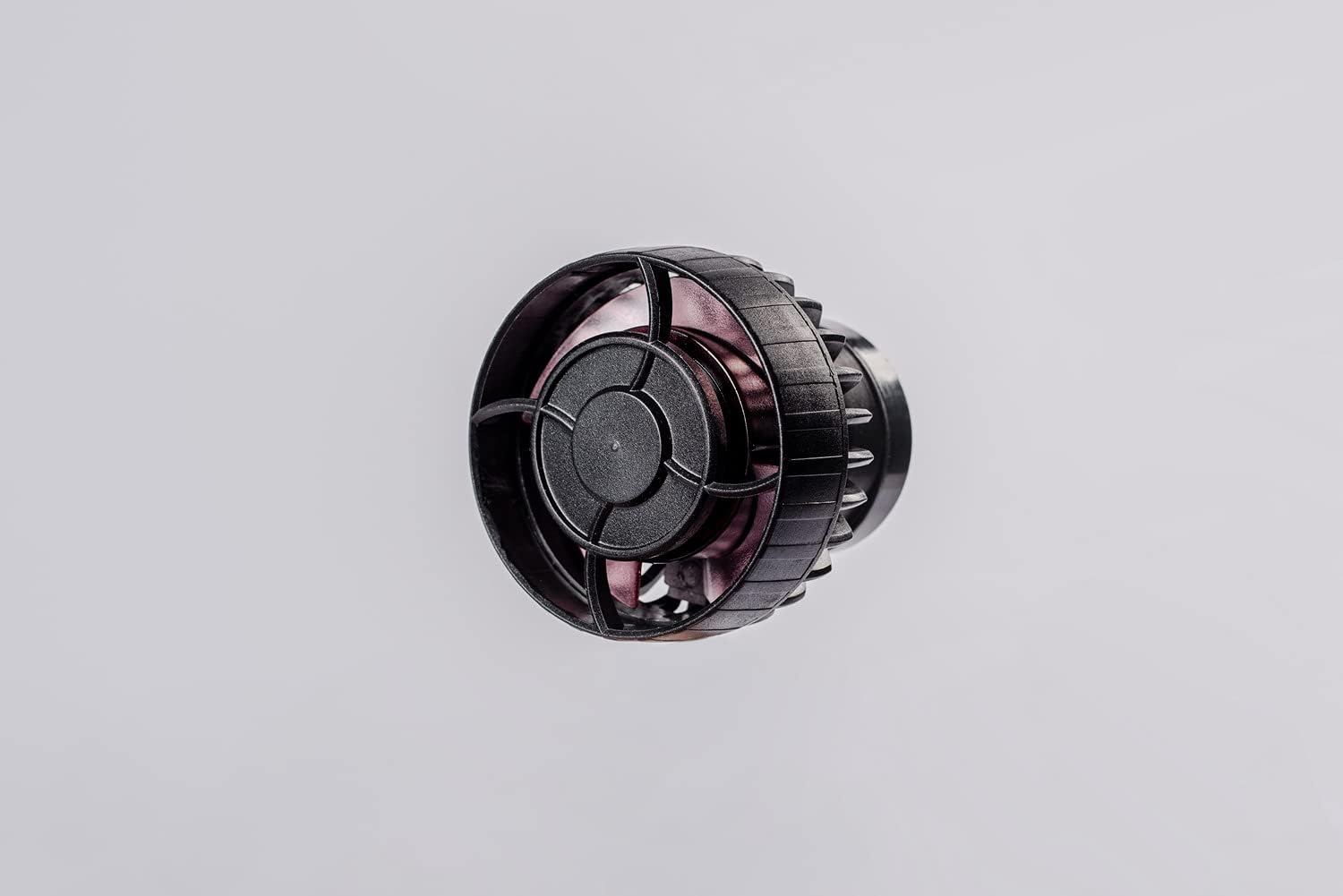
Image: Front view of the MLW-10 pump unit, showing the impeller guard.
- Connecting the Controller:
Connect the cable from the wave maker pump unit to the designated port on the LCD display controller. Ensure the connection is firm.
- Connecting Power:
Connect the power adapter to the controller, then plug the power adapter into a suitable electrical outlet. The LCD display on the controller should illuminate.
- WiFi Connection (Optional):
Download the "Jebao" app from your smartphone's app store. Follow the in-app instructions to connect your MLW-10 wave maker to your home WiFi network (2.4 GHz only). This enables advanced control and programming features.
Operating Instructions
Manual Control (LCD Display)
The LCD controller allows for direct adjustment of the wave maker's settings.
- Mode Button: Press to cycle through various wave patterns and operating modes (e.g., constant flow, pulse mode, random flow).
- Up/Down Buttons: Adjust the flow intensity or frequency within the selected mode.
- Feed Mode: Activate a temporary pause or reduced flow mode for feeding your aquatic inhabitants. Refer to the controller's specific icons for activation and duration.
WiFi App Control
The Jebao app provides comprehensive control and customization options.
- Mode Selection: Choose from a wider range of predefined wave patterns or create custom programs.
- Flow Adjustment: Precisely control the flow intensity from 30% to 100%.
- Scheduling: Set daily or weekly schedules for different modes and intensities.
- Night Mode: Automatically reduce flow during nighttime hours.
- Feed Mode: Initiate a timed pause for feeding.
Note: Ensure your smartphone is connected to the same 2.4 GHz WiFi network as the wave maker during initial setup and for reliable control.
Maintenance
Regular maintenance ensures optimal performance and extends the lifespan of your wave maker.
- Disconnect Power: Always unplug the power adapter before performing any maintenance.
- Remove from Tank: Carefully detach the pump unit from the magnetic mount and remove it from the aquarium.
- Disassembly: Gently twist or unclip the front cover and impeller housing to access the impeller.
- Cleaning:
Clean the impeller, impeller shaft, and pump housing using a soft brush and clean water. For stubborn algae or mineral deposits, soak the components in a diluted vinegar solution or a commercial aquarium pump cleaner for several hours, then scrub and rinse thoroughly. Ensure all cleaning solution residue is removed before reassembly.
- Reassembly:
Reassemble the pump components in reverse order. Ensure the impeller spins freely and all parts are securely fitted.
- Reinstallation:
Place the cleaned pump back into the aquarium and secure it with the magnetic mount. Reconnect power.
Frequency: It is recommended to clean the wave maker every 2-4 weeks, depending on the bio-load of your aquarium and the rate of debris accumulation.
Troubleshooting
| Problem | Possible Cause | Solution |
|---|---|---|
| Wave maker does not turn on. | No power, loose connection, damaged power adapter/controller. | Check power outlet, ensure all connections are secure. Test power adapter if possible. |
| Reduced flow or weak waves. | Impeller clogged with debris, mineral buildup, incorrect mode/setting. | Clean the impeller and pump housing. Adjust flow settings on the controller or app. |
| Unusual noise or vibration. | Debris in impeller, worn impeller, improper mounting, air trapped in pump. | Disconnect power and clean the impeller. Ensure the pump is securely mounted and fully submerged. Gently shake the pump to release trapped air. |
| Cannot connect to WiFi app. | Incorrect WiFi band (5GHz instead of 2.4GHz), incorrect password, router issues, app glitch. | Ensure your phone is on a 2.4 GHz network. Re-enter WiFi password carefully. Restart router and wave maker. Try connecting from a different device if available. |
| App settings do not save or apply correctly. | App synchronization issue, firmware bug, network instability. | Ensure stable WiFi connection. Restart the app and wave maker. Check for app updates. If issues persist, try resetting the device (refer to specific instructions in the app or controller manual if available). |
Specifications
| Feature | Detail |
|---|---|
| Model Number | MLW-10 |
| Brand | Jebao |
| Color | Black |
| Material | Stainless Steel (internal components), Plastic (housing) |
| Style | Submersible |
| Power Source | Corded Electric |
| Flow Rate (Max) | 4000 Liters per hour (1065 GPH) |
| Voltage | 24 Volts |
| Power Consumption | 10 Watts |
| Pump Dimensions (approx.) | 3.8 cm x 5.7 cm (Diameter) |
| Specific Use | Indoor Aquarium |

Image: Rear view of the MLW-10 pump unit, displaying model number, power input, and maximum water temperature.
Warranty and Support
Jebao products are manufactured to high-quality standards. For specific warranty information, please refer to the warranty card included with your product or visit the official Jebao website. Keep your purchase receipt as proof of purchase.
For technical support, troubleshooting assistance, or replacement parts, please contact Jebao customer service through their official website or the retailer from whom you purchased the product. When contacting support, please have your model number (MLW-10) and purchase date available.
Online Resources:
- Official Jebao Website: www.jebao.com (Note: This is a placeholder URL, please verify the actual official website for Jebao products.)
- Jebao App Support: Refer to the help section within the Jebao application for app-specific issues.


