
1. Introduction
The Plugable 7-in-1 USB Powered Hub is designed to expand your device connectivity, offering both high-speed data transfer and consistent charging capabilities. This versatile hub is ideal for users with USB-A and USB-C laptops, providing instant access to seven USB ports. Each port supports data transfer speeds up to 5Gbps and can deliver maximum USB power for efficient charging.
The included 60W power adapter ensures reliable performance, allowing the hub to function as a standalone charging station or to provide robust power when connected to a computer. Its hybrid 2-in-1 USB-C and USB-A cable ensures broad compatibility with various systems.
2. Setup
2.1. Package Contents
- Plugable 7-in-1 USB Powered Hub (Model: USBC-HUB7BC)
- 60W Power Adapter
- Hybrid 2-in-1 USB-C and USB-A Cable
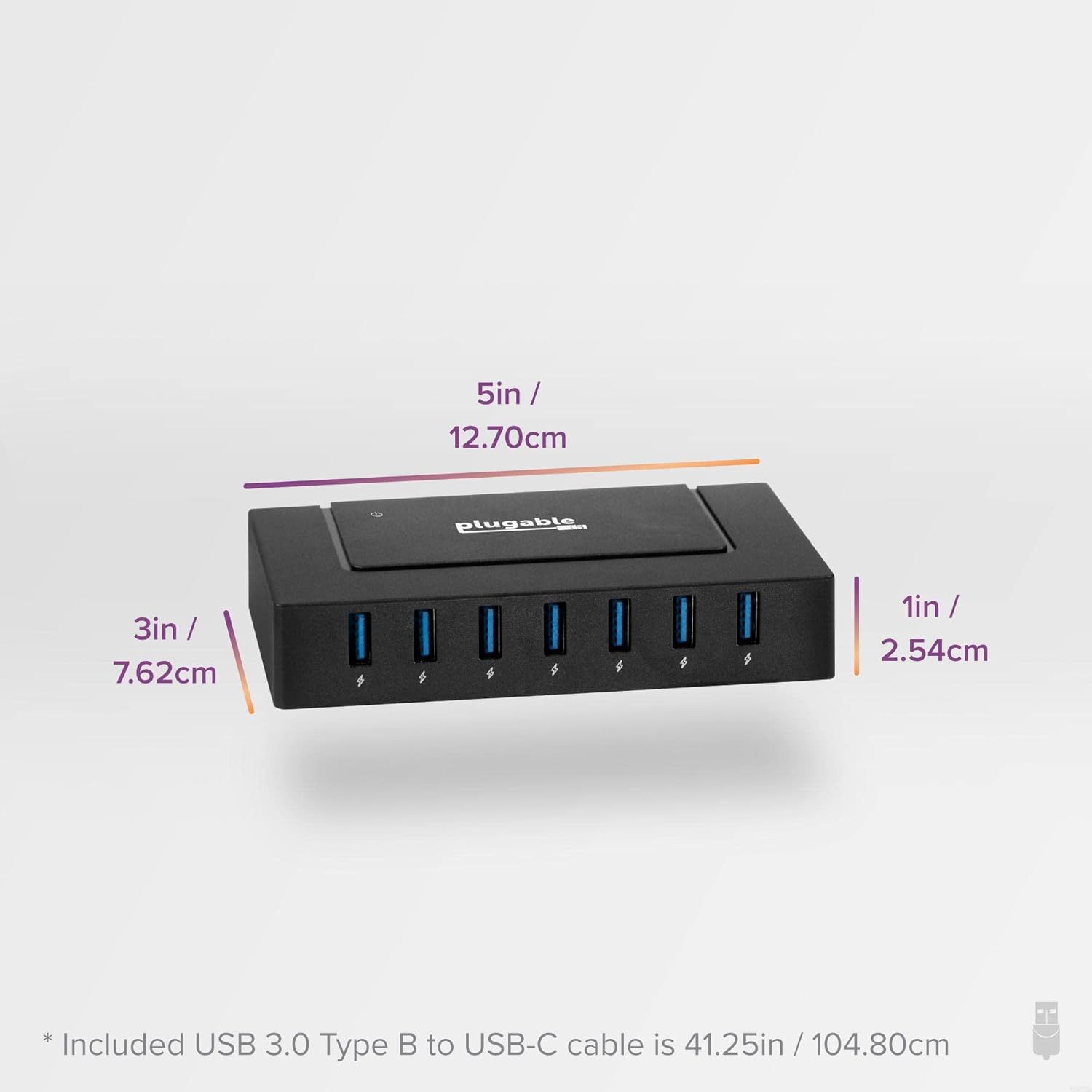
Image: The retail packaging of the Plugable 7-in-1 USB Powered Hub, showing the hub, power cable, and hybrid USB cable.
2.2. Connecting the Hub
- Connect the Power Adapter: Plug the included 60W power adapter into the DC input port on the back of the hub. Then, connect the power adapter to a wall outlet. The hub requires external power for full functionality.
- Connect to Host Device: Use the provided hybrid 2-in-1 USB-C and USB-A cable to connect the hub to your laptop or desktop computer. The cable allows connection to either a USB-C or a traditional USB-A port on your computer.
- Driver Installation: The Plugable 7-in-1 USB Powered Hub is designed for plug-and-play operation with Windows, macOS, and Linux systems. No additional drivers are typically required. For older systems, ensure the latest system updates and drivers are installed for optimal compatibility.
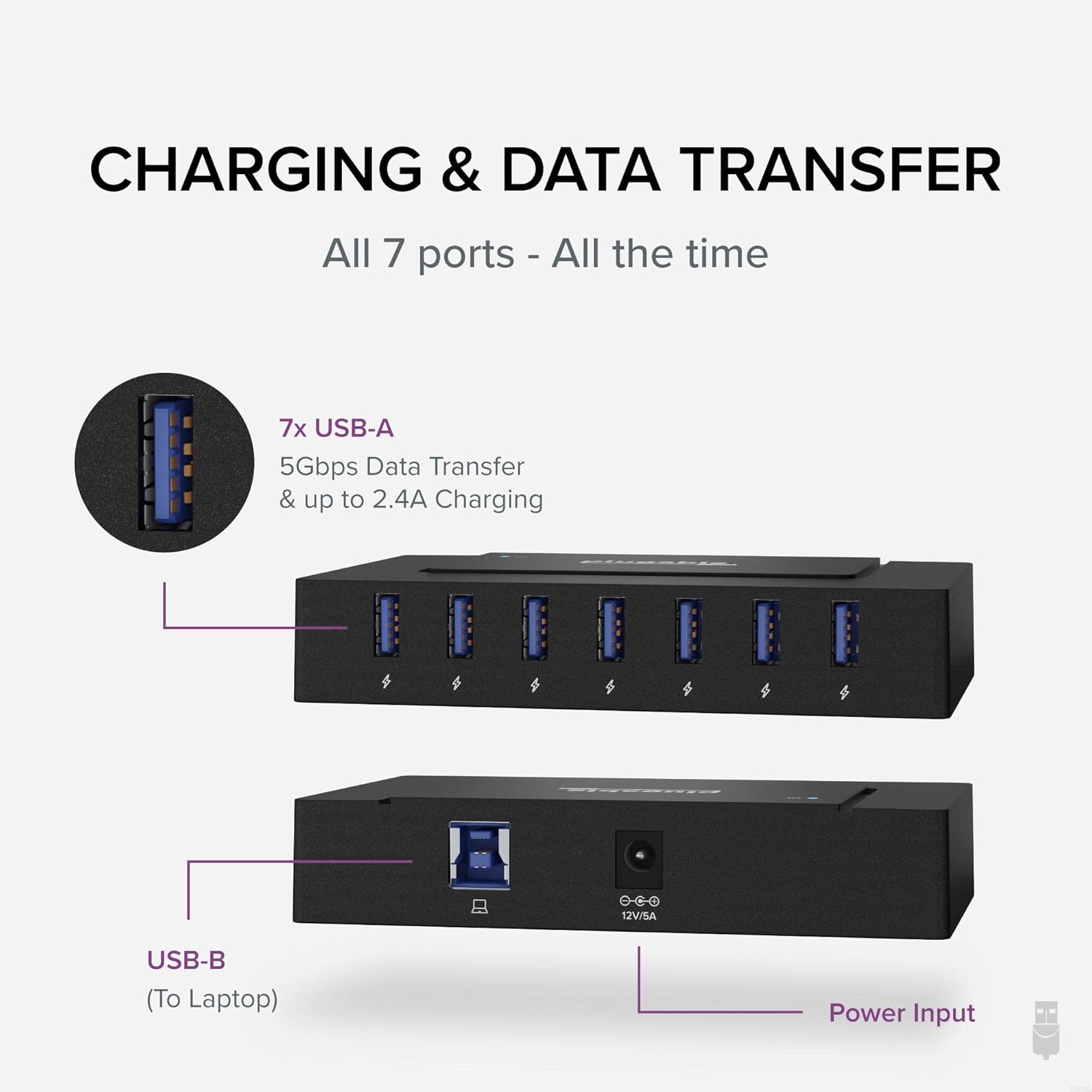
Image: The Plugable USB hub connected to a laptop, illustrating the hybrid USB-C/USB-A cable connection.
3. Operating Instructions
3.1. Data Transfer
The hub features seven SuperSpeed USB 3.0 ports, each capable of data transfer speeds up to 5Gbps. Simply plug your USB devices, such as external hard drives, flash drives, or other peripherals, into any of the available USB ports on the front of the hub. Data transfer will begin automatically upon connection.
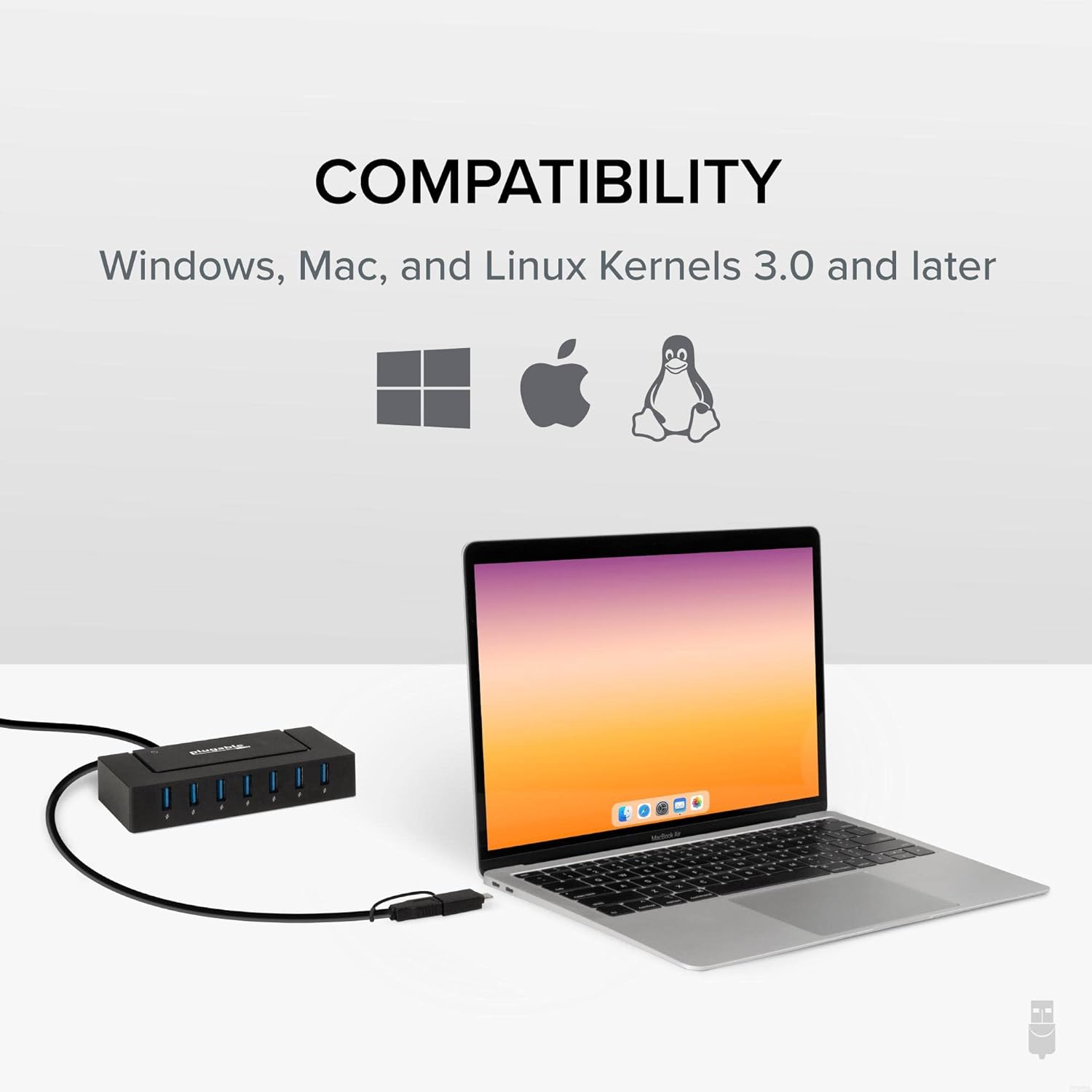
Image: A laptop connected to the Plugable hub, demonstrating high-speed data transfer capabilities.
3.2. Device Charging
All seven USB ports provide consistent charging. When used as a standalone charger (without a computer connection, only the power adapter), each port can deliver up to 2.4 Amps. When connected to a laptop, each port provides up to 1.5 Amps. This allows for efficient charging of smartphones, tablets, and other USB-powered devices.
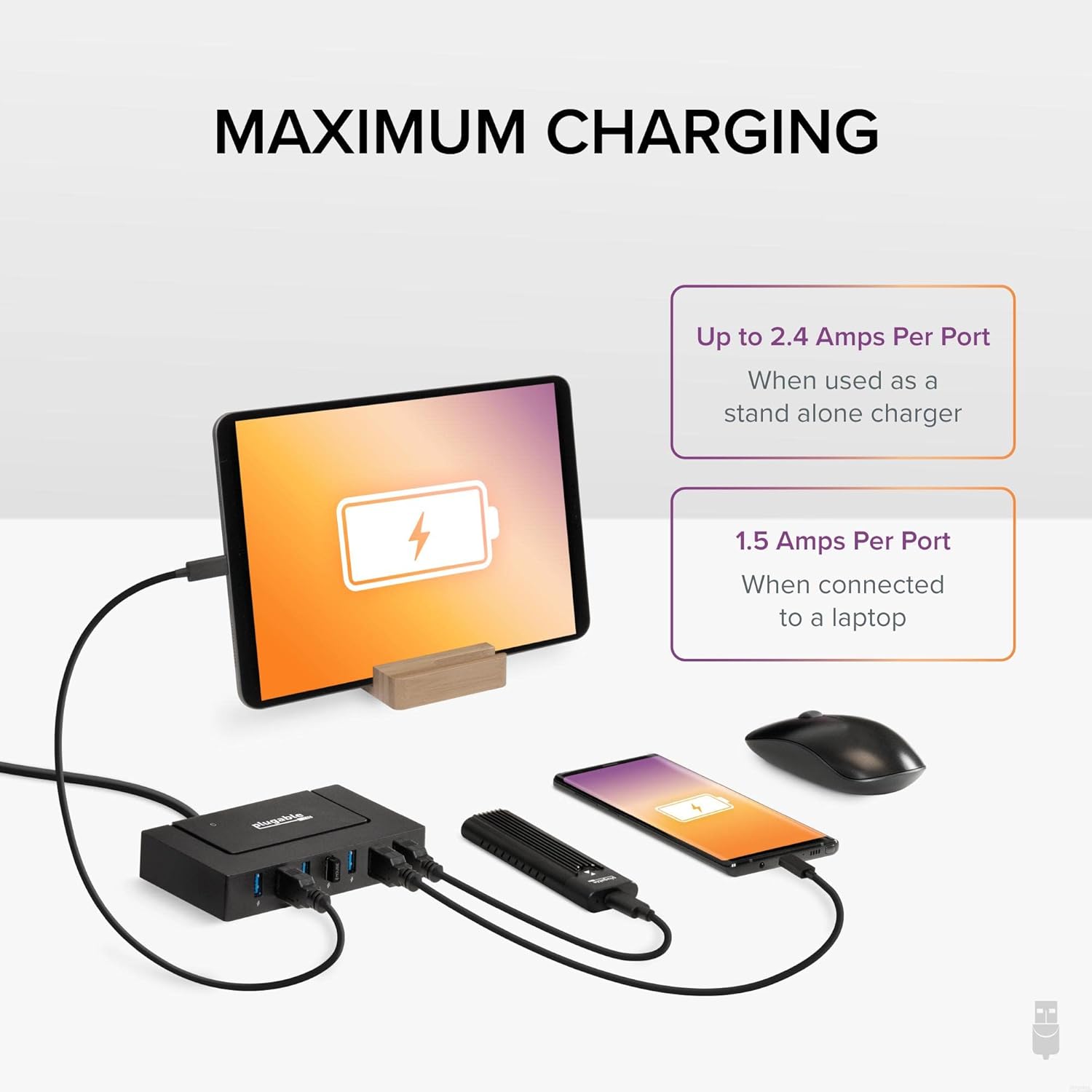
Image: A tablet and smartphone charging simultaneously through the Plugable USB hub, highlighting its charging capabilities.
3.3. Universal Compatibility
The hub offers broad compatibility across various operating systems, including Windows, macOS, and Linux. It supports forward and backward compatibility with USB-C, USB 3.0, USB 2.0, and USB 1.1 hosts and devices, ensuring seamless integration into your existing setup.
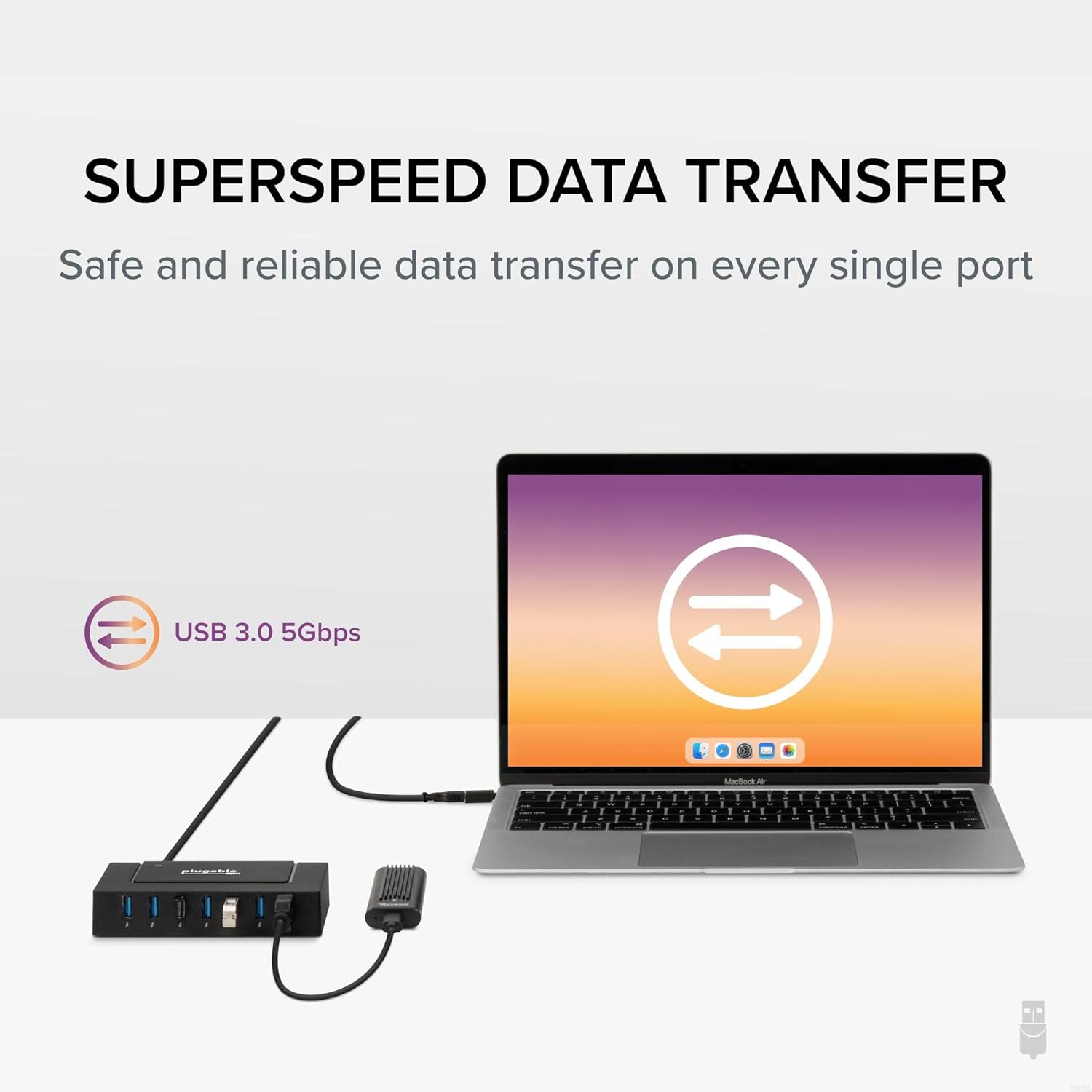
Image: Icons representing compatibility with Windows, Mac, and Linux operating systems.
4. Maintenance
To ensure the longevity and optimal performance of your Plugable USB hub, follow these maintenance guidelines:
- Cleaning: Use a soft, dry cloth to clean the exterior of the hub. Avoid using liquid cleaners, aerosols, or harsh chemicals, as these can damage the device.
- Storage: Store the hub in a cool, dry place away from direct sunlight and extreme temperatures.
- Handling: Avoid dropping the device or subjecting it to strong impacts. Ensure cables are connected and disconnected gently to prevent damage to the ports.
5. Troubleshooting
5.1. Device Not Recognized
- Check Connections: Ensure all cables (power adapter, host cable, and peripheral cables) are securely connected.
- Verify Power: Confirm the 60W power adapter is properly connected to the hub and a working wall outlet. The hub requires external power for reliable operation.
- Test Different Ports: Try connecting the device to a different port on the hub or directly to your computer to isolate the issue.
- Update Drivers: For older operating systems, ensure your system has the latest USB drivers and updates installed.
5.2. Slow Charging
- Power Adapter: Ensure the 60W power adapter is connected and functioning correctly. Without it, charging speeds may be reduced.
- Cable Quality: Use high-quality USB cables for connecting your devices to the hub. Low-quality or damaged cables can impede charging speed.
- Device Requirements: Some devices may require specific charging protocols or higher power delivery than standard USB ports can provide. Check your device's specifications.
6. Specifications
| Product Dimensions | 5 x 3.03 x 1.02 inches |
| Item Weight | 1.41 pounds |
| Item Model Number | USBC-HUB7BC |
| Brand | Plugable |
| Color | Black |
| Hardware Interface | USB |
| Special Feature | Fast Data Transfer, Pass Through Charge, Portable |
| Compatible Devices | Windows, macOS, or Linux system |
7. Warranty and Support
The Plugable 7-in-1 USB Powered Hub is designed for reliability and ease of use. Plugable offers lifetime support from their North American team of connectivity experts. For any questions, technical assistance, or warranty claims, please refer to the contact information provided with your product or visit the official Plugable website.


