
ARRIS G36
ARRIS SURFboard G36 Cable Modem Router Combo User Manual
Model: G36
Brand: ARRIS
Introduction
The ARRIS SURFboard G36 Wi-Fi Cable Modem is a high-performance device designed to provide ultra-fast streaming and downloading capabilities throughout your home. This 2-in-1 product combines a DOCSIS 3.1 cable modem with a Wi-Fi 6 (AX3000) router, offering advanced technology for faster speeds, enhanced security, and smoother online experiences. It is approved for use with major U.S. cable internet providers such as Comcast Xfinity, Cox, and Spectrum, allowing users to potentially save on monthly rental fees by owning their equipment.

Front view of the ARRIS SURFboard G36 Cable Modem Router Combo, showcasing its sleek, vertical design with a glowing blue indicator light at the base.
What's in the Box
Upon unboxing your ARRIS SURFboard G36, please ensure all the following components are present:
- ARRIS SURFboard G36 Cable Modem Router Combo
- Power Supply
- Ethernet Cable
- Quick Start Guide
- Warranty Card
Setup
Setting up your ARRIS SURFboard G36 is a straightforward process. Follow these steps to get your internet and Wi-Fi network operational.
1. Choose a Location
Place your G36 in a central location in your home, away from obstructions and potential sources of interference (like cordless phones, microwaves, or large metal objects). Ensure it's near an active coaxial cable outlet and a power outlet.
2. Connect the Cables
- Connect Coaxial Cable: Connect one end of the coaxial cable (not included) to the Cable port on the back of your G36 and the other end to an active cable wall outlet. Ensure the connection is finger-tight.
- Connect Power Supply: Connect the power supply to the Power port on the back of your G36, then plug the other end into a power outlet. The device will begin to power on.
- Connect Ethernet Cable (Optional): If you are connecting a computer or another network device directly to the G36, use the provided Ethernet cable to connect it to one of the LAN ports (1-4) or the 2.5G port on the back of the G36.

Rear view of the ARRIS SURFboard G36, highlighting the coaxial cable input, power input, four 1 Gigabit Ethernet LAN ports, and one 2.5 Gigabit Ethernet port.

A visual guide to the three easy setup steps: 1. Connect Coaxial Cable, 2. Connect to Power Outlet, 3. Connect Ethernet Cable to PC or Wi-Fi Router.
3. Activate Your Service
Once the G36 is powered on and the indicator lights are stable (refer to the Quick Start Guide for light status definitions), you will need to activate your internet service with your provider. Most providers allow self-activation through their website or a dedicated app. You will typically need the MAC address (HFC MAC ID) and Serial Number (S/N) located on the label on the bottom of your G36.
For a streamlined activation, download the SURFboard Central App on your smartphone or tablet. The app provides step-by-step instructions and can help you set up your Wi-Fi network and connect your devices.

The SURFboard Central App guides users through connecting the device, activating service with their cable provider, and setting up their Wi-Fi network.
Operating Instructions
The ARRIS SURFboard G36 provides a robust and high-speed internet experience. Here's how to maximize its performance and understand its features.
Wi-Fi Network Configuration
Your G36 broadcasts both 2.4 GHz and 5 GHz Wi-Fi networks, leveraging Wi-Fi 6 (802.11ax) technology for optimal performance. The default Wi-Fi network name (SSID) and password are provided on the label on the bottom of your device. You can customize these settings using the SURFboard Central App or by accessing the modem's web interface.
- 2.4 GHz Network: Offers wider coverage and better penetration through walls, suitable for devices further from the modem or those that don't require very high speeds.
- 5 GHz Network: Provides faster speeds and lower latency, ideal for streaming 4K video, online gaming, and devices closer to the modem.

Illustration demonstrating Wi-Fi 6 coverage up to 2500 sq. ft. and speeds up to 3000 Mbps, radiating from the ARRIS G36 modem.
Connecting Devices
To connect devices to your Wi-Fi network, select the appropriate SSID from your device's Wi-Fi settings and enter the password. For wired connections, simply plug an Ethernet cable from your device into one of the available LAN ports on the G36.
ISP Compatibility and Performance
The ARRIS SURFboard G36 is certified for use with most major U.S. cable internet providers. It supports DOCSIS 3.1 technology, enabling multi-gigabit speeds. Always verify compatibility with your specific internet service plan and provider before purchase.

The ARRIS G36 is approved for use with major U.S. Cable Internet Providers, including Cox, Spectrum, and Xfinity.

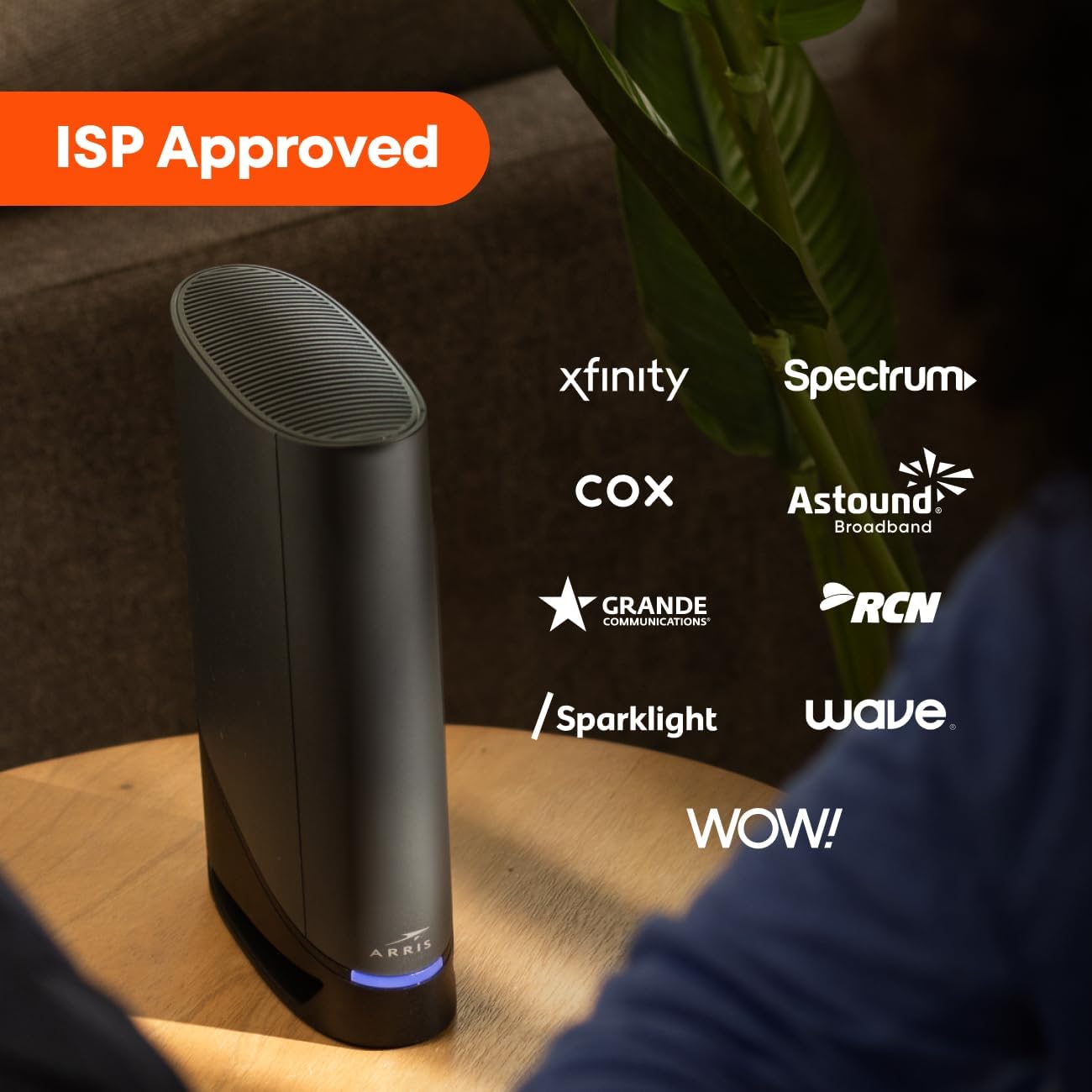
The ARRIS G36 is ISP Approved, compatible with Xfinity, Spectrum, Cox, Astound Broadband, Grande Communications, RCN, Sparklight, Wave, and WOW!.

At-A-Glance information for the ARRIS G36: It is a cable modem with Wi-Fi included, not compatible with DSL, Fiber, or Satellite Service, does not support cable digital voice service, and is recommended for cable Internet speed plans up to 1 Gbps.

A detailed list of Compatible Service Providers for the ARRIS G36, including Advanced Stream, Altice Optimum, Altice Suddenlink, Armstrong, Atlantic Broadband, CableOne/Sparklight, Click CableTV, Comcast/Xfinity, Cox, Grande Communications, New Wave/Sparklight, Mediacom, Midcontinent Communications, RCN, Service Electric, Spectrum, Wave Broadband, WOW!, and Zito Media.
A table showing the maximum supported speeds for the G36 with different ISPs: Cox (Up to 1 Gbps), Spectrum (Up to 1 Gbps), and Xfinity (Up to 1.2 Gbps).
Maintenance
Proper maintenance ensures the longevity and optimal performance of your ARRIS SURFboard G36.
- Ventilation: Ensure the modem is placed in a well-ventilated area. Do not block the ventilation openings. Overheating can lead to performance issues and reduce the lifespan of the device.
- Cleaning: Periodically clean the exterior of the modem with a soft, dry cloth. Avoid using liquid cleaners or aerosols.
- Firmware Updates: Firmware updates are typically managed by your Internet Service Provider (ISP). The modem will automatically receive updates when available. Do not attempt to manually update the firmware unless instructed by ARRIS support or your ISP.
- Power Cycling: If you experience connectivity issues, a simple power cycle can often resolve them. Disconnect the power supply from the modem, wait 10-15 seconds, then reconnect it. Allow a few minutes for the modem to fully restart and re-establish connection.
Troubleshooting
If you encounter issues with your ARRIS SURFboard G36, try the following troubleshooting steps:
- No Internet Connection:
- Verify all cables (coaxial, Ethernet, power) are securely connected.
- Power cycle the modem: Unplug the power cord, wait 15 seconds, then plug it back in. Wait for the lights to stabilize.
- Check your ISP's status page or contact them to confirm there are no local outages.
- Slow Speeds:
- Ensure your devices are connected to the 5 GHz Wi-Fi band for optimal performance, if supported.
- Minimize interference by moving the modem away from other electronics.
- Perform a speed test on a wired connection to rule out Wi-Fi issues.
- Contact your ISP to confirm your subscribed speed plan and line quality.
- Wi-Fi Disconnections:
- Adjust the modem's position to improve signal strength.
- Ensure your Wi-Fi network is not overcrowded with too many devices.
- Consider changing Wi-Fi channels to avoid interference from neighboring networks.
- Factory Reset: If issues persist, you may need to perform a factory reset. This will revert all settings to their default values, including Wi-Fi name and password. To do this, locate the recessed Reset button on the back of the modem. Use a paperclip to press and hold the button for at least 10-15 seconds until the lights flash.
For more detailed troubleshooting or advanced issues, please refer to the official User Manual PDF available online: ARRIS SURFboard G36 User Manual PDF.
Specifications
Key technical specifications for the ARRIS SURFboard G36 Cable Modem Router Combo:
| Feature | Detail |
|---|---|
| Model Name | G36 SURFboard DOCSIS |
| DOCSIS Standard | 3.1 |
| Wi-Fi Standard | Wi-Fi 6 (802.11ax) |
| Frequency Band Class | Dual-Band (2.4 GHz & 5 GHz) |
| Ethernet Ports | One 2.5 Gbps, Four 1 Gbps |
| Max Internet Speed Plan | Up to 2.5 Gbps (actual speeds vary by ISP) |
| Product Dimensions | 10 x 3 x 8 inches |
| Item Weight | 2 pounds |
| Manufacturer | CommScope |
| Country of Origin | Vietnam |
| Compatible Devices | Personal Computer, Smart Television, Smartphone |
| Recommended Uses | Home, Gaming, Business |

Visual summary of the ARRIS G36's modem technology (DOCSIS 3.1), Wi-Fi speeds (AX3000), Ethernet ports (One 2.5 Gb & Four 1 Gb), and cable internet speed plan compatibility (Up to 2.5 Gbps).
Warranty and Support
Your ARRIS SURFboard G36 comes with a manufacturer's warranty. For specific warranty terms and conditions, please refer to the Warranty Card included in your product packaging or visit the official ARRIS support website.
Additionally, extended protection plans may be available for purchase:
- 3-Year Protection Plan: Available for purchase to extend coverage beyond the standard warranty.
- 4-Year Protection Plan: Available for purchase to provide even longer-term protection.
- Complete Protect: A monthly subscription plan that covers eligible past and future purchases.
For technical support, product registration, or to access the full user manual, please visit the ARRIS support portal or contact their customer service. The official User Manual PDF can be found here: ARRIS SURFboard G36 User Manual PDF.
Related documentsG36


Ask a question about this manual
Ask about setup, troubleshooting, compatibility, parts, safety, or missing instructions. Manuals+ will review the question and use this page’s manual context to help answer it.