
T-Wolf AB-00065
T-Wolf RGB Mechanical Gaming Keyboard and Mouse User Manual
Model: AB-00065
1. Introduction
Thank you for choosing the T-Wolf RGB Mechanical Gaming Keyboard and Mouse. This product is designed to enhance your gaming and typing experience with its responsive mechanical feel, vibrant RGB backlighting, and ergonomic design. This manual provides detailed instructions for setup, operation, maintenance, and troubleshooting to ensure optimal performance and longevity of your device.

Figure 1.1: T-Wolf RGB Mechanical Gaming Keyboard and Mouse. The image displays the full-sized black keyboard with rainbow LED backlighting and a matching black gaming mouse with green accents.
2. Safety Information
- Do not expose the device to liquids or excessive moisture.
- Avoid extreme temperatures. Operate and store the device in a dry environment within recommended temperature ranges.
- Do not attempt to disassemble or repair the device yourself. Refer all servicing to qualified personnel.
- Keep the device away from strong magnetic fields.
- Use only the provided USB cable for connection.
3. Package Contents
Please check the package contents upon unboxing. If any items are missing or damaged, contact customer support.
- T-Wolf RGB Mechanical Gaming Keyboard
- T-Wolf Gaming Mouse
- USB Cable (integrated with keyboard and mouse)
- User Manual (this document)
4. Setup Instructions
- Unpack the Device: Carefully remove the keyboard and mouse from their packaging.
- Connect to Computer: Locate an available USB port on your desktop computer or laptop. Insert the USB connector from the keyboard into the USB port. Repeat for the mouse.
- Driver Installation (Automatic): The keyboard and mouse are plug-and-play devices. Your operating system (Windows 7 or later recommended) will automatically detect and install the necessary drivers. This process may take a few moments.
- Verify Connection: Once drivers are installed, the keyboard backlighting should illuminate, and the mouse cursor should be responsive on your screen.
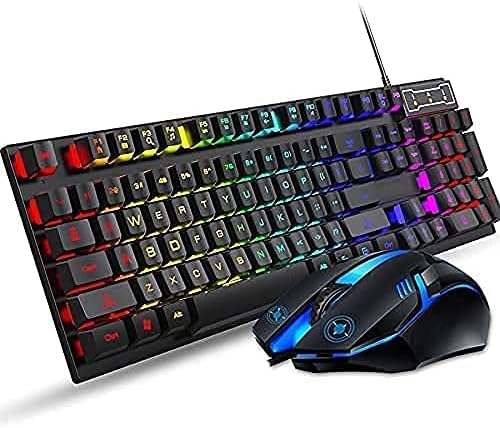
Figure 4.1: The T-Wolf gaming keyboard and mouse, ready for USB connection. The image shows the keyboard with its vibrant RGB backlighting and the mouse with blue accents, both featuring integrated USB cables.
5. Operating Instructions
5.1 Keyboard Functions
The T-Wolf keyboard features a standard UK layout with 104 keys, designed for both gaming and office work. Its mechanical feel provides tactile feedback for precise input.
Backlighting Control:
The keyboard features rainbow LED backlighting. To control the lighting:
- Turn On/Off Backlight: Press the "SL" (Scroll Lock) key to toggle the backlighting on or off. This key is typically located in the upper right section of the keyboard.

Figure 5.1: Close-up view of the keyboard highlighting the "SL" (Scroll Lock) key, which controls the cool lighting effect. Pressing this key toggles the keyboard's rainbow LED backlight on and off.
Media Shortcut Keys:
The keyboard includes various media shortcut keys for quick access to functions. Refer to the shortcuts shown on the back of the product packaging for a full list of combinations, typically involving the Fn key.

Figure 5.2: Overview of the keyboard and mouse, emphasizing the "Media shortcut key" functionality. The image explains that the cool lighting effect can be toggled on/off by pressing the 'SL' key, showcasing the elegant design.
5.2 Mouse Functions
The T-Wolf gaming mouse provides precise tracking and comfortable grip, ideal for extended use in gaming or productivity tasks.
- Standard Buttons: Left-click, right-click, and scroll wheel for navigation and interaction.
- DPI Adjustment: (If applicable, not explicitly stated in product description, but common for gaming mice) Some gaming mice include a DPI button to adjust sensitivity. Refer to product packaging or manufacturer website for specific instructions if present.
6. Maintenance and Care
- Cleaning: Use a soft, dry cloth to wipe down the keyboard and mouse. For stubborn dirt, slightly dampen the cloth with water or a mild, non-abrasive cleaner. Ensure the device is unplugged before cleaning.
- Dust Removal: Use compressed air to remove dust and debris from between the keycaps.
- Avoid Liquids: Do not spray cleaning solutions directly onto the device.
- Storage: When not in use for extended periods, store the device in a cool, dry place away from direct sunlight.
7. Troubleshooting
| Problem | Possible Cause | Solution |
|---|---|---|
| Keyboard/Mouse not responding | Loose USB connection, faulty USB port, driver issue. |
|
| Backlighting not working | Backlight turned off, power issue. |
|
| Keys not registering or sticky | Debris under keycap, faulty switch. |
|
8. Specifications
| Feature | Detail |
|---|---|
| Brand | T-Wolf |
| Model Number | AB-00065 |
| Connectivity | USB Wired |
| Keyboard Type | Mechanical Feel, 104 Keys (UK Layout) |
| Backlighting | Rainbow LED Backlit |
| Operating System Compatibility | Windows 7 and onwards |
| Cable Length | 1.35m (Keyboard) |
| Color | Black |
| Item Weight | Approximately 1.37 pounds (0.62 kg) |
| Product Dimensions (LxWxH) | 21 x 6 x 2 inches (53.34 x 15.24 x 5.08 cm) |
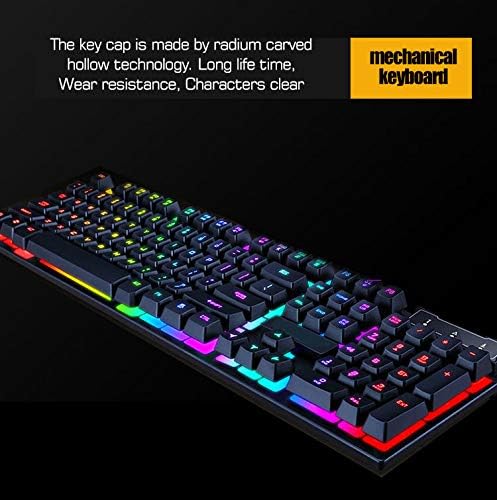
Figure 8.1: Detail of the keyboard's keycaps, illustrating the radium carved hollow technology for long life, wear resistance, and clear characters, contributing to the mechanical feel.
9. Warranty and Support
For warranty information and technical support, please refer to the contact details provided on the product packaging or visit the official T-Wolf website. Keep your purchase receipt as proof of purchase for any warranty claims.
If you encounter any issues not covered in the troubleshooting section, please contact our customer service team for assistance.
Related documentsAB-00065


Ask a question about this manual
Ask about setup, troubleshooting, compatibility, parts, safety, or missing instructions. Manuals+ will review the question and use this page’s manual context to help answer it.