
Introduction
This manual provides detailed instructions for the Microdigit MD302K Mini Spill-Resistant USB Wired Slim Keyboard. Designed for comfort and durability, this keyboard features soft, quiet keys and a compact, splash-resistant design, making it ideal for various computing environments. Please read this manual carefully to ensure proper use and maintenance of your device.
Setup
The Microdigit MD302K keyboard is designed for simple plug-and-play connectivity, requiring no additional software installation.
- Unpack the Keyboard: Carefully remove the keyboard from its packaging.
- Connect the USB Cable: Locate the USB connector attached to the keyboard. Plug this USB connector into an available USB port on your computer (laptop, desktop, or Smart TV).
- System Recognition: Your operating system (Windows, Mac, Linux, Android TV) should automatically detect and install the necessary drivers. This process usually takes a few seconds.
- Begin Use: Once recognized, the keyboard is ready for immediate use.
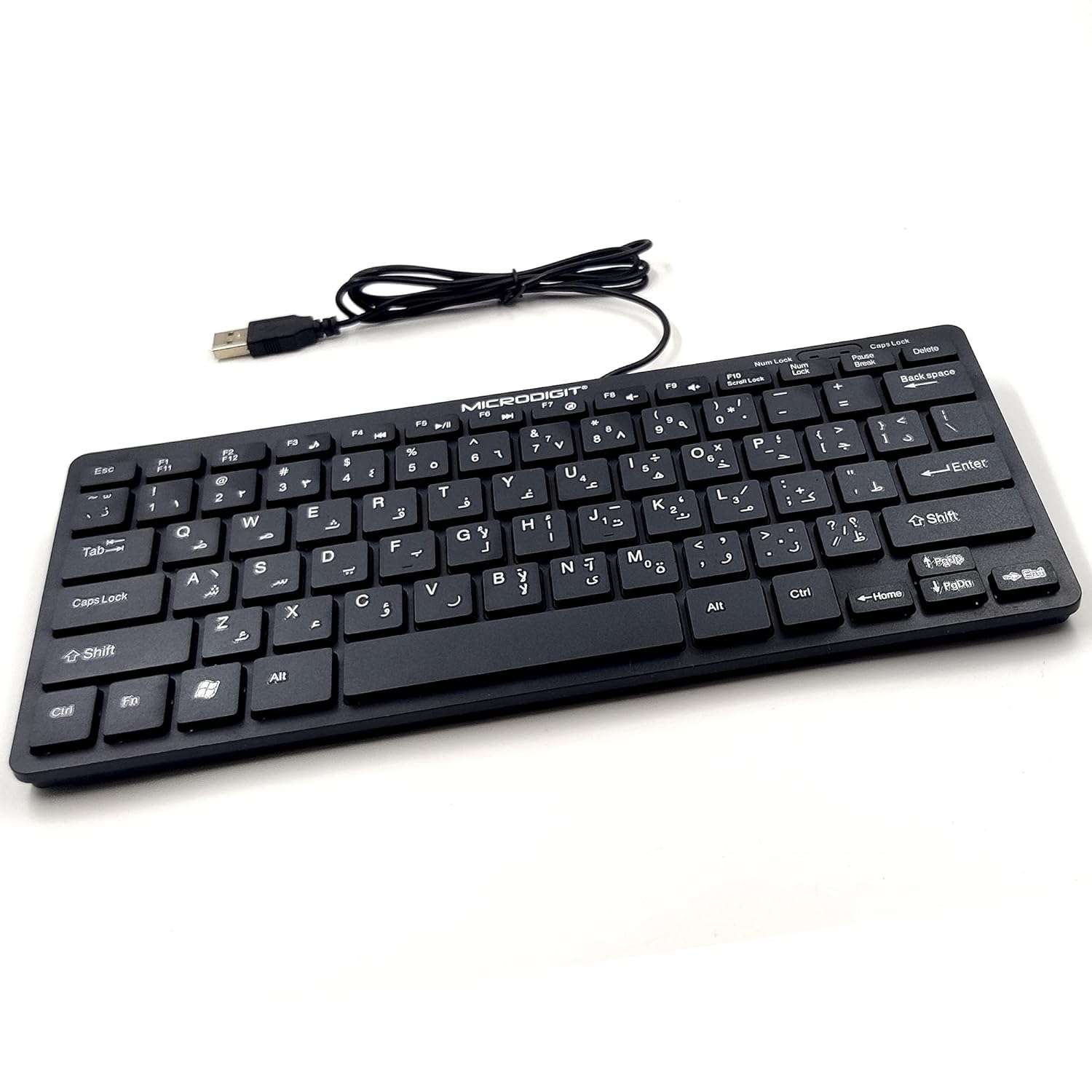
Image: The Microdigit MD302K keyboard with its integrated USB cable, illustrating the simple connection process to a device.
Compatibility: This keyboard is widely compatible with Windows 10/8/7/Vista/XP/98/2000, Mac, Linux OS, and Android TV.
Operating
The MD302K keyboard features 78 soft-touch keys designed for a comfortable and quiet typing experience.
- Quiet Operation: The keys are engineered with soft press technology to minimize typing noise, allowing for an undisturbed working environment.
- Durable Keystrokes: Each key is built to withstand up to 10 million keystrokes, ensuring long-term reliability.
- Compact Design: The sleek and compact form factor makes it easy to fit into laptop bags and suitable for minimal desk space.
- Standard Layout: The keyboard features a standard layout for efficient typing and navigation.

Image: A close-up of the Microdigit MD302K keyboard keys, emphasizing their smooth and quiet design for comfortable typing.
Maintenance
Proper maintenance will extend the lifespan of your Microdigit MD302K keyboard.
- Spill Resistance: The keyboard is designed to be splash-resistant, meaning it can withstand accidental liquid spills. In case of a spill, immediately disconnect the keyboard from your device and allow it to dry completely before reconnecting. Do not immerse the keyboard in liquid.
- Cleaning: To clean the keyboard, use a soft, damp cloth. For stubborn dirt between keys, a can of compressed air can be used to blow out debris. Avoid using harsh chemicals or abrasive cleaners.
- Storage: Store the keyboard in a clean, dry environment away from extreme temperatures and direct sunlight when not in use.
Troubleshooting
If you encounter issues with your Microdigit MD302K keyboard, try the following troubleshooting steps:
- Keyboard Not Responding:
- Ensure the USB cable is securely plugged into a working USB port on your computer.
- Try plugging the keyboard into a different USB port.
- Restart your computer or device.
- Test the keyboard on another computer to determine if the issue is with the keyboard or the original device.
- Keys Not Functioning Correctly:
- Check for any physical obstructions or debris under the keys. Use compressed air to clear if necessary.
- If a liquid spill occurred, ensure the keyboard is completely dry before attempting to use it again.
- Unexpected Characters or Layout Issues:
- Verify that your operating system's keyboard language and layout settings are correct for your region.
Specifications
Detailed technical specifications for the Microdigit MD302K keyboard:
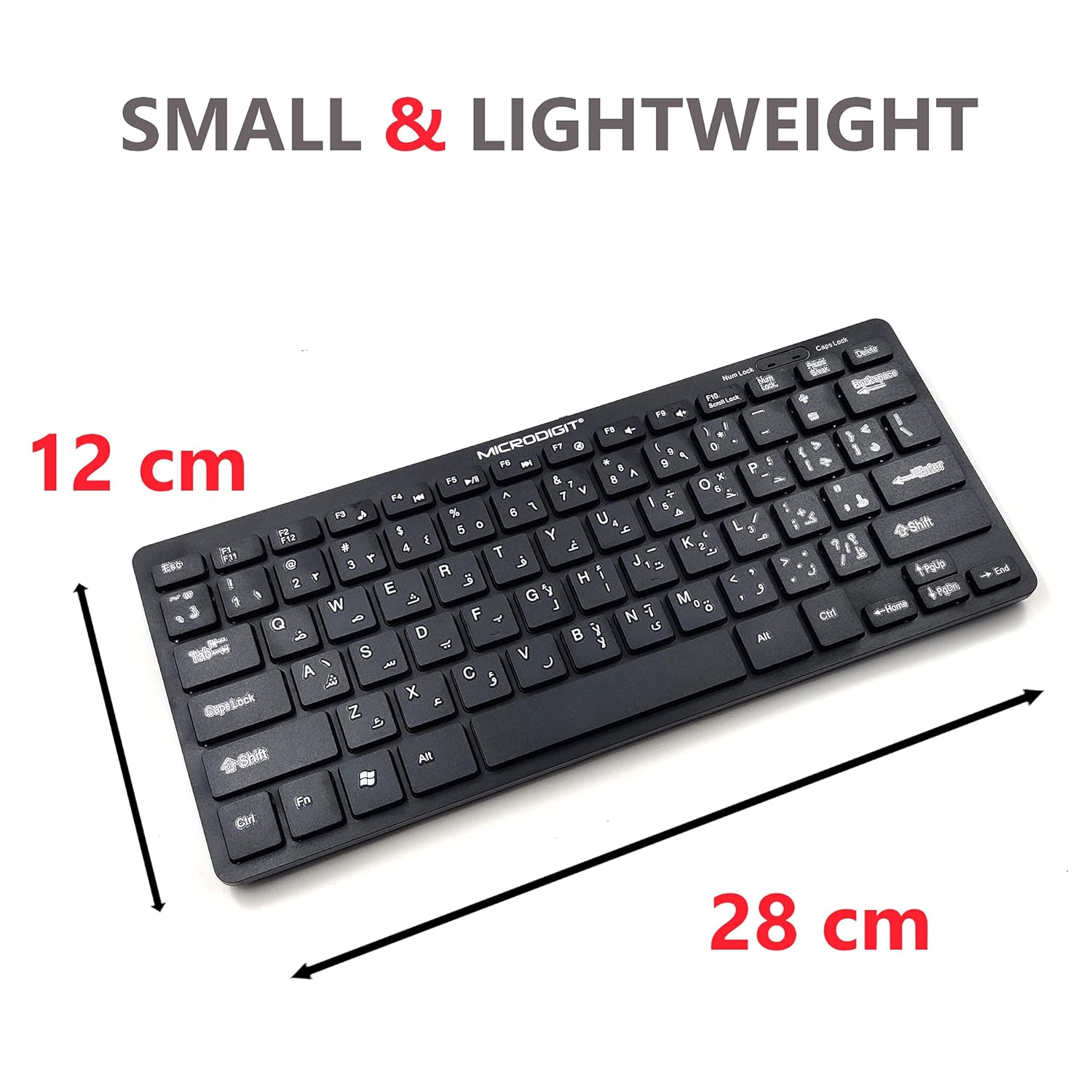
Image: The Microdigit MD302K keyboard showcasing its compact dimensions, approximately 12 cm in width and 28 cm in length.
| Brand | Microdigit |
| Model Number | MD302K |
| Connectivity Technology | USB (Wired) |
| Compatible Devices | Laptop, Desktop, Smart TV |
| Number of Keys | 78 |
| Keyboard Description | Ergonomic, Slim |
| Special Features | Spill-Resistant, Quiet Touch Keys, Ergonomic |
| Color | Black |
| Power Source | DC (USB Powered) |
| Manufacturer | Ashtel Group |
Warranty and Support
For warranty information and customer support, please refer to the documentation included with your purchase or contact your retailer. Microdigit strives to provide reliable products and assistance.
- Returns Policy: Please consult the retailer's returns policy for details regarding product returns.
- Technical Support: If you require further assistance beyond the troubleshooting steps provided, please contact Microdigit customer support or your point of purchase.