
DAYBETTER SWTYBRGB12
DAYBETTER Tuya Smart Light Bulbs A19 E26 - User Manual
Model: SWTYBRGB12
Introduction
Thank you for choosing DAYBETTER Tuya Smart Light Bulbs. These RGBCW WiFi LED bulbs offer versatile lighting options, including color changing and tunable white light, and are compatible with Alexa and Google Home Assistant. This manual provides essential information for safe installation, operation, and maintenance of your smart light bulbs.

Image: DAYBETTER Tuya Smart Light Bulbs, showcasing their multicolor capabilities.
Safety Information
Please read and understand all safety instructions before installing or using your smart light bulbs.
- Indoor Use Only: These bulbs are designed for indoor use in dry locations.
- Power Off Before Installation: Always turn off the power to the fixture before installing or removing the bulb.
- Standard Socket: Use only in E26/E27 standard light sockets.
- Not for Enclosed Fixtures: Avoid using in fully enclosed fixtures as this may reduce bulb lifespan due to heat buildup.
- Dimmer Switches: Do not use with standard dimmer switches. Dimming is controlled via the app or voice assistant.
- Electrical Hazard: Do not disassemble or modify the bulb. Risk of electric shock.
- Operating Temperature: Ensure the operating environment is within the recommended temperature range.
Setup Guide
1. Physical Installation
- Ensure the power to the light fixture is turned off at the switch or circuit breaker.
- Carefully screw the DAYBETTER smart light bulb into a standard E26/E27 light socket.
- Turn on the power to the light fixture. The bulb should illuminate.
2. App Download and Account Registration
- Download the Tuya Smart application from the App Store (iOS) or Google Play Store (Android).
- Open the Tuya Smart app and register for a new account or log in if you already have one.

Image: Tuya Smart App interface for controlling lights remotely.
3. Device Pairing (2.4GHz WiFi Required)
Important: Ensure your mobile device is connected to a 2.4GHz WiFi network during the pairing process. These bulbs do not support 5GHz WiFi.
- After turning on the bulb, it should start flashing rapidly (pairing mode). If it does not flash, turn the bulb off and on 3-5 times until it enters flashing mode.
- Open the Tuya Smart app. The app may automatically detect the new device. If not, tap the "+" icon in the top right corner to add a device.
- Select "Lighting" or "Light Source (Wi-Fi)" from the device list.
- Confirm that the indicator light is flashing rapidly.
- Enter your 2.4GHz WiFi network password.
- Follow the on-screen prompts to complete the pairing process. Once connected, the bulb will stop flashing and remain steadily lit.
- You can rename the bulb within the app for easier identification (e.g., "Living Room Lamp," "Kitchen Light").
4. Voice Assistant Integration (Optional)
To control your bulbs with Alexa or Google Home Assistant:
- Open your Alexa or Google Home app.
- Navigate to the "Skills" or "Works with Google" section.
- Search for and enable the "Tuya Smart" skill/service.
- Link your Tuya Smart account when prompted.
- Discover devices. Your DAYBETTER smart bulbs should now appear and be controllable via voice commands.

Image: Voice control functionality with Alexa and Google Assistant.
Operating Instructions
1. App Control
The Tuya Smart app allows comprehensive control over your bulbs from anywhere with an internet connection.
- On/Off: Tap the bulb icon to turn it on or off.
- Color Adjustment: Select from 16 million colors using the color wheel.
- Tunable White: Adjust the white light from warm (2700K) to cool (6500K).
- Brightness: Adjust brightness from 1% to 100%.
- Grouping: Create groups for multiple bulbs to control them simultaneously (e.g., "Living Room Lights").
- Scene Customization: Create and save custom lighting scenes for different moods or activities.

Image: Example of group control for smart bulbs in a bedroom setting.
2. Voice Control
Once integrated with Alexa or Google Home, use simple voice commands:
- "Alexa, turn on [bulb name]."
- "Hey Google, set [bulb name] to blue."
- "Alexa, dim [bulb name] to 50%."
- "Hey Google, make [bulb name] warmer."
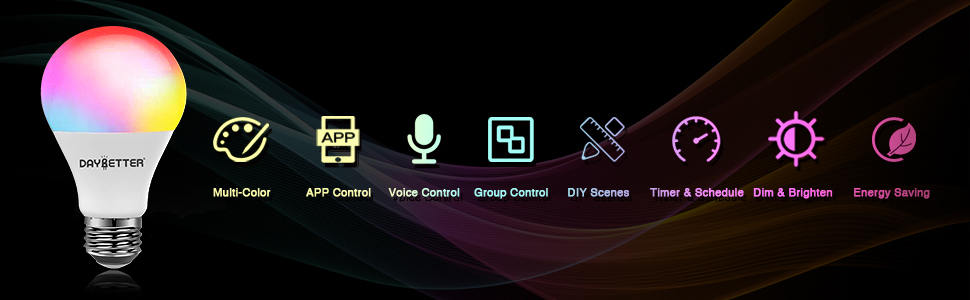
Image: Hands-free voice control using smart assistants.
3. Timer and Schedule Functions
Set schedules for your bulbs to turn on or off automatically at specific times.
- In the Tuya Smart app, select your bulb and navigate to the "Schedule" or "Timer" section.
- Set desired on/off times for daily routines, such as waking up or going to bed.
- Utilize the countdown timer for temporary lighting needs.

Image: Timer and schedule settings for automated lighting.
Maintenance
DAYBETTER smart light bulbs are designed for long-lasting performance with minimal maintenance.
- Cleaning: Ensure the bulb is off and cool before cleaning. Wipe with a soft, dry cloth. Do not use liquid cleaners.
- Storage: If storing bulbs, keep them in a cool, dry place away from direct sunlight and extreme temperatures.
- Firmware Updates: Periodically check the Tuya Smart app for firmware updates to ensure optimal performance and security.
Troubleshooting
| Problem | Possible Cause | Solution |
|---|---|---|
| Bulb does not turn on. | No power to the socket; bulb not screwed in properly; bulb is faulty. | Check power supply and wall switch. Ensure bulb is securely screwed in. Test bulb in another working socket. |
| Bulb does not flash for pairing. | Not in pairing mode. | Turn the bulb off and on 3-5 times until it starts flashing rapidly. |
| Cannot connect to WiFi. | Incorrect WiFi band (5GHz); incorrect password; weak signal; router issues. | Ensure your phone is connected to a 2.4GHz WiFi network. Verify WiFi password. Move bulb closer to router. Power cycle your router and try again. |
| Voice control not working. | Tuya Smart skill not enabled; device not discovered; incorrect commands. | Ensure "Tuya Smart" skill is enabled in Alexa/Google Home app. Redo device discovery. Use correct voice commands with the bulb's assigned name. |
| Bulb loses connectivity after power outage or switch off. | Temporary network disruption; bulb reset to default. | Wait a few minutes for the network to stabilize. If still disconnected, re-pair the bulb using the Tuya Smart app. Avoid turning off the physical switch for extended periods; use the app or voice control instead. |
| Bulb feels hot. | Normal operation for LED bulbs; used in enclosed fixture. | LED bulbs generate some heat, which is normal. Ensure the bulb is not in a fully enclosed fixture that restricts airflow. If excessively hot or emitting smoke, discontinue use immediately. |
Specifications
| Brand | DAYBETTER |
| Model Number | SWTYBRGB12 |
| Light Type | LED |
| Wattage | 9 Watts |
| Incandescent Equivalent | 60 Watts |
| Brightness | 800 Lumens |
| Bulb Shape Size | A19 |
| Bulb Base | E26 |
| Light Color | Multi-colored (RGBCW) |
| Voltage | 120 Volts (Accepted: 100-240V) |
| Control Method | App (Tuya Smart), Voice (Alexa, Google Assistant) |
| Material | Copper |
| Indoor/Outdoor Usage | Indoor |
| Connectivity | 2.4GHz WiFi (No Hub Required) |
Warranty and Support
For warranty information and technical support, please refer to the official DAYBETTER website or contact their customer service directly.
DAYBETTER Customer Service: Please visit www.daybetter.com for contact details and further assistance.
Related documentsSWTYBRGB12

Ask a question about this manual
Ask about setup, troubleshooting, compatibility, parts, safety, or missing instructions. Manuals+ will review the question and use this page’s manual context to help answer it.