1. Introduction
This manual provides detailed instructions for the installation, operation, and maintenance of your Nuheat nVent AC0055 Signature Programmable WiFi Touchscreen Thermostat. This thermostat is designed to control radiant heated floor systems, offering advanced features such as WiFi connectivity, 7-day programmability, and smart home integration. Please read this manual thoroughly before installation and use to ensure proper function and safety.
2. Safety Information
Important Safety Instructions:
- Electrical Hazard: Installation must be performed by a qualified electrician in accordance with local and national electrical codes. Always turn off power at the circuit breaker before installing or servicing the thermostat.
- Voltage Compatibility: This thermostat is compatible with both 120V and 240V floor heating cables. Ensure the correct voltage is supplied to avoid damage.
- GFCI Protection: The thermostat features a built-in Class A Ground Fault Circuit Interrupter (GFCI) for enhanced safety. Test the GFCI monthly as per instructions.
- Intended Use: This device is designed exclusively for controlling electric radiant floor heating systems. Do not use it for other heating applications.
3. Product Overview
The Nuheat nVent AC0055 Signature Thermostat provides precise control over your radiant floor heating system. Key features include:
- WiFi Connectivity: Control your floor heating from anywhere using the dedicated mobile app (iOS and Android) or a web portal.
- Programmable: Enjoy 7-day programmability with an intuitive 3.5-inch color touchscreen interface.
- Smart Home Integration: Seamlessly connects with Amazon Alexa, Google Assistant, IFTTT, Control4, Crestron, Elan, and RTI.
- Energy Monitoring: Track your energy usage to optimize efficiency and savings.
- Dual Voltage: Compatible with both 120V and 240V floor heating cables.
- Built-in GFCI: Class A GFCI protection ensures electrical safety.
- Weather Reports: Displays real-time local weather to assist with heating adjustments.
Included Components:
- Nuheat nVent Signature Thermostat
- Floor Heating Temperature Sensor (OJ Electronics)
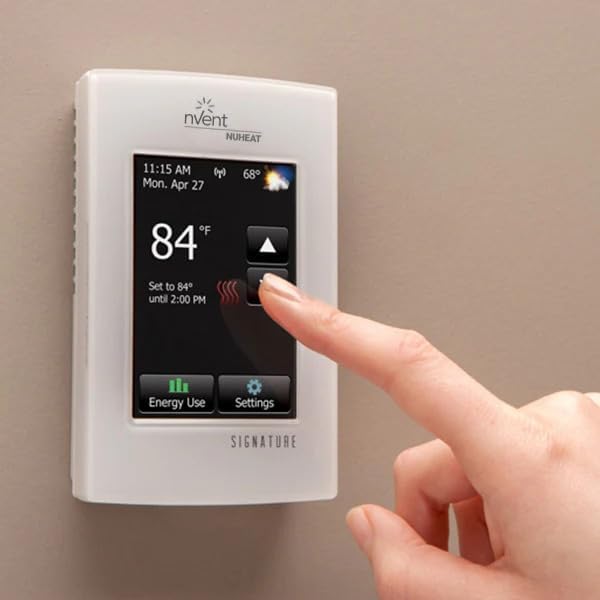
Figure 3.1: Front view of the Nuheat nVent Signature Thermostat, showing its touchscreen display.
4. Setup and Installation
Before You Begin: Ensure power to the heating circuit is OFF at the main electrical panel. This thermostat is designed for wall-mount installation.
4.1 Wiring Instructions
- Power Disconnection: Turn off power to the heating circuit at the main breaker. Verify power is off using a voltage tester.
- Mounting: Install the thermostat into a standard electrical box.
- Connect Wires: Connect the line voltage wires (L1, L2 for 240V or L1, Neutral for 120V) from the circuit breaker to the designated terminals on the thermostat. Connect the heating cable wires to the load terminals. Ensure proper grounding. Refer to the wiring diagram provided with the product packaging for specific terminal assignments.
- Sensor Installation: Route the floor heating temperature sensor cable into the electrical box and connect it to the sensor terminals on the thermostat. The sensor should be placed in a conduit in the floor, equidistant between two heating cables.

Figure 4.1: The Nuheat thermostat shown alongside the floor heating temperature sensor cable, which is crucial for accurate floor temperature readings.
4.2 Initial Power-Up and Configuration
- Restore Power: Once all wiring is secure and the thermostat is mounted, restore power at the circuit breaker.
- Initial Setup Wizard: The thermostat will guide you through an initial setup wizard on the touchscreen. This includes setting the date, time, language, and floor type.
- WiFi Connection: Follow the on-screen prompts to connect your thermostat to your home WiFi network. You will need your network name (SSID) and password.
- App Download: Download the Nuheat Signature app from the App Store (iOS) or Google Play Store (Android).
- Thermostat Pairing: Open the app and follow the instructions to create an account and pair your thermostat. This typically involves scanning a QR code on the thermostat or entering a unique ID.
5. Operating Instructions
The Nuheat Signature thermostat offers flexible control options via its touchscreen, mobile app, or web portal.
5.1 Touchscreen Operation
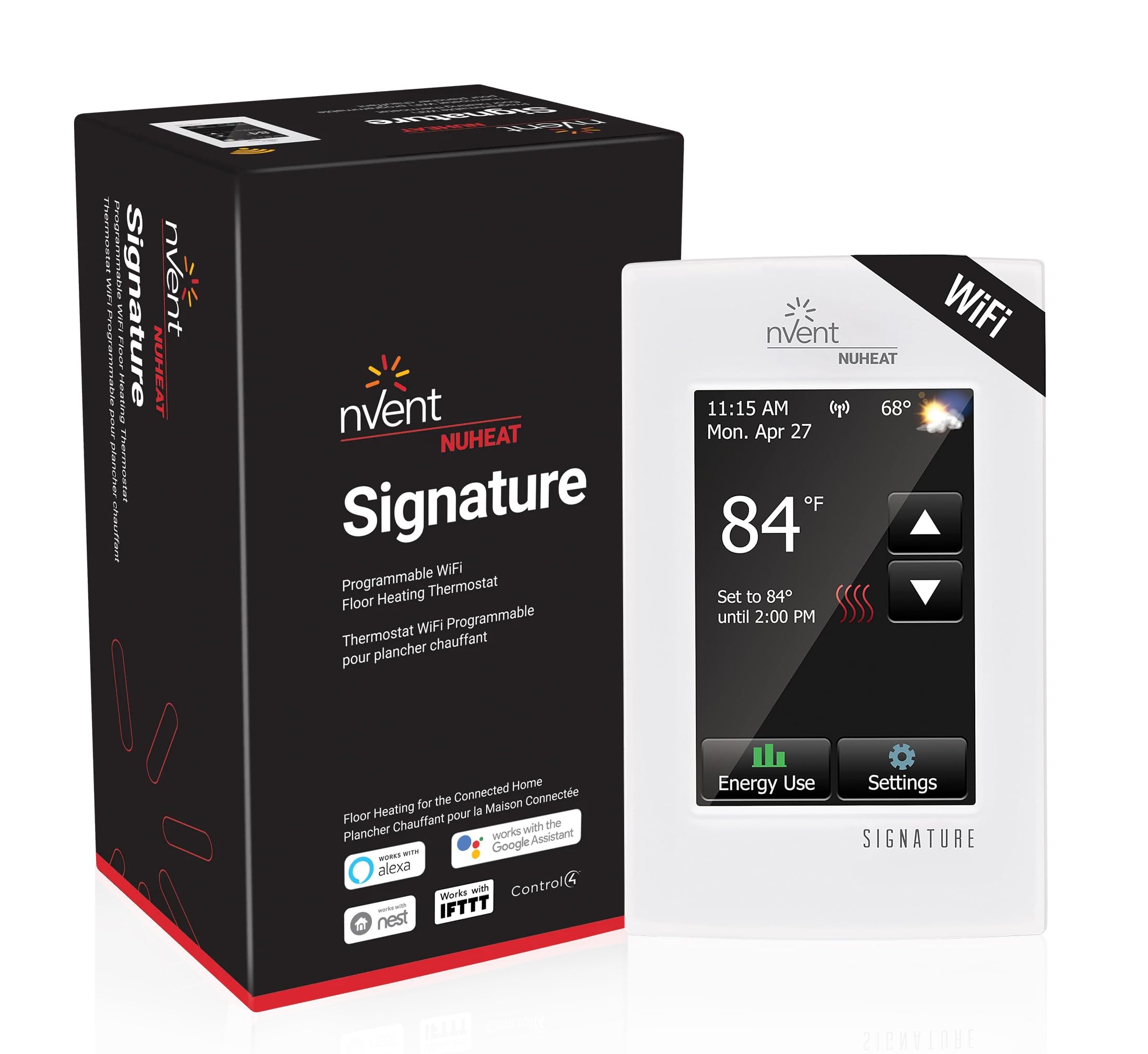
Figure 5.1: A finger interacting with the Nuheat thermostat's touchscreen, demonstrating temperature adjustment.
- Temperature Adjustment: Use the up/down arrows on the screen to adjust the desired floor temperature.
- Mode Selection: Access the main menu to select operating modes such as 'Program', 'Manual', or 'Away'.
- Programming: Navigate to the 'Program' section to set up your 7-day heating schedule. You can define different temperature settings for various times of the day and days of the week.
- Settings: The 'Settings' menu allows you to configure advanced options, including display brightness, temperature units (°F/°C), and GFCI test reminders.
- Energy Use: Tap the 'Energy Use' icon to view historical energy consumption data for your heating system.
5.2 Mobile App and Web Portal Control
Once paired, the mobile app and web portal offer full functionality of the thermostat from any location with internet access.
- Remote Control: Adjust temperature, change modes, and override schedules remotely.
- Schedule Management: Easily create, modify, and manage your 7-day heating schedules.
- Energy Monitoring: Access detailed energy consumption reports and analytics.
- Notifications: Receive alerts for system status or potential issues.
5.3 Smart Home Integration
Integrate your Nuheat Signature thermostat with popular smart home platforms for voice control and automation.
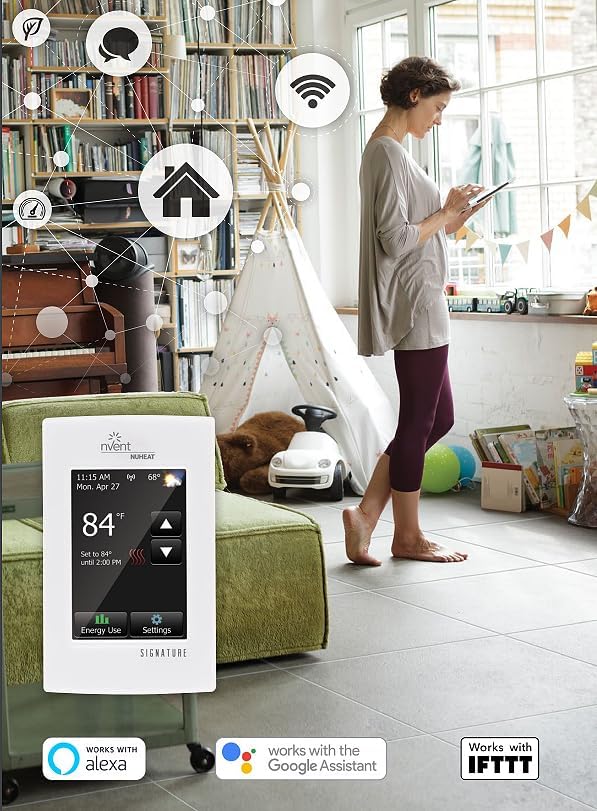
Figure 5.2: The Nuheat thermostat seamlessly integrates with smart home ecosystems like Amazon Alexa, Google Assistant, and IFTTT.
- Amazon Alexa / Google Assistant: Enable the Nuheat skill/action in your respective app. Use voice commands like "Alexa, set the floor to 75 degrees" or "Hey Google, what is the floor temperature?"
- IFTTT: Create custom applets to automate actions based on various triggers (e.g., turn off heating when you leave home).
- Other Platforms: Refer to the specific integration guides for Control4, Crestron, Elan, and RTI on the Nuheat website.
6. Maintenance
The Nuheat Signature thermostat requires minimal maintenance.
- Cleaning: Gently wipe the touchscreen and exterior with a soft, damp cloth. Do not use abrasive cleaners or solvents.
- GFCI Test: Perform a monthly GFCI test by pressing the 'TEST' button on the thermostat. The GFCI should trip, cutting power to the heating system. Press 'RESET' to restore power. If the GFCI does not trip or reset, contact a qualified electrician.
- Firmware Updates: Ensure your thermostat's firmware is up to date. Updates are typically delivered automatically via WiFi.
7. Troubleshooting
If you encounter issues with your Nuheat Signature thermostat, refer to the following common troubleshooting steps:
| Problem | Possible Cause | Solution |
|---|---|---|
| Thermostat has no power/blank screen | No power from circuit breaker; tripped GFCI; loose wiring. | Check circuit breaker; press GFCI 'RESET' button; verify wiring connections (power off first). |
| Floor not heating | Thermostat in 'OFF' or 'Away' mode; set temperature too low; heating cable issue; sensor fault. | Check thermostat mode and set temperature; consult a qualified electrician for heating cable or sensor issues. |
| WiFi connection issues | Incorrect WiFi password; weak signal; router issues. | Re-enter WiFi password; move router closer or use a WiFi extender; restart router; ensure 2.4GHz network is used. |
| Inaccurate temperature reading | Faulty floor sensor; sensor not properly installed. | Ensure sensor is correctly placed in conduit; contact support if sensor is suspected to be faulty. |
For persistent issues, please contact Nuheat customer support or a qualified HVAC technician.
8. Specifications
| Brand | Nuheat |
| Model Number | AC0055 (Internal ID: 550b9238-6809-4eec-899a-7767ae206ea3) |
| Voltage | 120 Volts, 240 Volts |
| Connectivity Technology | Wi-Fi |
| Display Type | 3.5 Inches Color Touchscreen |
| Control Method | Touch, App |
| Special Feature | Programmable, Smart Home Compatible (Alexa, Google Assistant, IFTTT, Control4, Crestron, Elan, RTI) |
| Specific Uses For Product | Floor Heating |
| Included Components | Thermostat, Floor Heating Temperature Sensor |
| Mounting Type | Wall Mount |
| Product Dimensions | 3 x 1 x 5 inches |
| Item Weight | 11.3 ounces |
| UPC | 620713066614 |
| ASIN | B096T3SXVR |
9. Warranty and Support
Warranty Information:
Specific warranty details for the Nuheat nVent AC0055 Signature Thermostat are typically provided with the product packaging or can be found on the official Nuheat website. Please retain your proof of purchase for warranty claims.
Customer Support:
For technical assistance, troubleshooting beyond this manual, or warranty inquiries, please visit the official Nuheat website or contact their customer service department. Contact information is usually available on the manufacturer's website or in the product documentation.


