
PeakDo 4K Pro
PeakDo 4K Wireless HDMI Extender User Manual
Model: 4K Pro
Introduction
Welcome to the user manual for the PeakDo 4K Wireless HDMI Extender. This device provides a seamless, zero-latency solution for extending 4K HDMI signals wirelessly, ideal for various applications from home entertainment to professional presentations.
This manual will guide you through the setup, operation, and maintenance of your PeakDo Wireless HDMI Extender, ensuring optimal performance and longevity.
Package Contents
Please verify that all items are present in your package. If any items are missing or damaged, please contact PeakDo customer support.
- PeakDo Wireless HDMI Transmitter (TX)
- PeakDo Wireless HDMI Receiver (RX)
- Power Adapters (2 units)
- USB-C Cable
- User Manual (this document)
Product Features
The PeakDo 4K Wireless HDMI Extender boasts advanced features designed for superior performance:
- Transmitting Like a Wired HDMI Cable: Extend PC/mac/mobile phone/pad/game console/projector/camera audio/video/presentation to any HDMI equipped HDTV, projector, or monitor without cable. The transmission speed, latency, picture quality and stability is same as a wired HDMI cable.
- Plug and Play: Easy to use, no requirement to software or WiFi connection. Just plug-n-play and eliminate the expensive and inconvenient cables.
- Zero Latency: Transmitting in 60GHz with a ≤2.5ms latency (real-time response), this transmitter and receiver kit transmits 4K@30Hz/1080P@120Hz Video/Audio with ease.
- High Performance: Transmission signal stays stable and smooth while transmitting 4K@30Hz, 1080P@120Hz or lower resolution video/audio. The ultra-wide transmission bandwidth ensures its signal stability and the video/audio synchronization.
- Multi-functional: This wireless HDMI extender kit is also a 5-interface docking station. The transmitter has 2 PD interfaces that support up to 100W super fast charging, 2 USB 3.0 interfaces and 1 HDMI interface. You can connect your mouse, keyboard, hard disk to the transmitter or charge your phone during transmission.
- Stylish Design: Designed with both function and aesthetics, the transmitter and receiver will also be a good ornament to your rooms.
- Improved Radiating: A small quiet fan on the back of the transmitter keep working during transmission and helps in heat dissipation to cooling the transmitter and keep the transmission stable.

Image: The PeakDo Wireless HDMI Extender units, showing the sleek design of both the transmitter and receiver.
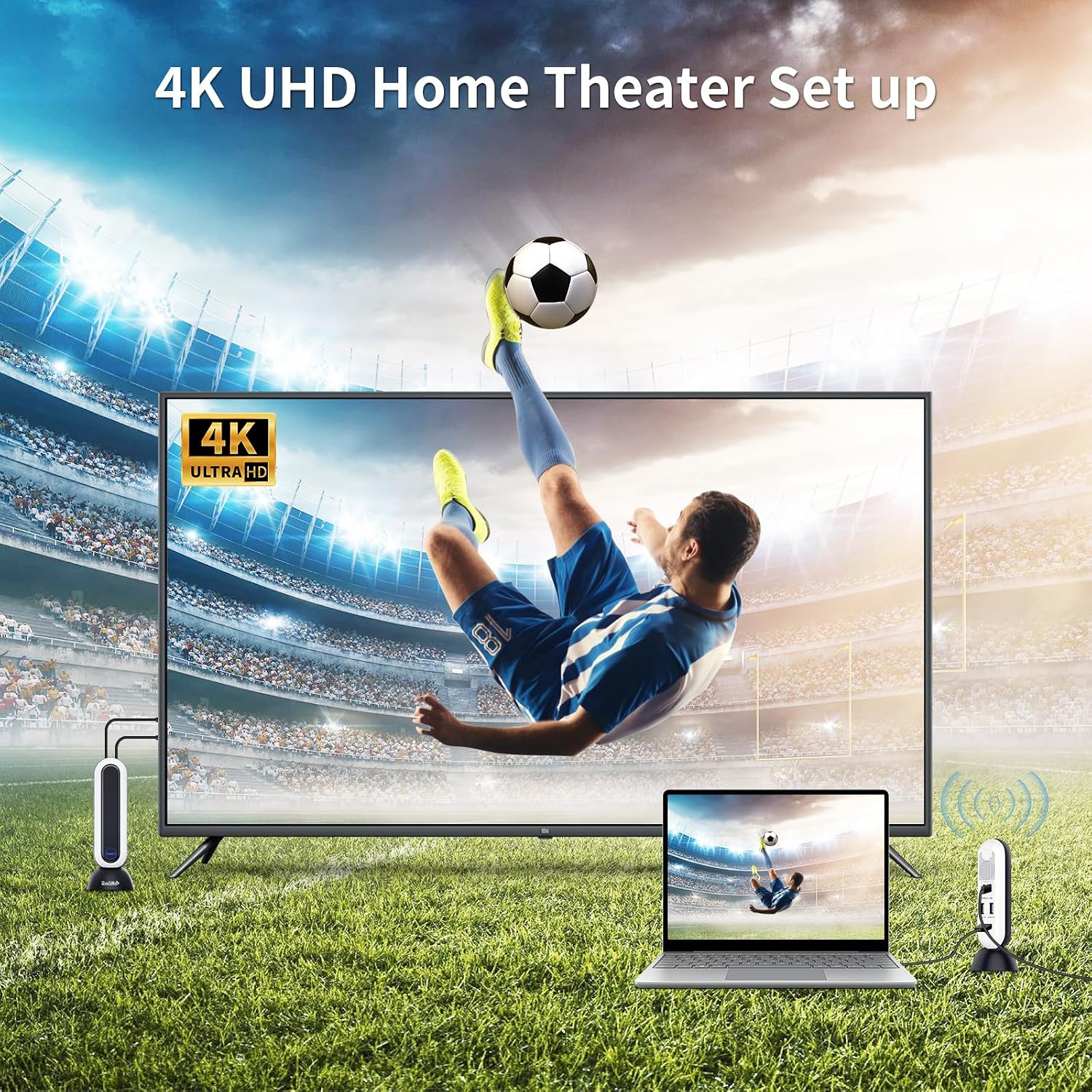
Image: An illustration of the PeakDo Wireless HDMI Extender integrated into a 4K UHD home theater setup, wirelessly connecting a laptop to a large screen TV.

Image: A visual demonstrating the 3.96Gbps transmission rate and zero latency of the PeakDo extender, ideal for gaming and live content, with a smartphone connected to the transmitter.

Image: A comparison chart highlighting the superior frequency (60GHz), transmission rate (3.96Gbps), and latency (<2.5ms) of PeakDo's millimeter wave wireless HDMI technology compared to standard 5G alternatives.
Setup Guide
Follow these steps to set up your PeakDo Wireless HDMI Extender:
- Power Connection: Connect the provided power adapters to both the Transmitter (TX) and Receiver (RX) units. Ensure they are powered on.
- Connect Transmitter (TX):
- For devices with an HDMI output (e.g., PC, game console, TV box): Connect an HDMI cable from your source device to the HDMI input port on the TX unit.
- For devices with a USB-C output (e.g., laptop, mobile phone, tablet): Connect a USB-C cable from your source device to the USB-C/PD port on the TX unit.
- The TX unit also features 2 USB 3.0 ports for connecting peripherals like a mouse, keyboard, or hard drive, and additional PD interfaces for fast charging.
- Connect Receiver (RX): Connect an HDMI cable from the RX unit's HDMI output port to your display device (e.g., HDTV, projector, monitor).
- Pairing (Automatic): The TX and RX units are pre-paired from the factory. Once both units are powered on and connected to their respective source and display, they should automatically establish a connection. The indicator lights on both units will confirm a successful connection.
- Placement: For optimal performance, ensure a clear line of sight between the TX and RX units. Avoid placing objects that could obstruct the 60GHz signal. The system supports up to 100 feet (30 meters) range in ideal conditions.

Image: A detailed connection diagram illustrating how to connect various source devices (USB-C signal source, HDMI signal source) to the Transmitter (TX) and how the Receiver (RX) connects to an HDMI output display, along with power supply connections.

Image: The PeakDo Wireless HDMI Extender in use during a meeting, demonstrating its plug-and-play functionality without requiring Wi-Fi, app, or Bluetooth, connecting a laptop to a large display.
Operating Instructions
Once the setup is complete, operating your PeakDo Wireless HDMI Extender is straightforward:
Basic Operation
- Power On: Ensure both the TX and RX units are connected to power and turned on.
- Source Selection: The extender automatically detects the active HDMI or USB-C input from the source device connected to the TX unit.
- Display Output: The RX unit will transmit the signal to the connected display. Ensure your display is set to the correct HDMI input.
- Peripherals (TX Unit): If using the USB 3.0 ports on the TX unit, simply plug in your USB devices (e.g., mouse, keyboard, USB drive). These will be accessible by the connected source device.
Important Considerations
- Line of Sight: Maintain a clear line of sight between the TX and RX units for optimal signal stability and range. Obstructions can degrade performance.
- Power Supply: Ensure the TX unit receives adequate power, especially when using its multi-functional docking station features. A 60W+ power adapter is recommended for stable connection, as noted by user feedback.
- Heat Dissipation: The TX unit has a small fan for heat dissipation. Ensure the fan is not obstructed to maintain stable operation.
Maintenance
To ensure the longevity and optimal performance of your PeakDo Wireless HDMI Extender, follow these maintenance guidelines:
- Cleaning: Use a soft, dry cloth to clean the exterior of the units. Do not use liquid cleaners or abrasive materials.
- Ventilation: Ensure the ventilation grilles on the TX unit are free from dust and debris. The internal fan requires clear airflow for effective cooling.
- Storage: When not in use for extended periods, store the units in a cool, dry place away from direct sunlight and extreme temperatures.
- Cable Management: Avoid sharp bends or excessive tension on the HDMI and USB cables connected to the units.
Troubleshooting
If you encounter issues with your PeakDo Wireless HDMI Extender, refer to the following common problems and solutions:
No Signal on Display
- Check Power: Ensure both TX and RX units are properly powered on and their indicator lights are active.
- Cable Connections: Verify that all HDMI and USB-C cables are securely connected to the correct ports on the source device, TX unit, RX unit, and display.
- Display Input: Confirm your display is set to the correct HDMI input channel.
- Line of Sight: Ensure there are no obstructions between the TX and RX units. Try repositioning them for a clearer path.
- Reboot: Disconnect power from both TX and RX units, wait a few seconds, then reconnect power. Also, reboot your source device and display.
Intermittent Signal / Poor Picture Quality
- Distance & Obstructions: The 60GHz signal is sensitive to obstructions. Reduce the distance between TX and RX, and ensure a clear line of sight. Walls, furniture, and even people can interfere.
- Interference: While 60GHz is less prone to common Wi-Fi interference, other high-frequency devices nearby could potentially cause issues. Try moving the units away from other electronics.
- Power Supply (TX): Ensure the TX unit is receiving sufficient power, especially if using its docking station features. A 60W+ USB-C PD power adapter is recommended for stability.
- Resolution/Refresh Rate: While the device supports 4K@30Hz and 1080P@120Hz, some older displays or source devices might have compatibility issues at higher resolutions. Try lowering the resolution or refresh rate on your source device.
Latency Issues
- Line of Sight: Any obstruction can introduce minor delays. Ensure a direct line of sight.
- Signal Strength: Ensure the units are within optimal range and receiving strong signal.
- Power Supply: Insufficient power to the TX unit can sometimes affect performance.
TX Unit Runs Warm
- This is normal operation due to the high-performance components and the internal fan working to dissipate heat. Ensure the fan vents are not blocked.
Specifications
| Feature | Detail |
|---|---|
| Brand | PeakDo |
| Model Number | 4K Pro |
| Connectivity Technology | 60GHz mm-waves, HDMI |
| Compatible Devices | Projector, Laptop, Monitor, Television, Personal Computer |
| Total HDMI Ports | 2 (1 on TX, 1 on RX) |
| Connector Type | HDMI, USB-C |
| Video Resolution Support | 4K@30Hz, 1080P@120Hz |
| Latency | ≤2.5ms |
| Transmission Range | Up to 100 feet (30 meters) |
| TX Unit Interfaces | 2 x USB-C/PD (up to 100W), 2 x USB 3.0, 1 x HDMI input |
| RX Unit Interfaces | 1 x HDMI output |
| Audio Output Mode | Stereo, Surround Sound (2.0) |
| Video Encoding | H.264, H.265 (HEVC), or VP9 |
| Parcel Dimensions | 21.69 x 18.9 x 6.91 cm |
| Item Weight | 1.46 kg |
| Date First Available | June 9 2021 |
Warranty and Support
PeakDo offers a 1-year global warranty and free lifetime technical support for this product.
For technical assistance, warranty claims, or any inquiries, please contact PeakDo customer support through their official website or the platform where you purchased the product.
Keep your purchase receipt as proof of purchase for warranty purposes.
For more information, visit the PeakDo Store on Amazon.
Related documents4K Pro

Ask a question about this manual
Ask about setup, troubleshooting, compatibility, parts, safety, or missing instructions. Manuals+ will review the question and use this page’s manual context to help answer it.