
Samsung QN50Q60AA
Samsung QN50Q60AA 50 Inch QLED 4K UHD Smart TV User Manual
Model: QN50Q60AA
1. Introduction
This manual provides essential information for the safe and efficient use of your Samsung QN50Q60AA 50 Inch QLED 4K UHD Smart TV. Please read these instructions carefully before operating the device and retain them for future reference. This guide covers setup, operation, maintenance, and troubleshooting.
2. What's in the Box
Verify that all components are present upon unpacking your new television.
- Samsung QN50Q60AA 50 Inch QLED 4K UHD Smart TV
- Remote Control
- User Manual (this document)
- E-Manual (digital version)
- Power Cable
- TV Stand Components (if applicable)

Image: Samsung QN50Q60AA TV with its packaging and a protection plan box.
3. Setup Guide
3.1. Physical Installation
Carefully remove the TV from its packaging. For stand installation, attach the provided stand feet to the bottom of the TV according to the instructions in the E-Manual. Ensure all screws are securely fastened. If wall-mounting, consult a professional installer and use a compatible VESA wall mount kit (sold separately).

Image: Front view of the Samsung QN50Q60AA QLED TV.
3.2. Connecting External Devices
Connect your external devices such as Blu-ray players, game consoles, or sound systems to the TV's input ports. Refer to the diagram below for port locations.

Image: Rear panel of the Samsung QN50Q60AA TV, highlighting HDMI, USB, LAN, and Antenna ports.
- HDMI Ports: Connect high-definition devices.
- USB Ports: For connecting USB storage devices.
- LAN Port: For a wired internet connection.
- Antenna Input: For connecting an antenna or cable TV.
3.3. Power Connection and Initial Setup
After connecting all devices, plug the power cable into the TV and then into a wall outlet. Press the Power button on the remote control. Follow the on-screen instructions to complete the initial setup, including language selection, network connection (Wi-Fi or wired), and channel scanning.
4. Operating Instructions
4.1. Remote Control Overview
The remote control allows you to navigate the TV's features. Common buttons include Power, Volume Up/Down, Channel Up/Down, Smart Hub, and Navigation buttons.
4.2. Smart Hub and Applications
Press the Smart Hub button on your remote to access a variety of streaming services, apps, and other smart features. You can customize your Smart Hub screen by adding or removing applications.
4.3. Picture and Sound Settings
Access the TV's menu to adjust picture and sound settings. Your QLED TV features 100% Color Volume with Quantum Dot technology for vibrant colors and Quantum HDR for enhanced contrast.
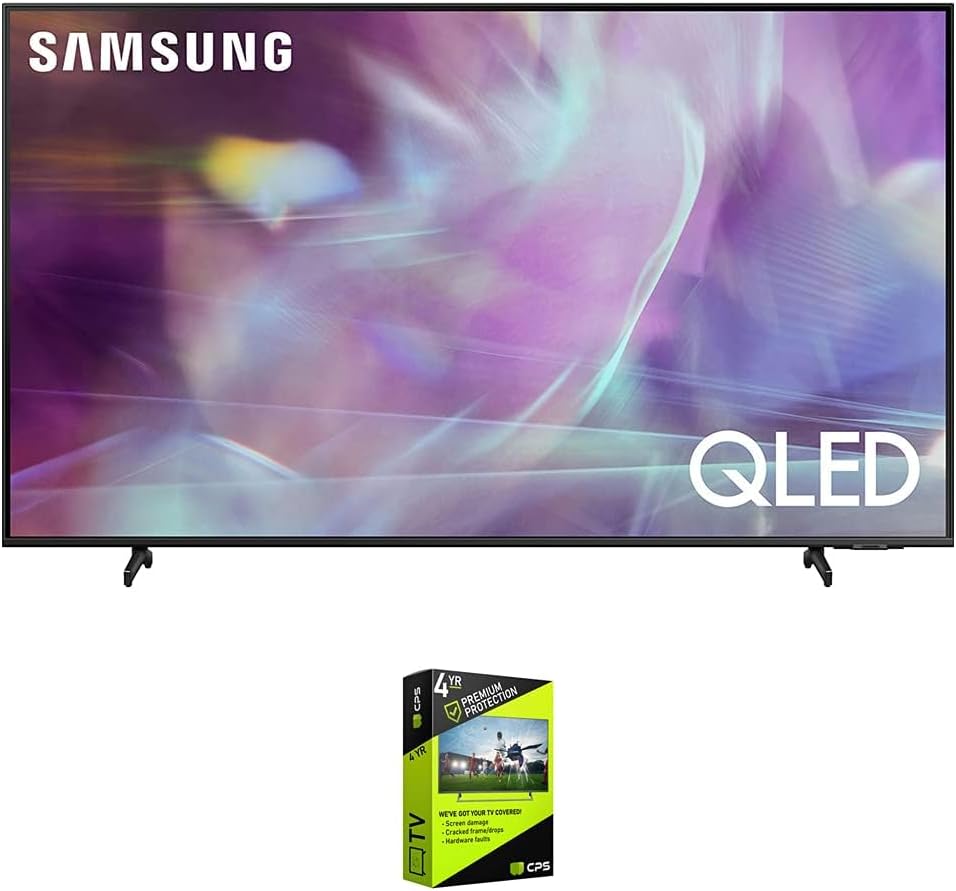
Image: The QLED TV showcasing its 100% Color Volume with Quantum Dot technology.

Image: A visual comparison illustrating the wider range of contrast provided by Quantum HDR technology.
4.4. PC and Mobile Connectivity
The TV supports seamless connection to your PC, laptop, or mobile devices. You can access your office PC remotely or screen share directly from a nearby device. Simply tap to connect compatible mobile devices.

Image: The TV integrated into a home office, demonstrating its capability for remote PC access and screen sharing.
5. Maintenance
5.1. Cleaning Your TV
To clean the screen, gently wipe it with a soft, dry microfiber cloth. For the TV body, use a soft, damp cloth. Avoid using harsh chemicals, abrasives, or waxes, as these can damage the screen or finish.
5.2. Software Updates
Periodically check for software updates to ensure your TV has the latest features and performance improvements. You can usually find this option in the TV's settings menu under 'Support' or 'Software Update'.
6. Troubleshooting
If you encounter issues with your TV, refer to the following common solutions:
- No Power: Ensure the power cable is securely connected to both the TV and the wall outlet. Test the outlet with another device.
- No Picture/Sound: Check that the correct input source is selected. Verify all HDMI or other connection cables are properly seated.
- Remote Not Working: Replace the batteries in the remote control. Ensure there are no obstructions between the remote and the TV's sensor.
- Network Connection Issues: Restart your router and modem. Re-enter your Wi-Fi password in the TV's network settings. For wired connections, ensure the Ethernet cable is properly connected.
For more detailed troubleshooting, consult the E-Manual accessible through your TV's Smart Hub or Samsung's official support website.
7. Specifications
Key technical specifications for the Samsung QN50Q60AA 50 Inch QLED 4K UHD Smart TV:
| Feature | Specification |
|---|---|
| Brand | Samsung |
| Model Number | E94SAMQN50Q60AA |
| Screen Size | 49.5 Inches (50 Inch Class) |
| Display Technology | QLED |
| Resolution | 4K UHD (3840 x 2160) |
| Special Features | 100% Color Volume with Quantum Dot; Dual LED; Quantum HDR; AirSlim; Quantum Processor 4K Lite |
| Connectivity Technology | Bluetooth, Wi-Fi |
| Product Dimensions | 44 x 9 x 26.9 inches |
| Item Weight | 26.9 pounds |

Image: Dimensional overview of the Samsung QN50Q60AA TV.
8. Warranty and Support
Your Samsung QN50Q60AA TV includes a manufacturer's limited protection. Additionally, this product bundle includes a Premium 4 Year Extended Protection Plan. For details regarding coverage and claims, please refer to the documentation provided with your extended protection plan.

Image: Packaging for the 4-Year Premium Protection Plan.
For technical support, product registration, or further assistance, please visit the official Samsung support website or contact their customer service.
Related Documents - QN50Q60AA
 |
Guide de l'utilisateur Samsung Ce guide complet de l'utilisateur Samsung fournit des instructions détaillées pour configurer, utiliser et dépanner votre téléviseur Samsung. Découvrez toutes les fonctionnalités pour une expérience optimale. |
 |
دليل المستخدم الإلكتروني لتلفزيونات Samsung دليل المستخدم الإلكتروني الشامل لتلفزيونات Samsung، يقدم إرشادات مفصلة حول الإعداد، الميزات، استكشاف الأخطاء وإصلاحها، والمزيد. |
 |
Syarat dan Ketentuan: eVoucher Pre-Order Samsung Galaxy S26 5G Series Informasi lengkap mengenai Syarat dan Ketentuan program eVoucher untuk Pre-Order Samsung Galaxy S26 5G Series, termasuk periode promo, produk yang berlaku, cara klaim, dan detail lainnya. |
 |
Samsung TV OS Upgrade Guide via USB A comprehensive guide on how to upgrade your Samsung TV's operating system using a USB drive. Learn how to download the correct software, prepare your USB, and install the update step-by-step. |
 |
Samsung TV Simple User Guide: Setup, Safety, and Operation Get started with your new Samsung TV using this Simple User Guide. Learn about important safety instructions, installation steps, basic operation, and troubleshooting for various Samsung TV models. |
 |
Samsung Crystal UHD U7900F 4K Smart TV Specifications Detailed specifications for the Samsung Crystal UHD U7900F series of 4K Smart TVs, including features, dimensions, connectivity, and model variations. |
Ask a question about this manual
Ask about setup, troubleshooting, compatibility, parts, safety, or missing instructions. Manuals+ will review the question and use this page’s manual context to help answer it.