
1. Introduction
This manual provides detailed instructions for the setup, operation, and maintenance of your JADENS Thermal Shipping Label Printer, model JD-168. Please read this manual thoroughly before using the printer to ensure proper functionality and to maximize its lifespan.
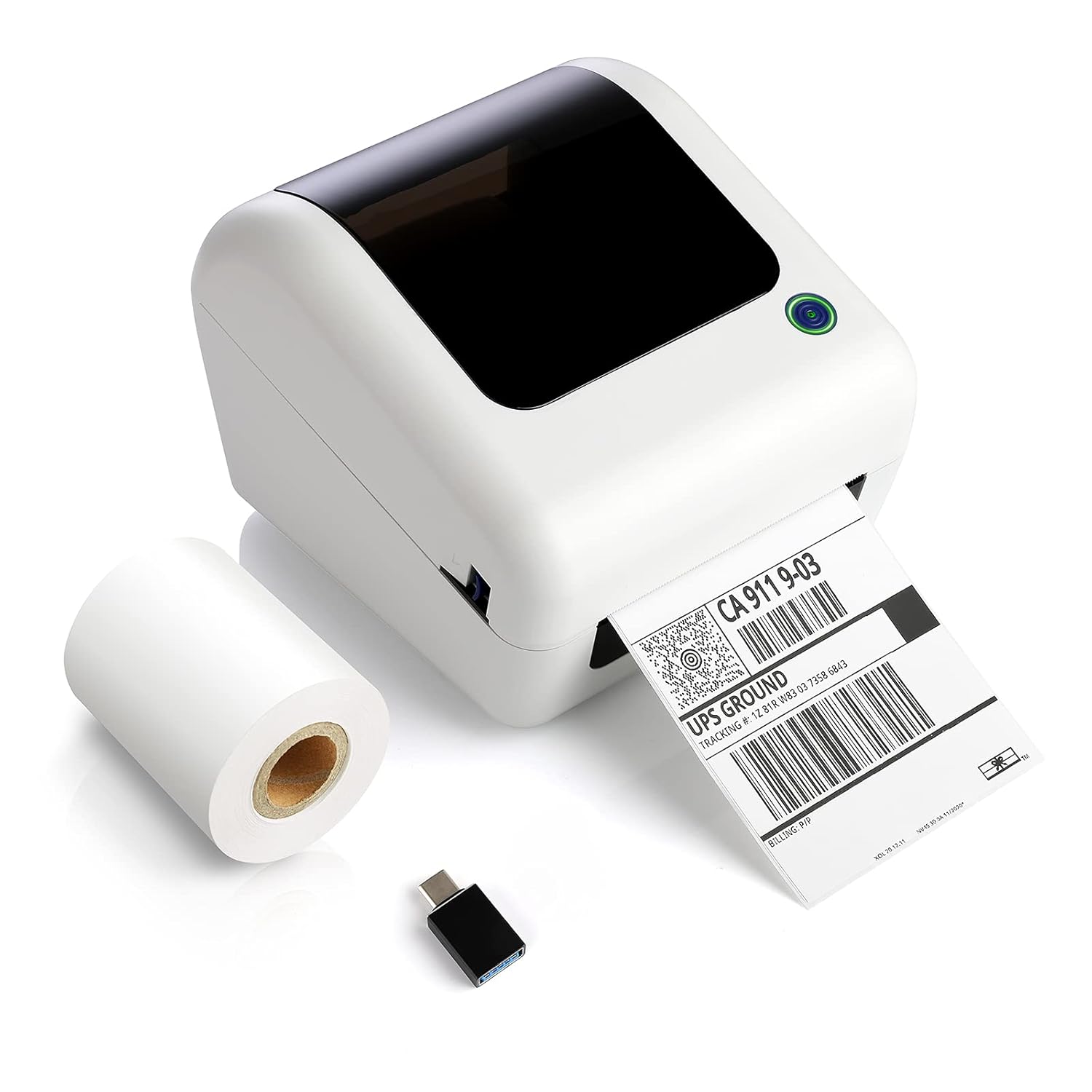
Image: The JADENS Thermal Shipping Label Printer JD-168, shown with a printed shipping label emerging from the front slot and a roll of blank thermal labels next to it. A USB adapter is also visible.
2. Package Contents
Upon unpacking, please verify that all items listed below are present:
- JADENS Thermal Shipping Label Printer (Model JD-168)
- Power Adapter
- USB Cable
- U-disk (containing drivers and instruction videos)
- Quick Start Guide
- 1 Roll of Thermal Labels (100 sheets)
3. Product Features
- Direct Thermal Printing: No ink or toner required.
- High-Speed Printing: Up to 150mm/s (approximately 72 labels per minute).
- Wide Label Compatibility: Supports thermal direct labels with widths from 1.57" to 4.1".
- Automatic Label Identification: Automatically detects label properties for accurate printing.
- Built-in Paper Bin: Space-saving design for both roll and fan-fold labels.
- Broad Platform Compatibility: Works with major shipping and e-commerce platforms.

Image: An infographic showcasing the JADENS Thermal Label Printer's features, including built-in bin, easy operation, great compatibility, fast printing, high resolution, automatic label identification, multiple paper sizes, and no ink/toner requirement.
4. System Requirements & Compatibility
The JADENS JD-168 printer is designed for use with specific operating systems and platforms:
- Operating Systems: Windows 8 or later, Mac OS X v10.9 or later.
- Connectivity: USB direct connection.
- Supported Platforms: Compatible with most major shipping and e-commerce platforms such as eBay, Amazon, Etsy, Pirateship, Endicia, ShipStation, Ordoro, and Shopify.
- Unsupported Systems: This printer does not support Chromebook or Linux operating systems. Bluetooth connectivity is also not supported.

Image: The JADENS printer connected via USB to a laptop, with icons indicating compatibility with Windows 7/8/10 and Mac OS X v10.9 or later. A warning states that Chromebook and Linux are not supported.

Image: A JADENS printer on a desk with Mac and Windows logos, emphasizing compatibility. Text clearly states "Support Windows (8,10 or later), MAC" and "Not Support Chromebook" and "Not Support Bluetooth."
5. Setup
5.1 Connecting the Printer
- Place the printer on a stable, flat surface.
- Connect the power adapter to the printer's power port and then plug it into an electrical outlet.
- Connect the USB cable to the printer's USB port and the other end to your computer.
5.2 Driver Installation
It is crucial to install the printer driver before attempting to print.
- Insert the provided U-disk into your computer's USB port.
- Locate and run the installer file for your operating system (Windows or Mac) from the U-disk.
- Follow the on-screen instructions to complete the driver installation.
- Instructional videos are also available on the U-disk for visual guidance.

Image: A JADENS printer connected to a laptop via USB, with a visual cue suggesting a straightforward installation process.
5.3 Loading Labels
The JD-168 printer supports both roll and fan-fold thermal labels.
- Open the top cover of the printer.
- For roll labels: Place the label roll into the built-in paper bin, ensuring the labels feed from the bottom and the printable side faces upwards.
- For fan-fold labels: Feed the stack of labels from the rear slot into the printer, ensuring the printable side faces upwards.
- Adjust the label guides to fit the width of your labels snugly, without creasing them.
- Close the top cover. The printer will automatically detect the label size and calibrate.

Image: An open JADENS printer revealing the internal mechanism with a roll of thermal labels correctly loaded into the built-in paper bin. Label guides are visible, and an arrow indicates automatic position detection.
6. Operating Instructions
6.1 Powering On/Off
- Power On: Press the power button located on the side or front of the printer. The indicator light will illuminate.
- Power Off: Press and hold the power button until the indicator light turns off.
6.2 Printing a Label
- Ensure the printer is powered on and connected to your computer.
- Open the document or application from which you wish to print (e.g., shipping software, PDF viewer).
- Select the JADENS JD-168 printer from your printer options.
- Verify print settings, especially label size, to match your loaded labels. For best quality, open PDF files with Adobe printing software.
- Initiate the print command. The printer will feed and print the label.

Image: The JADENS printer actively printing a label, with text indicating "150mm/s High Speed Printing" and "72 Labels/one minute," highlighting its efficiency.
6.3 Automatic Label Identification
The JD-168 features automatic label identification. After loading labels and closing the cover, the printer will briefly feed a label to detect its size and type, ensuring correct alignment and preventing misprints.

Image: The JADENS printer with a label partially fed, illustrating the automatic label identification feature with a blue light indicating the process.
6.4 Label Size Guidelines
The printer supports thermal labels with a width range of 1.57 inches (40mm) to 4.1 inches (104mm). Ensure your labels fall within this range for optimal performance.

Image: The JADENS printer with a label emerging, visually indicating the supported label width range of 1.57" to 4.1". Below, examples of various label types are shown, including nutrition facts, shipping, address, and ASIN code labels.
7. Maintenance
7.1 Cleaning the Print Head
Regular cleaning of the print head ensures consistent print quality and extends the printer's life. Clean the print head if print quality degrades or after every few rolls of labels.
- Turn off the printer and unplug the power cord.
- Open the top cover.
- Gently wipe the print head surface with an alcohol swab or a soft cloth lightly dampened with isopropyl alcohol.
- Allow the print head to dry completely before closing the cover and powering on the printer.

Image: A detailed view of the JADENS printer's internal components, specifically highlighting the thermal print head. Text indicates "Thermal Print Head No Need of Ink Ribbon or Toner."
7.2 General Care
- Keep the printer in a clean, dust-free environment.
- Avoid exposing the printer to direct sunlight, extreme temperatures, or high humidity.
- Do not use abrasive cleaners or solvents on the printer's exterior. Use a soft, damp cloth for cleaning.
8. Troubleshooting
If you encounter issues with your JADENS JD-168 printer, refer to the following common problems and solutions:
| Problem | Possible Cause | Solution |
|---|---|---|
| Printer not responding | Power cable loose, USB cable disconnected, printer off. | Check power and USB connections. Ensure printer is powered on. |
| No labels printing | No labels loaded, labels loaded incorrectly, driver not installed. | Load labels correctly. Install printer driver. |
| Poor print quality (faded, blurry) | Print head dirty, incorrect label type, low-quality image. | Clean the print head. Ensure you are using thermal direct labels. Use high-resolution images. |
| Labels feeding incorrectly or skipping | Label guides not adjusted, labels jammed, automatic identification failed. | Adjust label guides. Clear any jams. Power cycle the printer to re-initiate auto-identification. |
| Printer not recognized by computer | Driver not installed or corrupted, faulty USB cable. | Reinstall the driver. Try a different USB port or cable. |
If these solutions do not resolve your issue, please contact JADENS customer support.
9. Specifications
| Feature | Detail |
|---|---|
| Model Number | JD-168 |
| Printing Technology | Direct Thermal |
| Connectivity | USB |
| Print Speed | 150 mm/s (Max) |
| Printer Output | Monochrome |
| Label Width | 1.57" - 4.1" (40mm - 104mm) |
| Product Dimensions (D x W x H) | 6.1" x 7.87" x 6.69" (15.5cm x 20cm x 17cm) |
| Weight | 4.52 Pounds (2.05 kg) |
| Color | Off White |
10. Warranty Information
Specific warranty details for the JADENS Thermal Shipping Label Printer JD-168 are not provided in the product information. Please refer to the warranty card included with your product or visit the official JADENS website for the most current warranty policy and registration information.
11. Customer Support
For technical assistance, troubleshooting, or any inquiries regarding your JADENS Thermal Shipping Label Printer, please contact our customer support team:
- Email: (Please refer to your product packaging or JADENS website for email address)
- Phone: (Please refer to your product packaging or JADENS website for phone number)
- Website: JADENS Official Store on Amazon (for general information and support resources)
- Remote control assistance is also available for certain technical issues.
Our support team is available to assist you with any questions or concerns.
12. Product Application Examples
The JADENS JD-168 printer is versatile and suitable for various applications:
- Home Office: Efficiently print shipping labels for personal use or small online sales.
- Small Business: Ideal for e-commerce businesses needing to print shipping labels for platforms like Amazon, eBay, Etsy, and Shopify.
- Warehouse & Logistics: Suitable for printing warehouse labels, barcode labels, and product identification labels.

Image: A collage depicting four common usage scenarios for the JADENS thermal label printer: home office, shipping label creation, small business operations, and warehouse label printing.


