
Introduction
This manual provides detailed instructions for the installation, operation, and maintenance of your BOOGIIO OK-103C Dash Cam. Please read this manual thoroughly before using the device to ensure proper functionality and to avoid damage.
The BOOGIIO OK-103C is a compact 1080P Full HD dash camera designed for vehicles, featuring a 2.4-inch IPS screen, G-Sensor for emergency recording, parking monitoring, loop recording, and motion detection capabilities.
Package Contents
Verify that all items are present in the package:
- BOOGIIO OK-103C Dash Cam
- Car Charger
- Suction Mount
- User Manual (this document)
Note: A MicroSD card is not included and must be purchased separately. A Class 10, 32GB MicroSD card is recommended for optimal performance.

Image: The BOOGIIO OK-103C Dash Cam, car charger, suction mount, and user manual packaged in its box.
Product Overview
The BOOGIIO OK-103C Dash Cam is designed to provide reliable video recording while driving. Key features include:
- 2.4-inch IPS Screen: For clear real-time viewing and playback.
- 1080P Full HD Recording: Captures high-resolution video.
- G-Sensor: Automatically detects impacts and locks current video footage.
- Parking Monitor: Records when motion or impact is detected while parked.
- Loop Recording: Overwrites the oldest footage when the memory card is full.
- Motion Detection: Initiates recording when movement is detected in front of the camera.
- Built-in Battery: Provides power for parking monitoring and emergency recording.

Image: Front view of the BOOGIIO OK-103C Dash Cam, showing the lens and screen.
Setup and Installation
Follow these steps to set up and install your dash cam:
- Insert MicroSD Card:
Ensure the dash cam is powered off. Carefully insert a Class 10, 32GB (maximum) MicroSD card into the card slot until it clicks into place. Do not force the card.

Image: A hand inserting a MicroSD card into the side slot of the dash cam.
- Attach Suction Mount:
Clean the windshield area where you intend to mount the dash cam. Attach the suction mount to the windshield, ensuring a secure grip. The mount allows for 360-degree rotation for optimal viewing angles.

Image: A hand attaching the dash cam with its suction mount to a car windshield.
- Connect Power:
Connect the car charger to the dash cam and plug the other end into your vehicle's cigarette lighter socket. Route the cable neatly along the windshield and dashboard to avoid obstructing your view or interfering with driving controls.

Image: Diagram showing the power cable for the dash cam routed along the car's interior.

Image: The BOOGIIO OK-103C Dash Cam mounted on a car's windshield, showing its compact size and placement.
Operating Instructions
Power On/Off
- The dash cam will automatically power on and begin recording when your vehicle's ignition is turned on.
- It will automatically power off shortly after the ignition is turned off.
- To manually power on/off, press and hold the Power button.
Basic Recording
Once powered on, the dash cam will automatically start continuous loop recording. Video segments are typically 1, 3, or 5 minutes long, depending on your settings. When the MicroSD card is full, the oldest unlocked files will be overwritten by new recordings.

Image: A visual representation of loop recording, showing older video segments being replaced by newer ones.
G-Sensor and Emergency Lock
The built-in G-Sensor detects sudden impacts or collisions. When an event is detected, the current video segment is automatically locked and saved to prevent it from being overwritten by loop recording. These files are crucial for evidence preservation.

Image: The dash cam screen displaying a locked file icon over a scene depicting a car accident, indicating the G-Sensor has activated.

Image: A person viewing dash cam footage of a car accident on a laptop, demonstrating the preservation of evidence.
Parking Monitor
When parking mode is enabled, the dash cam will automatically turn on and record a short video if it detects an impact or motion while the vehicle is parked. This feature provides 24-hour protection for your car.
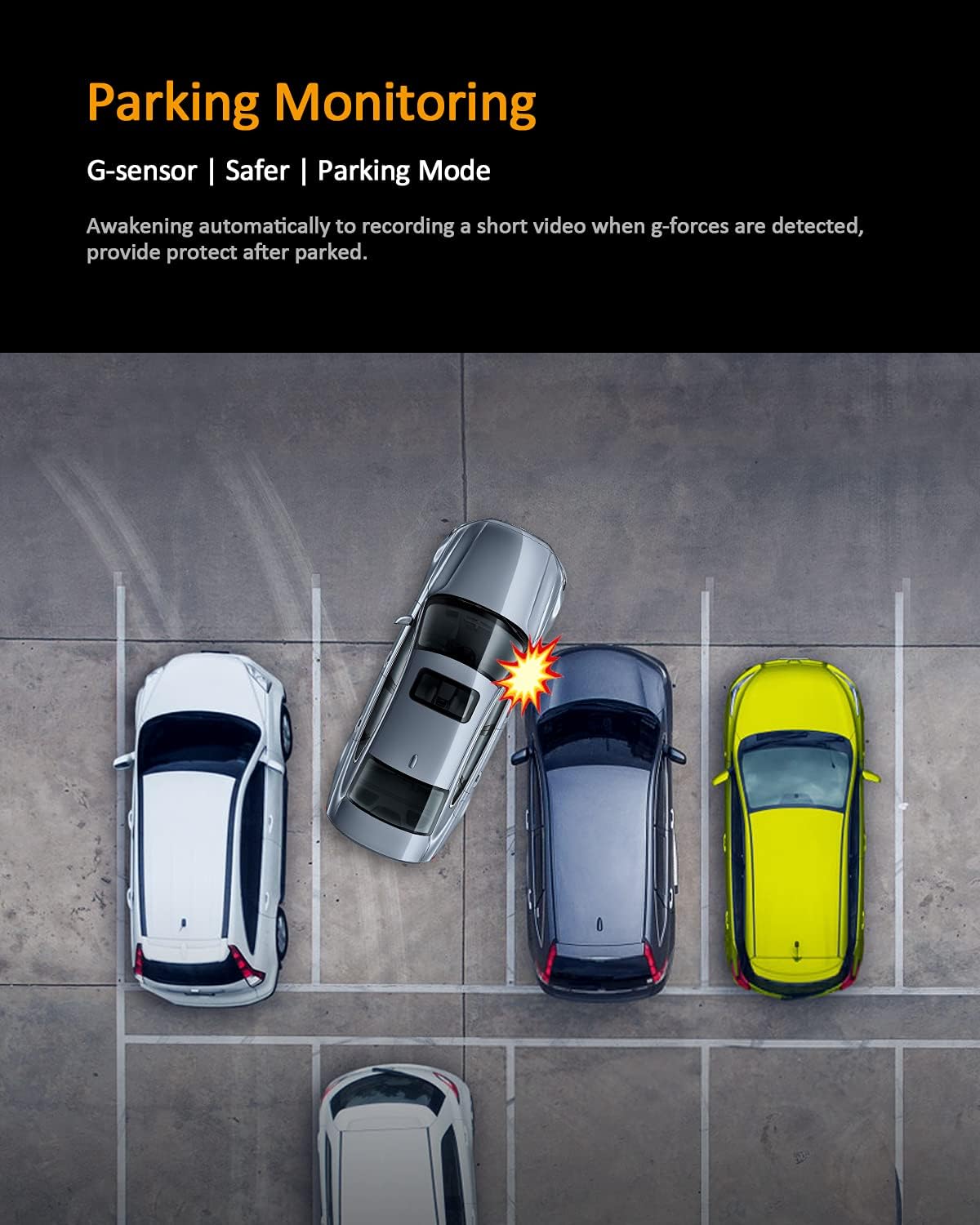
Image: An overhead view of a parking lot, illustrating a scenario where a parked car is impacted, triggering the parking monitor.
Motion Detection
With motion detection activated, the dash cam will start recording automatically when it senses movement in its field of view. This is useful for capturing events when the vehicle is stationary but not necessarily impacted.
Menu Navigation
Use the physical buttons on the dash cam to navigate through the menu options. Refer to the on-screen prompts for specific settings such as video resolution, loop recording duration, G-Sensor sensitivity, and parking monitor activation.
Maintenance
- MicroSD Card Formatting: It is recommended to format the MicroSD card regularly (e.g., once a month) to ensure optimal performance and prevent data corruption. This can usually be done through the dash cam's menu settings.
- Cleaning: Use a soft, dry cloth to clean the dash cam lens and screen. Avoid using abrasive cleaners or solvents.
- Temperature: Avoid exposing the dash cam to extreme temperatures for extended periods, as this can affect battery life and device performance.
Troubleshooting
| Problem | Possible Cause | Solution |
|---|---|---|
| Dash cam does not power on. | No power from car charger; faulty car charger; dead internal battery. | Check car charger connection and vehicle's cigarette lighter socket. Ensure the car charger is functional. Charge the internal battery for at least 30 minutes. |
| Dash cam stops recording or shows "Card Error". | MicroSD card is full; MicroSD card is corrupted or incompatible; faulty MicroSD card. | Format the MicroSD card. Try a different Class 10, 32GB MicroSD card. Replace the MicroSD card if it is damaged. |
| Video footage is blurry or unclear. | Protective film on lens; dirty lens; incorrect focus (unlikely for fixed focus). | Remove any protective film from the lens. Clean the lens with a soft cloth. |
| Suction mount keeps falling off. | Dirty windshield; extreme temperature changes; worn out suction cup. | Clean the windshield thoroughly before attaching. Re-attach the mount firmly. Consider replacing the suction cup if it's old. |
| Dash cam stays on welcome screen after car ignition. | Software glitch; specific car power delivery behavior. | Press the reset button on the device. If the issue persists, contact customer support. |
Specifications
- Model: OK-103C
- Screen Size: 2.4 inches IPS
- Video Resolution: 1080P Full HD
- View Angle: 130 degrees
- Special Features: G-Sensor, Parking Monitor, Loop Recording, Motion Detection, Emergency Lock, Audio Recording (Optional)
- Storage: MicroSD Card (Class 10, up to 32GB, not included)
- Power Source: Car Charger (12V/24V input)
- Battery Type: Built-in Lithium Ion
- Dimensions (D x W x H): 2" x 1" x 2" (approximate)
Warranty and Support
The BOOGIIO OK-103C Dash Cam comes with a 2-month warranty. If you encounter any issues or have questions regarding your product, please contact BOOGIIO customer support for assistance.
For further support, please refer to the contact information provided with your purchase or visit the official BOOGIIO website.