
1. Introduction
This manual provides essential information for the safe and efficient use of your Epson Workforce Pro WF-7310 Wireless Wide-Format Printer. The WorkForce Pro WF-7310 is a high-performance, wide-format printing solution designed to enhance office productivity. It delivers print-shop-quality graphics up to 13" x 19" and borderless prints up to 11" x 17". Featuring fast print speeds of 25 black/12 color ISO ppm and PrecisionCore Heat-Free Technology, this printer is built for durability and reliability, handling heavy workloads with ease. It utilizes DURABrite Ultra instant-dry pigment inks for crisp, vibrant prints with sharp text and vivid colors. With a 500-sheet paper capacity across two trays and a rear feed, along with Wi-Fi 5 compatibility and the Epson Smart Panel App, managing your printing tasks is convenient and efficient.
2. What's in the Box
Upon unpacking, please ensure all the following items are present:
- WorkForce Pro WF-7310 printer
- Instruction manual (this document)
- CD-ROM for product setup
- Power cord
- 4x DURABrite Ultra Ink cartridges (1x Black ink cartridge and 3x color ink cartridges: 1x Cyan, 1x Magenta, 1x Yellow)
3. Setup
3.1 Unpacking and Initial Placement
Carefully remove the printer from its packaging. Remove all protective tapes and materials from the exterior and interior of the printer. Place the printer on a stable, flat surface with adequate space around it for ventilation and paper handling.

Image: The Epson Workforce Pro WF-7310 printer, shown with paper loaded in the top feeder and output tray, ready for operation.
3.2 Connecting Power
- Connect the power cord to the printer's power input.
- Plug the other end of the power cord into a grounded electrical outlet.
- Press the power button to turn on the printer.
3.3 Ink Cartridge Installation
Follow the on-screen instructions on the printer's 2.4" color display to install the included DURABrite Ultra Ink cartridges. Ensure each cartridge is inserted into its corresponding color slot until it clicks into place.
3.4 Loading Paper
The WF-7310 features two 250-sheet front-loading trays and a rear feed for various media types. For standard printing, load paper into the front trays. For wide-format or specialty media, use the rear feed slot.
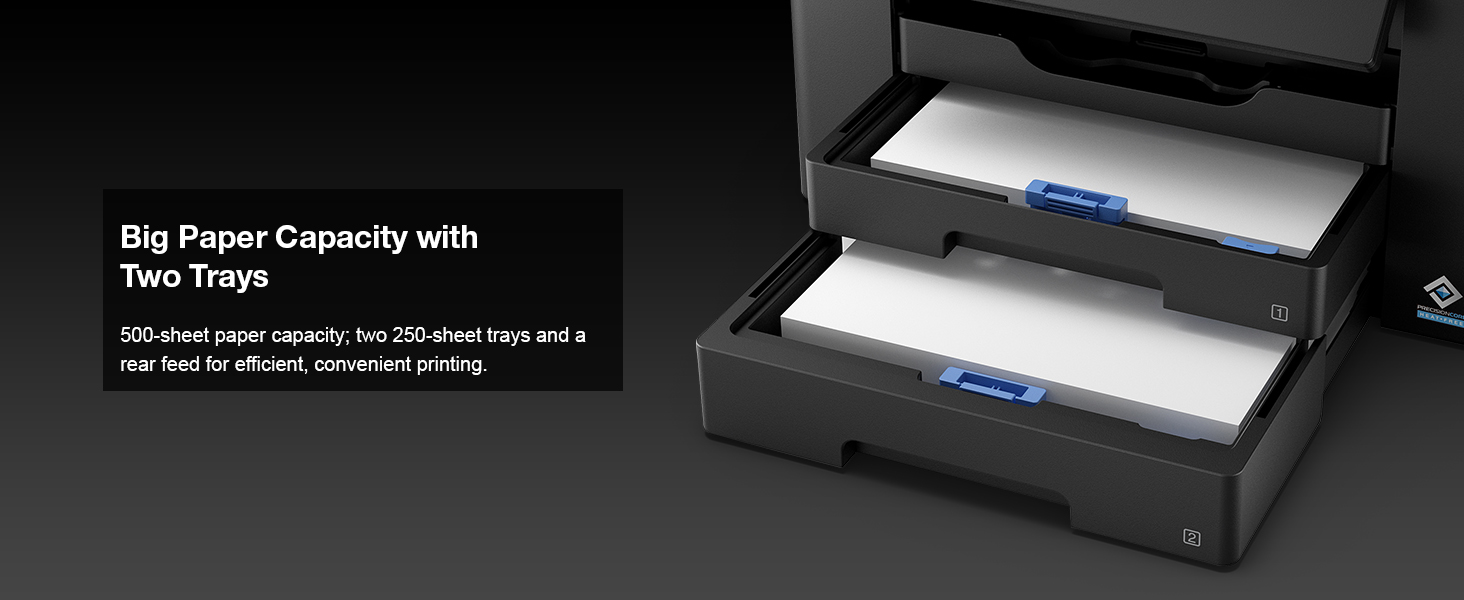
Image: A close-up view of the printer's two front-loading paper trays, highlighting its 500-sheet capacity.
3.5 Software Installation and Connectivity
Install the printer software from the included CD-ROM or download the latest drivers from the official Epson support website. The printer supports multiple connectivity options:
- Wi-Fi: Follow the on-screen prompts on the printer's control panel to connect to your wireless network. The printer is Wi-Fi 5 compatible.
- Wi-Fi Direct: For direct connection from a device without a router.
- USB: Connect the printer directly to your computer using a USB cable (not included).
- Ethernet: Connect the printer to your network via an Ethernet cable for wired network printing.
For mobile printing, download the Epson Smart Panel App on your smart device. This app allows for convenient setup and control of printer workflow.

Image: The Epson WF-7310 printer with a smartphone displaying the Epson Smart Panel App interface, illustrating convenient navigation and control.
4. Operating the Printer
4.1 Basic Printing
To print a document or photo:
- Ensure the printer is powered on and connected to your device.
- Load the appropriate paper into the desired tray or the rear feed.
- Open the document or image on your computer or smart device.
- Select 'Print' from the application's menu.
- Choose the Epson WF-7310 as your printer.
- Adjust print settings such as paper size (up to 13" x 19"), print quality, and two-sided printing (up to 11" x 17") as needed.
- Click 'Print'.

Image: The Epson WF-7310 printer in action, with documents being printed and exiting into the output tray.
4.2 Copying Documents
Use the printer's control panel to make copies:
- Place your original document face-down on the scanner glass or face-up in the Automatic Document Feeder (ADF).
- On the printer's control panel, select 'Copy'.
- Adjust settings such as number of copies, color/black & white, paper size, and quality.
- Press the 'Start' button to begin copying.
4.3 Scanning Documents
You can scan documents to your computer or a network folder:
- Place your original document on the scanner glass or in the ADF.
- On the printer's control panel, select 'Scan'.
- Choose your desired scan destination (e.g., computer, cloud service).
- Adjust scan settings like resolution and file type.
- Press the 'Start' button to initiate the scan.
5. Maintenance
5.1 Replacing Ink Cartridges
When an ink cartridge is low or empty, a message will appear on the printer's display. To replace a cartridge:
- Open the ink cartridge cover.
- Press the tab on the empty cartridge and lift it out.
- Unpack a new genuine Epson ink cartridge.
- Insert the new cartridge into the correct slot until it clicks.
- Close the ink cartridge cover.
Note: Use only genuine Epson-brand cartridges. Non-genuine ink may cause damage not covered under warranty.
5.2 Cleaning the Printer
- Print Head Cleaning: If print quality declines (e.g., missing lines, streaking), perform a print head cleaning cycle through the printer's control panel or software utility.
- Nozzle Check: Run a nozzle check pattern to diagnose print quality issues before cleaning.
- Scanner Glass: Regularly wipe the scanner glass with a soft, lint-free cloth moistened with a mild glass cleaner.
- Exterior: Wipe the exterior of the printer with a soft, damp cloth. Avoid abrasive cleaners.
6. Troubleshooting
This section addresses common issues you might encounter with your WF-7310 printer.
6.1 Common Printing Issues
- Printer Not Responding: Check power connection, USB/network cable, and ensure the printer is selected as the default printer on your computer.
- Poor Print Quality: Perform a nozzle check and print head cleaning. Ensure genuine Epson ink cartridges are used and not expired. Check paper type settings.
- Paper Jams: Follow on-screen instructions to clear jammed paper. Always pull paper out slowly and in the direction of the paper path.
- Connectivity Issues: For Wi-Fi, ensure the printer is within range of your router. Restart your router and printer. For USB, try a different port or cable.
6.2 Error Messages
Refer to the printer's 2.4" color display for specific error codes or messages. Consult the online user guide or Epson support website for detailed solutions corresponding to the displayed error.
7. Product Specifications
| Feature | Specification |
|---|---|
| Product Dimensions | 20.3"D x 34.9"W x 17.6"H |
| Maximum Media Size | 13 x 19 inch |
| Print Media Types | Envelopes, Glossy photo paper, High-resolution paper, Paper (plain) |
| Scanner Type | Sheetfed |
| Max Input Sheet Capacity | 500 sheets (two 250-sheet trays) |
| Max Copy Speed (Black & White) | 40 ppm |
| Maximum Color Print Resolution | 4800x2400 Dots Per Inch |
| Maximum Black and White Print Resolution | 4800x2400 dots_per_inch |
| Dual-sided Printing | Yes (Automatic Duplex) |
| Hardware Interface | Ethernet, USB |
| Connectivity Technology | USB, Wi-Fi (Wi-Fi 5 compatible) |
| Printing Technology | Inkjet (PrecisionCore Heat-Free Technology) |
| Control Method | App, 2.4" Color Display |
| Item Weight | 29.8 pounds |
8. Warranty Information
The Epson Workforce Pro WF-7310 printer comes with a Limited Warranty. For specific terms, conditions, and duration of your warranty, please refer to the warranty documentation included with your product or visit the official Epson support website. Keep your proof of purchase for warranty claims.
9. Customer Support
For further assistance, technical support, or to download the latest drivers and software, please visit the official Epson support website. You can also find FAQs and troubleshooting guides there.
Visit the Epson Store on Amazon for product information and accessories.


