
1. Introduction
This manual provides detailed instructions for the installation, operation, and maintenance of your CPVAN BC01-Pro Outdoor Security Camera. Please read this manual thoroughly before using the product to ensure proper functionality and safety. Keep this manual for future reference.
2. What's in the Box
Verify that all components are present in your package:
- CPVAN BC01-Pro Outdoor Security Camera
- Solar Panel (3.3W with 3-meter charging cable)
- Adjustable Wall Mount (for camera)
- Mounting Bracket (for solar panel)
- Mounting Screws and Wall Anchors
- USB Charging Cable
- User Guide (this document)
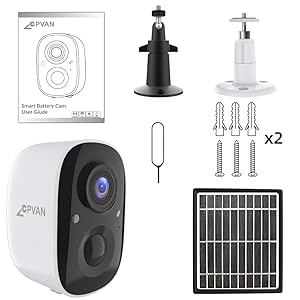
Figure 2.1: All components included in the CPVAN BC01-Pro package.
3. Setup
3.1 Initial Charging
Before first use, fully charge the camera's built-in 5200mAh rechargeable battery using the provided USB cable. The charging indicator light will change to indicate a full charge.
3.2 Mounting the Camera and Solar Panel
Choose an outdoor location with optimal sunlight exposure for the solar panel and a clear view for the camera. The camera features a 360° adjustable wall mount for flexible positioning.
- Secure the camera's wall mount to a desired surface using the provided screws and anchors.
- Attach the camera to the mounted bracket.
- Mount the solar panel in a location that receives maximum direct sunlight throughout the day.
- Connect the solar panel's charging cable to the camera's charging port. Ensure the port cover is securely closed after connection to maintain weather resistance.

Figure 3.1: Example installation of the camera and solar panel on an exterior wall.
3.3 Connecting to Wi-Fi and App
Download the VicoHome APP from your smartphone's app store. Follow the in-app instructions to connect your camera to your Wi-Fi network and complete the setup process. This typically involves scanning a QR code displayed on your phone with the camera.
4. Operating the Camera
4.1 Live View and Two-Way Audio
Access the live video feed through the VicoHome APP. The camera supports two-way audio, allowing you to listen and speak through the camera's built-in speaker and microphone.

Figure 4.1: VicoHome App interface for live view and two-way audio communication.
4.2 Motion Detection and Activity Zones
The camera features AI PIR motion detection to reduce false alarms. You can define specific activity zones within the camera's view via the VicoHome APP. Smart AI recognition (subscription required) can differentiate between people, cars, pets, and packages, sending real-time alerts to your device.
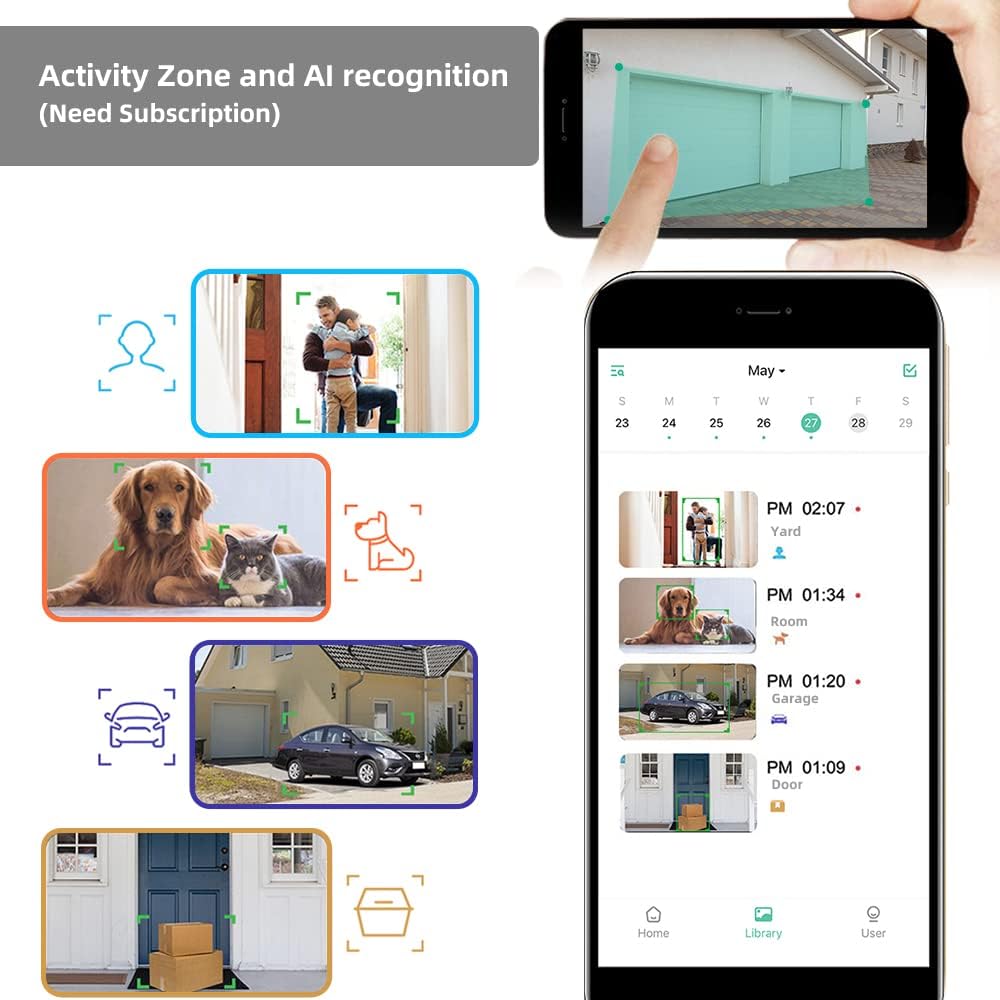
Figure 4.2: Configuring activity zones and viewing AI-detected events in the app.

Figure 4.3: Camera's field of view and motion detection capabilities.
4.3 Night Vision
The camera offers 1080P HD video quality day and night. It automatically activates night vision mode using 8 IR LEDs in low light conditions. A powerful spotlight can be manually activated to provide full-color night vision.

Figure 4.4: Visual comparison of night vision modes.
4.4 Recording and Storage
The camera supports event recording. A 7-day rolling cloud storage is permanently free, with a 30-day trial of advanced cloud features available (subscription required). Local storage via Micro SD card is also supported.

Figure 4.5: Cloud service and local storage options.
5. Maintenance
5.1 Battery Management
The solar panel continuously recharges the camera's battery, minimizing the need for manual recharging. Ensure the solar panel is clean and positioned for maximum sun exposure.


Figure 5.1: Solar power ensures continuous battery charge.
5.2 Cleaning and Environmental Protection
The camera has an IP65 waterproof rating, protecting it from dust and water splashes. Periodically clean the camera lens and solar panel surface with a soft, damp cloth to ensure clear images and efficient charging. Avoid using harsh chemicals.

Figure 5.2: The camera's IP65 rating ensures durability in various weather conditions.
5.3 Firmware Updates
Regularly check the VicoHome APP for available firmware updates. Keeping your camera's firmware updated ensures optimal performance, security, and access to new features.
6. Troubleshooting
- Camera not connecting to Wi-Fi: Ensure your Wi-Fi network is 2.4GHz (5GHz is not supported). Check Wi-Fi signal strength at the camera's location. Restart your router and camera.
- Poor image quality: Clean the camera lens. Ensure there are no obstructions in the camera's field of view. Check your internet connection speed.
- Battery not charging: Verify the solar panel is receiving direct sunlight and is clean. Check the connection between the solar panel and the camera. Ensure the camera is within the recommended operating temperature range (-4°F to 122°F).
- False motion alerts: Adjust motion detection sensitivity in the app. Define specific activity zones to exclude irrelevant areas.
- No audio or poor two-way audio: Check microphone and speaker settings in the app. Ensure your smartphone's volume is up.
7. Specifications
| Feature | Detail |
|---|---|
| Model | BC01-Pro |
| Video Resolution | 1080p HD (1920x1080 pixels) |
| Effective Still Resolution | 2 MP |
| Field of View | 110-degree wide-angle |
| Night Vision | 8 IR LEDs, Color Night Vision (with spotlight) |
| Motion Detection | AI PIR Motion Detection, Activity Zone support |
| Power Source | Rechargeable Battery (5200mAh), Solar Panel (3.3W) |
| Connectivity | Wi-Fi (2.4GHz) |
| Storage | Cloud Storage (7-day free rolling, subscription for advanced features), Micro SD Card |
| Audio | Two-Way Audio, Built-in Siren |
| Weather Resistance | IP65 Waterproof |
| Operating Temperature | -4°F to 122°F (-20°C to 50°C) |
| Dimensions | 2.64 x 2.28 x 3.5 inches |
| Weight | 400 Grams (14.1 ounces) |
| Control Method | VicoHome App |
8. Warranty and Support
For warranty information and technical assistance, please refer to the official CPVAN website or contact customer support. We are committed to providing the best possible experience with our products and typically respond to inquiries within 24 hours.