
Introduction
Thank you for choosing the KUIYN 383 Ultralight Wired Gaming Mouse. This high-performance gaming mouse is designed for precision and comfort, featuring a lightweight honeycomb shell, adjustable DPI settings, and vibrant RGB backlighting. This manual will guide you through the setup, operation, and maintenance of your new mouse to ensure an optimal gaming experience.
Key features include:
- Ultralight Honeycomb Shell: Reduces weight for improved flexibility and heat dissipation.
- 4-Level Adjustable DPI: Switch between 800, 1200, 1600, and 2400 DPI for precise control.
- RGB Backlighting: Features 4 monochromatic breathing RGB lights with switchable modes.
- Ergonomic Design: Comfortable for long-term use, fitting perfectly in your palm.
- Wide Compatibility: Supports Windows XP/Vista/7/8/10, Mac OS, Xbox, PS4, PS5, and more.
Package Contents
- KUIYN 383 Ultralight Wired Gaming Mouse
- User Manual (this document)
Setup
The KUIYN 383 mouse is designed for plug-and-play functionality, requiring no additional drivers for basic operation.
Connecting the Mouse
- Locate an available USB port on your computer or gaming console.
- Plug the USB connector of the KUIYN 383 mouse into the USB port.
- The operating system will automatically detect and install the necessary drivers. The mouse will be ready for use within a few seconds.

Image: The KUIYN 383 mouse is compatible with various operating systems and devices, including Windows, Mac OS, Xbox, and PlayStation consoles. Simply plug the USB cable into an available port.
System Requirements
- Operating System: Windows XP, Windows Vista, Windows 7, Windows 8, Windows 10, Mac OS.
- Compatible Devices: PC, Laptops, MacBook, Xbox, PS4, PS5.
- Interface: USB port.
Operating Instructions
Mouse Buttons and Functions
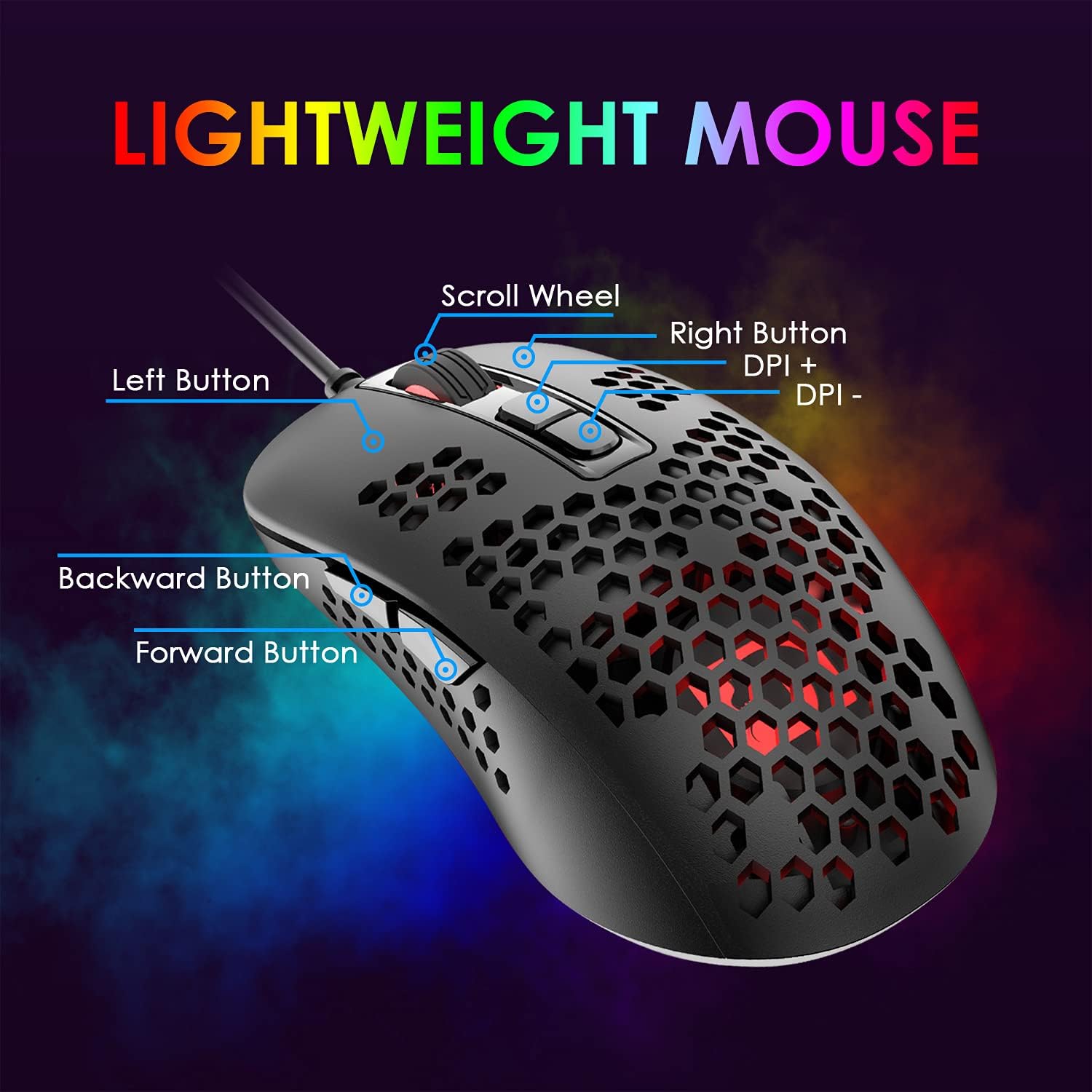
Image: This diagram illustrates the seven programmable buttons on the KUIYN 383 mouse, including the Left Button, Right Button, Scroll Wheel, DPI adjustment buttons, and Forward/Backward buttons.
- Left Button: Standard left-click function.
- Right Button: Standard right-click function.
- Scroll Wheel: Scrolls up/down, and acts as a middle-click button.
- DPI+ Button: Increases DPI sensitivity.
- DPI- Button: Decreases DPI sensitivity.
- Forward Button: Navigates forward in web browsers or file explorers.
- Backward Button: Navigates backward in web browsers or file explorers.
Adjusting DPI (Sensitivity)
The KUIYN 383 mouse features 4 adjustable DPI levels, allowing you to customize cursor speed and precision for different tasks or games. Each DPI level is indicated by a specific RGB lighting color.

Image: The KUIYN 383 mouse offers four DPI settings: 800, 1200, 1600, and 2400 DPI. Each setting is visually represented by a distinct color for easy identification.
- Press the DPI+ button (located behind the scroll wheel) to cycle through the DPI settings in ascending order.
- Press the DPI- button (located behind the scroll wheel) to cycle through the DPI settings in descending order.
- The available DPI settings are: 800 DPI, 1200 DPI, 1600 DPI, 2400 DPI.
RGB Backlighting
The mouse features 4 monochromatic breathing RGB lights that enhance your gaming setup. Each DPI setting corresponds to a different lighting color.

Image: The KUIYN 383 mouse features 4 LED breathing backlights, offering various color options that can change with DPI settings or be cycled through different lighting modes.
To change the lighting mode, press and hold the DPI button for 3 seconds. The mouse will cycle through available lighting effects.
Maintenance
Proper maintenance ensures the longevity and optimal performance of your KUIYN 383 gaming mouse.
Cleaning
- Disconnect the mouse from your computer before cleaning.
- Use a soft, dry, lint-free cloth to wipe the surface of the mouse.
- For stubborn dirt, slightly dampen the cloth with water or a mild electronic cleaner. Avoid excessive moisture.
- Use a can of compressed air to clear dust and debris from the honeycomb shell and around the buttons and scroll wheel.
- Do not use harsh chemicals, abrasive cleaners, or solvents, as these can damage the mouse's finish.
Storage
- Store the mouse in a cool, dry place away from direct sunlight and extreme temperatures.
- Avoid placing heavy objects on the mouse or its cable.
- If transporting the mouse, use a protective case to prevent damage.
Troubleshooting
If you encounter any issues with your KUIYN 383 mouse, please refer to the following common problems and solutions:
Mouse Not Responding
- Check USB Connection: Ensure the USB cable is securely plugged into a working USB port on your computer. Try a different USB port.
- Restart Computer: Sometimes a simple system restart can resolve connectivity issues.
- Test on Another Device: Connect the mouse to another computer or compatible device to determine if the issue is with the mouse or your original device.
DPI Settings Not Changing
- Press DPI Buttons Firmly: Ensure you are pressing the DPI+ or DPI- buttons firmly.
- Observe LED Color: The LED lighting changes color with each DPI setting. Confirm if the color changes when you press the DPI buttons.
RGB Lights Not Working or Stuck
- Check Connection: Ensure the mouse is properly connected via USB.
- Cycle Lighting Modes: Press and hold the DPI button for 3 seconds to cycle through different lighting modes.
- Restart Computer: A system restart can sometimes resolve minor software glitches affecting lighting.
Specifications

Image: This image provides the physical dimensions of the KUIYN 383 mouse, measuring 120mm in length, 62mm in width, and 40mm in height.
| Feature | Detail |
|---|---|
| Brand | KUIYN |
| Model Number | 383 |
| Connectivity Technology | USB Wired |
| Movement Detection Technology | Optical |
| DPI Levels | 800 / 1200 / 1600 / 2400 |
| Number of Buttons | 7 |
| Special Features | Ultralight Honeycomb Shell, RGB Backlighting |
| Hand Orientation | Ambidextrous |
| Item Weight | 90 Grams |
| Compatible Operating Systems | Windows XP, Vista, 7, 8, 10; Mac OS |
| Recommended Use | Gaming |
Warranty and Support
KUIYN is committed to providing high-quality products. For specific warranty information, please refer to the documentation included with your purchase or contact the retailer where the product was acquired.
If you experience any issues that cannot be resolved using the troubleshooting guide, or if you require further assistance, please contact KUIYN customer support through their official website or the platform where you purchased the mouse. Please have your product model number (383) and purchase details ready when contacting support.
