
Introduction
The Logitech Ergo M575 Wireless Trackball Mouse is designed for ergonomic comfort and precise control. This manual provides essential information for setting up, operating, maintaining, and troubleshooting your device to ensure optimal performance.
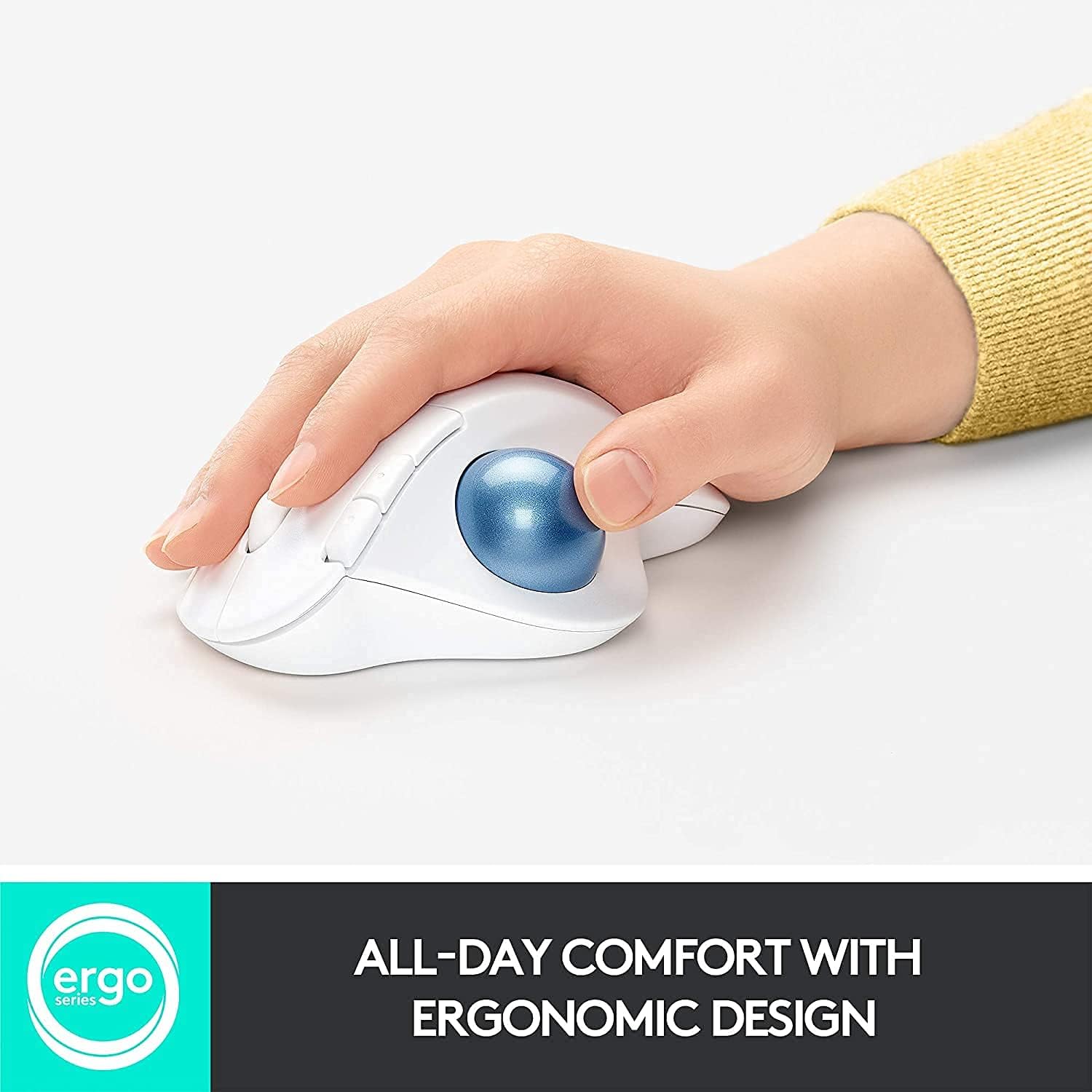
Image: The Logitech Ergo M575 mouse in white, demonstrating its ergonomic design with a hand comfortably resting on it.
Key Features
- Wireless Connectivity: Connects via Bluetooth or the included USB receiver for versatile use.
- Ergonomic Design: Shaped for comfortable hand and wrist positioning, reducing strain during extended use.
- Precision Trackball: Easy thumb control for smooth and accurate cursor movement.
- Customizable Buttons: Program buttons for specific functions using the Logitech Options+ software.
- Multi-OS Compatibility: Works seamlessly with Windows and Mac operating systems.
- Long Battery Life: Provides up to 24 months of use on a single AA battery.

Image: A diagram highlighting the key features of the Logitech Ergo M575, including back/forward buttons, precision scroll wheel, removable trackball, multi-OS compatibility, and battery life details.
What's in the Box
- Logitech Ergo M575 Wireless Trackball Mouse
- USB Receiver (Logi Bolt)
- 1 AA Battery (pre-installed)
- Quick Start Guide / Documentation
Setup
Initial Connection
- Power On: Locate the ON/OFF switch on the bottom of the mouse and slide it to the ON position.
- Insert Battery: Ensure the AA battery is correctly inserted into the battery compartment. The USB receiver is typically stored inside this compartment.
- Choose Connection Method:
- Bluetooth: Press and hold the Easy-Switch button (usually on the bottom or top of the mouse, indicated by '1' or '2') until the LED light blinks rapidly. Then, open your device's Bluetooth settings and select "Logitech Ergo M575" to pair.
- USB Receiver: Remove the USB receiver from the battery compartment and plug it into an available USB port on your computer. The mouse should connect automatically.
- Install Software (Optional but Recommended): Download and install the Logitech Options+ software from the official Logitech website to customize buttons, adjust pointer speed, and manage device connections.
Video: An overview of the Logitech M575 mouse, demonstrating its features and connectivity options.
Operating Instructions
Basic Use
- Cursor Control: Use your thumb to roll the trackball to move the cursor on your screen.
- Left Click: Press the left mouse button for primary selection and interaction.
- Right Click: Press the right mouse button for secondary functions or context menus.
- Scroll Wheel: Roll the scroll wheel up or down for vertical scrolling. The scroll wheel can also be clicked for middle-click functionality.
- Forward/Back Buttons: Use the dedicated forward and back buttons (located near the left click button) for navigation in web browsers or file explorers.
Video: A demonstration of the Logitech M575 Wireless Trackball Mouse in use, highlighting its ergonomic design and thumb control.
Customization
The Logitech Options+ software allows you to personalize your mouse experience:
- Button Assignment: Reassign functions to the customizable buttons for application-specific shortcuts or general commands.
- Pointer Speed: Adjust the trackball's pointer speed (DPI) to match your preference for precision or rapid movement.
- Scrolling Direction: Change the scrolling direction of the scroll wheel.
Video: A review of the Logitech Ergo M575 mouse, discussing its features and customization options through software.
Connectivity
The Ergo M575 offers flexible connectivity options:
- Bluetooth: Connects to Bluetooth-enabled devices without needing a USB port.
- Logi Bolt USB Receiver: Provides a secure, strong wireless connection, especially useful for devices without Bluetooth or for enhanced stability.
- Easy-Switch: Quickly switch between up to two paired devices (one Bluetooth, one USB receiver) by pressing the Easy-Switch button.
Video: A demonstration of the Logitech M575's compatibility with Mac and PC, highlighting its versatility.
Battery & Charging
The Logitech Ergo M575 is powered by a single AA battery.
- Battery Life: Enjoy up to 24 months of battery life, depending on usage.
- Battery Type: Uses 1 AA battery.
- Power Switch: Use the ON/OFF switch on the bottom of the mouse to conserve battery when not in use.
Maintenance
Regular maintenance ensures smooth operation and extends the life of your trackball mouse.
- Cleaning the Trackball: The trackball is removable for easy cleaning. Gently push the trackball from the bottom opening to pop it out. Clean the ball and the inside cavity with a soft, lint-free cloth.
- General Cleaning: Wipe the mouse surface with a soft, damp cloth. Avoid harsh chemicals.

Image: The removable trackball feature of the Logitech Ergo M575, allowing for easy cleaning of the ball and its housing.
Troubleshooting
- No Cursor Movement:
- Ensure the mouse is turned ON.
- Check battery level and replace if necessary.
- If using Bluetooth, ensure the mouse is paired and selected in your device's settings.
- If using the USB receiver, ensure it is securely plugged into a working USB port. Try a different port.
- Clean the trackball and its cavity as described in the Maintenance section.
- Intermittent Connection:
- Move the mouse closer to your computer.
- Avoid using the mouse on metal surfaces, which can interfere with wireless signals.
- Ensure no other wireless devices are causing interference.
- Buttons Not Responding:
- Check if the Logitech Options+ software is running and if button assignments are correct.
- Restart your computer and reconnect the mouse.
Specifications
| Brand | Logitech |
| Model Number | ERGO M575 |
| Product Dimensions | 5.28 x 3.94 x 0.01 inches |
| Item Weight | 8.8 ounces |
| Connectivity Technology | Bluetooth, USB (via Logi Bolt receiver) |
| Movement Detection Technology | Trackball |
| Compatible Platforms | Windows, Mac |
| Battery Life | Up to 24 months |

Image: Detailed dimensions (length, width, height) and weight of the Logitech Ergo M575 mouse.
Warranty & Support
For warranty information and technical support, please refer to the documentation included with your product or visit the official Logitech support website.
- Manufacturer: Logitech
- Support Website: www.logitech.com/support


