Introduction
Thank you for choosing the Camiysn Typewriter Style Mechanical Gaming Keyboard. This manual provides detailed instructions for setting up, operating, and maintaining your new keyboard. Please read this manual thoroughly before use to ensure optimal performance and longevity of your device.
This keyboard combines a retro aesthetic with modern gaming features, offering a unique typing and gaming experience with its distinctive round keycaps and tactile blue switches.
Product Features
- Typewriter Style Design: Unique retro aesthetic with round keycaps.
- Blue Mechanical Switches: Provides medium resistance, an audible click sound, and tactile feedback for a satisfying typing experience.
- Blue Backlight: Multiple adjustable blue lighting modes.
- 104-Key Layout: Full-size keyboard with a numeric keypad.
- Anti-Ghosting: Features 26 anti-ghosting keys for accurate input during intense gaming sessions.
- Adjustable Rear Feet: Allows for customization of the keyboard's typing angle.
- Durable Construction: Keycaps made with a two-color injection molding process for enhanced durability.
- USB Plug and Play: Simple connection to your computer without the need for additional drivers.
- Wide Compatibility: Compatible with Windows 2000/7/8/10/XP, Vista, Linux, and Mac operating systems.
- Multimedia Keys: Dedicated function keys for media control.
- Detachable Magnetic Wrist Rest: Provides ergonomic support for comfortable typing.

Figure 1: Camiysn Typewriter Style Mechanical Gaming Keyboard, showcasing its full layout and blue backlighting.
Setup Guide
- Unpacking: Carefully remove the keyboard from its packaging. Ensure all components, including the keyboard and any accessories (like the wrist rest), are present.
- Connection: Locate an available USB port on your computer. Insert the keyboard's USB cable firmly into the USB port. The keyboard is plug-and-play, so no additional driver installation is typically required.
- Placement: Position the keyboard comfortably on your desk. You may adjust the rear feet to achieve your preferred typing angle.
- Wrist Rest (Optional): If included, attach the detachable magnetic wrist rest to the front edge of the keyboard for added ergonomic support.
- Initial Test: Open a text editor or web browser and type a few characters to confirm the keyboard is functioning correctly.
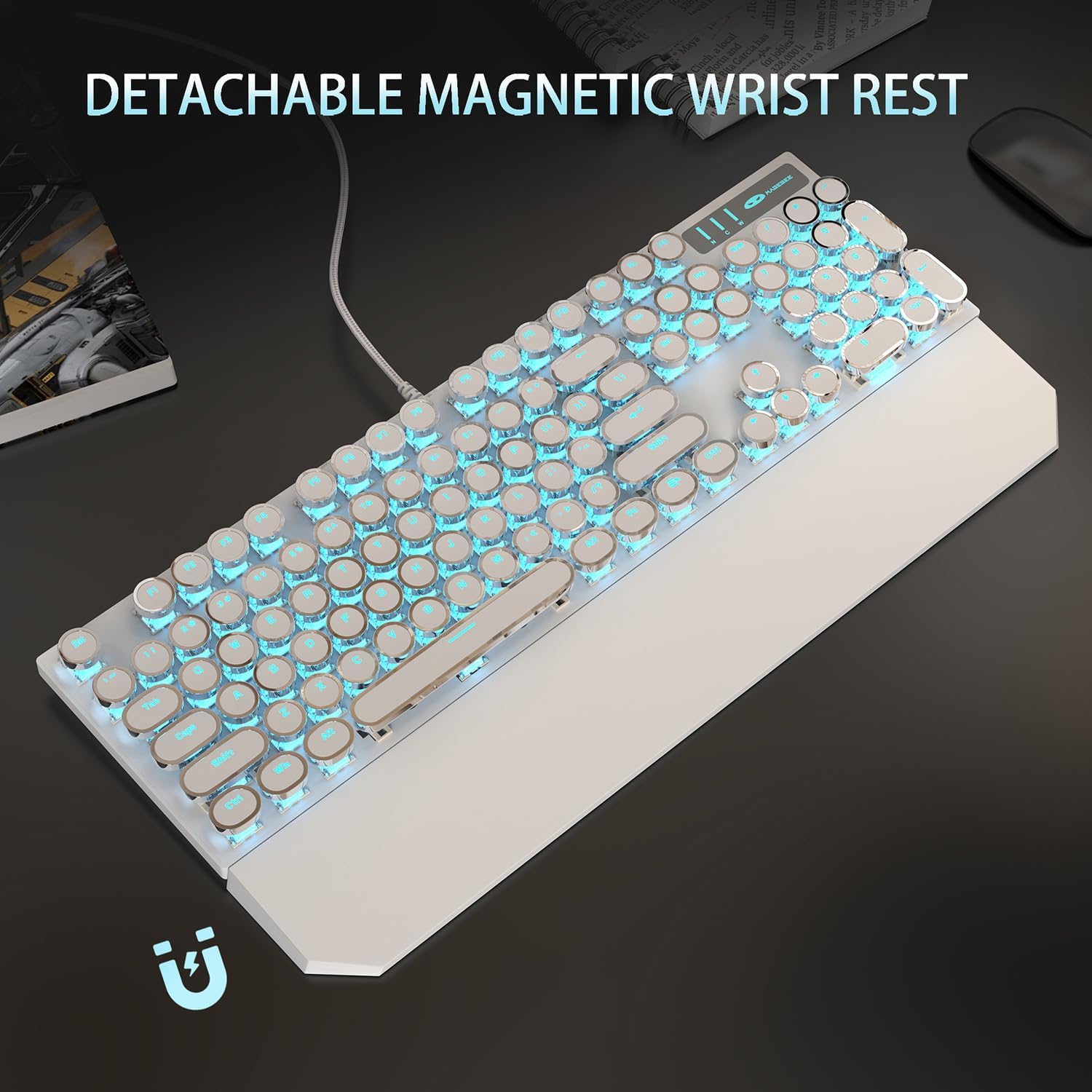
Figure 2: The keyboard with its detachable magnetic wrist rest, designed for ergonomic comfort during extended use.
Operating Instructions
Backlight Control
The Camiysn Mechanical Gaming Keyboard features multiple blue backlight modes. Use the following key combinations to control the lighting:
- Change Lighting Mode: Press Fn + Ins to cycle through available lighting effects.
- Adjust Brightness: Press Fn + ↑ (Up Arrow) to increase brightness.
- Press Fn + ↓ (Down Arrow) to decrease brightness.
- Change Speed: Press Fn + ← (Left Arrow) to decrease lighting effect speed.
- Press Fn + → (Right Arrow) to increase lighting effect speed.
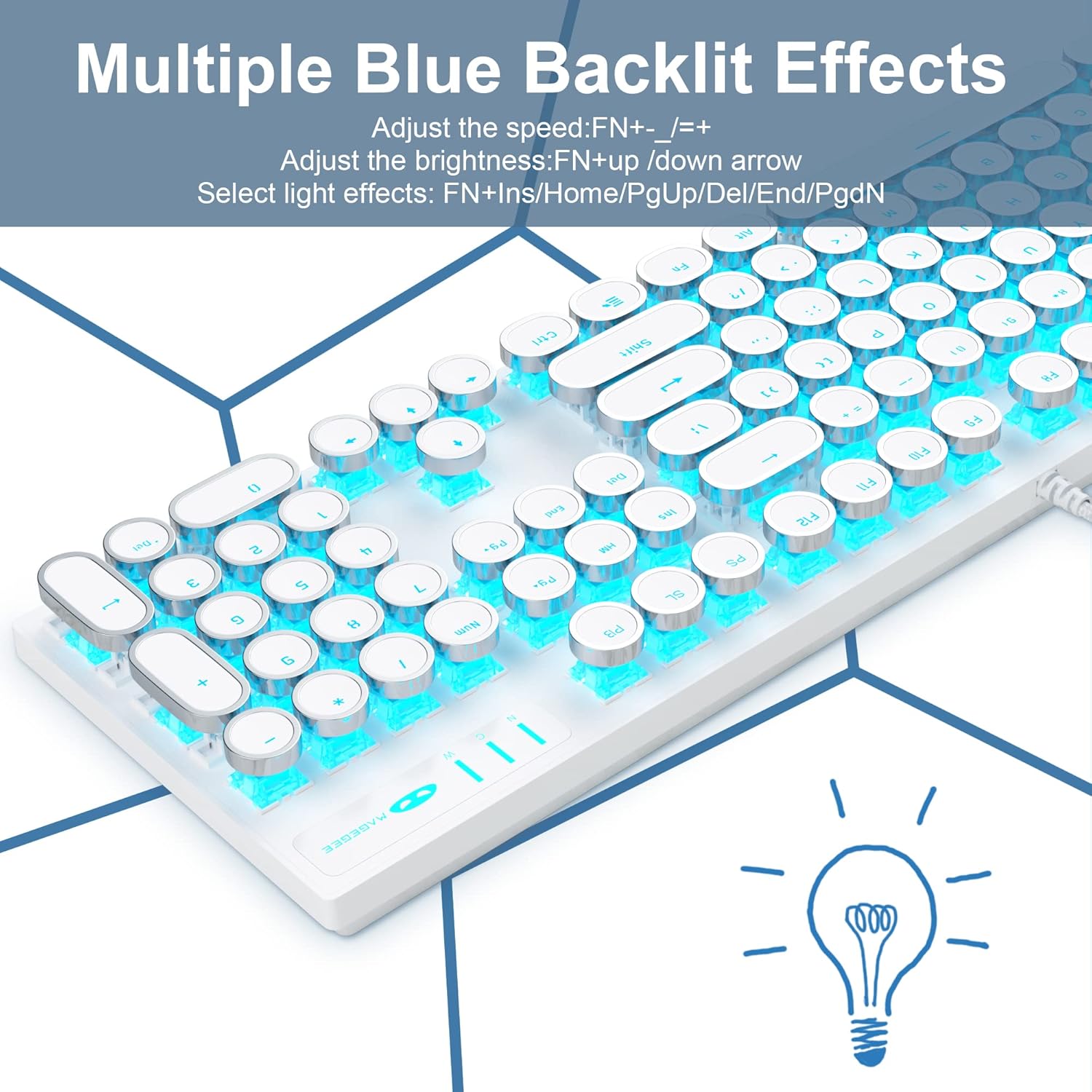
Figure 3: Illustration of the keyboard's multiple blue backlit effects and the corresponding function key combinations for adjustment.
Multimedia Keys
The keyboard includes dedicated multimedia function keys accessible by pressing the Fn key in combination with the F1-F12 keys:
| Key Combination | Function |
|---|---|
| Fn + F1 | Media Player |
| Fn + F2 | Volume Decrease |
| Fn + F3 | Volume Increase |
| Fn + F4 | Mute |
| Fn + F5 | Halt |
| Fn + F6 | Last Song |
| Fn + F7 | Play/Suspend |
| Fn + F8 | Next Song |
| Fn + F9 | |
| Fn + F10 | Homepage |
| Fn + F11 | My Computer |
| Fn + F12 | Calculator |

Figure 4: A visual guide to the multimedia functions available via the Fn key combinations on the keyboard.
N-Key Rollover and WASD Exchange
The keyboard supports N-Key Rollover, ensuring that multiple simultaneous key presses are registered accurately, which is crucial for gaming. Additionally, it offers a function to exchange the WASD keys with the arrow keys for specific gaming preferences.
- WASD Exchange: Press Fn + W to toggle the functionality of WASD keys with the arrow keys. Repeat the combination to revert to default.

Figure 5: Demonstrates the N-Key Rollover capability and the Fn+W key combination for WASD and arrow key exchange.
Maintenance
Proper maintenance ensures the longevity and optimal performance of your Camiysn keyboard.
- Cleaning:
- Disconnect the keyboard from your computer before cleaning.
- Use a soft, lint-free cloth slightly dampened with water or a mild cleaning solution to wipe the surface of the keyboard and keycaps.
- For dust and debris between keycaps, use compressed air.
- Avoid using harsh chemicals, abrasive cleaners, or excessive moisture, as these can damage the keyboard.
- Storage: When not in use for extended periods, store the keyboard in a clean, dry environment away from direct sunlight and extreme temperatures.
- Handling: Avoid dropping the keyboard or exposing it to strong impacts. Do not pull on the USB cable excessively.
Troubleshooting
If you encounter issues with your keyboard, refer to the following common problems and solutions:
| Problem | Possible Solution |
|---|---|
| Keyboard is not responding. |
|
| Backlight is not working or is dim. |
|
| Keys are not registering correctly (ghosting). |
|
| Keycaps feel loose or wobbly. |
|
Specifications
| Feature | Detail |
|---|---|
| Brand | Camiysn |
| Model Number | CPKJXFBWHITE602 |
| Color | White |
| Key Type | Mechanical (Blue Switches) |
| Keycap Style | Round, Typewriter Style |
| Number of Keys | 104 |
| Backlight | Blue, Single Color, Multiple Modes |
| Connectivity | Wired USB (Plug and Play) |
| Anti-Ghosting | 26 Keys |
| Compatibility | Win 2000/7/8/10/XP, Vista, Linux, Mac, Game Console |
| Dimensions | Approximately 17.1 inches (Length) x 4.95 inches (Width) |
| Recommended Use | Gaming, Office |

Figure 6: The full-size layout of the keyboard with its approximate dimensions.

Figure 7: A close-up view of the clicky blue mechanical switches used in the keyboard, highlighting their design and tactile nature.

Figure 8: Details of the adjustable rear feet for ergonomic positioning and the unique round float keycaps.
Warranty and Support
Information regarding specific warranty terms and conditions for the Camiysn Mechanical Gaming Keyboard is typically provided with your purchase documentation or on the product's official website. Please refer to those resources for detailed warranty coverage.
For technical support, product inquiries, or assistance with troubleshooting beyond the scope of this manual, please contact Camiysn customer service through the contact information provided on the product packaging or the official Camiysn website.


