
LaView LV-DHU06-B
LaView LV-DHU06-B Smart Door Lock User Manual
Model: LV-DHU06-B
1. Introduction
This manual provides detailed instructions for the installation, setup, and operation of your LaView LV-DHU06-B Bluetooth Enabled Smart Door Lock. Please read this manual thoroughly before installation and use to ensure proper function and safety.
2. Safety Information
- Ensure all components are present and undamaged before installation.
- Use only standard alkaline AA batteries. Rechargeable or extended-life batteries may cause malfunctions.
- Keep the lock away from water and extreme temperatures.
- Do not attempt to disassemble or repair the lock yourself. Contact customer support for assistance.
- Regularly check the battery level and replace batteries promptly when low to avoid being locked out.
3. Package Contents
Verify that all items listed below are included in your package:
- LaView Smart Lock (Main Unit)
- Mounting Plate
- 4 Screws
- 3 Adapters (A, B, C)
- Reset Pin
- Quick Installation Guide
- Warranty Card
- Adhesive Strip

Image: LaView Smart Lock main unit and gateway.
4. Installation Guide
Follow these steps to install your LaView Smart Door Lock. For a visual guide, please refer to the installation video below.
Video: LaView HU06 Lock Installation Guide. This video demonstrates the complete installation process for the smart lock.
- Prepare the Door: Place the adhesive strip over the exterior of your existing deadbolt to hold it in place.
- Remove Existing Knob: Remove your existing thumbturn knob from the inside of your door. Carefully save any screws.
- Position Mounting Plate: Ensure the deadbolt is in the unlocked position. Place the HU06 mounting plate on the inside of the door, vertically aligned with the door frame. The tailpiece (metal rod from your deadbolt) should be in the center of the middle punch hole.
- Secure Mounting Plate: Insert the screws from the thumbturn latch you just removed into the mounting plate and tighten them securely.
- Select Adapter: Choose the correct plastic adapter (A, B, or C) that matches your lock's tailpiece. Slide it onto the metal rod with the smooth side going first.
- Adapter A: For flat-shaped tailpiece sitting at an angle.
- Adapter B: For flat-shaped tailpiece with either horizontal or vertical orientation.
- Adapter C: For D-shaped tailpiece.

Image: Different tailpiece adapters for the LaView Smart Lock.
- Attach Smart Lock: Remove the front plate of the HU06 Lock to access the battery compartment. Place the HU06 Lock onto the mounting plate. Wiggle the knob and ensure it is vertical when installing.
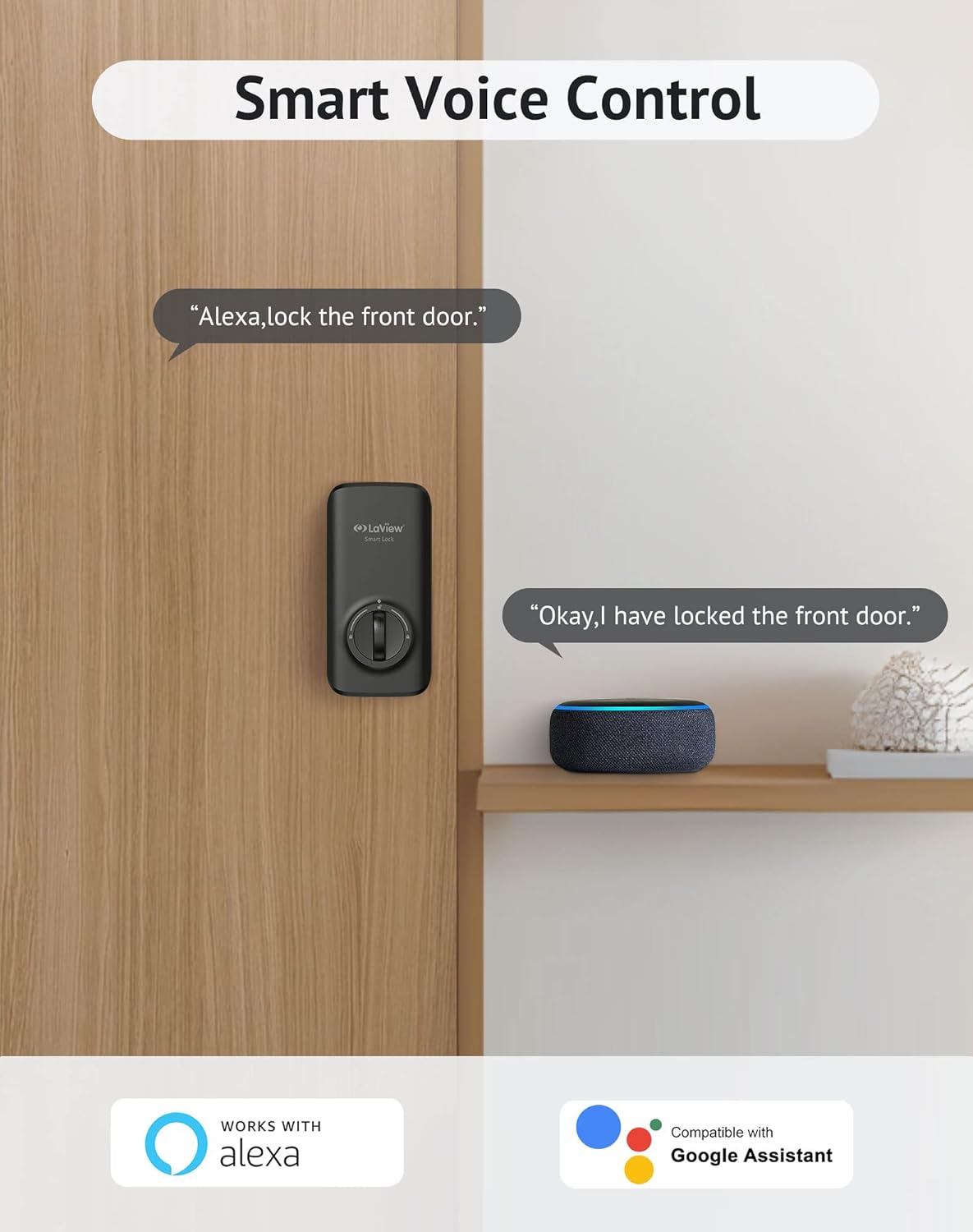
Image: LaView Smart Lock with its battery compartment open, showing the internal mechanism during installation.
- Tighten Screws: Tighten the screws to secure the thumbturn panel.
- Test Manual Operation: Manually lock and unlock the door with the key and the knob to ensure the HU06 Lock has been installed correctly and the bolt extends and retracts smoothly.
- Install Batteries: Keep the lock in 'Unlock' status and install 4 AA standard alkaline batteries into the battery compartment. The lock status indicator will flash with beeping sounds when you lock and unlock the door manually, confirming power.
- Replace Covers: Put back the lid of the battery pack and the front plate of the lock to complete the installation.
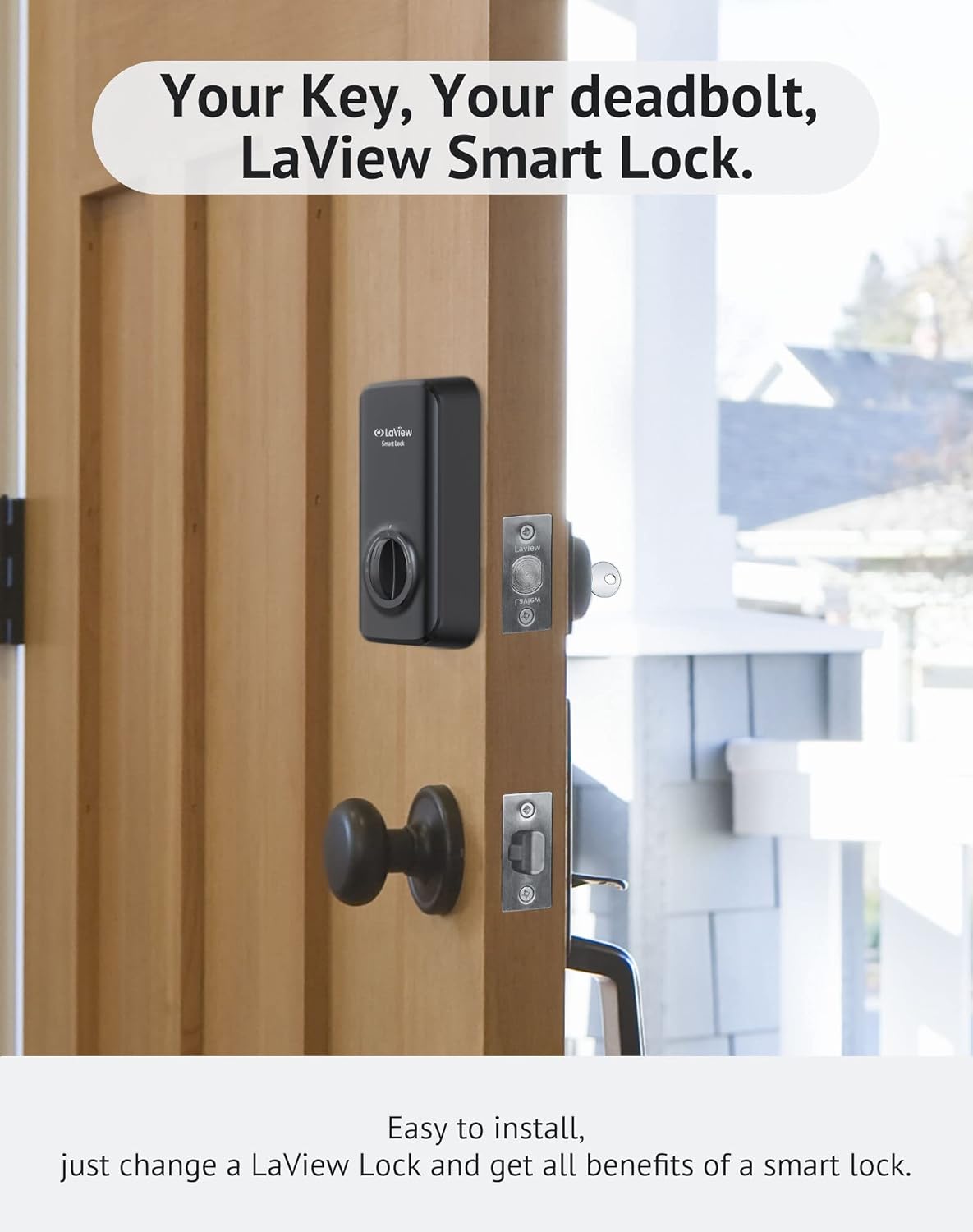
Image: LaView Smart Lock installed on a wooden door, replacing the existing thumbturn.
5. App Setup and Connection
To unlock the full potential of your LaView Smart Lock, connect it to the LaView app. Ensure your lock is correctly installed before proceeding. For a visual guide, please refer to the app connection video below.
Video: How to connect the LaView Smart Lock to the app. This video guides you through the app pairing process.
- Download LaView App: Download the LaView app from your mobile device's app store (Google Play or Apple App Store). Open the app and select 'Sign Up' to register your account.
- Enable Bluetooth: Ensure Bluetooth is enabled on your mobile phone.
- Reset Lock: Remove the front plate of the HU06 Lock to access the reset hole. Keep the deadbolt in the unlock position. Hold down the reset button with the included pin for over 5 seconds to reset the lock. If successful, the bolt will reallocate and learn the door's orientation. The lock will then enter pairing mode for 3 minutes.
- Add Device in App: Go to the LaView app. Tap the '+' icon on the top right corner of the homepage or click the 'Add Device' button. Select the HU06 smart lock to add.
- Complete Pairing: Follow the on-screen guide in the app to complete the pairing process.
- Test Connection: After adding, long-press the 'lock' icon in the app to unlock or lock the door to test if the connection is successful.
- Bluetooth Range: The typical Bluetooth connection range is approximately 33 feet (10 meters). Obstacles (people, metal, walls) or electromagnetic interference can affect this range.
- Gateway for Remote Control: An additional Bluetooth gateway (sold separately) is required if you wish to control the lock without Bluetooth range limitation (e.g., remote control via Wi-Fi).
6. Operating Features
The LaView Smart Lock offers several convenient features for enhanced security and access control:
Video: Short demonstration of the LaView Smart Lock's operation.
6.1. Auto Lock & Auto Unlocking
The LaView Smart Lock can automatically lock your door after a set period (default 30 seconds). You can customize auto-lock times within the app. When combined with a LaView Keypad, the lock can auto-unlock as you approach within 200 meters.

Image: Demonstrates auto-lock and auto-unlock features with a LaView Keypad.
6.2. Unlock Events Tracking
Keep track of all unlocking events for up to 200 records directly in the LaView app. This feature allows you to monitor who opens your door and when, enhancing security.
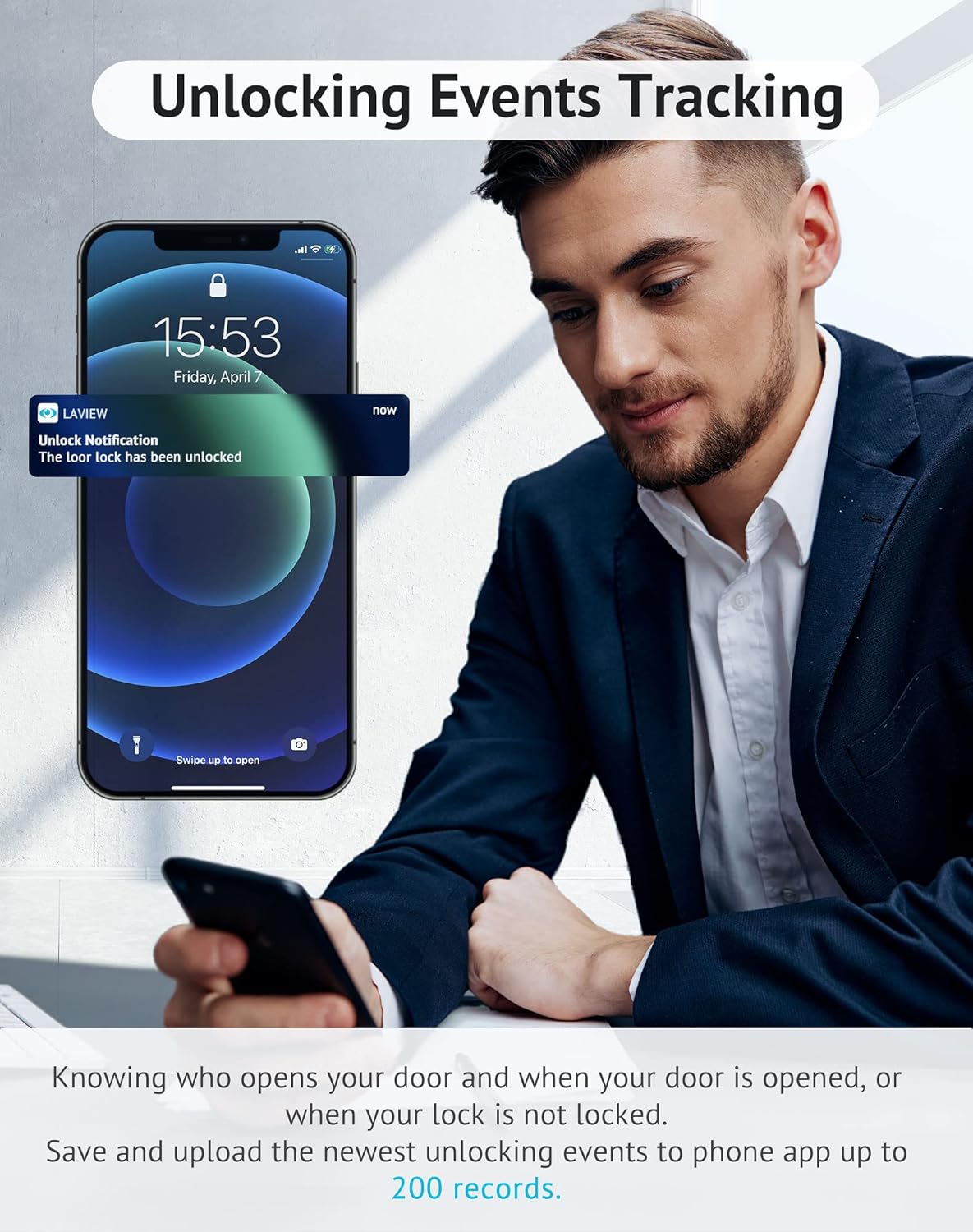
Image: Smartphone showing an unlock notification from the LaView app.
6.3. Simple Multi-User Sharing
Share access to your home with up to 20 people. Control entry for family members and trusted individuals remotely through the LaView app, eliminating the need for physical keys.

Image: LaView app interface for managing and sharing access with multiple users.
6.4. Smart Voice Control
The LaView Smart Lock is compatible with Amazon Alexa and Google Assistant, allowing you to lock and unlock your door using voice commands.

Image: Demonstrates voice control functionality with an Alexa device and the LaView Smart Lock.
7. Maintenance
- Cleaning: Wipe the lock's exterior with a soft, dry cloth. Avoid abrasive cleaners or solvents that could damage the finish.
- Battery Replacement: Replace all four AA batteries when the low battery notification appears in the app or on the device. Always use new, standard alkaline batteries.
- Firmware Updates: Periodically check the LaView app for available firmware updates to ensure optimal performance and security.
8. Troubleshooting
| Problem | Possible Cause | Solution |
|---|---|---|
| Lock does not power on. | Incorrect battery installation or dead batteries. | Ensure batteries are inserted with correct polarity. Replace with new standard alkaline AA batteries. |
| Cannot connect to LaView app. | Bluetooth is off, lock is not in pairing mode, or app issue. | Ensure Bluetooth is enabled on your phone. Perform a factory reset on the lock (refer to Installation Guide, Step 3) to enter pairing mode. Restart the LaView app. |
| Bolt does not extend/retract smoothly. | Installation misalignment or obstruction. | Recheck installation steps, especially mounting plate alignment and tailpiece insertion. Ensure no obstructions in the door frame. |
| Remote control not working. | No Bluetooth gateway or gateway not connected. | A Bluetooth gateway is required for remote control outside of Bluetooth range. Ensure the gateway is properly set up and connected to your home Wi-Fi and the lock. |
9. Specifications
- Brand: LaView
- Model Name: LV-DHU06-B
- Lock Type: Keypad (Smart Lock functionality)
- Special Feature: Smart, Smart Lock
- Connectivity Protocol: Bluetooth
- Controller Type: Amazon Alexa, Google Assistant
- Power Source: 4 x AA Batteries (not included)
- Item Weight: 16 ounces (1 pound)
- Product Dimensions: 5 x 10 x 15 inches
- Color: Black
- UPC: 192728011977
10. Warranty and Support
Your LaView Smart Door Lock comes with a warranty. Please refer to the included Warranty Card in your package for specific terms and conditions.
For technical assistance, troubleshooting, or any questions regarding your product, please contact LaView Customer Support. Visit the official LaView website for contact information and additional resources.
Image: LaView customer service team ready to assist.
Related documentsLV-DHU06-B


Ask a question about this manual
Ask about setup, troubleshooting, compatibility, parts, safety, or missing instructions. Manuals+ will review the question and use this page’s manual context to help answer it.