
Introduction
This manual provides detailed instructions for the setup, operation, maintenance, and troubleshooting of your MARVO M519 Gaming Mouse. Please read this manual thoroughly before using the product to ensure optimal performance and longevity.
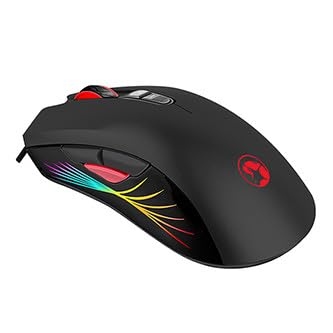
Image 1: The MARVO M519 Gaming Mouse, showcasing its ergonomic design and RGB lighting zones.
Package Contents
Ensure all items are present in the package:
- MARVO M519 Gaming Mouse
- User Manual (this document)
Setup Instructions
- Connect the Mouse: Plug the USB connector of the MARVO M519 Gaming Mouse into an available USB port on your computer.
- Driver Installation: The mouse is plug-and-play. Your operating system (Windows XP, Windows 7, Linux, etc.) will automatically detect and install the necessary drivers. No additional software installation is typically required for basic functionality.
- Placement: Place the mouse on a clean, flat surface, preferably a mouse pad, for optimal tracking performance.
Operating Instructions
Basic Functions
- Left Click: Primary action.
- Right Click: Secondary action/context menu.
- Scroll Wheel: Scroll up/down, middle click.
DPI Adjustment
The MARVO M519 features an optical sensor with adjustable DPI (Dots Per Inch) settings, up to 12000 DPI. This allows you to change the mouse sensitivity on the fly.
- Locate the DPI adjustment button(s) on the mouse. (Typically located near the scroll wheel).
- Press the DPI button to cycle through available DPI settings. Each press will change the sensitivity, often indicated by a change in the RGB lighting pattern or color.
RGB Lighting Modes
The mouse features 7 distinct RGB lighting modes. These modes can be cycled through to customize the aesthetic of your gaming setup.
- Refer to the specific button on your mouse designated for lighting control. This is often a dedicated button or a combination of buttons.
- Press the lighting control button to switch between the 7 available lighting modes.
Maintenance
- Cleaning: Use a soft, dry cloth to wipe the surface of the mouse. For stubborn dirt, a slightly damp cloth can be used, but ensure no liquid enters the mouse. Do not use harsh chemicals or abrasive cleaners.
- Sensor Care: Keep the optical sensor on the underside of the mouse clean and free from dust or debris to ensure accurate tracking. Use a cotton swab or compressed air if necessary.
- Storage: When not in use for extended periods, store the mouse in a clean, dry environment away from extreme temperatures.
Troubleshooting
| Problem | Possible Cause | Solution |
|---|---|---|
| Mouse not responding | Loose USB connection, faulty USB port, driver issue. |
|
| Inaccurate tracking | Dirty optical sensor, unsuitable surface. |
|
| RGB lighting not working | Software glitch, hardware issue. |
|
Specifications
| Feature | Detail |
|---|---|
| Brand | MARVO |
| Model | M519 |
| Connectivity | Wired, USB |
| Tracking Method | Optical Sensor |
| DPI | Up to 12000 DPI |
| Lighting | RGB Lighting with 7 Modes |
| Polling Rate | Up to 1000Hz |
| Color | Black |
| Operating System Compatibility | Windows XP, Windows 7, Linux |
| Item Weight | 3.52 ounces (approx. 100g) |
| Product Dimensions (LxWxH) | 1.69 x 1.26 x 1.12 inches (approx. 4.29 x 3.20 x 2.84 cm) |
Warranty and Support
For warranty information and technical support, please refer to the official MARVO website or contact your local retailer. Keep your proof of purchase for warranty claims.
Manufacturer: Marvo
Date First Available: March 18, 2023
For further assistance, visit the MARVO Store on Amazon.


