1. Introduction
Thank you for choosing the 70mai Dash Cam A400. This manual provides detailed instructions to help you set up, operate, and maintain your dash camera. The 70mai A400 is designed to capture high-quality video footage of your journeys, offering enhanced safety and peace of mind on the road.
Key features include 2K QHD recording, a 145° wide-angle field of view, WDR (Wide Dynamic Range) technology for improved night vision, loop recording, and convenient control via the 70mai mobile application.

Figure 1: 70mai Dash Cam A400 and its mobile application interface.
2. What's in the Box
Upon unboxing your 70mai Dash Cam A400, please verify that all the following components are included:
- 1 × 70mai Dash Cam A400
- 1 × Car Charger
- 1 × Power Cord
- 1 × Wiring Crowbar
- 2 × Electrostatic Sticker
- 2 × Adhesive Sticker (One pre-applied to the mount)
- 1 × User Manual (This document)
Note: A microSD card (Class 10 or above, 16GB to 128GB capacity) is required for operation and is not included in the package. Please purchase separately.
3. Product Features
The 70mai Dash Cam A400 is equipped with advanced features to ensure reliable and high-quality video recording:
- 1440P Quad HD Recording: Records video in 2560x1440P resolution, providing clear and detailed footage.
- 145° Wide-Angle FOV: The wide field of view minimizes blind spots, covering at least three lanes of traffic for comprehensive recording.
- WDR Technology & Enhanced Night Vision: Automatically adjusts exposure balance in varying light conditions (low-light or high-contrast) and features an F/2.0 aperture for clear images even in dim light.
- Loop Recording & Evidence Protection: Automatically overwrites the oldest videos with the latest ones. Videos are saved locally on the microSD card, ensuring continuous recording and secure evidence.
- Built-in Wi-Fi & App Control: Connects to the 70mai App for real-time footage viewing, recorded video playback, file downloads to your phone, and OTA software updates.

Figure 2: Visual comparison of 1080P Full HD versus 1440P QHD video quality.

Figure 3: Illustration of the 145° wide-angle field of view from the driver's perspective.

Figure 4: The dash cam's display showing enhanced night vision recording in a low-light environment.

Figure 5: Diagram depicting the loop recording process, where new footage replaces the oldest.

Figure 6: The 70mai Dash Cam A400 with a smartphone demonstrating app control capabilities.
Download the 70mai App: 70mai.com/en/download
4. Setup
Follow these steps to install and set up your 70mai Dash Cam A400:
- Insert MicroSD Card: Ensure the dash cam is powered off. Insert a compatible microSD card (Class 10 or higher, 16GB-128GB) into the designated slot until it clicks.
- Mounting the Dash Cam:
- Clean the windshield area where you intend to mount the camera.
- Apply an electrostatic sticker to the windshield first, then attach the adhesive sticker (with the dash cam mount) onto the electrostatic sticker. This allows for easier removal without leaving residue.
- Ensure the camera is positioned to capture a clear view of the road, ideally behind the rearview mirror to avoid obstructing your driving view.
- Power Connection:
- Connect the power cord to the dash cam and route it along the edge of the windshield, down the A-pillar, and under the dashboard to the car charger.
- Plug the car charger into your vehicle's 12V power outlet (cigarette lighter socket).
- Initial Setup:
- Once powered on, the dash cam will guide you through initial settings on its 2-inch IPS LCD screen.
- Alternatively, connect to the 70mai App via Wi-Fi to configure settings, including time, date, and recording preferences.
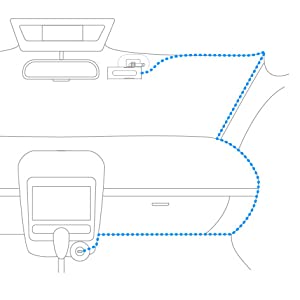
Figure 7: Proper insertion of a microSD card into the dash cam.
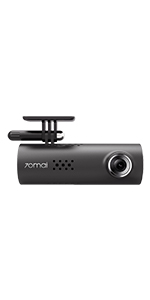
Figure 8: Recommended cable routing for a clean installation.
5. Operating the Dash Cam
The 70mai Dash Cam A400 is designed for ease of use:
- Automatic Recording: The dash cam will automatically power on and begin recording when your vehicle's ignition is turned on. It will stop recording and power off shortly after the ignition is turned off.
- Manual Recording: You can manually start or stop recording using the physical buttons on the device, or through the 70mai App.
- Emergency Recording: In case of a sudden shake or collision (detected by the built-in G-sensor), the dash cam will automatically initiate an emergency recording, which is then locked and protected from being overwritten by loop recording.
- App Control: Use the 70mai App to:
- View live footage from the dash cam.
- Browse and play back recorded videos.
- Download video clips directly to your smartphone.
- Adjust camera settings.
6. Maintenance
Proper maintenance ensures the longevity and optimal performance of your dash cam:
- MicroSD Card Formatting: It is recommended to format the microSD card regularly (e.g., once a month) to prevent data corruption and ensure smooth recording. This can typically be done via the dash cam's settings menu or through the 70mai App.
- Cleaning: Use a soft, dry cloth to clean the camera lens and body. Avoid using harsh chemicals or abrasive materials that could scratch the lens or damage the device.
- Firmware Updates: Periodically check for firmware updates via the 70mai App. Updates often include performance improvements, bug fixes, and new features. Ensure the dash cam has sufficient power during updates.
7. Troubleshooting
If you encounter issues with your 70mai Dash Cam A400, refer to the following common problems and solutions:
| Problem | Possible Cause / Solution |
|---|---|
| Dash cam does not power on. | Check power connection to the car charger and the dash cam. Ensure the car's 12V outlet is functioning. The dash cam requires continuous power from the car's ignition. |
| Recording stops unexpectedly or footage is corrupted. | MicroSD card issue. Ensure it's a Class 10 or higher, and within the supported capacity (16GB-128GB). Format the card regularly. Replace if necessary. |
| Wi-Fi connection issues with the app. | Ensure Wi-Fi is enabled on the dash cam and your phone. Try restarting both devices. Make sure you are connecting to the dash cam's specific Wi-Fi network. |
| Poor video quality (blurry, dark). | Clean the camera lens. Ensure the protective film is removed. Check settings for resolution and WDR. Adjust camera angle if the view is obstructed. |
| Dash cam does not record motion when parked. | The A400's parking monitoring feature requires a hardwire kit (sold separately) to provide continuous power after the car is turned off. Without it, the camera powers down. |
8. Specifications
Detailed technical specifications for the 70mai Dash Cam A400:
| Feature | Detail |
|---|---|
| Product Dimensions | 3.04 x 2.84 x 1.54 inches |
| Item Weight | 3.96 ounces |
| Item Model Number | A400 |
| Batteries | 1 Lithium Ion battery (included) |
| Connectivity Technologies | Wi-Fi |
| Color | Ivory |
| Video Capture Resolution | 1440p (2K QHD) |
| Field Of View | 145 Degrees |
| Control Method | App |
| Mounting Type | Adhesive Mount |
9. Warranty and Support
Your 70mai Dash Cam A400 is backed by a 365-day store warranty. For any assistance, technical support, or warranty claims, please contact the seller or 70mai customer service.
For additional information and detailed instructions, you may refer to the official User Manual PDF: Download User Manual (PDF)


