
Introduction
This user manual provides detailed instructions for the installation, operation, maintenance, and troubleshooting of your Xprinter XP-K200L 80mm Thermal Receipt Printer. Please read this manual thoroughly before using the printer to ensure proper function and to extend the product's lifespan. Keep this manual for future reference.
Safety Information
- Always use the power adapter supplied with the printer.
- Do not expose the printer to water or moisture.
- Avoid placing the printer in direct sunlight or near heat sources.
- Ensure proper ventilation around the printer.
- Do not attempt to disassemble or repair the printer yourself. Contact qualified service personnel.
- Keep out of reach of children.
Package Contents
Please check the package contents upon unpacking. If any items are missing or damaged, contact your vendor.
- Xprinter XP-K200L Thermal Receipt Printer
- Power Adapter
- Power Cord
- USB Cable
- Thermal Paper Roll (starter roll)
- Cash Drawer Cable
- User Manual (this document)
Product Overview
Familiarize yourself with the main components of your Xprinter XP-K200L thermal receipt printer.

Figure 1: Side view of the Xprinter XP-K200L thermal receipt printer. On the right, the power switch is visible, and on the left, a button to open the paper cover is present.
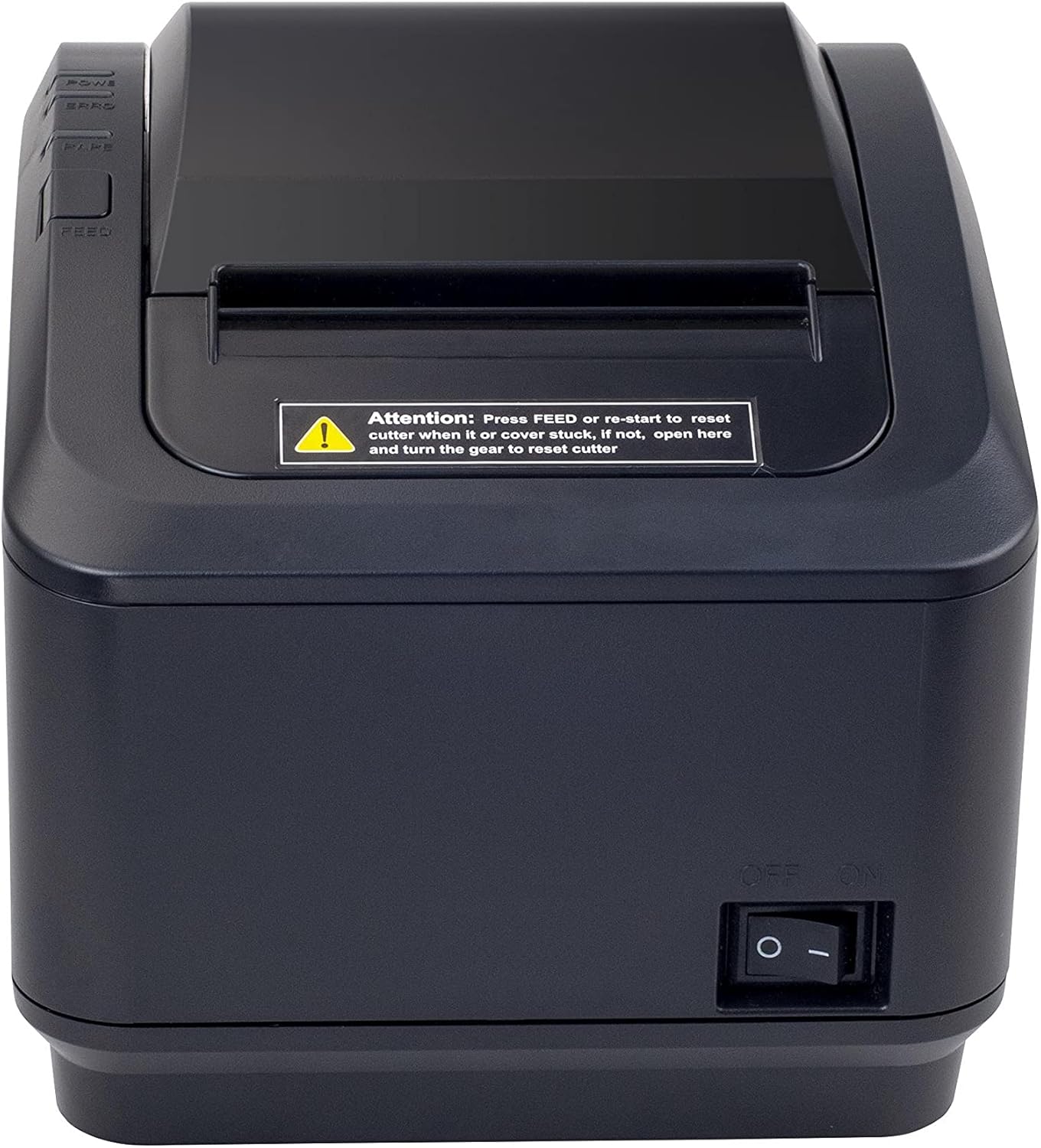
Figure 2: A front view of the Xprinter XP-K200L thermal receipt printer. The paper output slot is at the top, and below it are control buttons for functions like feed and error reset. A warning label is also visible.

Figure 3: This image displays the Xprinter XP-K200L thermal receipt printer with its top cover open, showing the internal compartment where the thermal paper roll is loaded. The print head mechanism is also visible.
Setup
1. Connecting the Power
- Ensure the printer's power switch is in the OFF position.
- Connect the power adapter to the printer's power port.
- Plug the power cord into a suitable electrical outlet.
2. Loading Thermal Paper
- Press the cover open button (refer to Figure 1) to open the top cover of the printer.
- Insert a new 80mm thermal paper roll into the compartment, ensuring the paper feeds from the bottom and the leading edge extends slightly out of the printer.
- Close the top cover firmly until it clicks into place. Ensure there is no slack in the paper roll.
3. Connecting to a Computer/Network
The XP-K200L printer supports both USB and LAN (Ethernet) connectivity.
USB Connection:
- Connect one end of the USB cable to the printer's USB port.
- Connect the other end of the USB cable to an available USB port on your computer.
- Install the printer drivers. Drivers are typically provided on a CD or can be downloaded from the manufacturer's website. Follow the on-screen instructions for installation.
LAN (Ethernet) Connection:
- Connect one end of an Ethernet cable to the printer's LAN port.
- Connect the other end of the Ethernet cable to your network router or switch.
- Configure the printer's network settings (e.g., IP address) if necessary. This usually involves printing a self-test page to get the current IP address and then accessing the printer's web interface or using a utility tool provided by the manufacturer.
- Install the printer drivers on your computer, selecting the network connection option during setup.
4. Connecting a Cash Drawer
- Connect the cash drawer cable to the dedicated cash drawer port on the printer.
- Ensure your POS software is configured to send commands to open the cash drawer via the printer.
Operating Instructions
Powering On/Off
- To power on the printer, flip the power switch (refer to Figure 1) to the ON position.
- To power off the printer, flip the power switch to the OFF position.
Basic Printing
Once the printer is connected and drivers are installed, you can print receipts from your POS software or any application that supports printing.
- Ensure the printer is powered on and has paper loaded.
- From your application, select the print option.
- Choose the "Xprinter XP-K200L" from the list of available printers.
- Confirm print settings and click "Print".
Self-Test Page
To print a self-test page, which provides information about the printer's settings and status:
- Ensure the printer is powered off and the paper roll is loaded.
- Press and hold the FEED button.
- While holding the FEED button, turn the power switch to ON.
- Release the FEED button after the printer starts printing.
Maintenance
Cleaning the Printer
- Print Head: Use a cotton swab lightly dampened with isopropyl alcohol to gently wipe the thermal print head. Allow it to dry completely before use. Clean regularly to ensure print quality.
- Cutter: If the cutter becomes jammed or dirty, carefully clean it with a soft brush or cloth.
- Exterior: Wipe the exterior of the printer with a soft, dry cloth. Do not use abrasive cleaners or solvents.
Replacing Thermal Paper
When the paper roll is depleted or near its end, replace it following the steps in the "Loading Thermal Paper" section under Setup.
Troubleshooting
| Problem | Possible Cause | Solution |
|---|---|---|
| Printer does not power on. | Power cord or adapter not connected properly; power outlet issue. | Check all power connections. Try a different power outlet. |
| No printing. | No paper; paper loaded incorrectly; printer offline; driver issue; incorrect connection. | Load paper correctly. Check printer status. Reinstall drivers. Verify USB/LAN connection. |
| Poor print quality. | Dirty print head; low quality thermal paper. | Clean the print head (see Maintenance). Use recommended thermal paper. |
| Paper jam or cutter error. | Paper loaded incorrectly; debris in cutter mechanism. | As per printer label: Press FEED or re-start to reset cutter. If the issue persists, open the top cover and carefully turn the gear to reset the cutter mechanism. Ensure paper is loaded correctly and remove any obstructions. |
| Cash drawer does not open. | Cable not connected; POS software not configured. | Check cash drawer cable connection. Verify POS software settings for cash drawer trigger. |
Specifications
| Feature | Detail |
|---|---|
| Brand | Xprinter |
| Model Name | XP-K200L |
| Printer Technology | Thermal |
| Connectivity Technology | USB, LAN (Ethernet) |
| Special Features | Network Ready |
| Color | Black |
| Printer Output | Monochrome |
| Item Weight | 1.5 kg |
| Product Dimensions (DxWxH) | 19.5 cm x 14 cm x 13.8 cm |
| Compatible OS/Controller Type | Android (and typically Windows/Linux via drivers) |
| Print Media | Plain Thermal Paper |
| Print Color | Black |
| Resolution | 576 x 512 dots per inch (or dots per line) |
| Max Print Resolution B/W | 576 dpi |
| Additional Printer Functions | Print only |
| Control Method | Remote |
| Maximum Media Size | 80 mm |
| Paper Size | 79.5 mm |
| Power | 60 watts |
| Included Components | Power adapter, Cash drawer cable |
| Series | XP-K |
| Specific Uses | Restaurants, bars, cinemas, garages, transportation, hospitals, clinics |
| Total USB Ports | 1 |
Warranty and Support
For warranty information and technical support, please refer to the documentation provided with your purchase or contact your vendor directly. Keep your proof of purchase for warranty claims.
For driver downloads and further support resources, visit the official Xprinter website.


