
1. Introduction
The Syble K816 is a high-performance, fixed, wired 1D laser barcode reader designed for efficient and accurate data capture in various environments. This manual provides essential information for setting up, operating, maintaining, and troubleshooting your K816 barcode reader.
Key features include:
- Model Number: K816
- Brand: Syble
- Connectivity: Wired (USB)
- Scanning Capability: 1D Barcodes
- Scan Speed: 1500 scans per second
- Light Source: Laser
- Compatible Devices: Desktop, Laptop
2. Setup
Follow these steps to set up your Syble K816 Barcode Reader:
- Unpack the Device: Carefully remove the barcode reader and its cable from the packaging. Ensure all components are present.
- Connect the Cable: Plug the USB cable from the barcode reader into an available USB port on your desktop or laptop computer.
- Power On: The device will typically power on automatically once connected to a powered USB port. The laser light may briefly activate, indicating it is ready.
- Driver Installation: The Syble K816 is generally a plug-and-play device and does not require specific driver installation for most operating systems (Windows, macOS, Linux). The system should automatically recognize it as a Human Interface Device (HID) keyboard.
- Test the Scanner: Open a text editor (e.g., Notepad, Word) or any application that accepts keyboard input. Aim the scanner at a 1D barcode and press the trigger (if applicable, or wait for automatic scanning). The barcode data should appear in the text editor.
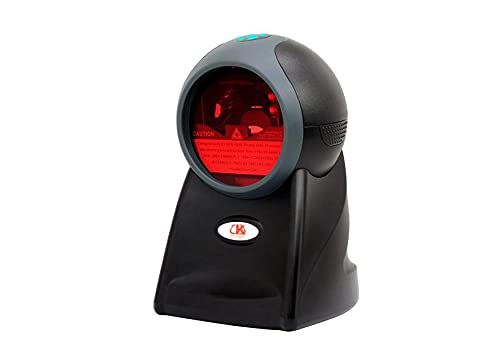
Figure 2.1: Front view of the Syble K816 Barcode Reader, showing the scanning window and indicator light.
3. Operating Instructions
The Syble K816 Barcode Reader is designed for straightforward operation:
- Positioning: Place the fixed barcode reader on a stable surface where barcodes can be easily presented to its scanning window.
- Scanning a Barcode: Hold the 1D barcode within the scanning range of the device. The laser beam will automatically activate and scan the barcode.
- Confirmation: A successful scan is typically indicated by an audible beep and/or a visual indicator light. The scanned data will be transmitted to your connected computer as if typed from a keyboard.
- Scanning Angle: For optimal performance, ensure the barcode is presented flat to the scanner window. Avoid extreme angles that may prevent the laser from reading the barcode accurately.

Figure 3.1: Angled view of the Syble K816 Barcode Reader, highlighting the scanning window and laser output.
4. Maintenance
Proper maintenance ensures the longevity and optimal performance of your barcode reader:
- Cleaning the Scanning Window: Regularly clean the scanning window with a soft, lint-free cloth. For stubborn dirt, slightly dampen the cloth with water or a mild, non-abrasive cleaner. Do not use harsh chemicals or abrasive materials.
- General Cleaning: Wipe the exterior of the device with a dry or slightly damp cloth to remove dust and grime.
- Avoid Liquid Exposure: Do not immerse the device in water or expose it to excessive moisture.
- Storage: When not in use, store the barcode reader in a clean, dry environment away from direct sunlight and extreme temperatures.
- Cable Care: Avoid bending or twisting the USB cable excessively to prevent internal damage.
5. Troubleshooting
If you encounter issues with your Syble K816 Barcode Reader, refer to the following troubleshooting guide:
| Problem | Possible Cause | Solution |
|---|---|---|
| Scanner does not power on. | USB cable not properly connected or faulty USB port. | Ensure the USB cable is securely connected. Try a different USB port or a different computer. |
| Scanner does not read barcodes. | Dirty scanning window, incorrect barcode type, or barcode damage. | Clean the scanning window. Ensure you are scanning a 1D barcode. Try scanning a different, known-good barcode. |
| Scanned data is incorrect or incomplete. | Poor scan quality, damaged barcode, or software conflict. | Ensure the barcode is flat and within optimal scanning range. Try scanning multiple times. Check your computer's keyboard settings. |
| No beep or visual confirmation after scanning. | Scan failed or indicator settings. | Ensure the barcode is properly scanned. Check the device's configuration for sound/light indicators (if programmable). |
If the problem persists after trying these solutions, please contact customer support.
6. Specifications
Detailed technical specifications for the Syble K816 Barcode Reader:
| Feature | Description |
|---|---|
| Model Number | K816 |
| Brand Name | Syble |
| Connectivity | Wired (USB) |
| Type | Fixed Barcode Reader |
| Scanning Capability | 1D Barcode Scanning |
| Scan Rate | 1500 scans per second |
| Light Source | Laser |
| Compatible Devices | Desktop, Laptop |
| Power Source | Corded Electric (via USB) |
| External Product ID | 2724837269333 (EAN-13) |
| ASIN | B096955S3R |
7. Safety Information
Please observe the following safety precautions:
- Laser Safety: This device uses a laser light source. Do not stare directly into the laser beam or point it at others' eyes.
- Electrical Safety: Use only the provided USB cable for connection. Do not attempt to open or modify the device, as this may expose you to electrical hazards.
- Environmental: Operate the device within recommended temperature and humidity ranges. Avoid extreme conditions.
- Children: Keep the device out of reach of children.
8. Warranty and Support
For warranty information, technical support, or service inquiries, please refer to the documentation provided with your purchase or contact your retailer. Keep your proof of purchase for warranty claims.
