
1. Introduction
This manual provides detailed instructions for the installation, configuration, and operation of your TOTOLINK N9 300Mbps Wireless POE Access Point. Please read this manual thoroughly before using the device to ensure proper setup and optimal performance.
The TOTOLINK N9 is a 300Mbps Wireless POE Access Point designed to extend wireless network coverage. It features a 10/100 Mbps RJ-45 adaptive port and supports wireless standards IEEE802.11n, IEEE 802.11g, and IEEE 802.11b. With MIMO 2Tx-2Rx technology, it provides 300Mbps input on the 2.4 GHz band. Transmission technologies include OFDM, CCK, BPSK, and QPSK. Key features include Wireless WDS bridge, wireless signal distribution, WPS encryption, and SOFT AC support. It also allows for configuration file resets and router software updates. Power requirements are 48 Volts, 0.6 Amps.
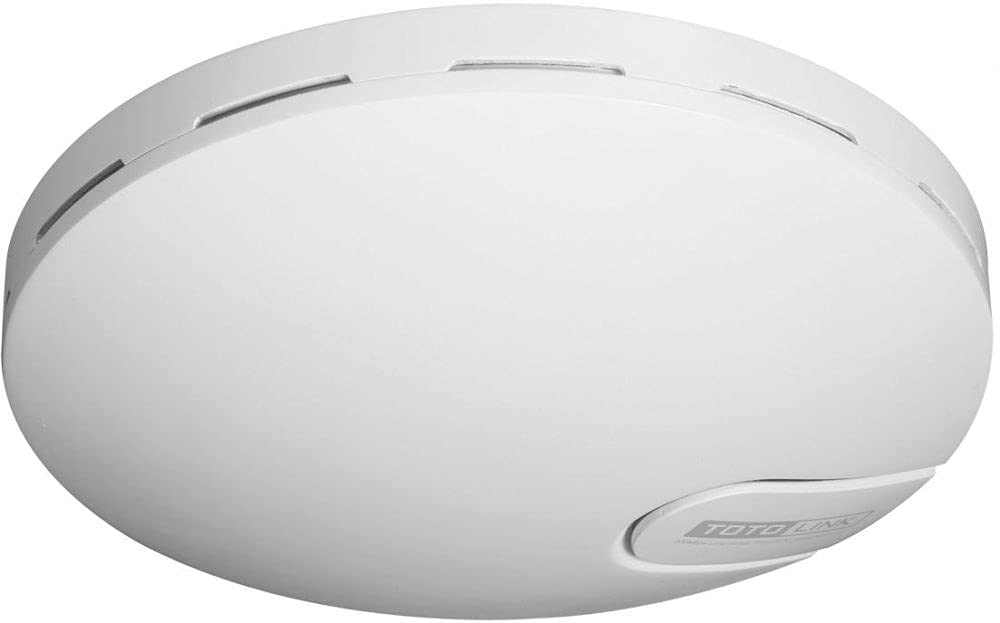
Figure 1: TOTOLINK N9 300Mbps Wireless POE Access Point device overview.
2. Package Contents
Verify that your package contains the following items:
- TOTOLINK N9 Wireless POE Access Point
- PoE Injector (Power over Ethernet)
- Ethernet Cable
- Power Adapter
- Mounting Kit (screws, wall plugs)
- Quick Installation Guide
If any items are missing or damaged, please contact your retailer for assistance.
3. Setup Guide
3.1 Physical Installation
- Choose a Location: Select a central location for optimal wireless coverage, away from obstructions and interference sources.
- Mount the Device: Use the provided mounting kit to securely attach the N9 to a wall or ceiling. Ensure proper ventilation.
- Connect Ethernet Cable: Connect one end of an Ethernet cable to the LAN port of the N9.
- Connect PoE Injector: Connect the other end of the Ethernet cable from the N9 to the 'POE' port on the PoE injector.
- Connect to Network: Connect another Ethernet cable from the 'LAN' port on the PoE injector to your router or network switch.
- Power On: Connect the power adapter to the PoE injector and plug it into a power outlet. The N9 will power on automatically.
3.2 Initial Configuration
- Connect to the Network: Ensure your computer is connected to the same network as the N9 (either via Ethernet to the router/switch or wirelessly to the N9's default SSID).
- Access Web Interface: Open a web browser and enter the default IP address (e.g., http://192.168.1.1 or check the Quick Installation Guide for the exact default IP).
- Login: Enter the default username and password (typically 'admin' for both, refer to the device label or guide).
- Run Setup Wizard: Follow the on-screen setup wizard to configure basic wireless settings such as SSID (Wi-Fi name) and password.
- Change Default Password: For security, change the default login password for the web interface.
4. Operating Instructions
4.1 Basic Wireless Configuration
- SSID Broadcast: Enable or disable the broadcasting of your Wi-Fi network name.
- Security Mode: Select a strong encryption method like WPA2-PSK for your wireless network.
- Wireless Password: Set a strong, unique password for your Wi-Fi network.
4.2 Advanced Features
- WDS (Wireless Distribution System): Configure the N9 to act as a wireless bridge to extend your network without cables. Refer to the online user manual for detailed WDS setup.
- Repeater Mode: Extend the range of an existing wireless network by configuring the N9 as a repeater.
- WPS (Wi-Fi Protected Setup): Use the WPS button or PIN method for quick and easy connection of WPS-compatible devices.
- SOFT AC Support: Utilize the centralized management features if you have multiple TOTOLINK devices supporting SOFT AC.
5. Maintenance
5.1 Firmware Update
Regularly check the TOTOLINK official website for the latest firmware updates. Firmware updates can improve performance, add new features, and fix security vulnerabilities.
- Download the correct firmware file for your N9 model from the TOTOLINK website.
- Access the N9's web management interface.
- Navigate to the 'System Tools' or 'Firmware Upgrade' section.
- Upload the downloaded firmware file and follow the on-screen instructions. Do not power off the device during the upgrade process.
5.2 Reset to Factory Defaults
If you encounter persistent issues or forget your login password, you can reset the device to its factory default settings.
- Hardware Reset: With the device powered on, press and hold the 'Reset' button (usually a small pinhole button) for about 5-10 seconds until the indicators flash. Release the button, and the device will restart with factory settings.
- Software Reset: Access the web management interface, navigate to 'System Tools' > 'Factory Defaults' or 'Backup & Restore', and select the option to restore factory settings.
Note: Resetting to factory defaults will erase all your custom configurations.
6. Troubleshooting
| Problem | Solution |
|---|---|
| No power to the device. | Ensure the power adapter is securely connected to the PoE injector and a working power outlet. Check the Ethernet cable connection between the PoE injector and the N9. |
| Cannot access the web management interface. | Verify your computer is connected to the network. Ensure the N9 is powered on. Check if your computer's IP address is in the same subnet as the N9's default IP. Try clearing your browser's cache or using a different browser. Reset the device to factory defaults if necessary. |
| No internet access through the N9. | Check the connection between the PoE injector's LAN port and your main router/modem. Verify that your main router has internet connectivity. Ensure the N9's settings (e.g., WAN settings if applicable, or gateway/DNS) are correctly configured. |
| Weak or unstable Wi-Fi signal. | Relocate the N9 to a more central position. Avoid placing it near large metal objects, concrete walls, or other electronic devices that may cause interference. Adjust the wireless channel in the settings to avoid interference from neighboring networks. |
7. Specifications
| Feature | Description |
|---|---|
| Model | TOTOLINK 11N Wireless POE Access Point - N9 |
| Physical Interface | 1 x 10/100 Mbps RJ-45 adaptive port |
| Wireless Standards | IEEE 802.11n, IEEE 802.11g, IEEE 802.11b |
| MIMO Configuration | 2Tx - 2Rx (300Mbps input) |
| Frequency Band | 2.4 GHz |
| Transmission Technology | OFDM, CCK, BPSK, QPSK |
| Special Features | WPS, Wireless WDS bridge, Wireless signal distributor, SOFT AC support |
| Compatible Devices | Laptop, Personal Computer, Smart Television, Tablet |
| Connectivity Technology | Wireless |
| Operating System | RouterOS |
| Security Protocol | WPS |
| LAN Port Bandwidth | 10/100 megabits per second |
| Power Requirements | 48 Volts, 0.6 Amps |
| Manufacturer | TOTOLINK |
| ASIN | B0968YSLH9 |
8. Warranty and Support
This product comes with a standard manufacturer's warranty. Please refer to the warranty card included in your package or visit the official TOTOLINK website for detailed warranty terms and conditions specific to your region.
For technical support, firmware downloads, or frequently asked questions, please visit the official TOTOLINK support website or contact their customer service. Contact information can typically be found on the product packaging or the official website.

