
1. Product Overview
The Lexmark MX611DHE is a monochrome laser multifunction device designed for office environments, offering comprehensive capabilities including printing, copying, scanning, and faxing. This robust unit is engineered for high-volume output and efficient document handling.
- Multifunctionality: Integrates print, copy, fax, and scan functions into a single device.
- High-Speed Performance: Capable of printing and copying at speeds up to 50 pages per minute (ppm).
- Duplex Printing: Supports automatic two-sided printing to conserve paper.
- Input Capacity: Features a standard input capacity of 650 sheets, expandable for larger tasks.
- Connectivity: Equipped with USB and Ethernet interfaces for versatile network integration.
- Intuitive Control: Features a touchscreen display for easy navigation and operation.
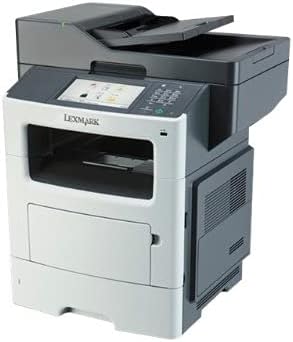
Figure 1: Front view of the Lexmark MX611DHE multifunction printer, showcasing its compact design and front-facing paper tray.
2. Setup Guide
Follow these steps to set up your Lexmark MX611DHE printer for initial use.
- Unpacking: Carefully remove the printer from its packaging. Remove all protective tapes and packing materials from the exterior and interior of the device.
- Placement: Place the printer on a stable, level surface with adequate ventilation. Ensure there is enough space around the printer for proper operation and maintenance.
- Power Connection: Connect the power cord to the printer's power input and then to a grounded electrical outlet. Do not connect to a surge protector or extension cord initially.
- Paper Loading: Open the paper tray and load the appropriate paper size (up to 8.5 x 14 inches). Adjust the paper guides to fit the paper stack snugly.
- Network/USB Connection:
- For Network (Ethernet): Connect an Ethernet cable from the printer's Ethernet port to your network router or switch.
- For USB: Connect a USB cable from the printer's USB port to your computer.
- Initial Power On: Press the power button to turn on the printer. Follow the on-screen prompts on the touchscreen display to select language, region, and perform initial setup configurations.
- Driver Installation: Install the necessary printer drivers on your computer. Drivers can typically be found on the Lexmark support website or on an included installation CD (if applicable).
3. Operating Instructions
This section provides basic instructions for using the Lexmark MX611DHE's primary functions.
3.1. Printing
- Ensure the printer is powered on and connected to your computer or network.
- Open the document you wish to print on your computer.
- Select File > Print (or the equivalent command in your application).
- Choose "Lexmark MX611DHE" from the list of available printers.
- Adjust print settings such as number of copies, paper size, and duplex options as needed.
- Click Print.
3.2. Copying
- Place the document face-down on the scanner glass or face-up in the automatic document feeder (ADF).
- On the printer's touchscreen, select the Copy function.
- Adjust settings such as number of copies, lightness/darkness, and paper size.
- Press the Start button to begin copying.
3.3. Scanning

Figure 2: The Lexmark MX611DHE with its scanner lid open, revealing the flatbed scanner glass and the automatic document feeder mechanism.
- Place the document on the scanner glass or in the ADF.
- On the printer's touchscreen, select the Scan function.
- Choose your desired scan destination (e.g., Scan to Computer, Scan to Email, Scan to Network Folder).
- Configure scan settings such as resolution, color mode, and file format.
- Press the Start button to initiate the scan.
3.4. Faxing
- Ensure the printer is connected to a telephone line.
- Place the document on the scanner glass or in the ADF.
- On the printer's touchscreen, select the Fax function.
- Enter the recipient's fax number using the keypad on the control panel.
- Adjust any necessary fax settings.
- Press the Start button to send the fax.
4. Maintenance
Regular maintenance ensures optimal performance and extends the lifespan of your Lexmark MX611DHE.
- Cleaning the Exterior: Use a soft, damp, lint-free cloth to wipe the exterior surfaces of the printer. Avoid abrasive cleaners.
- Cleaning the Scanner Glass: For clear scans, regularly clean the scanner glass with a soft, lint-free cloth and a mild glass cleaner.
- Toner Cartridge Replacement: When the toner low message appears, order a new Lexmark toner cartridge. Follow the instructions provided with the new cartridge for proper installation.
- Paper Path Cleaning: If paper jams become frequent, consult the printer's internal guides or the Lexmark support website for instructions on cleaning the paper path rollers.
5. Troubleshooting
This section addresses common issues you might encounter with your Lexmark MX611DHE.
| Problem | Possible Cause | Solution |
|---|---|---|
| Printer not responding | Power cable disconnected, network issue, driver problem. | Check power connections. Verify network cable or USB connection. Reinstall printer drivers. |
| Paper jam | Incorrectly loaded paper, foreign object in paper path. | Open access covers and carefully remove jammed paper. Ensure paper is loaded correctly. |
| Poor print quality | Low toner, dirty print head/rollers, incorrect print settings. | Replace toner cartridge. Clean internal components as per maintenance guide. Adjust print quality settings in driver. |
| Scanner not working | Scanner glass dirty, software issue, connectivity problem. | Clean scanner glass. Restart computer and printer. Check USB/network connection. |
6. Specifications
Detailed technical specifications for the Lexmark MX611DHE.
| Feature | Detail |
|---|---|
| Brand | Lexmark |
| Model Name | MX611DHE |
| Display Type | LCD (Touchscreen) |
| Printing Technology | Laser (Monochrome) |
| Max Print Speed (Monochrome) | 50 ppm |
| Max Copy Speed (Black & White) | 50 ppm |
| Resolution | 1200 x 1200 dpi |
| Memory Storage Capacity | 1024 MB |
| Sheet Size Support | Up to 8.5 x 14 Inches |
| Hardware Interface | USB, Ethernet |
| Product Dimensions | 22.6 x 23.5 x 26.5 inches |
| Color | Gray/white |
| UPC | 656942073611 |
7. Warranty and Support
Your Lexmark MX611DHE (Renewed) product is covered by a limited warranty and support resources.
- Warranty: This product comes with a 90 days limited warranty. Please refer to your purchase documentation for specific terms and conditions of the Amazon Renewed Guarantee.
- Technical Support: For technical assistance, driver downloads, or further troubleshooting, please visit the official Lexmark support website or contact their customer service.
- Online Resources: Additional user guides, FAQs, and firmware updates may be available on the Lexmark support portal.


