1. Product Overview
The CHITENG CT-981W is a versatile 1D and 2D barcode scanner designed for efficient data capture in various environments such as stores, warehouses, supermarkets, and libraries. It features plug-and-play functionality, a durable anti-shock design, and multiple scanning modes to enhance productivity.

Image: The CHITENG CT-981W wireless barcode scanner, black with a yellow trigger button, and its compact USB receiver.

Image: The barcode scanner demonstrating its ability to scan various 1D and 2D codes, including QR codes, Data Matrix, and MicroPDF417.
2. Setup and Connectivity
The CT-981W barcode scanner offers a simple plug-and-play setup via its USB wireless connection. It is compatible with a wide range of operating systems.
2.1 Compatible Systems
The scanner is compatible with the following operating systems:
- Windows XP / 7 / 8 / 10 / 11
- Mac OS
- Android
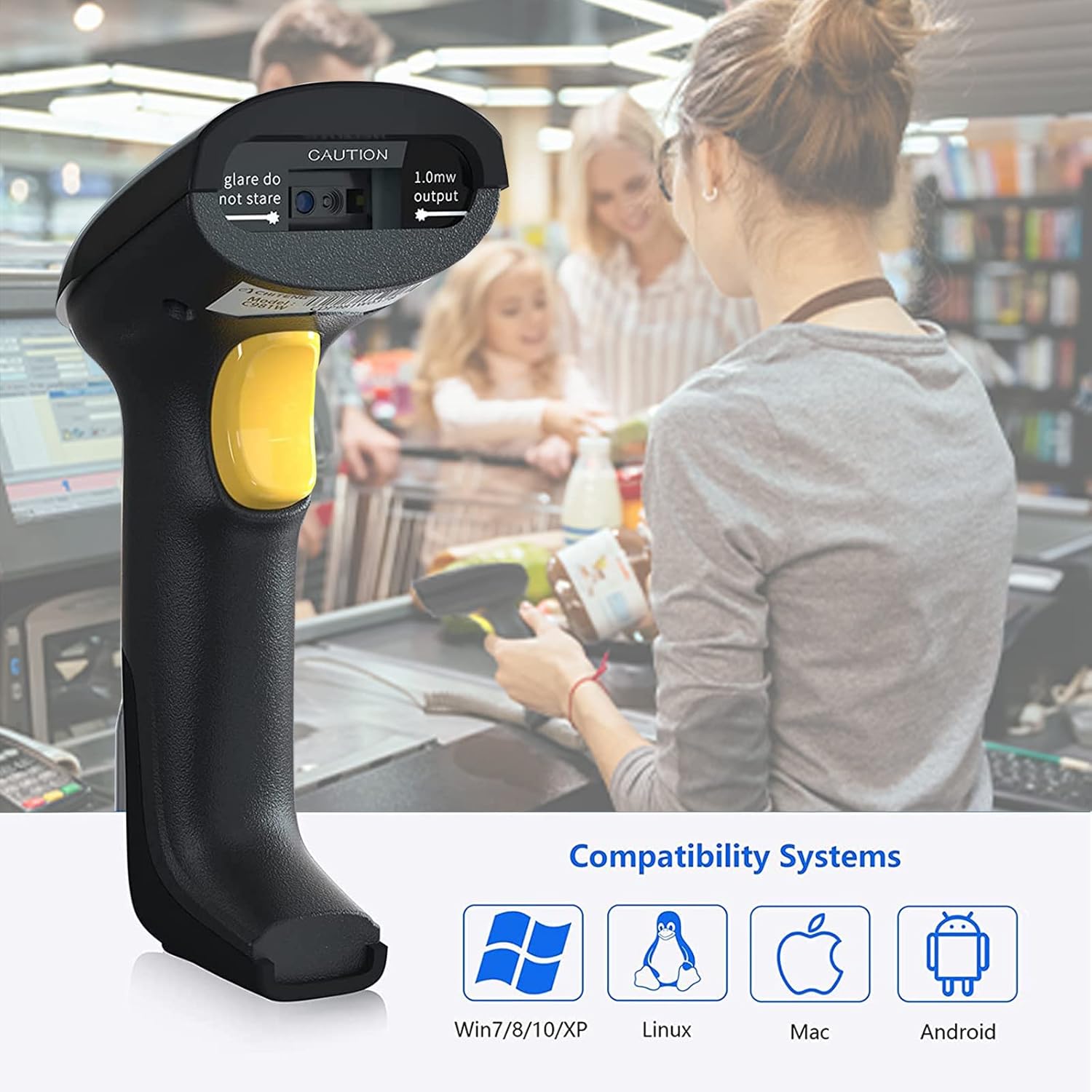
Image: Icons illustrating compatibility with Windows, Linux, Mac, and Android operating systems.
2.2 Wireless Pairing
To establish a wireless connection, follow these steps:
- Locate the small USB receiver (dongle) included with your scanner.
- Plug the USB receiver into an available USB port on your computer or compatible device.
- Scan the "Wireless pairing code" from the provided instruction card. The green light on the scanner will blink, indicating it is in pairing mode.
- Once successfully paired, the light on the USB receiver will turn blue, and the scanner will emit a beep.
Note: This model does not support Bluetooth functionality. Ensure you are using the provided USB receiver for wireless operation.
Video: A demonstration of the CHITENG CT-981W barcode scanner's wireless pairing process, scanning capabilities, and shockproof design.
3. Operating the Scanner
3.1 Scanning Capabilities
The CT-981W scanner is equipped with a new generation CMOS image sensor module, allowing it to accurately and efficiently scan a wide range of barcodes:
- 1D Barcodes: EAN-13, UPC-E, EAN-8, Code 39, CodeBar, Code 128, GS1-128, etc.
- 2D Barcodes: QR Code, Data Matrix, PDF417, etc.
- It can also scan incomplete, damaged (stained), fuzzy, and high-density barcodes.
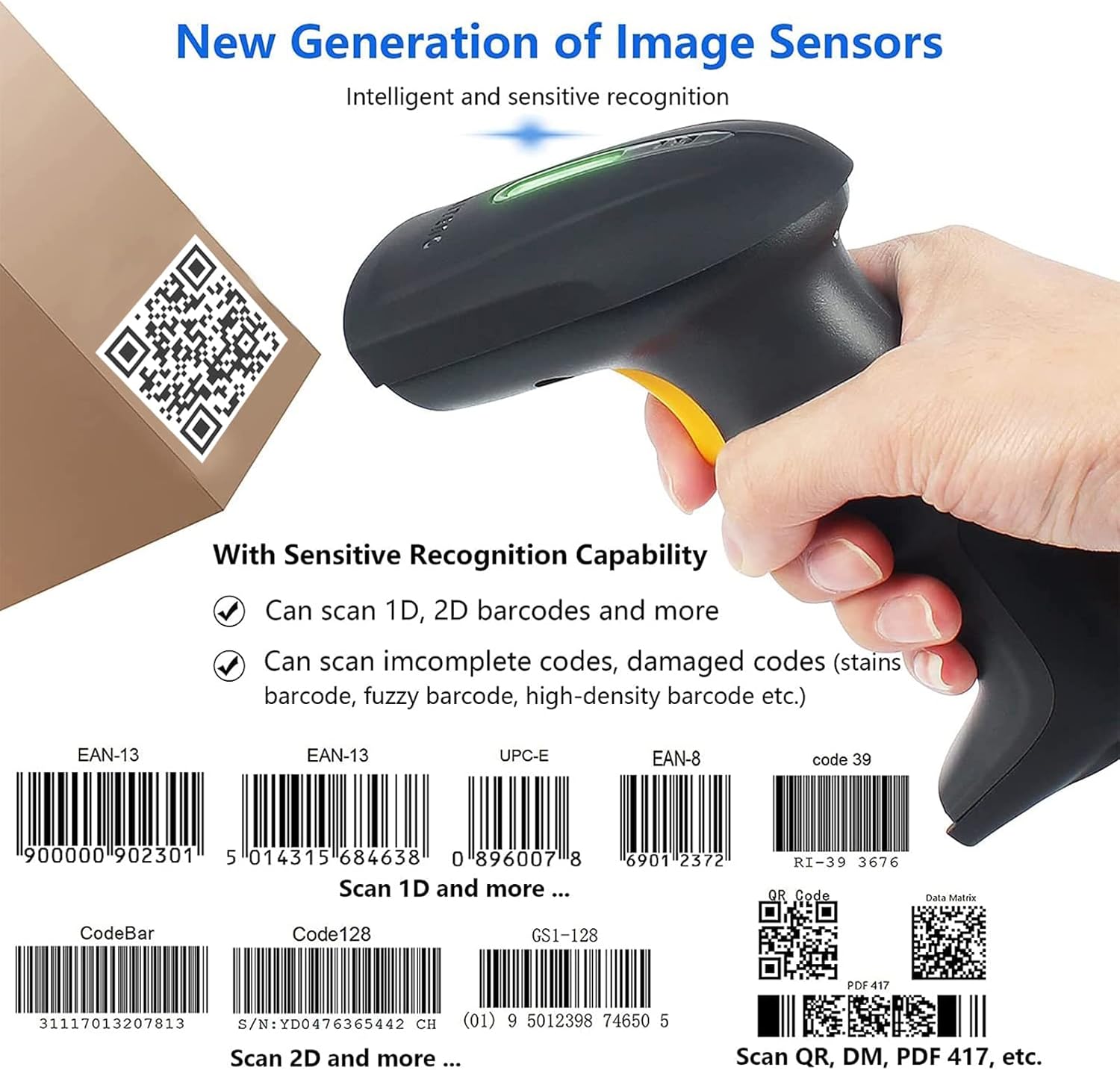
Image: A hand holding the scanner over various 1D and 2D barcodes, illustrating its super decoding ability.
3.2 Scanning Modes
The scanner supports three primary trigger scanning modes:
- Button Trigger Mode: Press the trigger button to scan each barcode.
- Automatic Continuous Reading Mode: The scanner continuously scans without requiring a button press. Ideal for high-volume scanning.
- Automatic Detection Mode (Auto-Sensing): The scanner automatically detects a barcode in its field of view and scans it without a button press.

Image: Visual representation of the three scanning modes: Manual trigger, Auto-sensing, and Continuous scanning.
3.3 Data Upload Modes
The scanner offers two data upload modes:
- Instant Upload Mode: Scanned data is immediately transmitted to the connected device.
- Storage Mode: Scanned data is stored internally in the scanner's memory. This is useful when out of range of the receiver. Data can be uploaded later by scanning the "Upload Data" barcode.

Image: Icons representing the Instant Upload Mode and Storage Mode.
3.4 Powerful Edit Functions
The scanner supports advanced editing functions to customize scanned data:
- Support Prefix/Suffix Setting: Add custom characters before or after the scanned barcode data.
- Support Deleting/Insetting Character: Remove or insert characters within the scanned data.

Image: Examples of adding prefixes and suffixes to barcode data.
4. Battery and Charging
The CHITENG CT-981W is powered by a 2000mAh battery, providing extended operational time.
- Continuous Scan Time: Approximately 15 days (based on 8 hours/day usage).
- Standby Time: Up to 60 days.
- Charging Time: 3-4 hours.
Note: The charging port is Micro USB. Handle with care as it can be delicate.

Image: Battery icon with details on continuous scan time, standby time, and charging duration.
5. Maintenance
The CT-981W barcode scanner is built with military-grade ABS material and anti-shock silicone (IP54 rated), making it resistant to collision damage and falls from typical desk or shelf heights (up to 1.5m/5ft). This robust design minimizes the need for frequent maintenance due to accidental impacts.

Image: The barcode scanner shown with a cracked ground effect, illustrating its anti-shock silicone and military ABS material construction.
For general cleaning, wipe the scanner with a soft, dry cloth. Avoid using harsh chemicals or abrasive materials that could damage the casing or scanning window.
6. Troubleshooting
6.1 Scanner Not Working Wirelessly
If the scanner is not connecting wirelessly, ensure the following:
- Verify that the small USB receiver (dongle) is securely plugged into your computer's USB port.
- Confirm that the scanner is successfully paired with the receiver. Refer to Section 2.2 for pairing instructions.
- Remember that this model uses a dedicated USB receiver and does not support Bluetooth.
6.2 Poor Scan Performance
If the scanner is having difficulty reading barcodes:
- Ensure the barcode is clean, undamaged, and well-lit.
- Adjust the distance between the scanner and the barcode.
- Check if the correct scanning mode is activated for the type of barcode you are trying to scan.
- Clean the scanning window with a soft, lint-free cloth.
6.3 Charging Issues
If the scanner is not charging:
- Ensure the Micro USB cable is properly inserted into both the scanner and the power source.
- Try a different Micro USB cable or power adapter.
- Verify the power source is active.
7. Specifications
| Feature | Detail |
|---|---|
| Product Dimensions | 6.3 x 2.36 x 3.54 inches |
| Item Weight | 9.1 ounces |
| Connectivity Technology | USB Cable, wired, wireless (via USB receiver) |
| Power Source | Battery Powered, Corded Electric |
| Compatible Devices | Desktop, Laptop |
| Battery Capacity | 2000mAh |
| Shockproof Design | 1.5m (5ft) drop resistance, Military ABS material, Anti-shock Silicone (IP54) |
| Supported Barcodes | 1D (EAN-13, UPC-E, Code 39, Code 128, etc.), 2D (QR Code, Data Matrix, PDF417, etc.) |
| First Available Date | July 2, 2021 |
| UPC | 715863968328 |
8. Warranty and Support
For warranty information, technical support, or any inquiries regarding your CHITENG CT-981W barcode scanner, please contact CHITENG customer service directly. Refer to the product packaging or the official CHITENG website for contact details.
CHITENG is committed to providing reliable products and support to its customers.


