
1. Introduction
This manual provides essential information for the safe and efficient operation, installation, and maintenance of the SICK CLV630-6000 Fixed Mount Bar Code Scanner. Please read this manual thoroughly before operating the device to ensure proper usage and to prevent damage or injury.
The SICK CLV630-6000 is a high-performance, fixed-mount bar code scanner designed for industrial applications, offering reliable data capture with a reading distance of 45mm to 659mm. It features a robust IP65 enclosure and operates within a wide temperature range.
2. Safety Instructions
General Safety:
- Always disconnect power before performing any installation, maintenance, or cleaning procedures.
- Ensure that the operating voltage (18-30 VDC) matches the device specifications.
- Do not expose the device to conditions outside its specified operating temperature range (-20 to +70 °C).
- Only qualified personnel should install, operate, and maintain this device.
- Do not attempt to modify or repair the device yourself. Contact authorized service personnel.
Laser Safety:
- The CLV630-6000 contains a laser. Avoid direct eye exposure to the laser beam.
- Do not look into the aperture during operation.
- Follow all local and national laser safety regulations.
3. Product Overview
The SICK CLV630-6000 is a compact and robust bar code scanner designed for reliable identification in various industrial environments. Key features include:
- Model: CLV630-6000
- Part Number: 1041976
- Connectivity: 15-pin D-sub HD male connector
- Power Supply: 18-30 VDC, 6 W
- Reading Distance: 45 mm to 659 mm
- Protection Class: IP65 (dust tight and protected against water jets)
- Indicators: LED indicators for status and operation
- Operating Temperature: -20 °C to +70 °C
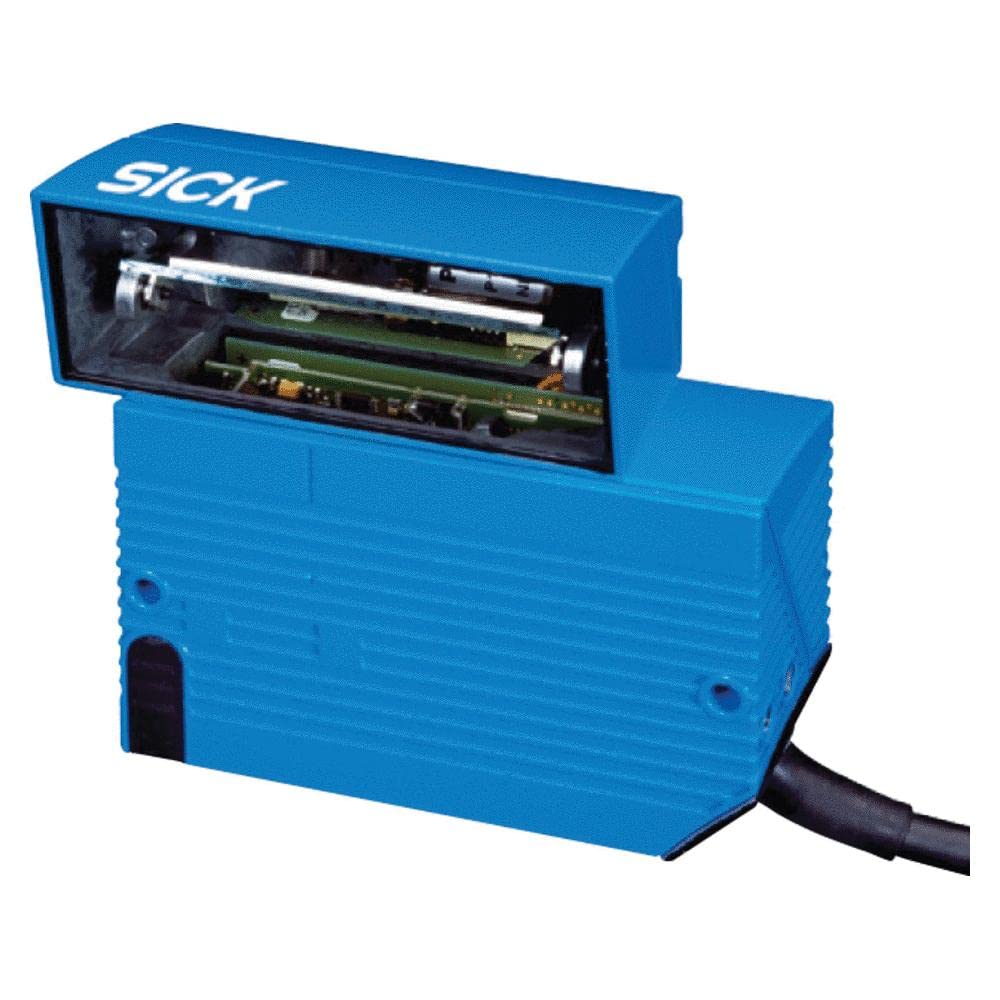
Figure 3.1: SICK CLV630-6000 Fixed Mount Bar Code Scanner. This image shows the compact design of the scanner with its various ports and indicators.
4. Setup and Installation
4.1 Mounting the Scanner:
- Select a stable mounting location that provides a clear line of sight to the bar codes to be scanned.
- Ensure the mounting surface can support the scanner's weight and withstand operational vibrations.
- Use appropriate mounting hardware (not included) to securely fasten the scanner.
- Position the scanner within the optimal reading distance of 45mm to 659mm from the target bar codes.
4.2 Electrical Connection:
- Ensure power is OFF before making any electrical connections.
- Connect the power supply (18-30 VDC) to the designated pins on the 15-pin D-sub HD male connector. Refer to the wiring diagram in the full technical documentation for pin assignments.
- Connect the data communication cable to the appropriate pins on the 15-pin D-sub HD male connector and to your host system (e.g., PLC, PC).
- Verify all connections are secure and correctly wired before applying power.
4.3 Initial Configuration:
- Once powered, observe the LED indicators for status.
- The scanner typically requires configuration via SICK's proprietary software (e.g., SOPAS ET) to set parameters such as trigger modes, data output formats, and decoding algorithms.
- Connect the scanner to a computer using the appropriate interface cable and launch the configuration software.
- Follow the software's instructions to configure the scanner for your specific application.
5. Operating Instructions
The CLV630-6000 operates by emitting a laser beam to read bar codes and then transmitting the decoded data to a connected host system. Operation modes are typically configured via software.
5.1 Power On/Off:
- To power on, ensure all connections are secure and apply 18-30 VDC power. The status LEDs will illuminate.
- To power off, disconnect the power supply.
5.2 Scanning Bar Codes:
- Ensure the bar code is within the scanner's reading distance (45mm - 659mm) and field of view.
- Depending on the configured trigger mode (e.g., continuous, single-shot, external trigger), the scanner will automatically or upon command attempt to read the bar code.
- Successful reads are typically indicated by a specific LED pattern or an audible signal (if configured).
- The decoded data is then transmitted to the host system via the configured communication interface.
5.3 LED Indicators:
The scanner features LED indicators to provide visual feedback on its operational status. Refer to the full technical documentation for a detailed explanation of each LED's behavior (e.g., power, scan active, good read, error).
6. Maintenance
Regular maintenance ensures optimal performance and longevity of your CLV630-6000 scanner.
6.1 Cleaning:
- Lens Cleaning: Periodically clean the scanner's optical window (lens) using a soft, lint-free cloth and a mild, non-abrasive cleaning solution suitable for optics. Avoid harsh chemicals or abrasive materials that could scratch the lens.
- Housing Cleaning: Clean the exterior housing with a damp cloth. Do not use solvents or aggressive cleaning agents.
- Ensure the device is powered off before cleaning.
6.2 Inspection:
- Regularly inspect cables and connectors for signs of wear, damage, or corrosion.
- Check mounting hardware for tightness.
- Ensure the IP65 rating is maintained by verifying that all covers and seals are intact and properly secured.
6.3 Firmware Updates:
Periodically check the SICK website for available firmware updates. Firmware updates can improve performance, add features, or resolve issues. Follow the instructions provided with the firmware update package carefully.
7. Troubleshooting
This section provides solutions to common issues. For more complex problems, contact SICK technical support.
| Problem | Possible Cause | Solution |
|---|---|---|
| Scanner does not power on. | No power supply or incorrect voltage. | Verify power connections and ensure 18-30 VDC supply. Check power cable for damage. |
| Cannot read bar codes. |
|
|
| Data not transmitted to host. |
|
|
8. Technical Specifications
| Parameter | Value |
|---|---|
| Model | CLV630-6000 |
| Part Number | 1041976 |
| Connectivity | 15-pin D-sub HD Male Connector |
| Operating Voltage | 18-30 VDC |
| Power Consumption | 6 W |
| Reading Distance | 45 mm - 659 mm |
| Protection Class | IP65 |
| Operating Temperature | -20 °C to +70 °C |
| Item Weight | 5.3 ounces |
| Manufacturer | SICK |
9. Warranty Information
SICK products are typically covered by a standard manufacturer's warranty against defects in materials and workmanship. The specific terms and duration of the warranty may vary by region and product. Please refer to the official SICK website or your purchase documentation for detailed warranty information. Keep your proof of purchase for warranty claims.
10. Technical Support
For technical assistance, product inquiries, or service requests, please contact SICK technical support. You can find contact information, FAQs, and additional resources on the official SICK website (www.sick.com). When contacting support, please have your product model (CLV630-6000) and part number (1041976) readily available.