
XTRONS PSA7050FL_B
XTRONS Single Din Car Stereo User Manual
Brand: XTRONS
Model: PSA7050FL_B
1. Product Overview
The XTRONS Single Din Car Stereo is an advanced in-car entertainment and navigation system designed for the Fiat 500 (2007-2015 models). Featuring an Android 10 operating system, a 7-inch touch screen, built-in DSP, Bluetooth 5.0, and support for Car Auto Play, this head unit enhances your driving experience with modern connectivity and audio capabilities.

Figure 1: XTRONS Single Din Car Stereo Main Unit
2. Setup and Installation
2.1 Package Contents
Before beginning installation, verify all components are present:
- 1 × ISO Wiring Harness
- 1 × RCA Cable
- 1 × WiFi Antenna
- 1 × Radio Adapter
- 1 × CANbus Box
- 1 × USB Cable
- 1 × GPS Antenna
- 1 × Radio Antenna Cable
- 1 × User Manual

Figure 2: Included Accessories
2.2 Vehicle Compatibility
This unit is specifically designed for the Fiat 500 models manufactured between 2007 and 2015.
2.3 Wiring Diagram
Carefully follow the wiring diagram to ensure correct installation and functionality. Incorrect wiring may lead to damage to the unit or vehicle electrical system.
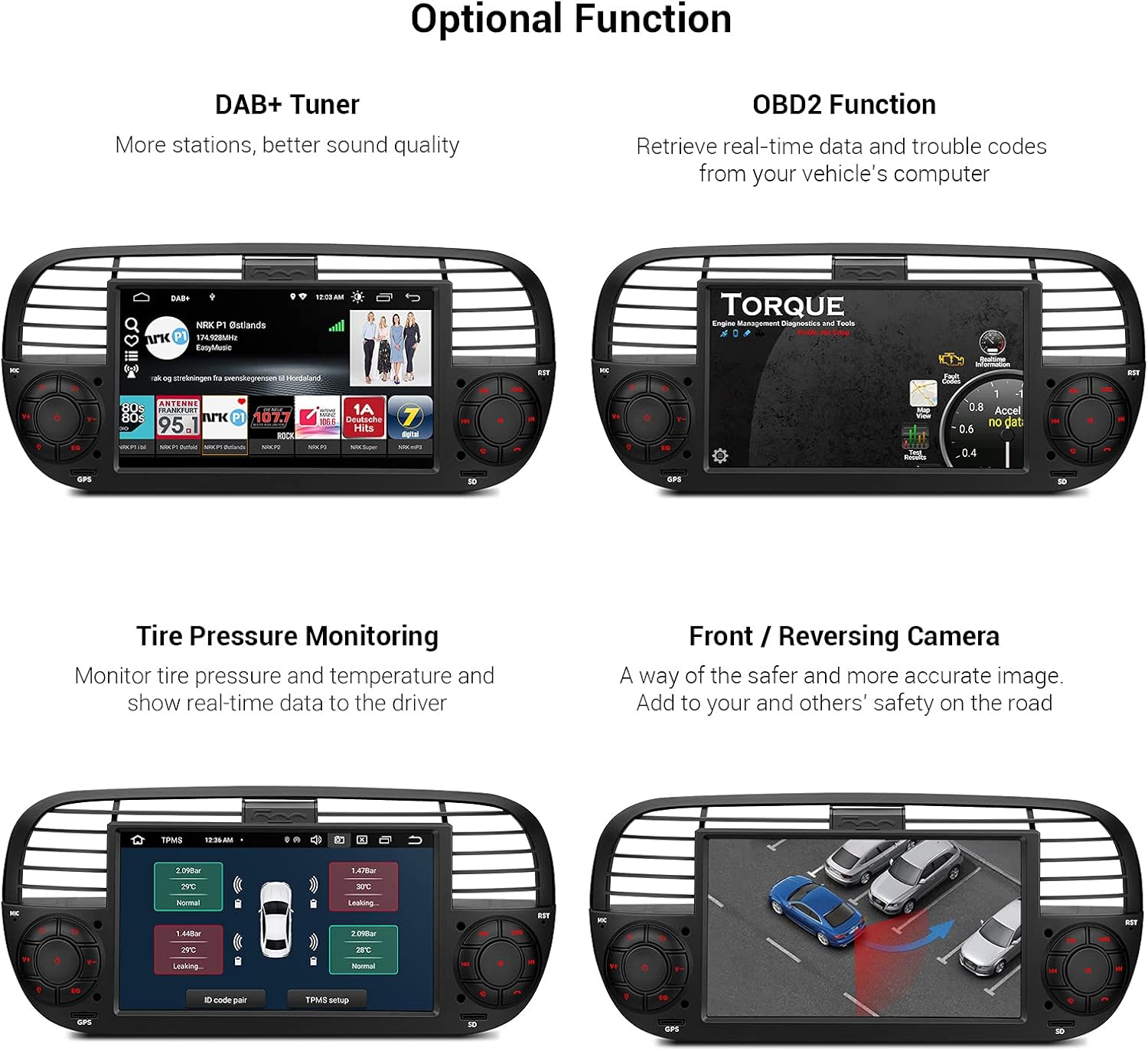
Figure 3: Detailed Wiring Diagram
Important: Ensure the yellow power cable from the connector is correctly installed to prevent issues such as battery drain or odometer blinking. If you encounter an odometer blinking issue after installation, it may require a visit to a Fiat dealer for resolution, as indicated by some users.
3. Operating Instructions
3.1 User Interface and Features
The unit features an intuitive Android 10 interface with a 1024x600 high-definition touch screen. You can customize the home page by dragging your favorite applications. Recently used applications are conveniently located in the left dock for quick access.

Figure 4: User Interface After Installation
3.2 Built-in DSP (Digital Sound Processor)
Enhance your audio experience with the built-in DSP. This feature allows for precise sound customization, including equalizer settings, balance, delay, and smart bass adjustments, to optimize sound quality within your vehicle.

Figure 5: Built-in DSP Interface
3.3 Bluetooth 5.0 Connectivity
The unit supports Bluetooth 5.0 for wireless connection to your mobile phone. This enables hands-free communication, audio streaming from popular services like Spotify, iHeartRadio, or Pandora, and access to your phone's contacts and call logs.
3.4 Wired Car Auto Play & Screen Mirroring
Connect your iPhone via a compatible USB cable to utilize Wired Car Auto Play, providing intuitive access to GPS, calls, music, Google Assistant, and Siri. Screen mirroring allows you to display your phone's content directly on the head unit's screen for safe and easy access to apps while driving.
Note: For Wired Car Auto Play, connect your phone to the USB port tagged "mirrorlink".
3.5 GPS Navigation
The unit supports various Android OS compatible navigation software, including Google Maps, Sygic, and Waze, providing reliable guidance for your journeys.
3.6 PIP (Picture-in-Picture) Mode
The PIP mode allows for a floating video player that stays in the foreground of your screen, enabling multitasking. This feature is supported by the built-in video player.

Figure 6: PIP Mode and Media Playback
3.7 Full RCA Output & Dual Zone Function
With Full RCA Output, you can share all features simultaneously with passengers in the back seat. The Dual Zone Function allows you to transmit videos and other files from the USB to rear monitors while the head unit is navigating.
3.8 Dual Channel CANbus
The integrated Dual Channel CANbus system ensures seamless communication between the head unit and your vehicle, supporting features like the Blue&Me system and maintaining original vehicle functions such as ACC control, handbrake control, reversing control, and big light control.

Figure 7: Original Vehicle Function Support
3.9 Official Product Video
Video 1: Overview of XTRONS Single Din Car Stereo features, including UI, DSP, Car Auto Play, Screen Mirroring, and connectivity options. This video provides a visual demonstration of the unit's capabilities and user experience.
4. Maintenance
To ensure the longevity and optimal performance of your XTRONS car stereo, follow these maintenance guidelines:
- Cleaning: Use a soft, dry cloth to clean the screen and exterior. Avoid abrasive cleaners or solvents that could damage the surface.
- Software Updates: Periodically check the XTRONS official website or the unit's settings for available software updates. Keeping the firmware updated ensures access to the latest features, performance improvements, and bug fixes.
- Environmental Conditions: Avoid exposing the unit to extreme temperatures, direct sunlight for prolonged periods, or excessive moisture.
- Power Management: Ensure your vehicle's electrical system is in good condition. Consistent and stable power supply is crucial for the unit's operation.
5. Troubleshooting
This section addresses common issues you might encounter with your XTRONS car stereo. For more complex problems, please contact customer support.
| Problem | Possible Cause | Solution |
|---|---|---|
| Unit does not power on. | Incorrect wiring, blown fuse, power supply issue. | Verify all wiring connections according to the diagram. Check vehicle fuses and the unit's fuse. Ensure stable power supply. |
| Odometer is blinking after installation. | CANbus communication issue, specific to Fiat 500. | This is a known issue for some Fiat 500 models. It may require a proxy alignment by a Fiat dealer or a specialized mechanic. |
| Background noise during audio playback. | Ground loop interference, poor wiring, faulty components. | Ensure proper grounding of the unit. Check RCA cables for damage or loose connections. Consider installing a ground loop isolator if the issue persists. |
| Slow startup or unresponsive interface. | Normal Android boot time, excessive background apps, low RAM. | Allow sufficient time for the Android system to boot. Close unnecessary background applications. Perform a factory reset if performance significantly degrades (note: this will erase user data). |
| Poor hands-free call quality (others cannot hear you). | Internal microphone issue, external microphone not connected/faulty. | Ensure an external microphone is properly connected and positioned. If using the internal microphone, check for obstructions. Consider replacing the external microphone if it's faulty. |
| No internet connection via WiFi. | Incorrect WiFi settings, weak signal, network issues. | Verify WiFi password and network settings. Ensure the unit is within range of a strong WiFi signal. Restart the unit and the WiFi hotspot device. |
6. Specifications
| Feature | Detail |
|---|---|
| Operating System | Android 10 |
| Processor | Quad Core CPU |
| RAM | 2GB |
| Internal Storage (ROM) | 32GB |
| Display Size | 7 Inches |
| Resolution | 1024 x 600 |
| Bluetooth Version | 5.0 |
| Connectivity Technology | Bluetooth, USB, WiFi |
| Audio Output Mode | Stereo |
| Special Features | Touchscreen, Built-in DSP, Wired Car Auto Play, Screen Mirroring, PIP Mode, Full RCA Output, Dual Zone Function, Dual Channel CANbus |
| Item Weight | 4.5 pounds |
| Package Dimensions | 12.83 x 8.39 x 7.8 inches |
| Model Number | PSA7050FL_B |
| Manufacturer | XTRONS/ShenZhen KaJunDa Technology Co.Ltd |
7. Warranty and Support
7.1 Product Warranty
This XTRONS product comes with a 1 Year Warranty from the date of purchase. Please retain your proof of purchase for warranty claims. The warranty covers manufacturing defects and malfunctions under normal use. It does not cover damage caused by improper installation, misuse, accidents, or unauthorized modifications.
7.2 Optional Accessories
Enhance the functionality of your head unit with these optional accessories:
- OBD Function: Search ASINs: B015MU8UN6 / B08HQ9LQ9X
- TPMS Function: Search ASIN: B07WQFKV5G
- Front / Reversing Camera: Search ASINs: B07HMLYLJJ / B00GY3BVT6
- External DVR: Search ASINs: B07MBYCG4C / B08MF1ZRJ3 / B08ZN33K1M
Figure 8: Optional Functions and Accessories
7.3 Customer Support
For further assistance, technical support, or warranty inquiries, please visit the official XTRONS store or contact their customer service department. You can find more information and products at the XTRONS Store on Amazon.
Ask a question about this manual
Ask about setup, troubleshooting, compatibility, parts, safety, or missing instructions. Manuals+ will review the question and use this page’s manual context to help answer it.