VEIKK VK1060

Download PDFFree PDF. The Save button below keeps a bookmark and private notes in your account.

VEIKK VK1060 Pen Drawing Tablet User Manual

Model: VK1060

Introduction

This manual provides detailed instructions for the setup, operation, and maintenance of your VEIKK VK1060 Pen Drawing Tablet. The VK1060 is a high-performance graphics tablet designed for digital art, design, and online work, featuring a 10 x 6 inch active area, 8192 levels of pressure sensitivity, and a battery-free pen with tilt support.

VEIKK VK1060 Pen Drawing Tablet with its digital pen and pen stand.

Figure 1: The VEIKK VK1060 Pen Drawing Tablet and its accompanying digital pen.

Package Contents

Please verify that all items listed below are included in your package:

  • VEIKK VK1060 Drawing Tablet
  • Battery-Free Digital Pen
  • Quick Start Guide
  • Artist Glove
  • Replacement Nibs (20 pieces)
  • USB-C to USB-A Cable
  • 2 x OTG Connectors (for Android devices)
  • Pen Holder
  • Nib Remover
  • Driver Download Reminder Card
Contents of the VEIKK VK1060 package including tablet, pen, cables, nibs, glove, and connectors.

Figure 2: All items included in the VEIKK VK1060 package. This image displays the drawing tablet, digital pen, pen holder, USB cable, OTG connectors, replacement nibs, nib remover tool, and an artist glove.

Setup

1. Driver Installation

  1. Before connecting the tablet, uninstall any existing tablet drivers from your computer.
  2. Close all drawing software and antivirus programs temporarily.
  3. Download the latest driver for the VEIKK VK1060 from the official VEIKK website (www.veikk.com).
  4. Run the downloaded installer and follow the on-screen instructions.
  5. Restart your computer after the installation is complete.

2. Connecting the Tablet to a Computer

Connect the VEIKK VK1060 tablet to your computer using the provided USB-C to USB-A cable. Ensure the connection is secure. The tablet is compatible with Windows 7/8/10 and Mac OS X 10.12 or later.
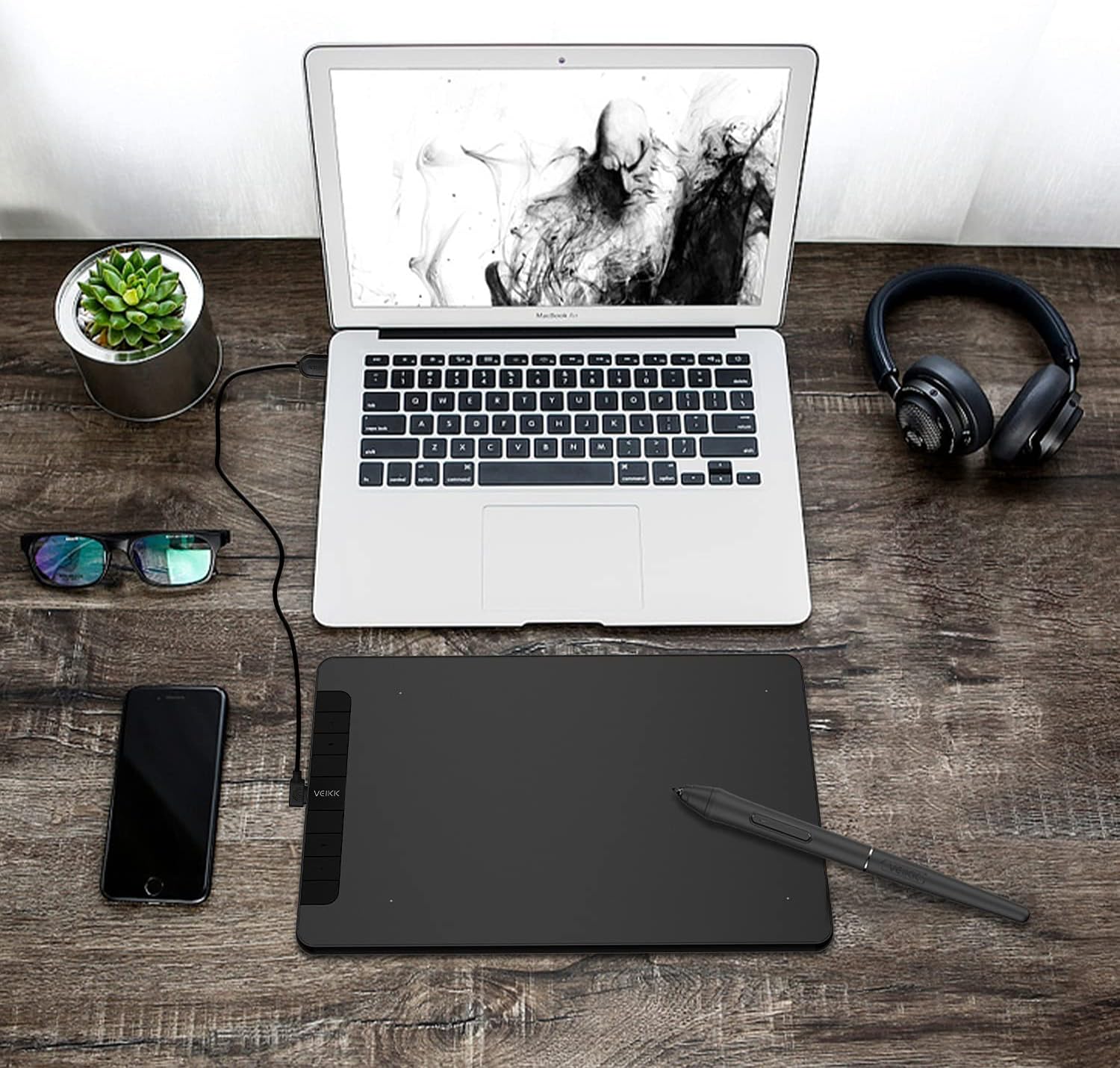
VEIKK VK1060 tablet connected to a laptop, ready for use.

Figure 3: The VEIKK VK1060 drawing tablet connected to a laptop via USB, demonstrating a typical setup for digital work.

3. Connecting to Android Devices

The VK1060 supports Android 6.0 or later (excluding Samsung devices). Use one of the provided OTG connectors to connect the tablet to your Android phone or tablet. Ensure your Android device supports OTG functionality.

Diagram showing VEIKK VK1060 tablet connected to a computer and an Android phone, illustrating multi-platform compatibility.

Figure 4: The VEIKK VK1060 tablet demonstrating compatibility with Windows, Mac, and Android operating systems, showing connections to a desktop computer and a smartphone.

Operating Instructions

1. Using the Digital Pen

The VK1060 comes with a battery-free digital pen, eliminating the need for charging. It features 8192 levels of pressure sensitivity and supports 60-degree tilt function, allowing for natural drawing and shading effects. The pen has two programmable buttons that can be customized via the VEIKK driver software.

A hand holding the VEIKK digital pen on the VK1060 tablet, with icons indicating battery-free, 8192 pressure levels, 60-degree tilt, and 250 PPS report rate.

Figure 5: Illustration of the VEIKK digital pen in use on the tablet, highlighting its key features: battery-free operation, 8192 pressure sensitivity levels, 60° tilt support, and a 250 PPS report rate.

2. Customizing Shortcut Keys

The VK1060 tablet features 8 customizable shortcut keys located on the left side. These keys can be programmed through the VEIKK driver software to perform various functions or keyboard shortcuts, enhancing workflow efficiency. Default functions often include Hand tool, Brush Tool, Eraser, Undo, Zoom in, Zoom out, Brush +, and Brush -.

Close-up of the VEIKK VK1060 tablet's shortcut keys with their default functions labeled: Hand tool, Brush Tool, Eraser, Undo, Zoom in, Zoom out, Brush +, Brush -.

Figure 6: A detailed view of the 8 customizable shortcut keys on the VEIKK VK1060 tablet, showing their typical assignments for common drawing functions.

3. Software Compatibility

The VK1060 is compatible with most mainstream drawing and design software, including but not limited to:

  • Adobe Photoshop
  • Paint Tool SAI
  • Adobe Illustrator
  • Corel Painter
  • Clip Studio Paint
  • Sketchbook
  • MediBang Paint
  • ZBrush
  • Krita
  • GIMP

It also functions with office software such as Microsoft Office Word, Excel, PowerPoint, and OneNote, making it suitable for online teaching, remote work, and presentations.

Maintenance

  • Cleaning: Use a soft, dry cloth to clean the tablet surface and pen. Avoid using harsh chemicals or abrasive materials.
  • Nib Replacement: When the pen nib wears down, use the included nib remover tool to gently pull out the old nib and insert a new one. Ensure the new nib is fully seated.
  • Storage: Store the tablet and pen in a dry, cool place away from direct sunlight and extreme temperatures.
  • Cable Care: Avoid bending or twisting the USB cable excessively to prevent damage.

Troubleshooting

  • No Pen Pressure:
    • Ensure the VEIKK driver is correctly installed and running.
    • Check if any other tablet drivers are installed and uninstall them.
    • Test the pen in different compatible software.
  • Tablet Not Responding:
    • Verify the USB cable is securely connected to both the tablet and the computer.
    • Try connecting the tablet to a different USB port.
    • Restart your computer.
    • Reinstall the VEIKK driver.
  • Cursor Jumps or Lag:
    • Ensure there are no other wireless devices causing interference nearby.
    • Check for any background applications consuming high system resources.
    • Update your computer's operating system and graphics drivers.
  • Android Connection Issues:
    • Confirm your Android device supports OTG functionality.
    • Ensure the OTG connector is properly attached.
    • Verify your Android OS version is 6.0 or later (excluding Samsung).

For further assistance, please visit the official VEIKK support website.

Specifications

FeatureDetail
ModelVK1060
Active Area10 x 6 inches
Pressure Sensitivity8192 Levels
Resolution5080 LPI (Lines Per Inch)
Report Rate250 PPS (Points Per Second)
Reading Height10 mm
Shortcut Keys8 customizable keys
Pen TypeBattery-free Passive Stylus
Tilt Support60 degrees
ConnectivityUSB
Operating System CompatibilityWindows 7/8/10, Mac OS X 10.12 or later, Android 6.0 or later (excluding Samsung)
Product Dimensions13.39 x 8.27 x 0.04 inches (340 x 210 x 1 mm)
Item Weight1.26 pounds (0.57 kg)
Diagram showing the dimensions of the VEIKK VK1060 tablet as 10x6 inches, with overall physical dimensions of 340mm (8.37 inches) in width and length, and a thickness of 9mm.

Figure 7: Physical dimensions and active area of the VEIKK VK1060 drawing tablet.

Warranty and Support

VEIKK products typically come with a manufacturer's warranty. Please refer to the warranty card included in your package or visit the official VEIKK website for detailed warranty information and terms.

For technical support, driver downloads, or frequently asked questions, please visit the VEIKK official support page: www.veikk.com/support.

Ask a question about this manual

Ask about setup, troubleshooting, compatibility, parts, safety, or missing instructions. Manuals+ will review the question and use this page’s manual context to help answer it.

After a successful submission, we securely hash the supplied account or form email before sending it to Microsoft Advertising for conversion attribution. Privacy details.