
1. Introduction
This manual provides detailed instructions for the setup, operation, and maintenance of your Satechi Aluminum C1 Wired USB C Mouse. Designed for seamless compatibility with USB Type-C devices, this optical mouse offers precise control and a comfortable user experience.

Figure 1.1: Satechi Aluminum C1 Wired USB C Mouse, top view, showcasing its sleek design and scroll wheel.
2. Product Features
The Satechi Aluminum C1 Wired USB C Mouse incorporates several key features designed for enhanced productivity and comfort:
- Built-In Wired Connection: Equipped with a 4.92ft (1.5m) USB-C cable, ensuring a stable and direct connection without wireless interference.
- Optical Sensors: Provides exceptionally precise tracking and responsive cursor control for various digital tasks.
- Adjustable DPI Settings: Features a dedicated DPI button to cycle through four sensitivity settings (800/1200/2400/3200 DPI), indicated by unique colored LED lights.
- Ergonomic Design: Lightweight aluminum construction with a contoured shape for comfortable use in either hand.
- Plug and Play: No additional drivers or software required for most operating systems.

Figure 2.1: Key components of the Satechi Aluminum C1 Mouse.
3. Setup and Installation
The Satechi Aluminum C1 Wired USB C Mouse is designed for simple plug-and-play installation.
- Locate an available USB-C port on your computer, laptop, or compatible device.
- Insert the USB-C connector of the mouse cable firmly into the USB-C port.
- Your operating system should automatically detect and install the necessary drivers. No additional software installation is typically required.
- The mouse is now ready for use.
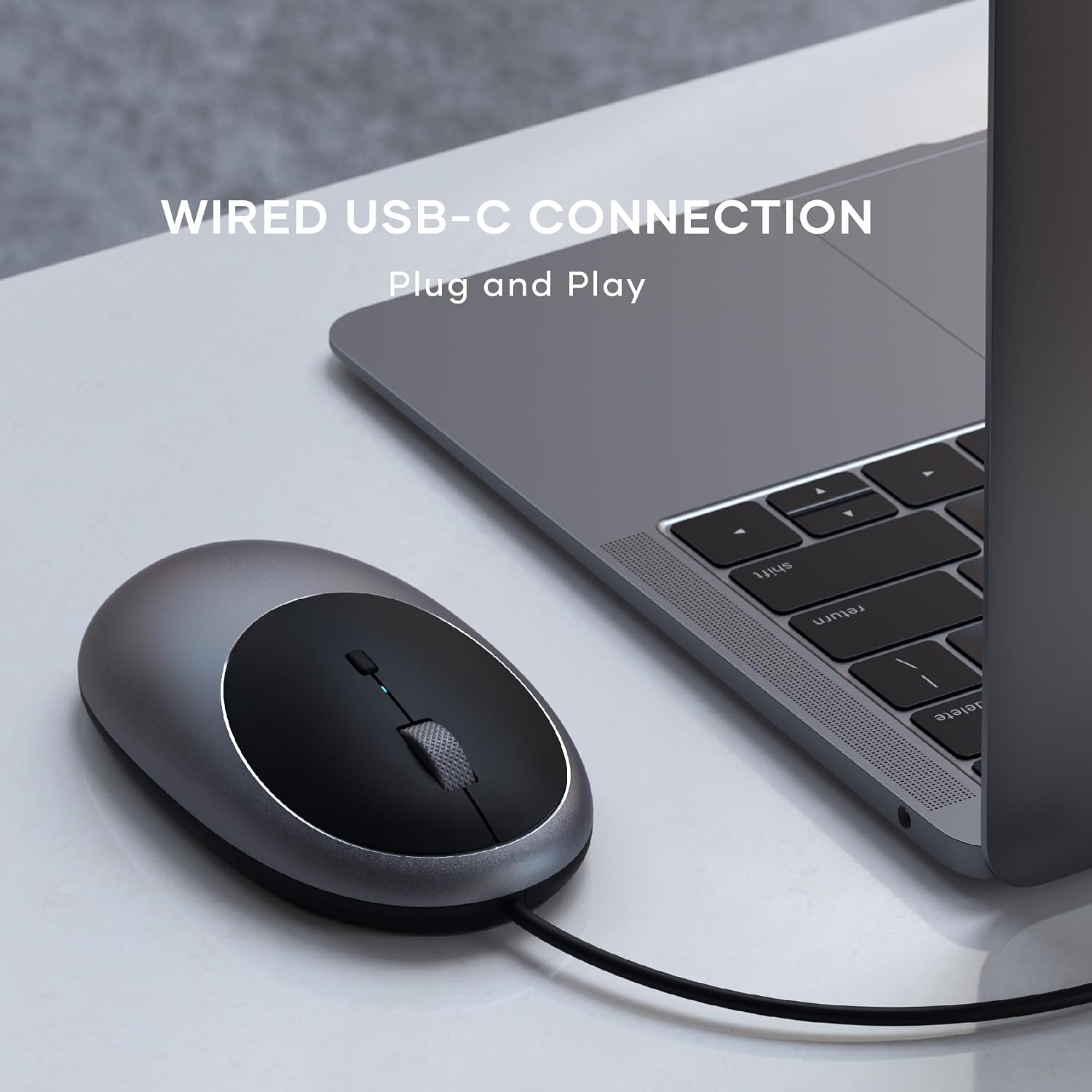
Figure 3.1: Connecting the USB-C mouse to a laptop.
4. Operating Instructions
The Satechi C1 mouse offers standard mouse functionality along with adjustable DPI settings.
4.1 Basic Operation
- Left Click: Use the left button for selecting items, opening files, and primary actions.
- Right Click: Use the right button for context menus and secondary actions.
- Scroll Wheel: Roll the scroll wheel up or down to navigate through documents and web pages. The scroll wheel also functions as a middle click button.
4.2 Adjusting DPI Sensitivity
The mouse features an adjustable DPI (Dots Per Inch) button located below the scroll wheel. This allows you to change the cursor sensitivity to suit your preference or task.
- Press the DPI button to cycle through the available sensitivity settings: 800, 1200, 2400, and 3200 DPI.
- Each DPI setting is indicated by a unique colored LED light that briefly illuminates when the setting is changed. Refer to the table below for LED color indications.
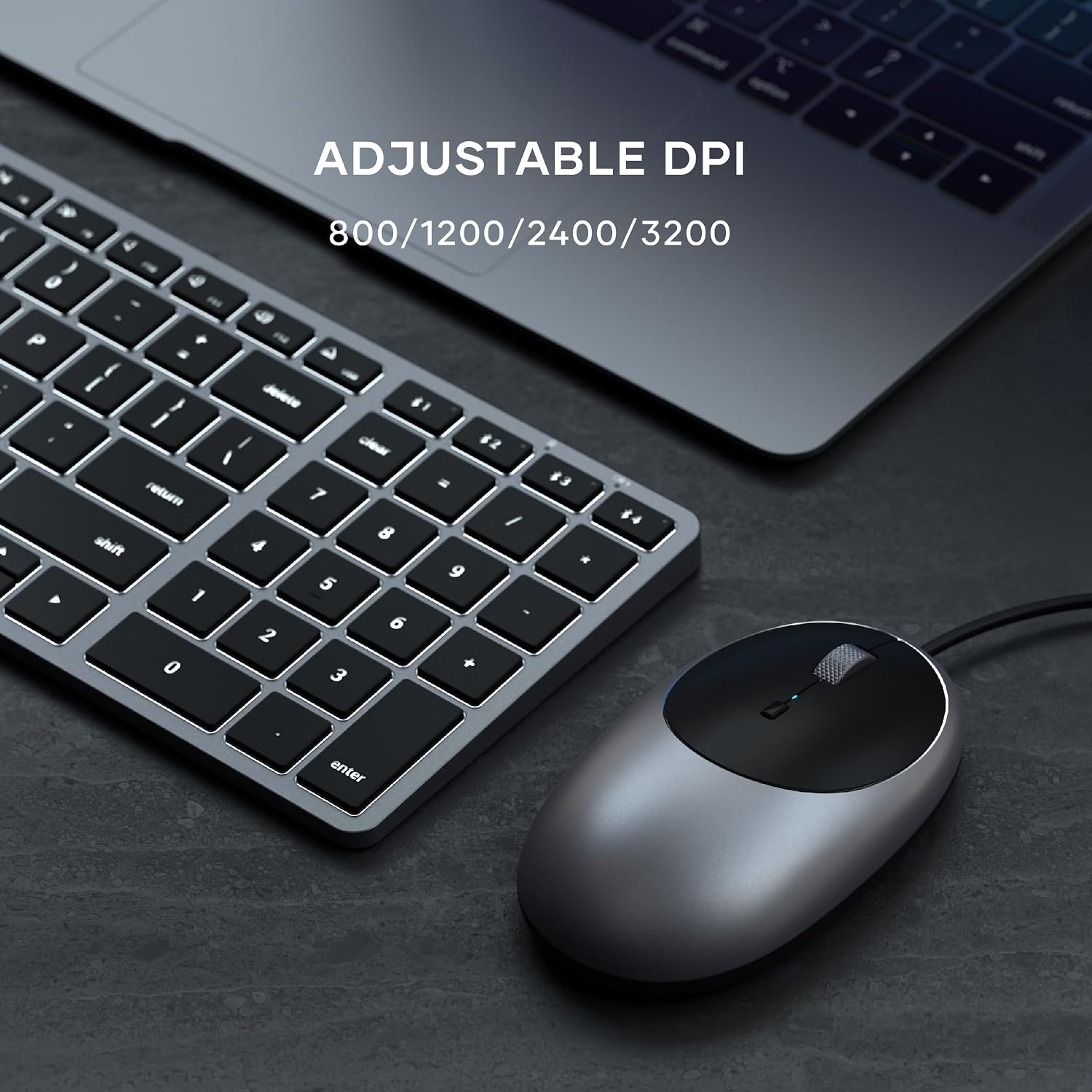
Figure 4.1: Adjustable DPI settings for precise control.
| DPI Setting | LED Indicator Color |
|---|---|
| 800 DPI | (Specific color, e.g., Blue - Note: Actual colors not specified in data, typical for DPI mice) |
| 1200 DPI | (Specific color, e.g., Green) |
| 2400 DPI | (Specific color, e.g., Red) |
| 3200 DPI | (Specific color, e.g., Purple) |
Note: The exact LED colors for each DPI setting may vary. Observe the mouse's LED behavior when pressing the DPI button to identify the corresponding sensitivity.
5. Maintenance
Proper maintenance can extend the lifespan of your Satechi Aluminum C1 Wired USB C Mouse.
- Cleaning: Use a soft, lint-free cloth slightly dampened with water or a mild cleaning solution to wipe the surface of the mouse. Avoid harsh chemicals, abrasives, or excessive moisture.
- Sensor Care: Keep the optical sensor on the underside of the mouse clean and free from dust or debris to ensure accurate tracking. Use a cotton swab or compressed air if necessary.
- Cable Management: Avoid sharp bends or kinks in the USB-C cable. Store the mouse with the cable neatly coiled to prevent damage.
- Storage: When not in use, store the mouse in a clean, dry environment away from extreme temperatures.
6. Troubleshooting
If you encounter issues with your Satechi Aluminum C1 Wired USB C Mouse, refer to the following common troubleshooting steps:
- Mouse Not Responding:
- Ensure the USB-C cable is securely plugged into a functioning USB-C port on your device.
- Try plugging the mouse into a different USB-C port on your device, if available.
- Test the mouse on another computer or device to determine if the issue is with the mouse or the original device.
- Restart your computer or device.
- Inaccurate or Jerky Cursor Movement:
- Clean the optical sensor on the underside of the mouse.
- Ensure you are using the mouse on a suitable surface. Highly reflective or transparent surfaces may affect tracking. A mouse pad is recommended.
- Adjust the DPI sensitivity using the DPI button (refer to Section 4.2).
- Scroll Wheel Not Working:
- Gently clean around the scroll wheel to remove any debris that might be obstructing its movement.
- Ensure the mouse is properly connected.
If these steps do not resolve the issue, please contact Satechi customer support for further assistance.
7. Specifications
| Feature | Detail |
|---|---|
| Model Number | ST-AWUCMM |
| Product Dimensions | 4.45 x 2.33 x 1.15 inches |
| Item Weight | 3.27 ounces |
| Connectivity Technology | Wired USB-C |
| Movement Detection Technology | Optical |
| DPI Settings | 800 / 1200 / 2400 / 3200 |
| Cable Length | 4.92 ft (1.5 m) |
| Color | Space Gray |
| Manufacturer | Satechi |
| Date First Available | May 26, 2021 |
8. Warranty and Support
Satechi provides comprehensive support for its products.
- Warranty: Satechi products are covered by a 2-year limited warranty against defects in materials and workmanship under normal use. Please retain your proof of purchase for warranty claims.
- Customer Support: For technical assistance, troubleshooting, or warranty inquiries, please visit the official Satechi website or contact their customer support team.
- User Guide (PDF): An official PDF user guide is available for download at: Satechi C1 Mouse User Guide.