1. Introduction
The Yealink YHS36 is a professional dual-ear headset designed for office workers, SOHO, or call center staff. It features HD Voice wideband technology and a noise-canceling microphone, ensuring clear communication. This headset is specifically designed for use with Yealink IP Phones via an RJ9 connection. Important: This headset is NOT a 3.5mm PC headset and is NOT intended for direct connection to computers or laptops.
2. Package Contents
Ensure all items are present in your package:
- Yealink YHS36 Dual Headset
- RJ9 Connectivity Cord
3. Product Overview
The YHS36 headset is engineered for comfort and durability, featuring a lightweight design and soft ear cushions for extended wear. Its key components include:
- Adjustable Headband: For a secure and comfortable fit.
- Soft Ear Cushions: Designed for comfort during long periods of use.
- 330° Bendable Boom Arm: Allows for precise microphone positioning and durability.
- Noise-Canceling Microphone: Filters out background noise for clearer voice transmission.
- RJ9 Connector: For direct connection to compatible Yealink IP Phones.

Image 1: Yealink YHS36 Dual Headset showing the headset and its RJ9 connection cable.
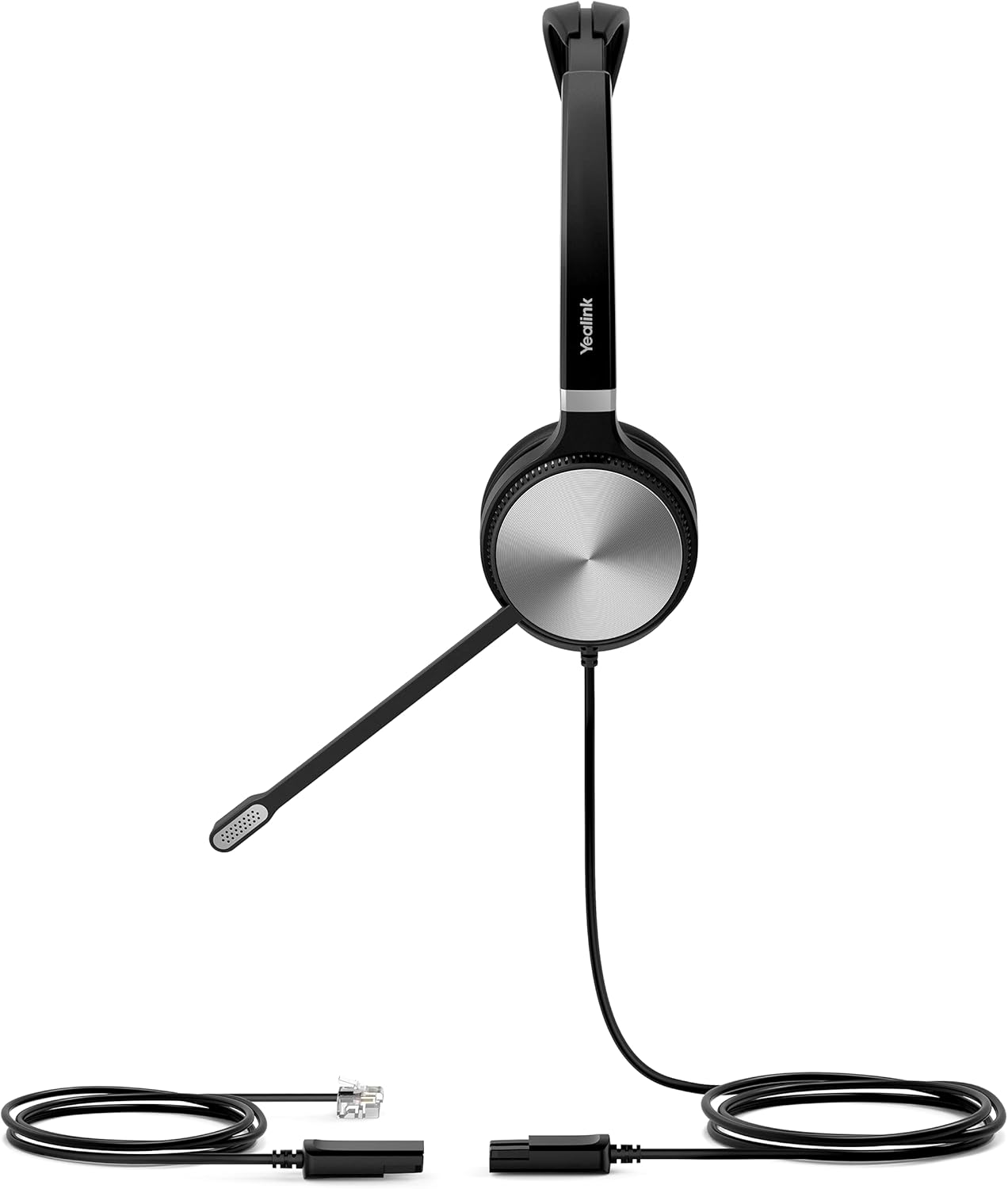
Image 2: Side view of the Yealink YHS36 Dual Headset, highlighting the ear cup and microphone boom arm.
4. Setup
Follow these steps to set up your Yealink YHS36 Dual Headset:
- Connect the Headset: Locate the RJ9 headset port on your Yealink IP Phone. Plug the RJ9 connector of the YHS36 headset firmly into this port.
- Adjust the Headband: Place the headset on your head. Adjust the headband by sliding the ear cups up or down until they rest comfortably over both ears.
- Position the Microphone: Gently bend the 330° boom arm to position the microphone approximately 1-2 centimeters (0.4-0.8 inches) from the corner of your mouth. Ensure the microphone is aligned with your mouth for optimal voice pickup.
- Test the Connection: Make a test call to ensure both audio output and microphone input are functioning correctly.
5. Operating Instructions
Once connected, the YHS36 headset integrates seamlessly with your Yealink IP Phone for call management.
- Making Calls: Initiate calls directly from your Yealink IP Phone. Audio will automatically route to the headset.
- Answering Calls: Press the headset button on your Yealink IP Phone or answer directly from the phone's interface.
- Ending Calls: Press the headset button on your Yealink IP Phone or hang up from the phone's interface.
- Volume Control: Adjust the listening volume using the dedicated volume controls on your Yealink IP Phone.
- Microphone Mute: Use the mute function on your Yealink IP Phone to temporarily disable the microphone.
- ActiveProtection Technology: The headset incorporates ActiveProtection technology to safeguard users from acoustic injury by limiting sudden loud noises.
6. Maintenance
Proper care ensures the longevity and performance of your headset.
- Cleaning: Use a soft, dry cloth to clean the headset. For ear cushions, a slightly damp cloth can be used, but ensure they are completely dry before use. Avoid harsh chemicals or abrasive materials.
- Storage: When not in use, store the headset in a clean, dry place, away from direct sunlight and extreme temperatures. Avoid tangling the cord.
- Handling: Do not drop the headset or subject it to strong impacts. Avoid excessive bending or twisting of the cables.
7. Troubleshooting
If you encounter issues with your YHS36 headset, try the following solutions:
- No Audio/Low Volume:
- Ensure the RJ9 connector is securely plugged into the phone's headset port.
- Check the volume settings on your Yealink IP Phone.
- Verify that the headset function is activated on your phone.
- Microphone Not Working:
- Confirm the microphone boom arm is correctly positioned near your mouth.
- Check if the microphone is muted on your Yealink IP Phone.
- Ensure the RJ9 connection is secure.
- Poor Sound Quality:
- Check for any physical damage to the cable or headset.
- Ensure the microphone is not too close or too far from your mouth.
- Test with another Yealink IP Phone if possible to rule out phone-related issues.
If problems persist, please contact Yealink support or refer to your Yealink IP Phone's user manual for further assistance.
8. Specifications
| Model Number | 1308021 (YHS36) |
| Connectivity | RJ9 |
| Compatibility | All Yealink Desk Phones |
| Audio Features | HD Voice/Wideband speaker performance, Noise-canceling microphone, ActiveProtection technology |
| Microphone Boom Arm | 330° bendable |
| Product Dimensions | 23.62 x 23.62 x 33.46 inches |
| Item Weight | 6 ounces |
| Manufacturer | Yealink |
9. Warranty Information
For detailed warranty information regarding your Yealink YHS36 Dual Headset, please refer to the official Yealink website or contact your local Yealink distributor. Warranty terms and conditions may vary by region and purchase location.
10. Support
If you require further assistance or have questions not covered in this manual, please visit the official Yealink support page or contact their customer service:
- Yealink Official Website: www.yealink.com
- Support Section: Look for a 'Support' or 'Downloads' section on their website for FAQs, firmware updates, and contact information.


