
1. Introduction
The Easyfone Prime-A6 is a 4G feature mobile phone designed for ease of use, featuring large buttons, clear sound, and a simplified operating system. It is ideal for individuals seeking a reliable communication device without complex smartphone functionalities. This manual provides detailed instructions for setting up, operating, maintaining, and troubleshooting your Prime-A6 phone.
2. Package Contents
Please verify that all items listed below are included in your package:
- Easyfone Prime-A6 Mobile Phone
- Rechargeable Battery
- Charging Dock
- USB Cable
- User Manual (this document)

Figure 2.1: Contents of the Easyfone Prime-A6 package.
3. Setup
3.1. Installing the Battery and SIM Card
Before first use, install the battery and your SIM card(s). The phone supports one standard SIM card and one MicroSD card for expanded storage (not included).
- Gently remove the back cover of the phone by prying it from the notch at the bottom.
- Insert your SIM card(s) into the designated slot(s) with the gold contacts facing down, ensuring proper orientation as indicated on the phone.
- If using, insert a MicroSD card into its slot.
- Insert the battery into the battery compartment, aligning the gold contacts on the battery with those in the phone.
- Replace the back cover, pressing firmly until it clicks into place.

Figure 3.1: Battery and SIM card installation area.
3.2. Initial Charging
For optimal battery performance, fully charge the phone before its first use.
- Connect the USB cable to the charging dock and then to a power adapter (not included) or a USB port.
- Place the Easyfone Prime-A6 phone into the charging dock, ensuring it sits securely. The phone will begin charging automatically.
- Alternatively, you can connect the USB cable directly to the phone's charging port.
- The charging indicator on the screen will show the charging status. A full charge typically takes approximately 2.2 hours.

Figure 3.2: Phone in charging dock.
4. Operating Instructions
4.1. Power On/Off
- To Power On: Press and hold the red End Call/Power button (✆) until the screen lights up.
- To Power Off: Press and hold the red End Call/Power button (✆) until a power off option appears on the screen, then confirm.
4.2. Making and Receiving Calls
- Making a Call: Enter the phone number using the keypad and press the green Call button (✆).
- Answering a Call: When the phone rings, press the green Call button (✆).
- Ending a Call: Press the red End Call button (✆).

Figure 4.1: Using the Easyfone Prime-A6 for a call.
4.3. Speed Dial
The Prime-A6 supports 8 speed dial buttons (keys #2 to #9) for quick access to frequently called contacts.
- Setting Up Speed Dial: Navigate to the phone's settings or contacts menu to assign a contact to a speed dial key. Refer to the on-screen instructions for specific steps.
- Using Speed Dial: Press and hold the assigned number key (2-9) to automatically dial the corresponding contact.

Figure 4.2: Speed Dial functionality.
4.4. SOS Emergency Button
The dedicated SOS button provides a quick way to contact pre-set emergency numbers.
- Setting Up SOS Contacts: Access the SOS settings in the phone's menu to add up to five emergency contacts.
- Using the SOS Function: Press and hold the SOS button (located on the back of the phone) for a few seconds. The phone will automatically call and send an emergency SMS to the pre-set contacts in sequence until one answers.
4.5. Other Features
The Easyfone Prime-A6 includes several useful features:
- FM Radio: Listen to your favorite radio stations.
- Alarm Clock: Set multiple alarms for reminders.
- Audio Player: Play audio files stored on a MicroSD card.
- Bluetooth: Connect to Bluetooth headsets or other devices.
- Flashlight: A built-in torch for convenience.
- Calendar: Keep track of dates and events.
- Calculator: Perform basic arithmetic.
- Voice Recorder: Record voice memos.
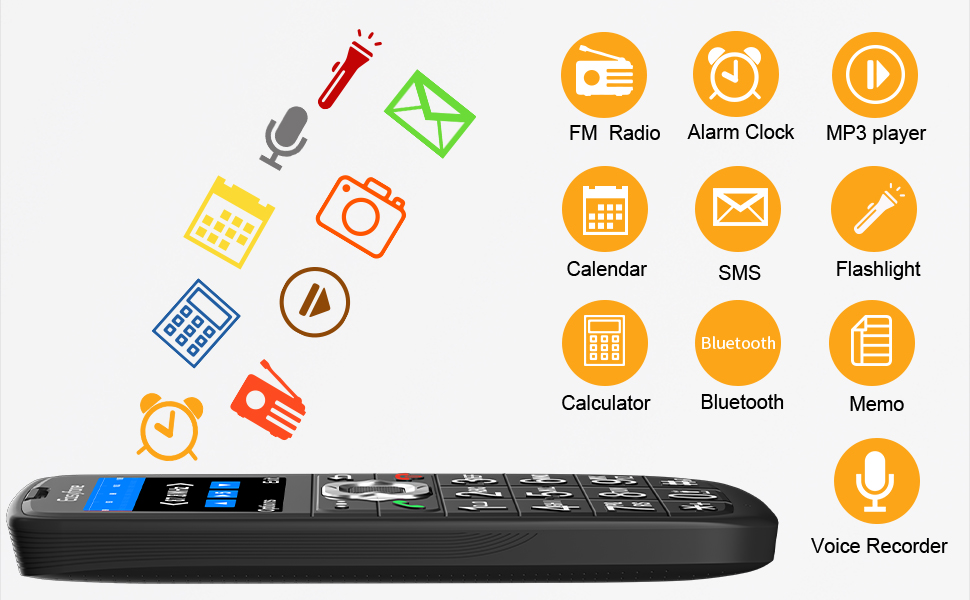
Figure 4.3: Overview of phone features.
5. Maintenance
To ensure the longevity and optimal performance of your Easyfone Prime-A6, follow these maintenance guidelines:
- Cleaning: Use a soft, dry cloth to clean the phone's surface. Avoid using liquid cleaners or abrasive materials.
- Battery Care: Avoid extreme temperatures. Do not expose the battery to direct sunlight or very cold conditions. If the phone will not be used for an extended period, charge the battery to about 50% before storing.
- Storage: Store the phone in a cool, dry place away from direct sunlight and moisture.
- Avoid Drops: While durable, repeated drops can damage internal components. Handle the phone with care.
6. Troubleshooting
If you encounter issues with your Easyfone Prime-A6, refer to the following common problems and solutions:
| Problem | Possible Cause | Solution |
|---|---|---|
| Phone does not power on | Battery is depleted or not installed correctly. | Charge the battery. Ensure the battery is correctly inserted. |
| No network signal | SIM card not inserted, out of network coverage, or SIM issue. | Check SIM card insertion. Move to an area with better coverage. Contact your network provider. |
| Cannot hear caller / Low volume | Volume setting is low, or speaker is obstructed. | Increase call volume using the side buttons. Ensure speaker is not covered. |
| Phone freezes or is unresponsive | Temporary software glitch. | Remove and reinsert the battery to force a restart. |
If the problem persists after trying these solutions, please contact Easyfone customer support.
7. Specifications
Key technical specifications for the Easyfone Prime-A6:
| Feature | Specification |
|---|---|
| Model | Prime-A6 |
| Dimensions | 11.5 x 5.2 x 1.4 cm |
| Weight | 82 g |
| Display Size | 1.8 Inches |
| Display Resolution | 320 x 240 |
| Operating System | Nucleus OS |
| Internal Memory | 64 MB Flash, 256 MB Digital Storage |
| Expandable Memory | MicroSD (up to 32GB, not included) |
| Battery Capacity | 1050 mAh Lithium-Ion |
| Battery Average Life | Up to 8 days standby |
| Charging Time | Approx. 2.2 hours |
| Cellular Technology | 4G, 2G |
| Connectivity | Bluetooth, USB |
8. Warranty and Support
For warranty information, please refer to the warranty card included with your product or contact Easyfone customer support directly. Easyfone is committed to providing quality products and support.
Customer Support:
For technical assistance, troubleshooting, or general inquiries, please contact Easyfone support:
- Email: support@easyfone.com.cn
- Manufacturer: Easyfone
- Place of Business: Easyfone Canada
