Introduction
This manual provides detailed instructions for the setup, operation, and maintenance of your Mars Gaming MCPX Gaming Combo. This 3-in-1 combo includes an H-Mech illuminated keyboard, an ultralight 10000 DPI mouse with customizable software, and an XXL mouse pad. Please read this manual thoroughly before using the product to ensure optimal performance and longevity.
Product Overview
The Mars Gaming MCPX combo is designed to enhance your gaming experience across multiple platforms. It comprises three core components:
- H-Mech Illuminated Keyboard: This keyboard combines the rapid and precise feel of mechanical switches with the smoothness and durability of membrane keyboards. It features spectacular FRGB rainbow illumination and a peripheral ambient strip.
- Ultralight 10000 DPI Mouse: With an optimized internal structure, this mouse weighs only 69g. It features a professional customizable 10000 DPI optical sensor, a special Feather cable for superior flexibility and durability, and professional KAILH mechanical switches for maximum speed and precision.
- XXL Advanced Mouse Pad: The double-layer mouse pad offers optimal grip and smooth mouse gliding. Its nanoweave top layer enhances optical and laser mouse performance, while the rubber base ensures maximum grip on your desk. Its XXL size covers your entire desk, serving as a base for both your mouse and keyboard.

Image: The Mars Gaming MCPX combo, featuring the keyboard, mouse, and XXL mouse pad on a desk.
Setup
Follow these steps to set up your Mars Gaming MCPX combo:
- Connect the Keyboard: Plug the keyboard's USB connector into an available USB port on your computer or console.
- Connect the Mouse: Plug the mouse's USB connector into another available USB port on your computer or console.
- Position the Mouse Pad: Place the XXL mouse pad on your desk. Ensure it lies flat and provides sufficient space for both the keyboard and mouse.
- Driver Installation (PC only): For PC users, the system will typically install the necessary drivers automatically. For advanced customization of the mouse, download the dedicated software from the official Mars Gaming website.
- Console Compatibility: For PS4, PS5, Xbox One, and Xbox Series X-S, simply connect the keyboard and mouse via USB. No additional software is required for basic functionality.

Image: A complete gaming setup featuring the Mars Gaming MCPX keyboard, mouse, and mouse pad, demonstrating typical placement.
Operating Instructions
Keyboard Functions
- H-Mech Keys: Experience a hybrid mechanical-membrane feel for responsive and durable keystrokes.
- FRGB Illumination: The keyboard features rainbow FRGB lighting.
- Lighting Modes: Cycle through various lighting effects, including static illumination and breathing effects. Refer to the product packaging or official website for specific key combinations to change modes.
- Brightness Adjustment: Adjust the brightness of the illumination to your preference.
- Peripheral Ambient Strip: An additional light strip around the keyboard enhances the aesthetic.
- Win Lock Key: The Win Lock key (often activated with Fn + Windows key) disables the Windows key to prevent accidental presses during gameplay.
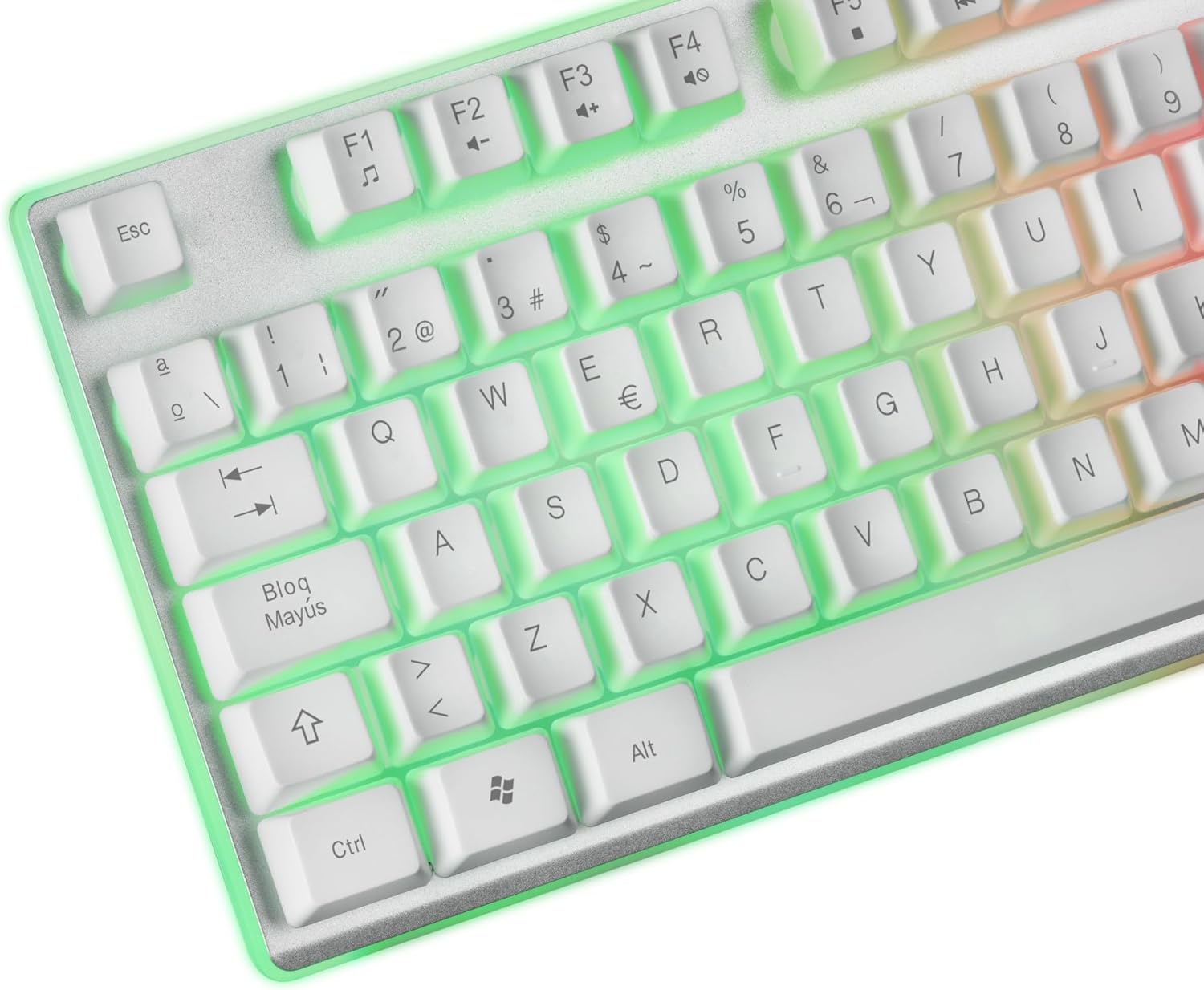
Image: A close-up view of the Mars Gaming MCPX keyboard, highlighting the FRGB illuminated keys and layout.
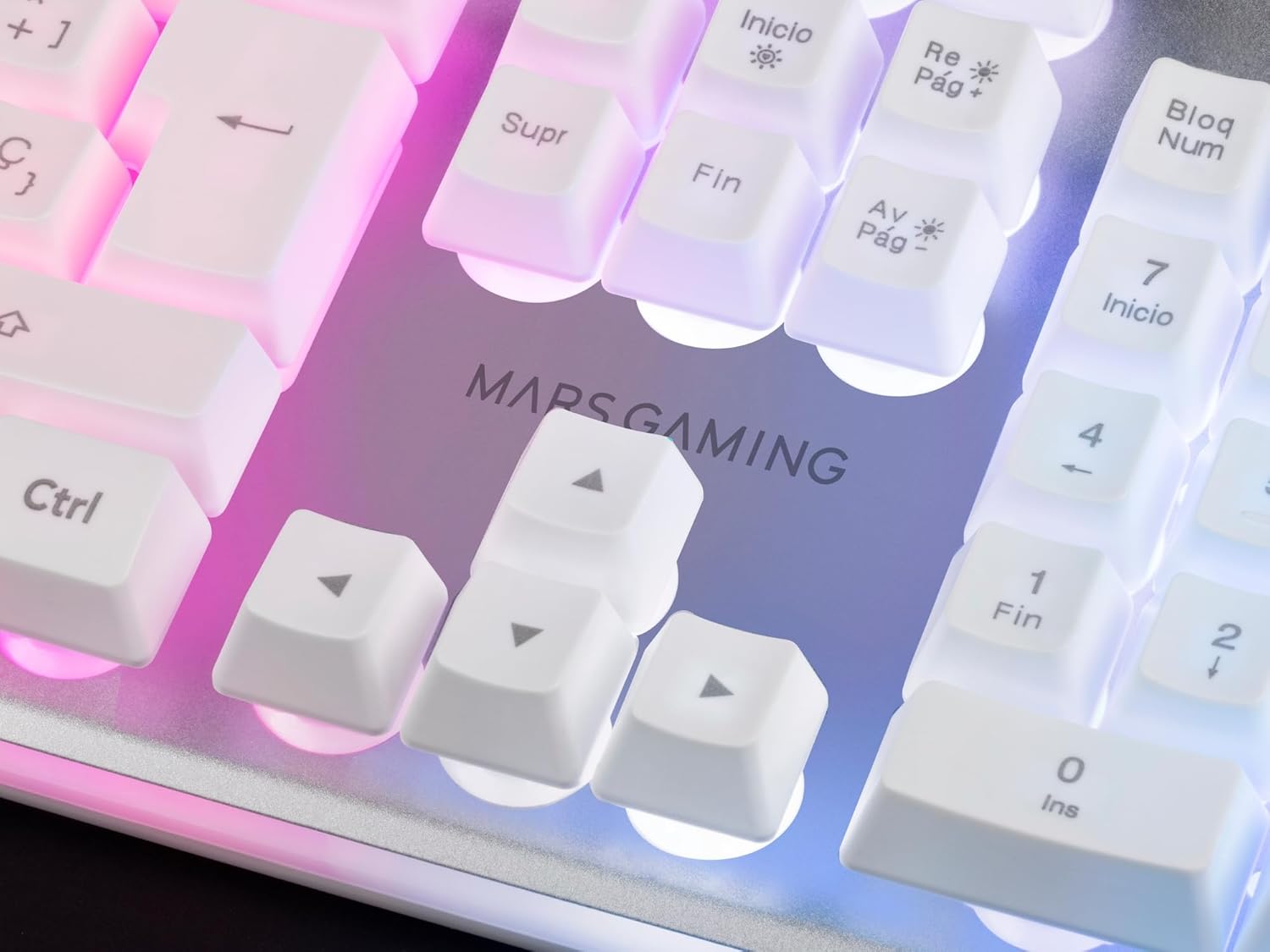
Image: Detail of the Mars Gaming logo and arrow keys on the MCPX keyboard, showing the subtle backlighting.
Mouse Functions
- DPI Adjustment: Use the dedicated DPI button (usually located below the scroll wheel) to cycle through different DPI sensitivity levels (up to 10000 DPI). The current DPI setting may not be visually indicated on the mouse itself, requiring users to memorize their preferred settings or use the software for precise control.
- Programmable Buttons: The mouse features additional buttons that can be programmed via the Mars Gaming software for macros or specific functions.
- Feather Cable: The lightweight and flexible Feather cable reduces drag, providing a smoother mouse movement experience.
- KAILH Mechanical Switches: These switches ensure fast and accurate click responses.
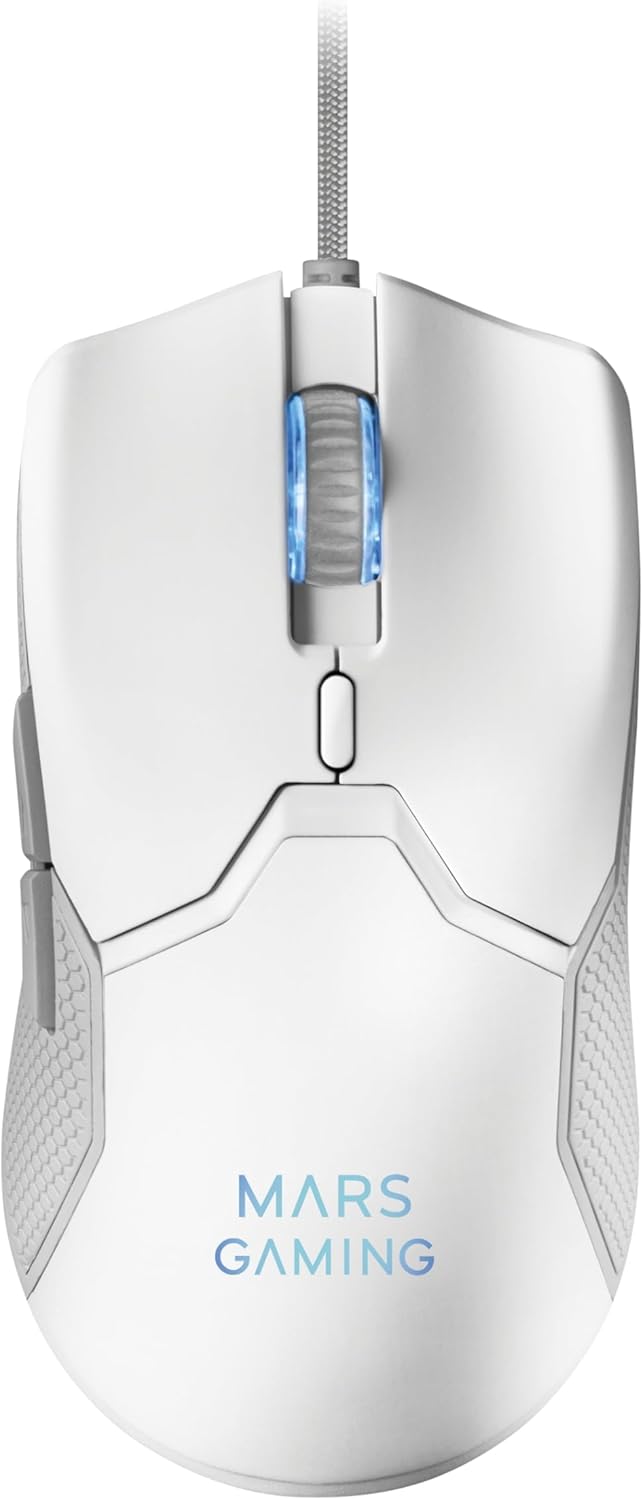
Image: A top-down view of the Mars Gaming MCPX ultralight mouse, showing its ergonomic design and scroll wheel.
Mouse Pad Usage
- Optimal Surface: The nanoweave top surface provides a consistent and low-friction glide for precise mouse movements.
- Stable Base: The rubberized bottom layer prevents the mouse pad from slipping during intense gaming sessions.

Image: The Mars Gaming XXL mouse pad, partially rolled, showcasing its size and material.
Customization (Mouse Software)
For PC users, the Mars Gaming downloadable software allows comprehensive customization of your mouse. This software enables you to:
- Adjust RGB illumination settings.
- Program various macros.
- Assign custom functions to each mouse button.
- Fine-tune performance parameters such as DPI steps and polling rate.
Visit the official Mars Gaming website to download the latest version of the software for your MCPX mouse.
Compatibility
The Mars Gaming MCPX combo offers broad multi-platform compatibility, including:
- Windows (PC)
- Mac (PC)
- Linux (PC)
- PlayStation 4 (PS4)
- PlayStation 5 (PS5)
- Xbox One
- Xbox Series X-S
Basic functionality is available across all listed platforms without additional software. Advanced mouse customization requires PC software.
Maintenance
To ensure the longevity and optimal performance of your gaming combo, follow these maintenance guidelines:
- Cleaning the Keyboard:
- Disconnect the keyboard before cleaning.
- Use a soft, dry cloth to wipe down the keys and surface.
- For stubborn dirt, slightly dampen the cloth with water or a mild cleaning solution. Avoid excessive moisture.
- Use compressed air to remove dust and debris from between the keys.
- Cleaning the Mouse:
- Disconnect the mouse before cleaning.
- Wipe the mouse surface with a soft, dry cloth.
- Clean the optical sensor area gently with a cotton swab to ensure accurate tracking.
- Cleaning the Mouse Pad:
- The nanoweave surface can be gently wiped with a damp cloth and mild soap if necessary.
- Allow the mouse pad to air dry completely before use.
- Storage: Store the combo in a clean, dry environment away from extreme temperatures and direct sunlight.
Troubleshooting
If you encounter issues with your Mars Gaming MCPX combo, refer to the following common solutions:
| Problem | Possible Cause | Solution |
|---|---|---|
| Keyboard/Mouse not responding | Loose USB connection, faulty USB port, driver issue. |
|
| Keyboard illumination not working | Lighting mode off, brightness set to minimum. |
|
| Mouse tracking issues or erratic movement | Dirty sensor, uneven mouse pad surface, incorrect DPI setting. |
|
| Mouse pad not lying flat | New product, storage conditions. |
|
If the problem persists, please contact Mars Gaming customer support for further assistance.
Specifications
| Feature | Detail |
|---|---|
| Brand | Mars Gaming |
| Model Number | MCPXWES |
| Product Dimensions | 13.5 x 44 x 3.5 cm (Keyboard) |
| Product Weight | 1.06 kg (Total combo) |
| Connectivity Technology | USB Wired |
| Keyboard Type | H-Mech Hybrid (Mechanical-Membrane) |
| Keyboard Backlight | FRGB Rainbow |
| Mouse DPI | Up to 10000 DPI (Customizable) |
| Mouse Switches | KAILH Mechanical Switches |
| Mouse Weight | 69g (Ultralight) |
| Mouse Pad Material | Nanoweave surface, Rubber base |
| Compatible Operating Systems | Windows, Mac, Linux, PS4, PS5, Xbox One, Xbox Series X-S |
| Power Source | Cable electric (USB powered) |
Warranty and Support
Mars Gaming products are manufactured to high standards and are designed for reliable performance. For information regarding warranty coverage, please refer to the warranty card included with your product or visit the official Mars Gaming website.
For technical support, troubleshooting assistance beyond this manual, or inquiries about replacement parts, please contact Mars Gaming customer service through their official website or the contact information provided in your product packaging.
Official Mars Gaming Website: Mars Gaming Store


