
1. Introduction
Thank you for choosing the EinCar Double Din Car Stereo. This manual provides detailed instructions for the installation, operation, and maintenance of your new car audio receiver. Please read this manual thoroughly before using the product to ensure proper function and safety.
This car stereo features an Android 10 operating system, a 7-inch capacitive multi-touch screen, GPS navigation, Bluetooth connectivity, FM radio, and support for a rear view camera. It is designed to enhance your in-car entertainment and navigation experience.
2. Product Features
- Operating System: Android 10
- Display: 7-inch Capacitive Multi-Touch Screen
- Processor: 4-core CPU
- Memory: 1GB RAM + 16GB ROM
- Navigation: Built-in GPS with pre-installed iGO map (North America), supports online navigation apps like Google Maps, Waze.
- Bluetooth: For hands-free calling and wireless music streaming.
- Radio: High-quality digital stereo FM/AM radio with RDS function.
- Rear View Camera Input: Supports backup camera, automatically switches to camera view when reversing.
- Phone Mirror Link: Compatible with iPhone (CarPlay) and Android phones (Android Auto).
- Audio Control: Built-in Preset EQ and DSP for customized sound.
- User Interface: Multiple UI themes available for personalization.
- Connectivity: USB/TF card support.

Image: EinCar Double Din Car Stereo with Android 10 system, 1GB RAM, and 16GB ROM.

Image: Close-up of the 7-inch HD capacitive multi-touch screen.
3. Setup and Installation
3.1 Package Contents
Before installation, verify that all components are present:

Image: Diagram showing the dimensions of the 7-inch unit and included accessories such as power cable, USB cables, RCA cable, camera input, GPS antenna, external microphone, rear camera, AV cable, decorative frame, 8 screws, 2 brackets, and user manual.
3.2 Wiring Diagram
Refer to the following diagram for proper wiring connections. Incorrect connections can damage the unit.
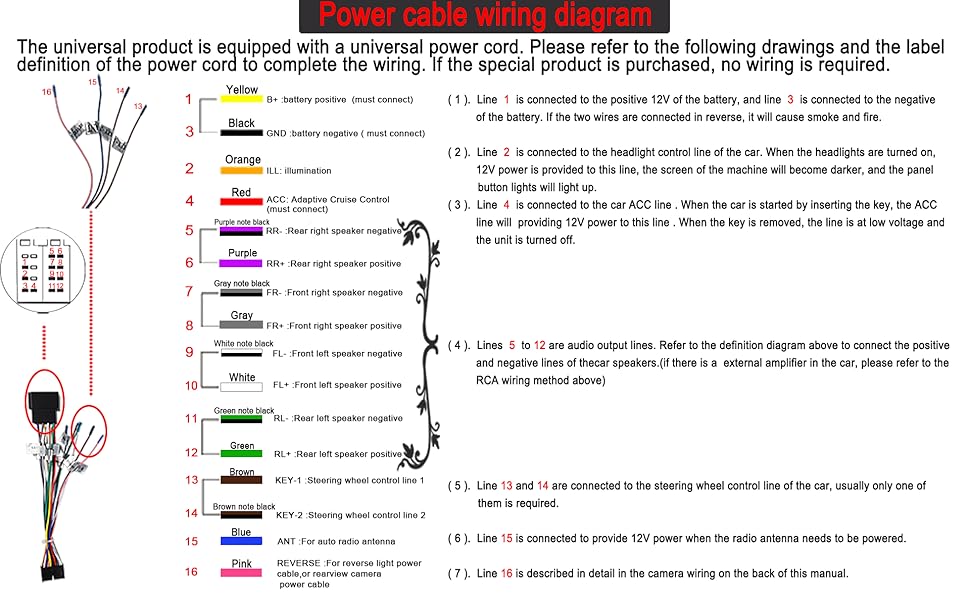
Image: Detailed power cable wiring diagram. Key connections include: (1) Line 1 to 12V battery positive and ground negative. (2) Line 2 to headlight control line. (3) Line 4 to ACC line. (4) Lines 5 to 12 for audio output. (5) Lines 13 and 14 for steering wheel control. (6) Line 15 for radio antenna power. (7) Line 16 for reverse light power or rearview camera power.
3.3 Rear View Camera Installation
The unit supports a rear view camera input. Connect the included rear camera to the designated input. The system will automatically switch to the camera view when the vehicle is in reverse.

Image: The car stereo displaying a rear view camera feed, showing parking guidelines. A separate image of the included backup camera is also shown.
4. Operating Instructions
4.1 User Interface Overview
The Android 10 system offers a customizable user interface. You can switch between different UI themes to suit your preference.

Image: Three different user interface designs displayed on the car stereo screen, illustrating the customization options.
4.2 GPS Navigation
The unit comes with a pre-installed iGO map for North America and supports various online navigation applications available through the Play Store, such as Google Maps and Waze.

Image: The car stereo displaying a detailed map for GPS navigation, with icons for popular navigation apps like Google Maps and Waze.
4.3 Bluetooth Connectivity
Connect your smartphone via Bluetooth for hands-free calling and to stream your favorite music wirelessly. This feature enhances driving safety by allowing you to manage calls without holding your phone.

Image: The car stereo displaying the Bluetooth interface for phone calls and music streaming, with a smartphone icon indicating connectivity.
4.4 FM/AM Radio
Access high-quality digital stereo FM and AM radio stations. The unit supports RDS (Radio Data System) functions for enhanced radio experience.

Image: The car stereo displaying the FM radio interface, showing frequency tuning and station presets.
4.5 Phone Mirror Link (CarPlay/Android Auto)
Utilize the Phone Mirror Link function to display your smartphone's screen directly on the car stereo. This supports both iPhone (CarPlay) and Android phones (Android Auto) for seamless integration of apps like navigation, music, and messaging.

Image: The car stereo displaying a mirrored smartphone screen, demonstrating the Phone Mirror Link feature.
4.6 Digital Sound Processor (DSP) and Equalizer
Fine-tune your audio experience with the built-in Digital Sound Processor (DSP) and Equalizer. Adjust settings for smart bass, balance, loudness, delay, and various sound filters to achieve optimal sound quality.

Image: The car stereo displaying the equalizer settings, showing various frequency bands and preset options like Jazz, Pop, Classical, Rock, and Bass.
4.7 App Installation
Access the Google Play Store to download and install your favorite applications directly onto the car stereo.
4.8 Official Product Videos
Video: This video provides a general overview of the double din car stereo, demonstrating its physical form factor and basic user interface navigation, including radio, music, navigation, and Bluetooth functions. It also shows the DSP settings and app browsing.
Video: This video demonstrates the double din car stereo's features, including navigation, FM/AM radio with RDS, CarPlay, Android Auto, and Bluetooth 5.0 connectivity. It also shows how to connect an iPhone for CarPlay functionality and use maps and music through the mirrored interface.
5. Maintenance
To ensure the longevity and optimal performance of your EinCar Double Din Car Stereo, follow these maintenance guidelines:
- Cleaning: Use a soft, dry cloth to clean the screen and exterior. Avoid abrasive cleaners or solvents.
- Temperature: Avoid exposing the unit to extreme temperatures, both hot and cold, for extended periods.
- Moisture: Keep the unit dry. Moisture can cause damage to internal components.
- Software Updates: Periodically check for software updates to ensure the system runs efficiently and has the latest features.
6. Troubleshooting
If you encounter any issues with your car stereo, refer to the following common troubleshooting steps:
- No Power: Check all power connections according to the wiring diagram. Ensure the vehicle's ignition is on.
- No Sound: Verify speaker connections. Check volume levels and equalizer settings. Ensure the correct audio source is selected.
- GPS Not Working: Ensure the GPS antenna is properly connected and has a clear view of the sky. Check GPS settings in the system.
- Bluetooth Connection Issues: Ensure Bluetooth is enabled on both the stereo and your smartphone. Delete previous pairings and try reconnecting.
- Touchscreen Unresponsive: Try restarting the unit. If the issue persists, a factory reset might be necessary (note: this will erase all user data).
- Rear Camera Not Displaying: Check the camera's power and video connections. Ensure the reverse gear is engaged.
For persistent issues, please contact EinCar customer support.
7. Specifications
| Feature | Specification |
|---|---|
| Brand | EinCar |
| Model Number | XT-US-7024L-1+16-FM-CAM-ZWC |
| Controller Type | Android |
| Compatible Devices | Smartphone |
| Connector Type | RCA, USB |
| Audio Output Mode | Stereo |
| Number of Channels | 4 |
| Output Wattage | 45 Watts |
| Supported Internet Services | Maps |
| Control Method | Touch |
| Manufacturer | EINCAR Co. Ltd. |
| Format | WMA |
8. Warranty and Support
For warranty information and technical support, please refer to the documentation included with your product or visit the official EinCar website. Keep your purchase receipt as proof of purchase for warranty claims.