
Introduction
The ZIOCOM Bluetooth Aux Adapter is designed to seamlessly integrate Bluetooth connectivity into your car stereo or home audio system. This USB-powered receiver allows you to stream music wirelessly from your Bluetooth-enabled devices and make hands-free calls, enhancing your audio experience and driving safety.
This manual provides detailed instructions for setting up, operating, and maintaining your ZIOCOM Bluetooth Aux Adapter.
Safety Information
- Do not expose the device to extreme temperatures, humidity, or corrosive environments.
- Keep the device away from water and other liquids.
- Do not attempt to disassemble or modify the device. This will void the warranty and may cause damage.
- Ensure proper ventilation when in use, especially if placed in a confined space.
- Use only with compatible USB power sources (5V).
- When using in a vehicle, ensure the device and its cables do not obstruct the driver's view or interfere with vehicle controls.
Package Contents
Please check the package for the following items:
- ZIOCOM Bluetooth Aux Adapter (Model: RC02)
- User Manual
Note: The adapter features an integrated USB power cable and a 3.5mm audio cable.

Image: The ZIOCOM Bluetooth Aux Adapter, featuring a USB plug on one end and a 3.5mm audio jack on the other, connected by a coiled cable.
Product Overview
The ZIOCOM Bluetooth Aux Adapter is a compact device designed for ease of use. It combines a USB power input with a 3.5mm audio output, allowing it to draw power from a USB port and transmit audio to an AUX input.
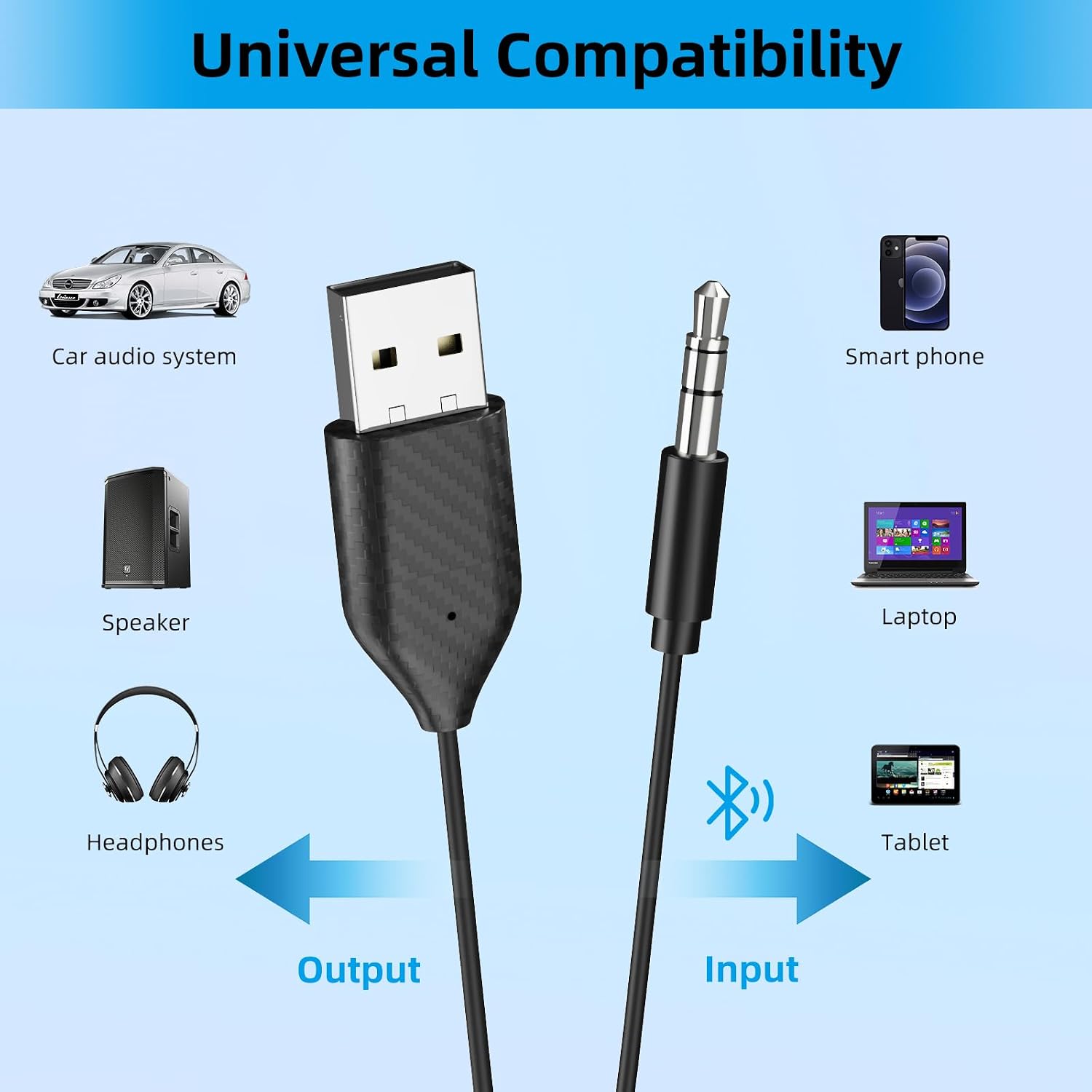
Image: A diagram illustrating the universal compatibility of the ZIOCOM Bluetooth Aux Adapter. It shows the adapter receiving input from smartphones, laptops, and tablets via Bluetooth, and providing output to car audio systems, wired speakers, and headphones via the 3.5mm AUX connection.
Key Features:
- Bluetooth 5.2: Provides stable, faster signal transmission and high-quality audio.
- Built-in Microphone: Enables hands-free calling.
- USB Powered: No internal battery, powers directly from a USB port.
- Automatic Reconnection: Automatically connects to the last paired device when powered on.
- Plug and Play: Simple setup process.
Setup Instructions
Follow these steps to set up your ZIOCOM Bluetooth Aux Adapter:
- Step 1: Connect the Adapter
Locate an available USB port and a 3.5mm AUX input in your car or home audio system. Plug the USB end of the ZIOCOM adapter into the USB port for power, and the 3.5mm audio jack into the AUX input.
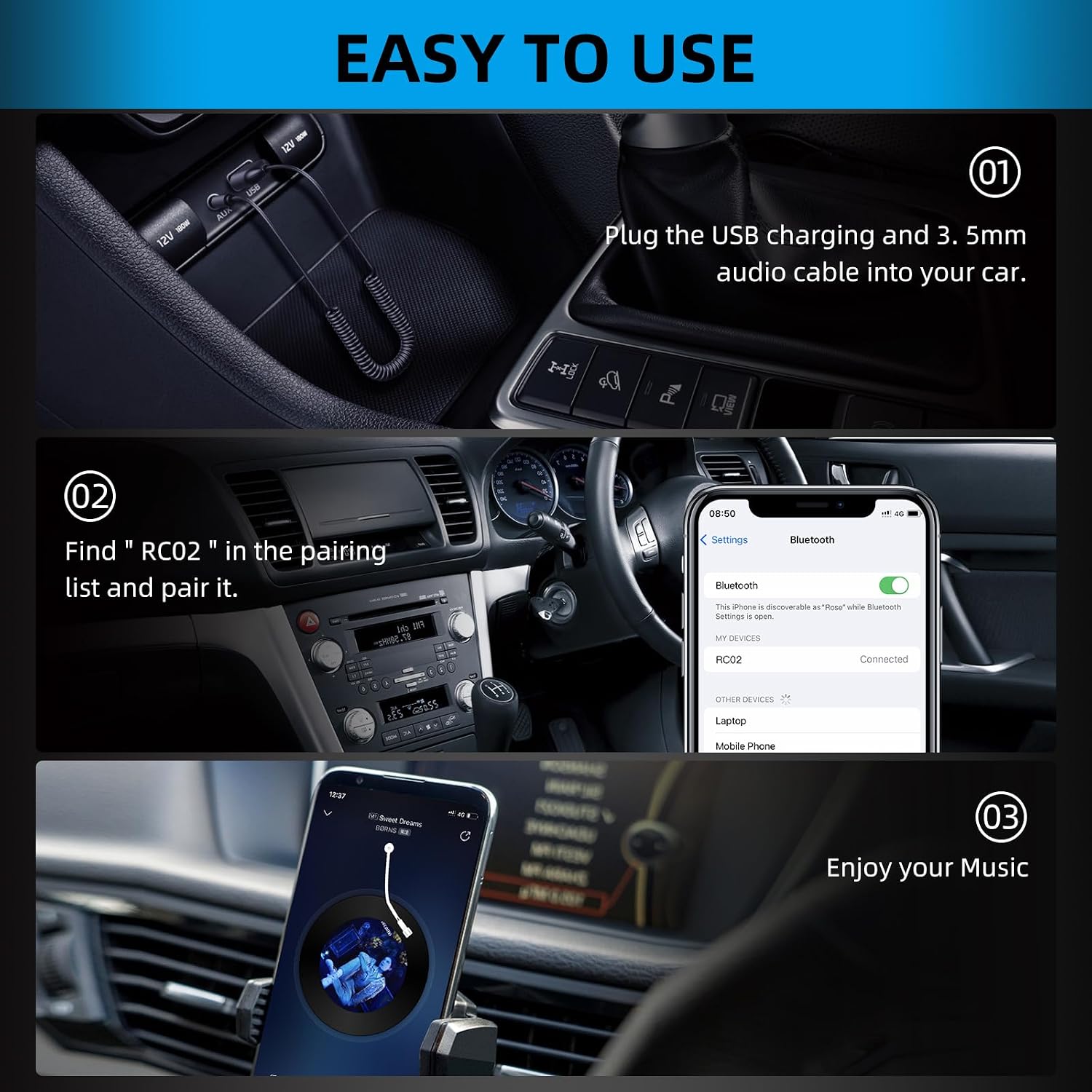
Image: A three-panel image demonstrating the setup process. The first panel shows the adapter's USB and 3.5mm jacks being plugged into a car's console. The second panel shows a smartphone's Bluetooth settings screen with "RC02" selected for pairing. The third panel shows a smartphone playing music, indicating successful connection.
Ensure your car stereo or home speaker system is set to the AUX input mode.
- Step 2: Pair with Your Device
On your smartphone, tablet, or other Bluetooth-enabled device, go to the Bluetooth settings. Turn on Bluetooth and search for available devices. You should see "RC02" in the list. Select "RC02" to pair.
Once paired, your device will show "Connected" next to "RC02".
- Step 3: Enjoy Your Audio
After successful pairing, you can now play music or make calls through your car stereo or home speakers. The audio will be transmitted wirelessly from your device to the adapter.

Image: A person driving a car, with a smartphone mounted on the dashboard displaying music playback. Icons below indicate "Hands-free Calling," "Voice Navigation," and "Enjoy Music," demonstrating the adapter's functionalities in a vehicle.
Operating Instructions
Music Streaming:
- Once paired, open your preferred music application on your device.
- Play music as usual. The audio will be routed through the ZIOCOM adapter to your connected speakers.
- Control playback (play/pause, skip tracks, volume) directly from your paired device.
Hands-Free Calling:
- When a call comes in, the audio will automatically switch from music to the call.
- Answer calls directly from your phone. The built-in microphone on the adapter will pick up your voice.
- End calls from your phone. Music playback will resume automatically if it was playing before the call.

Image: A person driving, with a smartphone mounted on the dashboard displaying an incoming call. A speech bubble indicates a conversation, emphasizing the hands-free calling feature for safer driving.
Maintenance
- Cleaning: Use a soft, dry cloth to clean the adapter. Do not use liquid cleaners or aerosols.
- Storage: When not in use, store the adapter in a cool, dry place away from direct sunlight and extreme temperatures.
- Cable Care: Avoid sharp bends or kinks in the cable to prevent internal damage.
Troubleshooting
| Problem | Possible Cause | Solution |
|---|---|---|
| No power/Adapter not turning on | USB port not providing power; loose connection. | Ensure the USB port is active. Try a different USB port or a USB wall adapter. Check that the USB plug is fully inserted. |
| Cannot pair with device | Bluetooth not enabled on device; adapter not in pairing mode; interference. | Ensure Bluetooth is enabled on your device. Disconnect from other Bluetooth devices. Restart both the adapter (by unplugging/replugging) and your device. Move closer to the adapter. |
| No audio output | AUX input not selected; volume too low; loose 3.5mm connection. | Ensure your car stereo/speaker is set to AUX input. Increase volume on both your device and the stereo/speaker. Check that the 3.5mm jack is fully inserted. |
| Poor audio quality/static | Interference; device too far; low quality audio source. | Move your device closer to the adapter. Avoid placing the adapter near strong electromagnetic sources. Try a different audio source. |
| Hands-free calling not working | Microphone blocked; phone settings. | Ensure the microphone on the adapter is not obstructed. Check your phone's call audio routing settings to ensure it's set to Bluetooth. |
Specifications
| Feature | Detail |
|---|---|
| Model Number | RC02 |
| Bluetooth Version | 5.2 |
| Connectivity Technology | USB, AUX (3.5mm) |
| Power Source | USB Powered |
| Special Feature | Built-In Microphone |
| Product Dimensions | 3.15 x 3.15 x 1.06 inches |
| Item Weight | 1.06 ounces |
| Color | Black |

Image: A close-up of a microchip with "5.2 Bluetooth" prominently displayed, illustrating the advanced Bluetooth 5.2 technology used in the adapter. Icons below represent "Fast transfer speed," "High sound quality," and "Stable signal transmission."
Warranty and Support
ZIOCOM products come with a standard manufacturer's warranty. For specific warranty details and duration, please refer to the product packaging or contact ZIOCOM customer service.
If you encounter any issues or have questions regarding your ZIOCOM Bluetooth Aux Adapter, please contact our customer support team:
- Customer Service: Refer to the contact information provided on the ZIOCOM official website or product packaging.
- Online Support: Visit the ZIOCOM Store on Amazon for FAQs and additional product information.