
1. Introduction
Thank you for choosing the Philips Hue Smart 75W A19 LED Bulb. This smart light is designed to brighten your spaces with a soft warm white light, equivalent to a traditional 75-Watt bulb. It offers advanced control features through the Philips Hue App and compatibility with popular voice assistants like Alexa, Google Assistant, and Apple HomeKit.
This manual provides essential information for the safe and efficient use of your Philips Hue Smart Bulb. Please read it thoroughly before installation and operation.

Image: Philips Hue Smart 75W A19 LED Bulb 2-pack packaging and bulbs.
2. Safety Information
Always follow basic safety precautions when using electrical products to reduce the risk of fire, electric shock, and personal injury.
- Indoor Use Only: This product is designed for indoor use. While some features may suggest outdoor compatibility, the bulb itself is rated for indoor environments.
- Proper Installation: Ensure the bulb is screwed securely into a standard E26 socket. Do not overtighten.
- Power Off Before Installation: Always turn off the power to the fixture before installing or removing the bulb.
- Not for Enclosed Fixtures: Avoid using in fully enclosed fixtures as this can trap heat and shorten the bulb's lifespan.
- Dimmer Compatibility: This bulb is dimmable via the Philips Hue app or compatible smart home systems. Do not use with standard incandescent dimmers, as this may cause damage or improper operation.
- Cleaning: Clean the bulb only when it is cool and disconnected from power. Use a soft, dry cloth.
- Disposal: Dispose of the bulb according to local regulations for electronic waste.
For detailed safety guidelines, please refer to the official Safety Information PDF provided by Philips Hue: Safety Information (PDF).
3. Setup
3.1 Initial Installation
- Unpack your Philips Hue Smart A19 LED Bulb.
- Ensure the power to the light fixture is turned off at the switch.
- Carefully screw the bulb into a standard E26 light socket.
- Turn the power back on at the switch. The bulb should illuminate.
3.2 Connecting Your Smart Bulb
There are two primary ways to connect and control your Philips Hue Smart Bulb:

Image: Two easy ways to set up Philips Hue bulbs: via Hue Bluetooth app or a voice assistant.
Option 1: Use the Philips Hue Bluetooth App (No Bridge Required for Basic Control)
- Download the Philips Hue Bluetooth app from the App Store (iOS) or Google Play Store (Android).
- Open the app and follow the on-screen instructions to search for and connect to your new bulb.
- This method allows for control of up to 10 lights in one room.

Image: Download the Philips Hue app on a smartphone.
Option 2: Connect with a Philips Hue Bridge (Recommended for Full Features)
For full home control, automations, control from anywhere, and a more stable connection, a Philips Hue Bridge (sold separately) is recommended.
- Ensure your Philips Hue Bridge is set up and connected to your Wi-Fi router.
- Open the Philips Hue app (not the Bluetooth app, if you have both).
- Navigate to Settings > Lights > Add light and follow the instructions to discover your new bulb.
- The Hue Bridge enables features like multi-room control, smart switches, motion sensors, routines, timers, and away-from-home control.

Image: Diagram showing a Philips Hue Bridge connected to a home network, enabling full home control of lights.
3.3 Voice Assistant Setup
Your Philips Hue bulb works seamlessly with Alexa, Google Assistant, and Apple HomeKit.
- Ensure your voice assistant device (e.g., Amazon Echo, Google Home) is set up and connected to the same network as your Philips Hue system (or within Bluetooth range if using Bluetooth control).
- Open the Alexa, Google Home, or Apple Home app.
- Follow the app's instructions to link your Philips Hue account or discover new devices.
- Once linked, you can use voice commands like "Alexa, turn on the lights" or "Hey Google, dim the living room light."

Image: A couple interacting with a smart speaker to control Philips Hue lights with voice commands.
4. Operating Instructions
4.1 Basic Control with Philips Hue App
The Philips Hue app provides comprehensive control over your smart bulbs.
- On/Off: Tap the light icon to turn the bulb on or off.
- Dimming: Use the brightness slider to adjust the light intensity from 1% to 100%.
- Scenes: Select from pre-set scenes like 'Bright', 'Relax', 'Concentrate', or 'Read' to instantly change the ambiance. You can also create custom scenes.
- Routines & Automations: Set schedules for your lights to turn on/off, dim, or change scenes at specific times or based on events (e.g., sunrise/sunset).
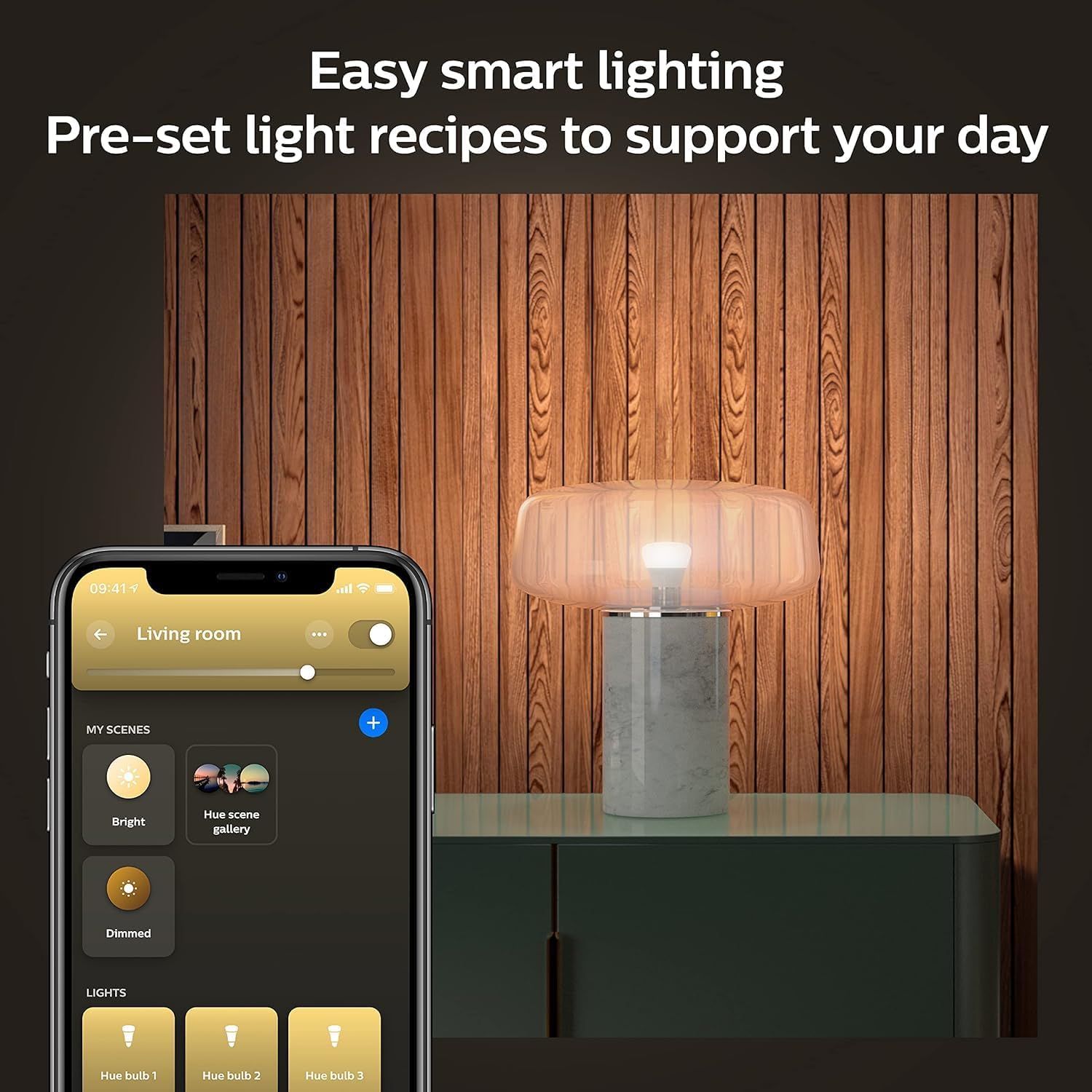
Image: Smartphone screen showing Philips Hue app with various light scenes and controls.

Image: Woman in a kitchen with Philips Hue lights demonstrating warm-to-cool white light settings.
4.2 Voice Control
Once set up with your preferred voice assistant, you can control your lights hands-free.
- "Alexa, turn on the [room name] lights."
- "Hey Google, dim the [light name] to 50%."
- "Siri, set the [room name] to Relax scene."
4.3 Creating Atmosphere
The Philips Hue Smart Bulb allows you to tailor the lighting to any occasion or mood.
- Use the soft warm white light for a cozy and inviting ambiance in living rooms or bedrooms.
- Adjust brightness to suit activities, from bright task lighting to subtle background illumination.
- Integrate with entertainment for immersive lighting experiences (requires Hue Bridge and compatible apps/devices).

Image: A living room illuminated with soft, warm Philips Hue lighting.
5. Maintenance
Philips Hue LED bulbs are designed for long-lasting performance with minimal maintenance.
- Cleaning: To clean the bulb, ensure the power is off and the bulb is cool to the touch. Wipe gently with a soft, dry, lint-free cloth. Do not use liquid or abrasive cleaners.
- Handling: Handle the bulb by its base, not the glass or plastic dome, to avoid damage.
- Storage: If storing the bulb, keep it in its original packaging or a protective container in a cool, dry place.
6. Troubleshooting
If you encounter issues with your Philips Hue Smart Bulb, try the following steps:
| Problem | Possible Cause | Solution |
|---|---|---|
| Bulb does not turn on. | No power to the fixture, bulb not screwed in properly, bulb faulty. | Check light switch and circuit breaker. Ensure bulb is securely screwed in. Test bulb in another working fixture. |
| Bulb is unresponsive to app/voice control. | Bluetooth range issue, Hue Bridge connection issue, app glitch, network problem. | Move closer to the bulb (Bluetooth). Check Hue Bridge power and network connection. Restart the Hue app. Restart your router. |
| Bulb flickers or dims unexpectedly. | Incompatible dimmer switch, unstable power supply, faulty bulb. | Ensure you are not using a traditional dimmer switch. Check power supply stability. If problem persists, bulb may be faulty. |
| Cannot connect new bulb to Hue system. | Bulb not in pairing mode, interference, app issue. | Ensure bulb is powered on. Try resetting the bulb (turn off/on 5 times). Reduce interference from other devices. Restart app and try again. |
For further assistance, visit the Philips Hue support website or consult the full user manual PDF: User Manual (PDF).
7. Specifications
| Feature | Detail |
|---|---|
| Brand | Philips Hue |
| Model Name | Philips Hue A19 |
| Item Model Number | 563049 |
| Light Type | LED |
| Wattage | 75 watts (equivalent) |
| Brightness | 1100 Lumen |
| Color Temperature | 2700 Kelvin (Soft Warm White) |
| Bulb Shape Size | A19 |
| Bulb Base | E26 |
| Voltage | 110V |
| Control Method | App, Remote, Touch, Voice |
| Indoor/Outdoor Usage | Indoor |
| Product Dimensions | 2.4"W x 4.4"H |
| Item Weight | 8.1 ounces |
| Material | Synthetic Polymer (PMMA) |
| UPC | 046677563042 |

Image: Dimensions of the Philips Hue A19 bulb.
8. Warranty & Support
8.1 Warranty Information
The Philips Hue Smart 75W A19 LED Bulb comes with a 2-year manufacturer's warranty. This warranty covers defects in materials and workmanship under normal use. Please retain your proof of purchase for warranty claims.
8.2 Customer Support
For technical support, warranty claims, or additional information, please visit the official Philips Hue support website or contact their customer service. You can also refer to the comprehensive user manual PDF for detailed instructions and FAQs.
- Official Philips Hue Store: Philips Hue Store on Amazon
- User Manual (PDF): Download PDF


