
Geemarc CL8360
Geemarc CL8360 Amplified Mobile Phone User Manual
Model: CL8360
Introduction
The Geemarc CL8360 is an amplified mobile phone designed for ease of use, particularly for seniors. It features enhanced volume, large buttons, and an emergency SOS function to ensure reliable communication.

Image: The Geemarc CL8360 amplified mobile phone, highlighting its key features.
Key Features:
- Amplified Volume: Up to +35dB with Boost function for clear calls.
- Hearing Aid Compatible: Designed for use with hearing aids in T-position.
- Large Buttons: Facilitates easy dialing and navigation.
- SOS Button: For emergency calls and messages to pre-set contacts.
- Camera: Integrated camera for capturing photos.
- Bluetooth Connectivity: For connecting to wireless accessories.
- Flashlight: Built-in torch for convenience.

Image: An individual using the Geemarc CL8360 phone, demonstrating its hearing aid compatibility.
Setup Guide
1. Installing the SIM Card and Battery
Before using your phone, you must install a SIM card and the battery.
- Remove the back cover of the phone.
- Insert your SIM card into the designated slot, ensuring correct orientation.
- Insert the battery, aligning the contacts.
- Replace the back cover securely.
2. Charging the Phone
It is recommended to fully charge the phone before first use.
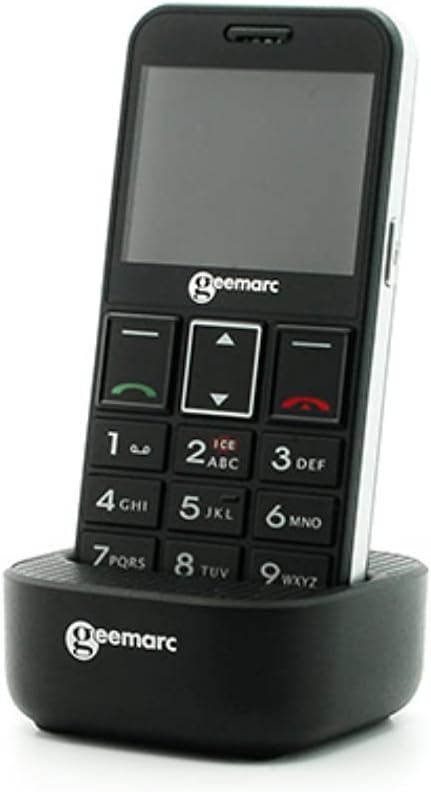
Image: The Geemarc CL8360 phone placed in its charging dock.
- Connect the charging cable to the charging dock.
- Plug the adapter into a power outlet.
- Place the phone firmly into the charging dock. The charging indicator on the phone will illuminate.
- Allow the phone to charge until the battery icon shows full.
3. Powering On/Off
- To power on: Press and hold the Power/End Call button (red button) until the screen lights up.
- To power off: Press and hold the Power/End Call button until the power off option appears, then confirm.
Operating Instructions
Making and Receiving Calls
- To make a call: Dial the number using the large keypad buttons and press the Call button (green button).
- To answer a call: Press the Call button (green button) when the phone rings.
- To end a call: Press the Power/End Call button (red button).
Using the SOS Button
The SOS button is located on the back of the phone and is designed for emergencies.

Image: A hand pressing the red SOS button located on the back of the phone.
- Setting up SOS contacts: Access the SOS settings in the phone's menu to add emergency contact numbers. You can also record an emergency voice message or text.
- Activating SOS: In an emergency, press and hold the SOS button for a few seconds. The phone will automatically call and send an emergency message to your pre-set contacts.
Phonebook and Photo Contacts
Store your important contacts in the phonebook for quick access. The phone supports photo contacts for visual identification.

Image: The phone display showing "Mémoires photo" (Photo Memories) with contact images.
- Navigate to the "Contacts" or "Phonebook" menu.
- Add new contacts with names and numbers.
- Assign photos to contacts for easier recognition.
Messages
Send and receive text messages (SMS).

Image: The phone in its charging dock, with the screen showing the "Messages" menu and an envelope icon.
- Access the "Messages" menu to compose new messages or read received ones.
- Use the keypad to type your message.
Camera and Flashlight
- Camera: Access the camera function from the main menu to take photos.
- Flashlight: Activate the built-in flashlight from the quick access menu or settings for illumination.
Bluetooth Connectivity
Connect your phone to other Bluetooth-enabled devices like headsets or car kits.
- Go to the "Settings" menu and select "Bluetooth".
- Turn Bluetooth on and search for available devices.
- Select the device you wish to pair with and follow the on-screen prompts.
Maintenance
Cleaning Your Phone
- Use a soft, dry cloth to clean the phone's surface.
- Avoid using liquid cleaners or abrasive materials, as they may damage the device.
Battery Care
- Do not expose the battery to extreme temperatures.
- Avoid fully discharging the battery frequently to prolong its lifespan.
- If the phone will not be used for an extended period, charge it partially and store it in a cool, dry place.
Troubleshooting
If you encounter issues with your Geemarc CL8360, refer to the following common problems and solutions:
| Problem | Possible Solution |
|---|---|
| Phone does not turn on | Ensure the battery is correctly installed and fully charged. Press and hold the Power button for several seconds. |
| Cannot make or receive calls | Check if the SIM card is properly inserted and activated. Verify network signal strength. Contact your service provider if necessary. |
| Poor call quality | Move to an area with better network coverage. Ensure the volume is adjusted correctly, and the Boost function is enabled if needed. |
| SOS button not working | Verify that emergency contacts are correctly set up in the SOS settings. Ensure the phone has network coverage. |
| Battery drains quickly | Reduce screen brightness, close unused applications, and disable Bluetooth when not in use. Ensure the battery is not old or damaged. |
If the problem persists after trying these solutions, please contact customer support.
Specifications
| Feature | Detail |
|---|---|
| Brand | Geemarc |
| Model Name | CL8360 |
| Color | Black |
| Wireless Carrier | Unlocked |
| Connectivity Technology | Bluetooth |
| Human Interface Input | Buttons |
| Amplified Volume | Up to +35dB with Boost function |
| Hearing Aid Compatibility | Yes (T-position) |
| ASIN | B095KRKCX7 |
| First Available Date | May 21, 2021 |
Warranty Information
The Geemarc CL8360 mobile phone comes with a 2-year warranty from the date of purchase. If you encounter any product issues within this period, a repair or replacement will be offered. Please retain your proof of purchase for warranty claims.
Customer Support
For further assistance, technical support, or warranty claims, please contact your retailer or the Geemarc customer service department. Refer to the contact information provided with your product packaging or visit the official Geemarc website.
Related documentsCL8360


Ask a question about this manual
Ask about setup, troubleshooting, compatibility, parts, safety, or missing instructions. Manuals+ will review the question and use this page’s manual context to help answer it.