
Introduction
This manual provides detailed instructions for the operation, setup, and maintenance of your BOMGE 06D 6-Channel Audio Sound Mixer. Please read this manual thoroughly before using the device to ensure proper functionality and safety.
Product Overview
The BOMGE 06D is a professional digital DJ mixing console designed for live streaming, karaoke, and stereo recording. It features multiple input options, a built-in DSP effects processor, Bluetooth connectivity, and USB recording/playback capabilities.

Figure 1: Front view of the BOMGE 06D 6-Channel Audio Sound Mixer.

Figure 2: Detailed diagram of the BOMGE 06D mixer's controls and input/output ports.
Setup
Power Connection
Connect the mixer to a 5V power source using the provided Type-C USB cable. This can be a power bank, computer USB port, or a standard USB power adapter.
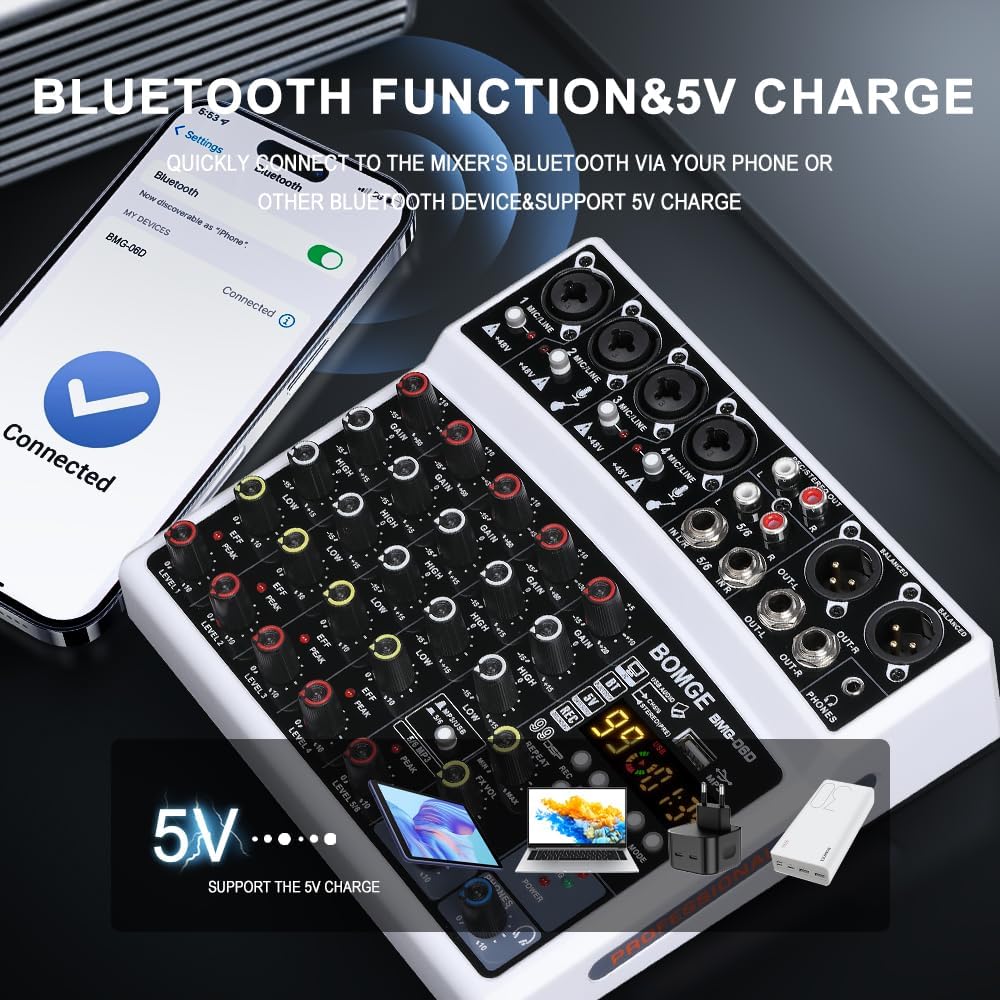
Figure 3: Connecting the mixer to a 5V power source.
Input Connections
Microphone and Instrument Inputs (Channels 1-4)
The mixer features 4 XLR/LINE combo jacks for microphones and instruments (e.g., guitar, keyboard, drums). Each channel has independent 48V phantom power, which can be activated for condenser microphones.
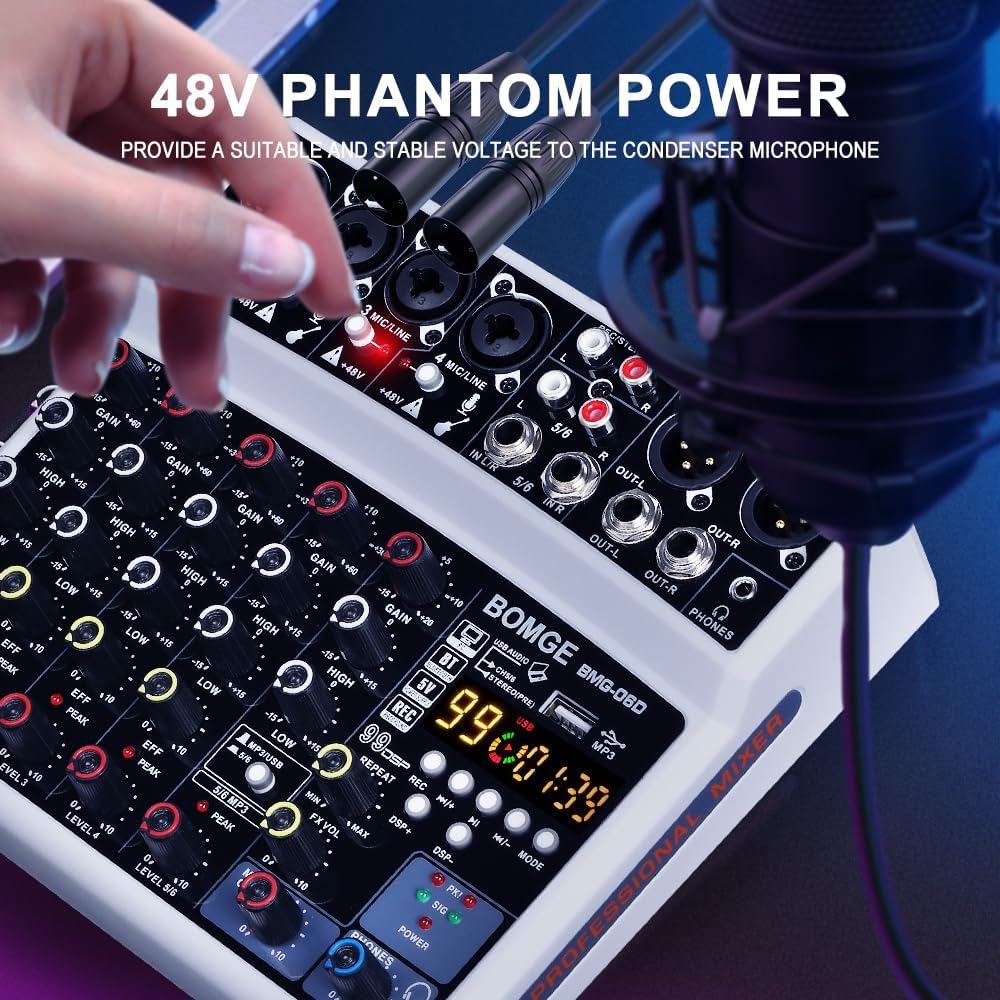
Figure 4: Connecting microphones using 48V phantom power.
Stereo Inputs (Channels 5/6)
Connect stereo audio sources using the 1/4'' jacks or RCA inputs for channels 5/6.
Output Connections
The mixer provides multiple output options: 1/4'' Main and XLR balanced outputs, and RCA stereo output. A 3.5mm AUX output is available for headphone monitoring.
Operating Instructions
Basic Mixing Controls
- GAIN Knob: Adjusts the input sensitivity for each channel.
- HIGH/LOW EQ: Adjusts the treble and bass frequencies for each channel.
- EFF Knob: Controls the amount of effect applied to each channel.
- LEVEL Knob: Adjusts the output volume for each channel.
- MAIN OUT Volume: Controls the overall main output volume.
- PHONES Volume: Adjusts the headphone monitoring volume.
DSP Effects Processor
The BOMGE 06D features a built-in 99 DSP effects processor. Use the DSP selection knob to cycle through various effects such as Reverb, Echo, Chorus, Flange, Tremolo, Wah-Wah, Radio voice, Pitch shifter, and Multi FX.

Figure 5: Overview of the 99 built-in DSP effects and selection method.
MP3 Module and USB/Bluetooth Functionality
The integrated MP3 module allows for playback of audio from a U disk or computer. It also supports recording directly to a U disk or connected computer.
Bluetooth Streaming
Activate Bluetooth mode on the mixer to wirelessly stream audio from your smartphone, tablet, or other Bluetooth-enabled devices. The wireless range is approximately 15 feet.
Figure 6: Connecting to the mixer via Bluetooth.
PC/USB Recording and Playback
Connect the mixer to your PC via USB to use it as a soundcard for recording and playback. Use the PC/MP3 switch button to toggle between modes.

Figure 7: USB connection for computer recording and U disk playback.
Video Demonstrations
The following videos provide visual demonstrations of key features and operations.
BOMGE 06D Audio Mixer 99 DSP
Video 1: A demonstration of the BOMGE 06D audio mixer's 99 DSP effects.
BOMGE 6 Channel DJ Audio Mixer
Video 2: An overview of the BOMGE 6-channel DJ audio mixer's features and usage scenarios, including audio input, mixing, Bluetooth connection, and PC recording.
Specifications
| Feature | Detail |
|---|---|
| Model Number | 06D |
| Number of Channels | 6 |
| Item Weight | 1.21 pounds (550 Grams) |
| Product Dimensions | 10.83 x 9.69 x 2.76 inches (7.28"D x 8.46"W x 1.69"H) |
| Color | White |
| Material Type | Plastic |
| Compatible Devices | PC, Android, iPhone, iPod |
| Connector Type | RCA, 1/4", XLR, 6.35MM |
| Hardware Interface | Bluetooth, USB, Headphone, USB 3.0 |
| Power Source | Corded Electric |
| Voltage | 5 Volts (AC) |
| Wattage | 2.2 watts |
| DSP Effects | 99 built-in effects |
Troubleshooting
No Sound Output
- Check all cable connections (inputs, outputs, power).
- Ensure all volume knobs (GAIN, LEVEL, MAIN OUT, PHONES) are turned up appropriately.
- Verify that the correct input source is selected (e.g., PC/MP3 switch).
- If using phantom power, ensure it is activated for condenser microphones.
Bluetooth Connection Issues
- Ensure the mixer is in Bluetooth mode.
- Check that Bluetooth is enabled on your device and it is within the 15ft range.
- Forget the device on your phone/tablet and try pairing again.
USB Recording/Playback Not Working
- Ensure the mixer is connected to the computer via USB and the PC/MP3 switch is set to PC.
- Verify that the mixer is selected as the audio input/output device in your computer's sound settings or recording software.
- If using a U disk, ensure it is properly formatted and contains compatible audio files.
Safety Information
- Do not expose the device to rain or moisture.
- Avoid placing the device near heat sources or in direct sunlight.
- Do not open the casing; refer all servicing to qualified personnel.
- Use only the specified power supply.
- Keep out of reach of children.
Additional Resources
For further assistance, you may refer to the official User Guide (PDF) available here.


