
chuangquan Z-66
E-YOOSO Z-66 Mechanical Gaming Keyboard User Manual
Model: Z-66
Introduction
This manual provides comprehensive instructions for the setup, operation, maintenance, and troubleshooting of your chuangquan E-YOOSO Z-66 Mechanical Gaming Keyboard. The Z-66 is an 87-key Tenkeyless (TKL) mechanical keyboard featuring tactile brown switches, customizable LED backlighting, and a detachable Type-C USB cable for enhanced portability and convenience.

Image: The E-YOOSO Z-66 Mechanical Gaming Keyboard connected and in use, showcasing its compact design and backlighting.
Package Contents
Please verify that all items are present in the package:
- E-YOOSO Z-66 Mechanical Gaming Keyboard
- USB Cable (Type-C to Type-A)
Setup Instructions
- Connect the USB Cable: Locate the Type-C port on the back of the keyboard. Insert the Type-C end of the provided USB cable into the keyboard port.
- Connect to Computer: Insert the Type-A end of the USB cable into an available USB port on your computer.
- Driver Installation: The keyboard is plug-and-play and typically does not require additional driver installation for basic functionality on Windows 10, 8, 7, XP, and Mac operating systems.
- Placement: Position the keyboard comfortably on your desk. The keyboard features rubber holders and pads on the underside for stability.
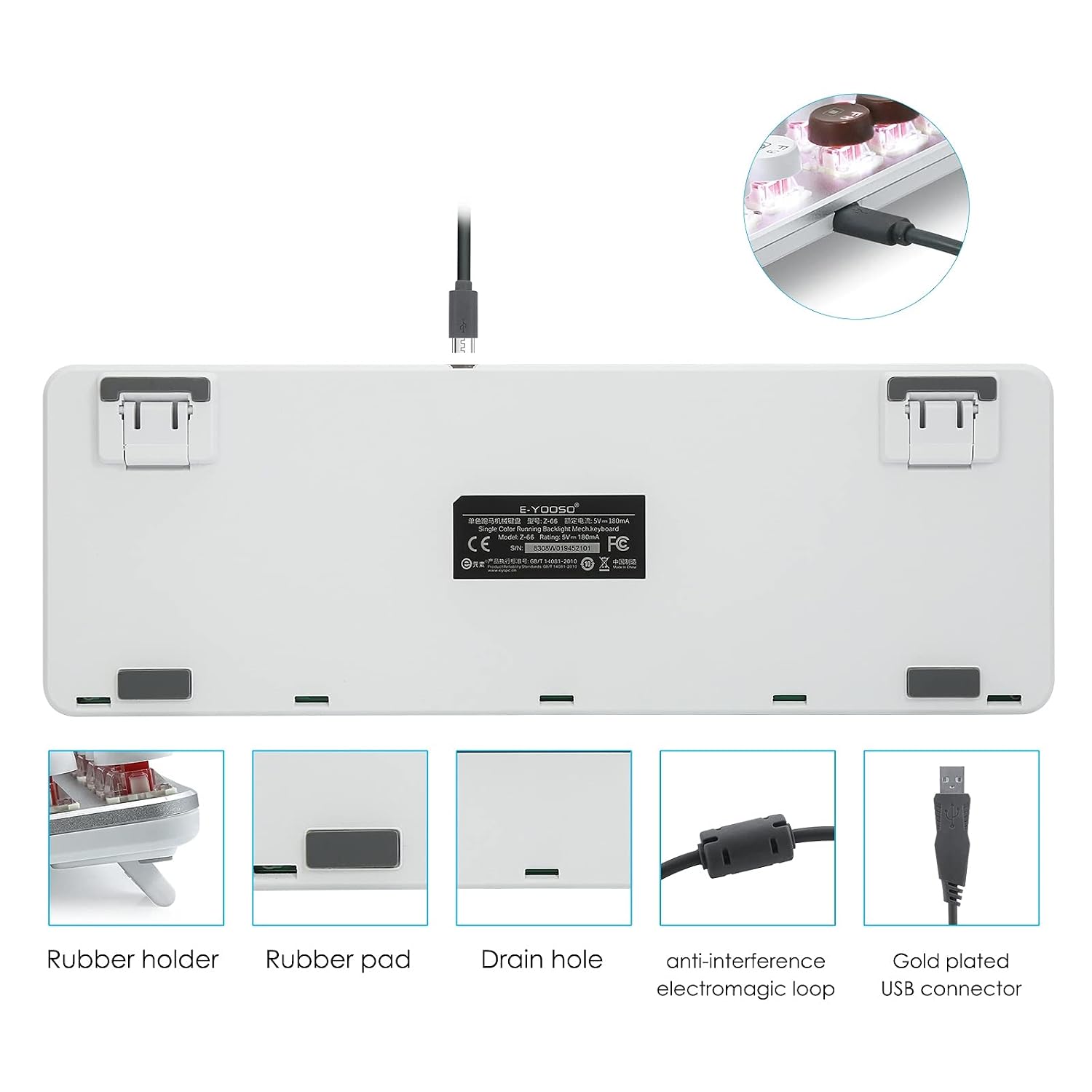
Image: The underside of the E-YOOSO Z-66 keyboard, highlighting the detachable Type-C USB connector, rubber holders, rubber pads, and drain holes for splash resistance.
Operating Instructions
Key Features
- Brown Mechanical Switches: The keyboard is equipped with brown mechanical switches, offering a tactile feedback with a slight click and a moderate actuation force. This design provides a balance between typing comfort and gaming responsiveness.
- 87-Key Anti-Ghosting: The compact 87-key layout features full anti-ghosting, ensuring that all key presses are registered accurately, even during rapid, simultaneous inputs, which is crucial for gaming and fast typing.
- Detachable Type-C Cable: The Type-C USB cable is detachable, enhancing portability and making cable management easier.

Image: A close-up view of the Outemu Brown Switches on the E-YOOSO Z-66 keyboard, illustrating their tactile feedback mechanism.
Backlight Control
The Z-66 keyboard features customizable LED backlighting with multiple modes and adjustments:
- Change Lighting Mode: Press FN + INS to cycle through 9 different lighting modes.
- Adjust Brightness: Use dedicated function key combinations (not specified in product details, typically FN + Up/Down arrow or similar) to adjust the 5 levels of brightness.
- Adjust Lighting Speed: Use dedicated function key combinations (not specified in product details, typically FN + Left/Right arrow or similar) to adjust the 5 levels of lighting speed.
- Turn Lights On/Off: Use a dedicated function key combination (not specified in product details) to toggle the backlighting on or off.

Image: The E-YOOSO Z-66 keyboard showcasing its multiple rainbow backlit modes, indicating 9 lighting modes, 5 adjustable brightness levels, 5 adjustable lighting speeds, and an on/off function.
Multimedia Keys
Access multimedia functions by pressing the FN key in combination with the F1 through F11 keys. Specific functions for each F-key are typically indicated by icons printed on the keycaps.
Maintenance
- Cleaning: The keyboard features a sweat and corrosion-resistant alloy plate surface, making it easy to clean. Use a soft, dry cloth to wipe down the keycaps and surface. For deeper cleaning, you may use a slightly damp cloth, ensuring no liquid enters the keyboard.
- Water Resistance: The keyboard has a splash-proof design with drain holes on the underside. While it offers some protection against accidental spills, it is not fully waterproof. Avoid submerging the keyboard in liquid.
- Storage: The detachable Type-C cable allows for convenient storage and transport of the keyboard.
Troubleshooting
- Keyboard Not Responding:
- Ensure the USB cable is securely connected to both the keyboard and the computer.
- Try connecting the keyboard to a different USB port on your computer.
- Test the keyboard on another computer to rule out system-specific issues.
- Keys Not Registering / Ghosting: The Z-66 features 87-key anti-ghosting, which prevents most key registration issues. If specific keys are not working, ensure no debris is lodged under the keycap.
- Backlight Not Working:
- Ensure the backlight is not turned off (refer to Backlight Control section).
- Adjust brightness levels to ensure it's not set to the lowest setting.
Specifications
| Brand | chuangquan |
| Model | Z-66 |
| Product Dimensions | 35.5 x 12.4 x 2.8 cm |
| Item Weight | 712 g |
| Operating System Compatibility | Windows, Mac |
| Hardware Interface | USB |
| Compatible Devices | PC |
| Special Features | Backlit, Ergonomic, Water Resistant |
| Connector Type | USB-C |
| Hand Orientation | Ambidextrous |
| Colour | Brown Switch |
| Date First Available | 17 July 2021 |
Warranty and Support
For warranty information or technical support, please refer to the documentation provided with your purchase or contact the retailer/manufacturer directly. Keep your proof of purchase for any warranty claims.
Ask a question about this manual
Ask about setup, troubleshooting, compatibility, parts, safety, or missing instructions. Manuals+ will review the question and use this page’s manual context to help answer it.