
1. Introduction and Overview
The Thinkcar THINKOBD 500 is a professional-grade OBD2 scanner designed to diagnose vehicle issues, read and clear diagnostic trouble codes (DTCs), and perform various emission-related tests. This tool provides essential information for maintaining vehicle health and ensuring compliance with emission standards. It is compatible with most US-based vehicles manufactured in 1996 or later, EU-based vehicles from 2000 or later, and Asia-based vehicles from 2008 or later.

Image: The Thinkcar THINKOBD 500 is compatible with a wide range of vehicles, including US-based cars from 1996 and newer, EU-based cars from 2000 and newer, and Asia-based cars from 2008 and newer. Note that it is not compatible with JODB compliant Japanese cars.
2. Product Features and Functions
The THINKOBD 500 offers a comprehensive suite of OBDII diagnostic functions to help users identify and resolve vehicle problems efficiently:
- Read Codes: Retrieves generic (P0, P2, P3, and U0) and manufacturer specific (P1, P3, and U1) codes.
- Clear Codes: Erases Diagnostic Trouble Codes (DTCs) and turns off the Check Engine Light (MIL).
- I/M Readiness: Checks the readiness of the emission monitoring systems.
- Live Data: Displays real-time data stream from the vehicle's sensors.
- Freeze Frame: Records a snapshot of the vehicle's operating conditions at the time an emission-related fault occurs.
- O2 Sensor Test: Retrieves O2 sensor monitor test results for the most recently completed tests from the vehicle’s on-board computer.
- On-Board Monitor Test: Retrieves results for emission-related powertrain components and systems that are not continuously monitored.
- EVAP System Test: Initiates a leak test for the vehicle's Evaporative Emission System.
- Vehicle Information (VIN): Displays the Vehicle Identification Number, Calibration ID, and Calibration Verification Number.
- DTC Lookup: Provides detailed descriptions of Diagnostic Trouble Codes.
- Smog Check: Assists in preparing the vehicle for emission testing.
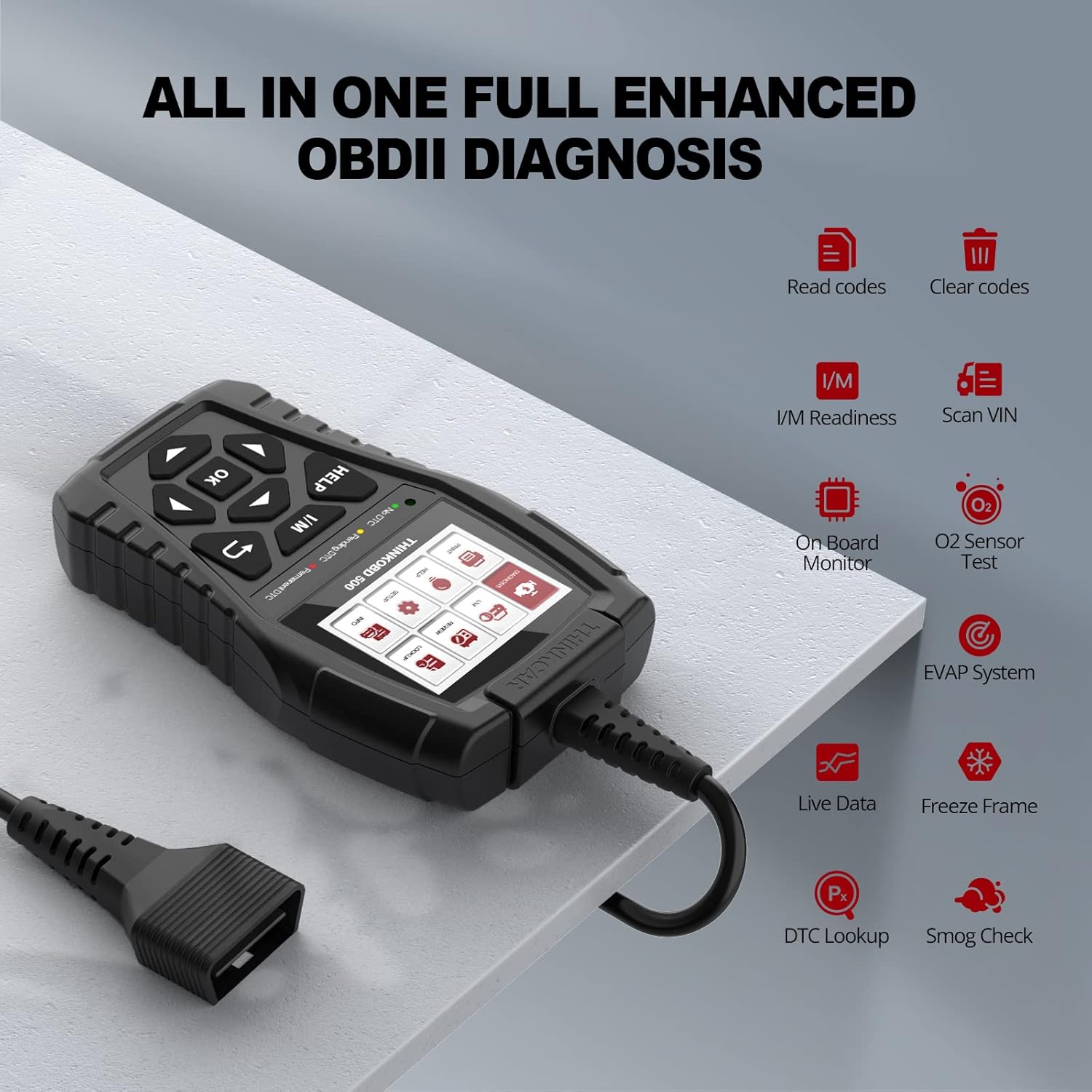
Image: The THINKOBD 500 offers a comprehensive set of OBDII diagnostic functions, including reading and clearing codes, I/M readiness, live data, O2 sensor tests, and more.

Image: This scanner helps save time and money by allowing users to easily scan DTCs, identify parts for replacement, and erase codes to turn off the Malfunction Indicator Lamp (MIL).
Video: This video provides a customer's experience review of the Thinkcar OBD2 Scanner, demonstrating its practical use in diagnosing and resolving a check engine light issue related to an evaporative emission system. It highlights the ease of use and the value of having such a tool for preliminary diagnostics.
3. Setup
Follow these steps to set up and begin using your Thinkcar THINKOBD 500 scanner:
- Locate the OBDII Port: The OBDII port is typically located under the dashboard on the driver's side of the vehicle. Refer to your vehicle's manual or search online for its exact location (often positions A to E as shown in diagrams).
- Plug In: Connect the OBDII connector from the scanner into your vehicle's OBDII port.
- Turn On Vehicle: Start your vehicle's engine. The scanner will power on automatically.
- Scanner Display System: The scanner's display system should activate within approximately 5 seconds, ready for operation.

Image: Visual guide for the easy setup of the THINKOBD 500 scanner, showing how to locate the OBDII port, turn on the vehicle, and wait for the scanner to display its system.
Software Update Process
To ensure your THINKOBD 500 has the latest vehicle coverage and features, it is recommended to update its software. The product offers lifetime free updates. The device is compatible with Windows XP, 7, 8, and 10.
- Connect to Computer: Connect one end of the included USB cable to the scanner and the other end to a USB port on your computer.
- Download Software: Visit the official Thinkcar technical support website to download the update software.
- Install Software: Decompress the downloaded file and install the software on your computer.
- Update Device: Launch the software and follow the on-screen prompts to choose either 'Print' or 'Update' function. The device should update automatically if a newer version is available. Note: The OBD 500 may already be installed with the latest version upon receipt, so an update might not be immediately necessary.
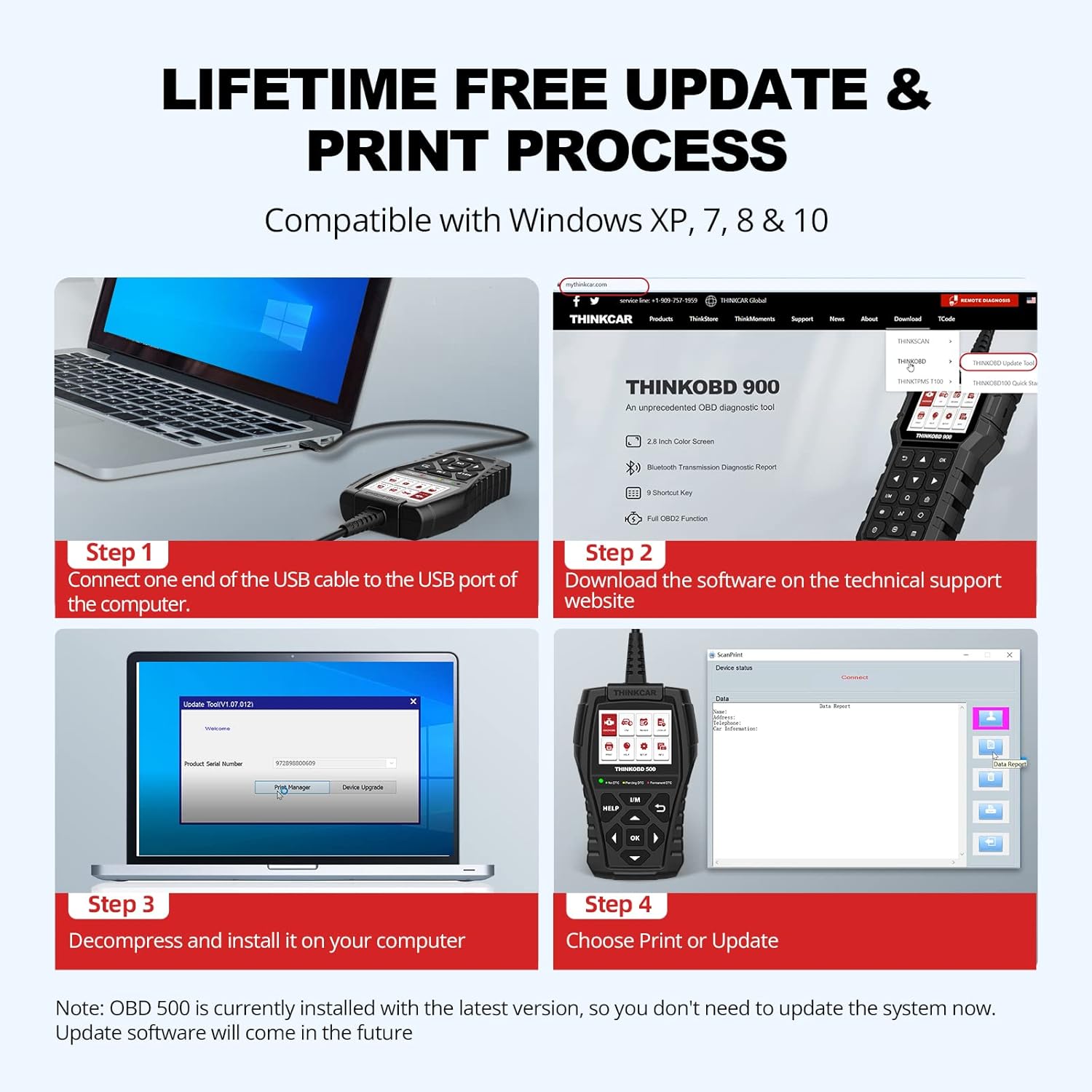
Image: This image illustrates the four-step process for updating the THINKOBD 500's software and printing data, involving connecting the device to a computer, downloading software, installing it, and then performing the update or print function.
4. Operating Instructions
The THINKOBD 500 features a user-friendly interface with a larger screen and intuitive button layout for easy navigation. The main menu provides access to various diagnostic functions:

Image: The main screen of the Thinkcar THINKOBD 500, showing the menu icons for Diagnosis, I/M, Review, Lookup, Print, Help, Setup, and Info. It also displays the 3-color LED indicators for DTC status.
Navigation and Selection
- Use the Up, Down, Left, and Right arrow buttons to navigate through menu options and data.
- Press the OK button to confirm a selection or enter a submenu.
- The I/M button provides quick access to I/M Readiness status.
- The HELP button offers on-screen assistance and definitions.
- The Return button navigates back to the previous screen.
Performing a Diagnostic Scan
- From the main menu, select Diagnosis and press OK.
- The scanner will automatically link to the vehicle's ECU and begin scanning for codes.
- Once the scan is complete, you can select options like Read Codes to view detected DTCs or I/M Readiness to check emission system status.
- To clear codes, navigate to the Clear Codes option and confirm. This will turn off the Check Engine Light.
5. Maintenance
To ensure the longevity and optimal performance of your Thinkcar THINKOBD 500 scanner, follow these maintenance guidelines:
- Keep Clean: Wipe the device with a soft, dry cloth. Avoid using abrasive cleaners or solvents.
- Proper Storage: Store the scanner in a dry, cool environment away from direct sunlight and extreme temperatures.
- Cable Care: Handle the OBDII cable carefully. Avoid bending or twisting it excessively, which can damage internal wires.
- Software Updates: Regularly check for and install software updates from the official Thinkcar website to ensure compatibility with new vehicle models and access to the latest diagnostic features. The product offers lifetime free updates.
6. Troubleshooting
If you encounter issues while using your THINKOBD 500, consider the following common troubleshooting tips:
- Scanner Not Powering On: Ensure the OBDII connector is securely plugged into the vehicle's port and the vehicle's ignition is on (or engine running). Check the vehicle's fuse for the OBDII port if the issue persists.
- "Failed to Update" Message: If the software update process repeatedly fails, the device may already have the latest available software version installed. Verify the current software version on your device against the latest version listed on the Thinkcar support website.
- Check Engine Light Remains On After Clearing Codes: This may indicate an underlying issue that needs to be addressed. Sometimes, a loose or faulty gas cap can trigger an evaporative emission system code (e.g., P0450). Ensure the gas cap is securely tightened. If the light persists, further diagnosis by a qualified mechanic may be required.
- No Communication with Vehicle: Verify that the vehicle supports the OBDII protocol (most vehicles from 1996 onwards do). Check the connection of the OBDII cable. Ensure the vehicle's battery has sufficient charge.
7. Specifications
| Specification | Value |
|---|---|
| Brand | thinkcar |
| Model Number | THINKOBD 500 |
| Item Weight | 1.06 pounds |
| Product Dimensions | 6.5 x 3.74 x 1.38 inches |
| Manufacturer | THINKCAR |
| UPC | 768297142451 |
8. Warranty and Support
For detailed warranty information and technical support, please refer to the documentation included with your Thinkcar THINKOBD 500 device or visit the official Thinkcar website. You can also find additional resources and contact information through the Thinkcar Store on Amazon.


