
PKPOWER USB Cable for Panasonic SDR Series
Contents
PKPOWER 5ft USB Cable Cord User Manual
Brand: PKPOWER | Model: USB Cable for Panasonic SDR Series
Introduction
This manual provides essential information for the proper use and care of your PKPOWER 5ft USB Cable Cord. This cable is designed to connect compatible Panasonic SDR series devices for data transfer or charging purposes, depending on the device's capabilities.
Please read this manual thoroughly before using the product to ensure optimal performance and longevity.
Product Overview

Image 1: The PKPOWER 5ft USB Cable Cord, shown coiled. This image displays the overall length and the two distinct connector types: a standard USB-A connector and a smaller, rectangular mini-USB connector.

Image 2: The PKPOWER 5ft USB Cable Cord, coiled, with an overlay indicating its weight (52.3g) and length (4.92ft / 1.5m). This provides a clear visual representation of the cable's physical characteristics.
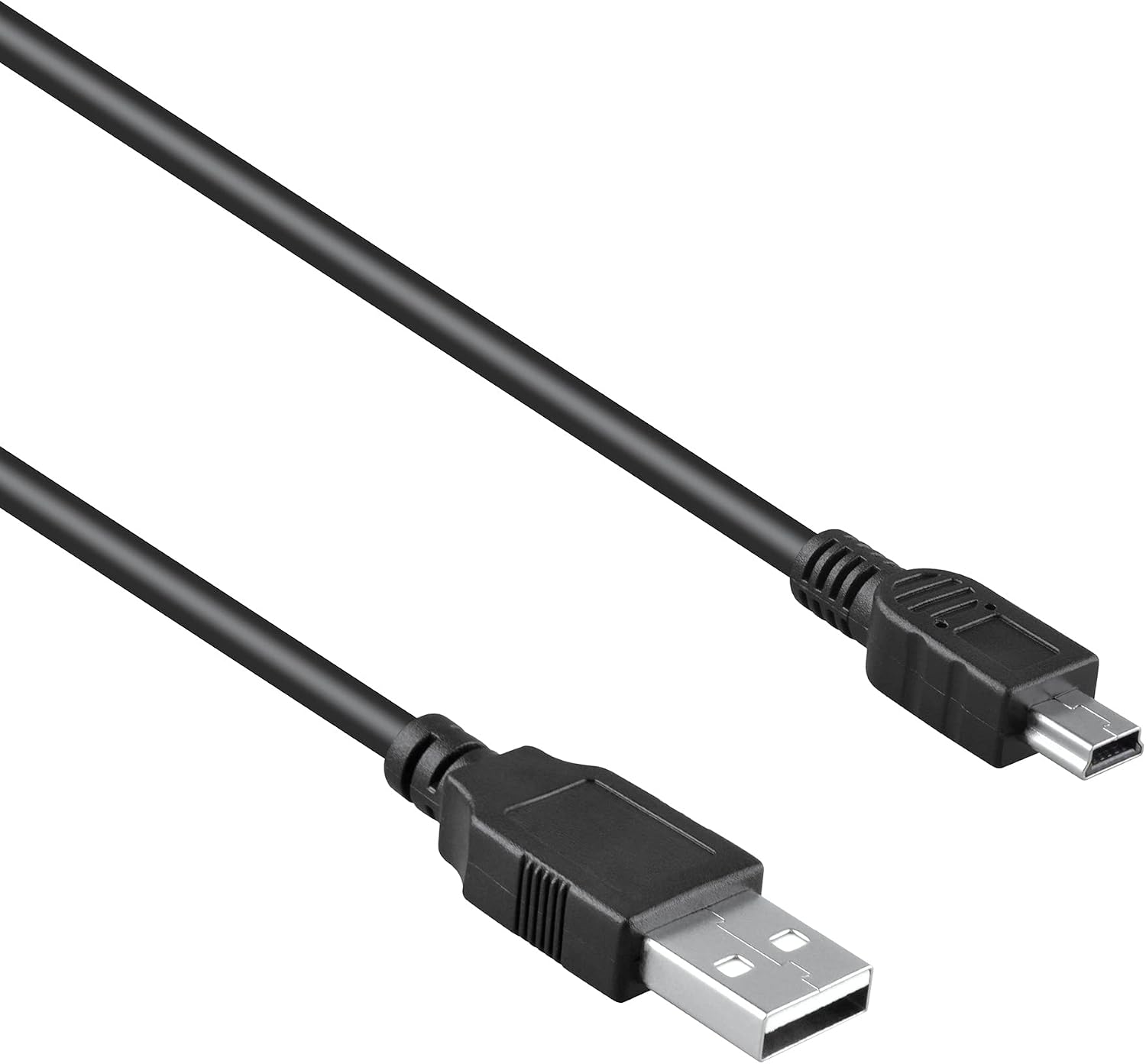
Image 3: A close-up view of the PKPOWER 5ft USB Cable Cord, showing the standard USB-A connector and the mini-USB connector. This highlights the specific types of ports the cable is designed to interface with.
Setup
The PKPOWER USB Cable is designed for simple plug-and-play operation.
- Identify the appropriate port on your Panasonic SDR series device. This will typically be a mini-USB port.
- Gently insert the smaller, rectangular connector (mini-USB) of the cable into the corresponding port on your Panasonic device. Ensure the connector is oriented correctly to avoid damage.
- Insert the larger, standard USB-A connector into a compatible USB port on your computer, laptop, or a USB wall adapter for charging (if supported by your device).
Once connected, your device should be recognized by the computer, or begin charging, depending on its function.
Operating
This USB cable facilitates two primary functions for compatible Panasonic SDR series devices:
- Data Transfer: Connect your Panasonic device to a computer to transfer photos, videos, or other data files. Ensure your computer has the necessary drivers or software installed for your specific Panasonic model.
- Charging: If your Panasonic device supports charging via USB, connect the cable to a USB power source (e.g., computer USB port, USB wall adapter) to recharge the device's battery. Refer to your device's original manual for specific charging requirements.
Always ensure a secure connection at both ends of the cable during operation to prevent interruptions.
Maintenance
To ensure the longevity and proper functioning of your PKPOWER USB Cable, follow these maintenance guidelines:
- Storage: Store the cable in a cool, dry place away from direct sunlight and extreme temperatures. Avoid tightly coiling or bending the cable sharply, as this can damage the internal wires.
- Cleaning: If the cable becomes dirty, gently wipe it with a soft, dry cloth. Do not use harsh chemicals or abrasive cleaners.
- Handling: Always grasp the connector ends when plugging or unplugging the cable. Avoid pulling on the cable itself, as this can strain the connections and lead to damage.
- Inspection: Periodically inspect the cable for any signs of wear, fraying, or damage to the connectors. Discontinue use if any damage is observed.
Troubleshooting
If you encounter issues with your PKPOWER USB Cable, consider the following troubleshooting steps:
- Device Not Recognized:
- Ensure both ends of the cable are securely connected.
- Try connecting to a different USB port on your computer.
- Restart your computer and the Panasonic device.
- Verify that your computer has the necessary drivers for your Panasonic device installed.
- Test the cable with another compatible device or try a different USB cable to isolate the issue.
- Device Not Charging:
- Confirm that your Panasonic device supports charging via USB.
- Ensure the USB power source (e.g., wall adapter, computer port) is providing sufficient power.
- Try a different USB power source.
- Check the charging indicator on your Panasonic device.
- Slow Data Transfer:
- Ensure you are using a USB 2.0 compatible port on your computer for optimal speed.
- Close other applications that might be consuming system resources.
If problems persist after attempting these steps, please refer to the Support section.
Specifications
| Feature | Detail |
|---|---|
| Brand | PKPOWER |
| Cable Type | USB 2.0 (High Speed) |
| Connector Type | USB Type-A to Mini-USB |
| Length | 5 feet (approximately 1.5 meters) |
| Weight | 3 ounces (approximately 85 grams) |
| Input Voltage (for power source) | 100-240V 50-60Hz (Standard USB power) |
| Certifications | CE / FCC / RoHS certified |
| Protection Features | OVP (Over Voltage output Protection), OCP (Over Current output Protection), SCP (Short Circuit output Protection) |
Compatibility
This PKPOWER USB Cable is compatible with various Panasonic SDR series camcorders and devices, including but not limited to:
- Panasonic SDR-H25/S
- Panasonic SDR-H21/K/S
- Panasonic SDR-S100/P/S/K
- Panasonic SDR-SW21/P/K/S
For other models, please check your device's manual for USB cable compatibility (specifically mini-USB for data transfer/charging).
Warranty and Support
Return Policy: This product is subject to a 30-day refund/replacement return policy from the date of purchase.
Customer Service: PK-Power is committed to customer satisfaction. Our friendly and reliable customer service team will respond to your inquiries within 24 hours. For support, please contact the seller directly through the platform where the purchase was made.
For more information about PKPOWER products, you may visit the official PKPOWER Store: PKPOWER Store on Amazon.
Documents and downloads
Ask a question about this manual
Ask about setup, troubleshooting, compatibility, parts, safety, or missing instructions. Manuals+ will review the question and use this page’s manual context to help answer it.